
Productivity
The Productivity workspace (Side nav → Productivity, or /productivity) turns an agent’s knowledge base into ready-to-use content. From a single toolbar you can:
- Generate a slide deck styled for a specific audience
- Produce a podcast with selectable host and expert voices
- Build an interactive mind map that you can open from the Avatar chat toolbar
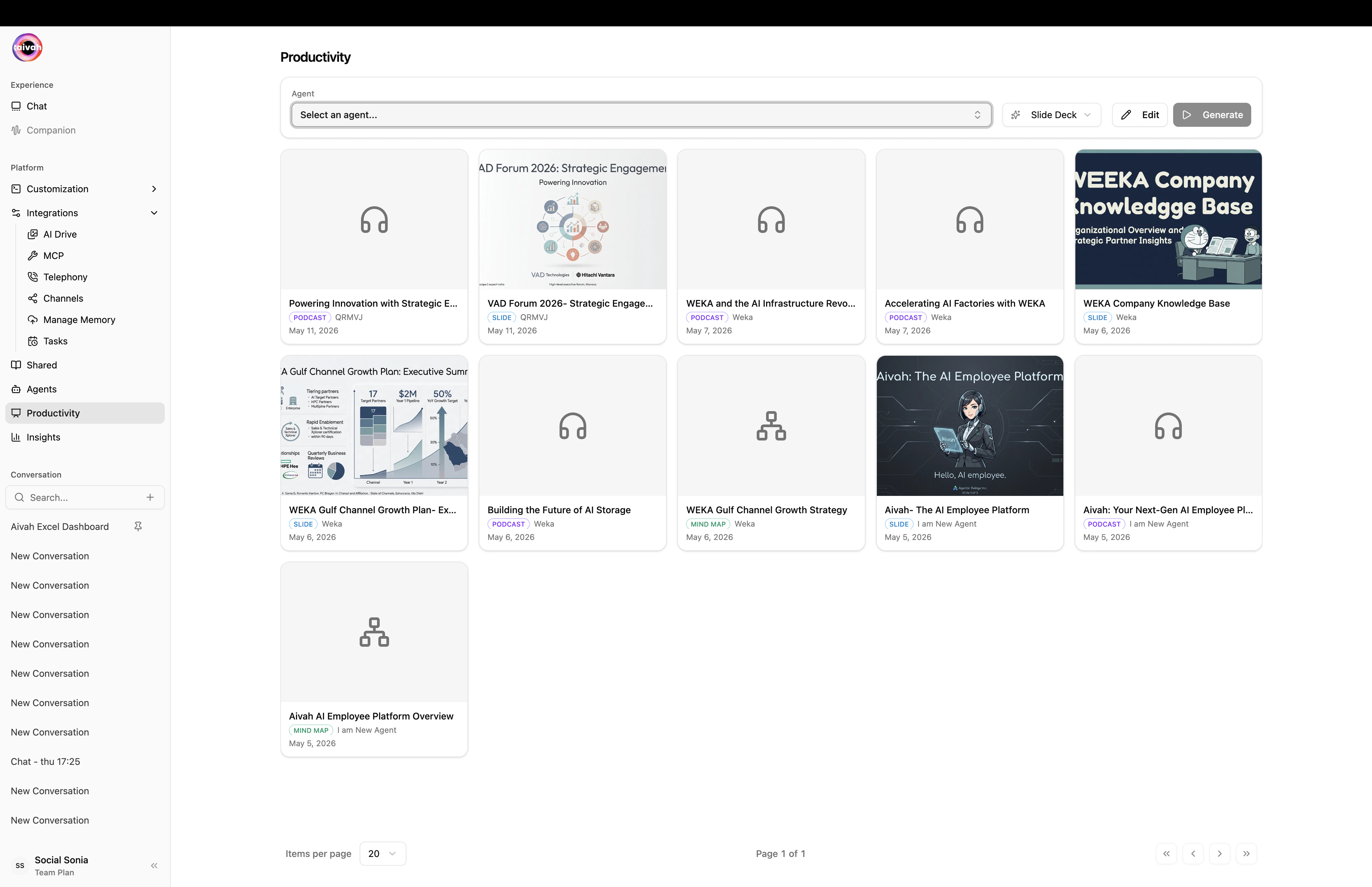
Productivity workspace – toolbar at the top, generated assets in the gallery below
Toolbar
A single bar at the top of the Productivity page exposes every control:- Agent – the source of the content. Uses infinite-scroll search to handle large agent libraries.
- Type – pick Slide deck, Podcast, or Mind map.
- Edit – opens the type-specific configuration dialog (no edit dialog is needed for mind maps).
- Generate – kicks off the job. The agent moves into a generation state and the Document Creating Banner appears in any active conversation for that agent so you can keep working.
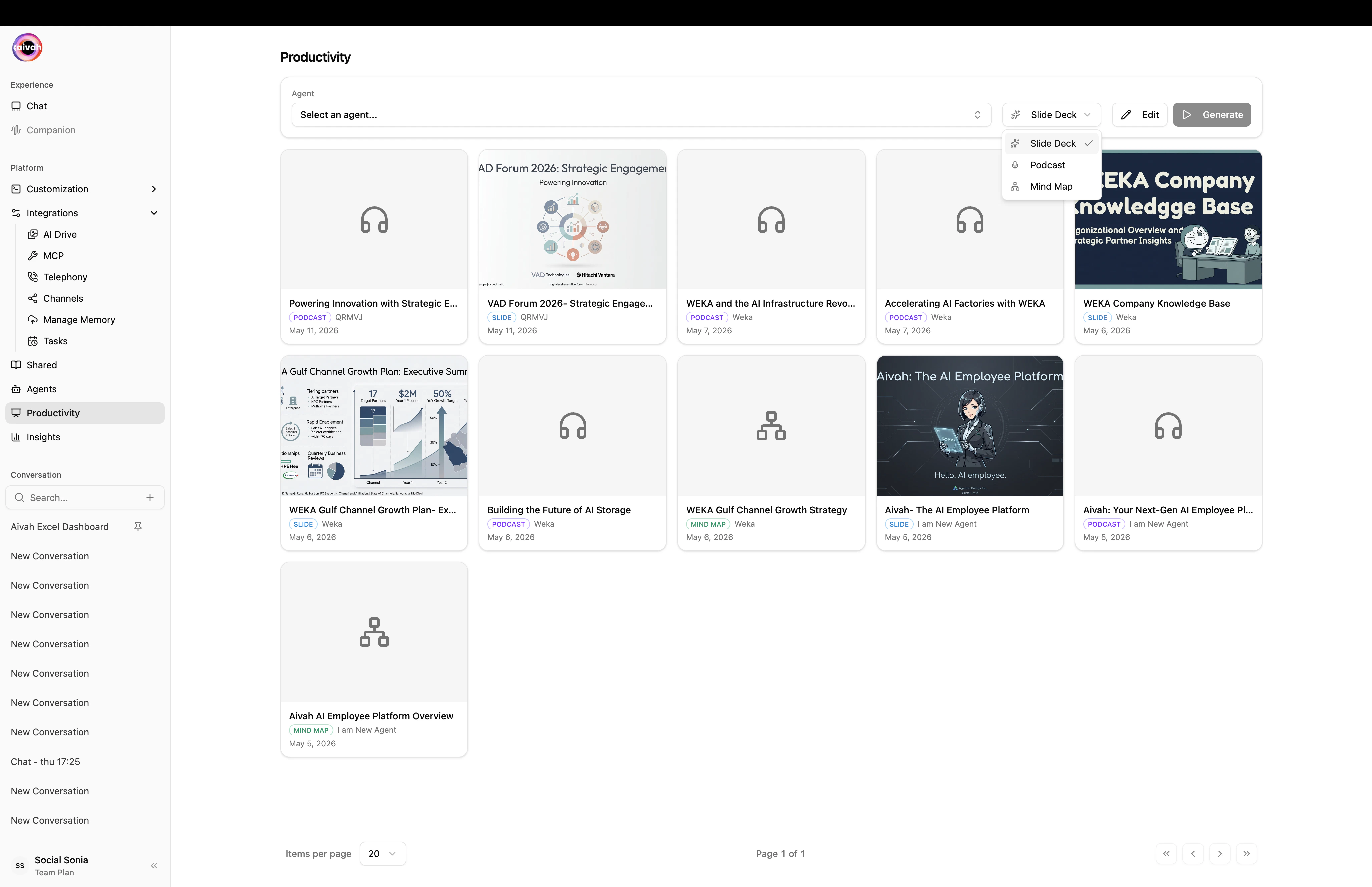
Type picker – Slide Deck / Podcast / Mind Map
Output gallery
Below the toolbar, a gallery shows the previously generated assets:- Slides appear inline as thumbnails. Click any slide to open it, download it, or push it into your active conversation.
- Podcasts and mind maps are accessible from the floating toolbar inside Avatar chat for the source agent, and from AI Drive for global browsing.
Where assets are stored
Every generated asset lands in AI Drive under the relevant tab:- Image / Video – realtime media generated from chat
- Files → Slides – generated slide decks
- Files → Document / Webresults – ingested documents and live web result snapshots
Configure & generate each type
- Slide decks – style + length controls
- Podcasts – length + host/expert voices
- Mind maps – no configuration needed
Tips
- Run productivity jobs on completed agents – the source agent must have status
completedin the Agents list for high-quality output. - Pair with the avatar – open the same agent in Avatar chat after generation to use the floating toolbar (Quiz, Mind map, Podcast player) live during a session.
- Push to active conversation – clicking a slide thumbnail can push it into your current chat as context for follow-up questions.