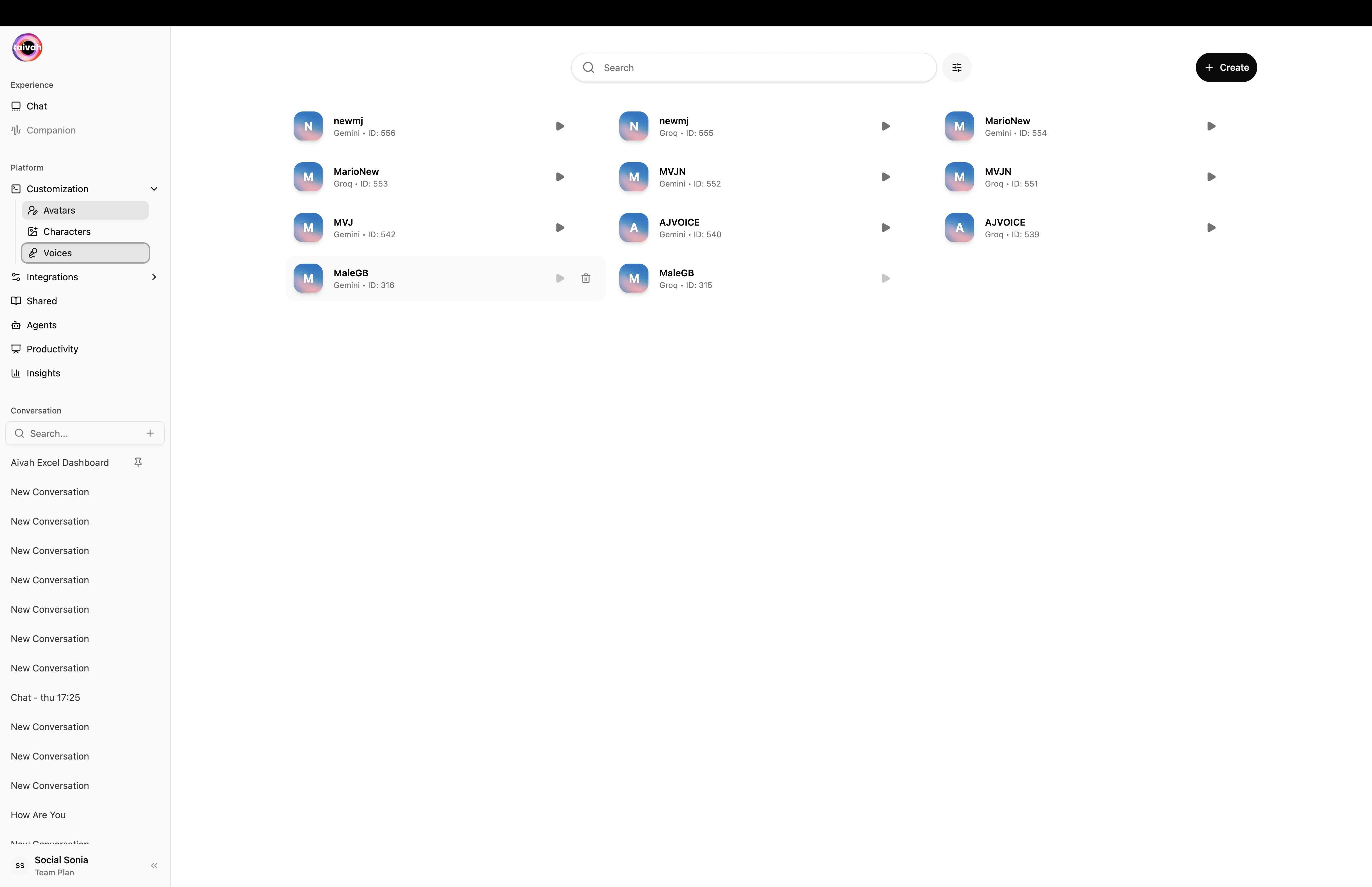
The Voices page (Side nav → Customization → Voices, or /avatars/voices) lists every voice your account can use – both Aivah’s built-in library and the private voice clones you upload.Voices are the speech engine for:
Provider / model family (so you know which LLMs it pairs with)
Playback controls to preview the voice
A Set as default action
A Create button (top-right) for adding a new voice clone.
Search and pagination across the full library.
Voices page – built-in voices plus your private clones, each with playback and provider badge
Switching the LLM provider in the chat composer may filter the available voice list. For example, Gemini voices appear when a Gemini model is active, and OpenAI Realtime voices appear when an OpenAI Realtime model is active.
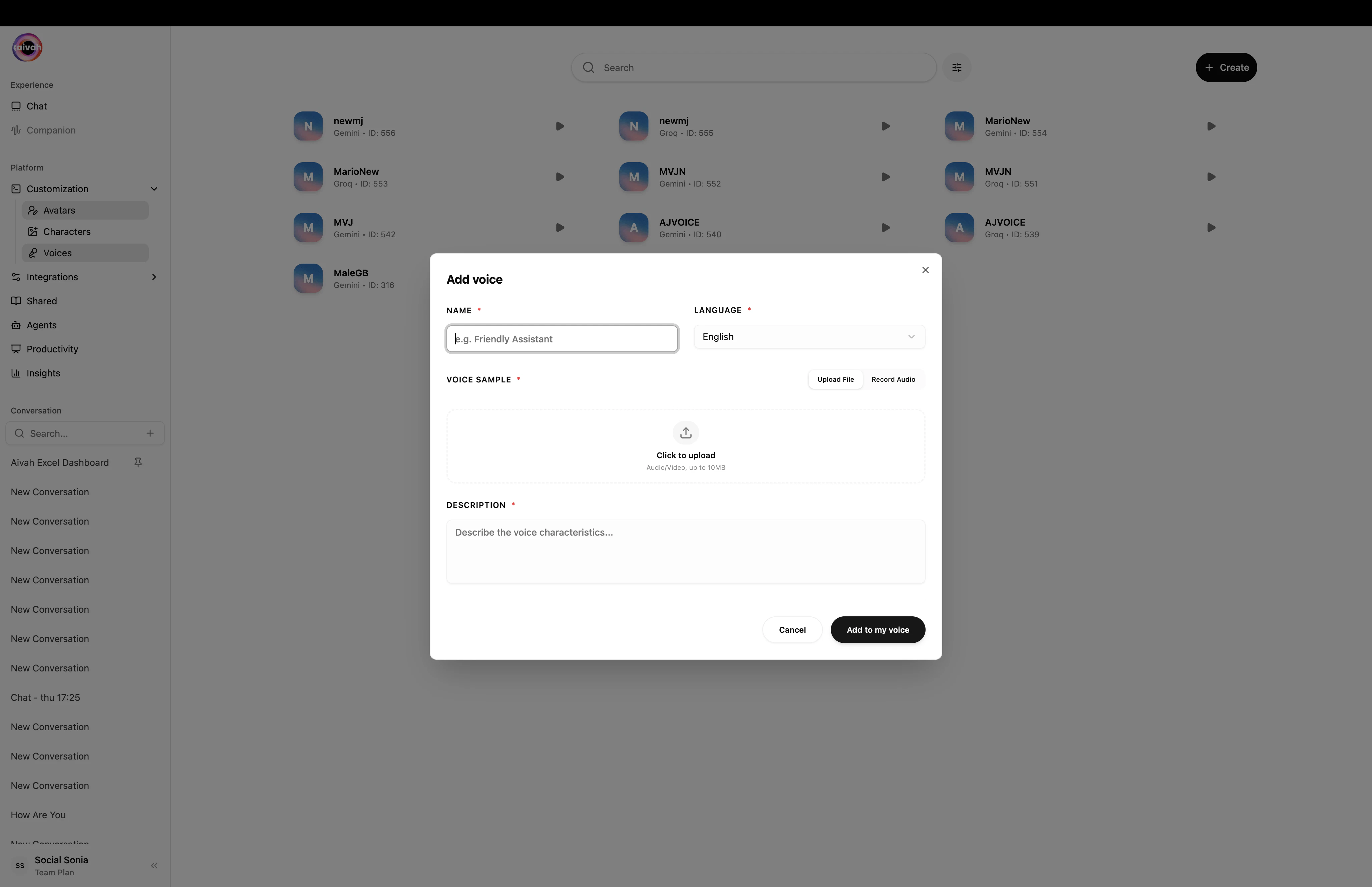
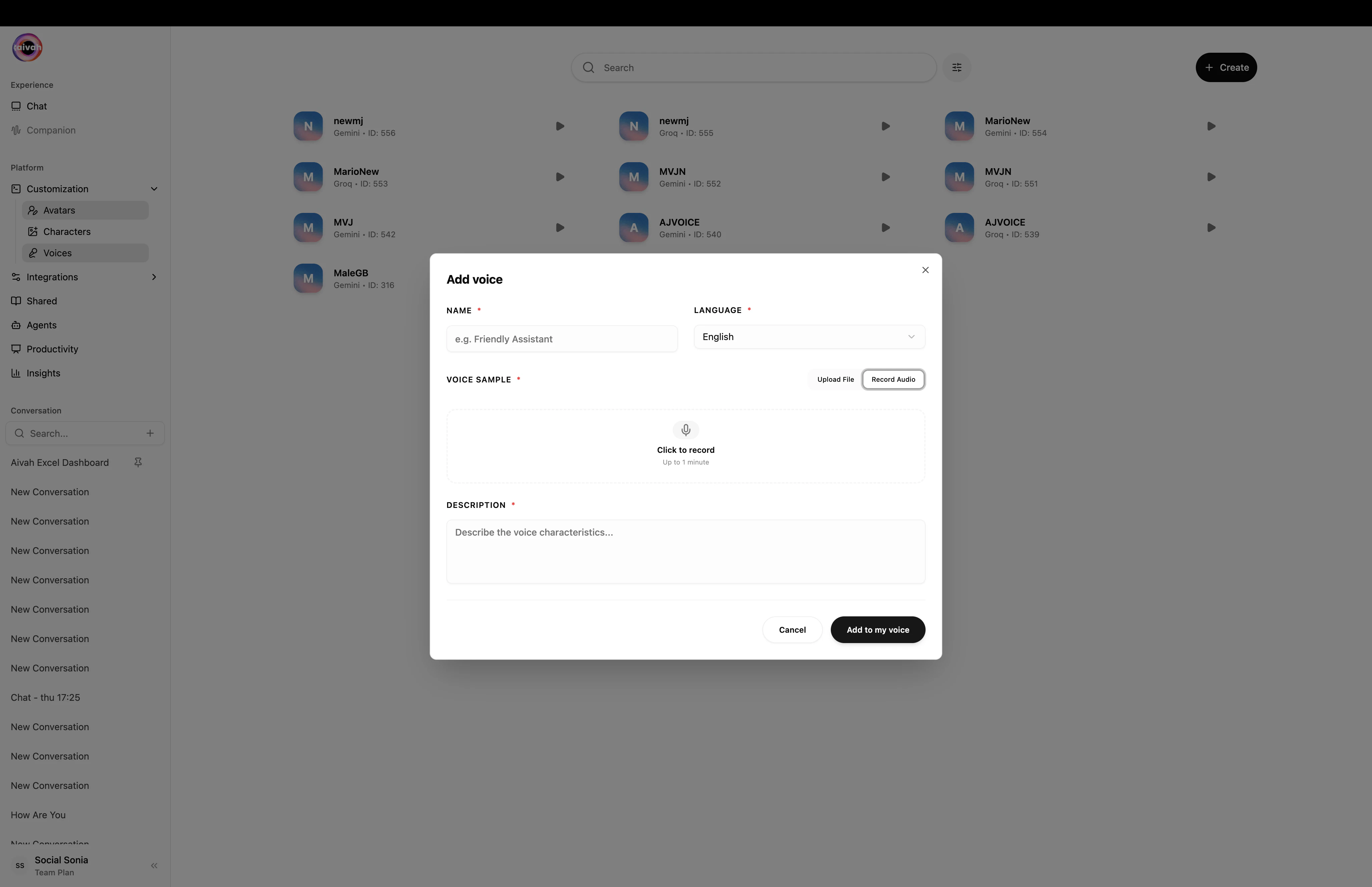
Press + Create in the header. The Add voice dialog opens.
Add voice modal – Name, Language, Voice Sample, and Description
2
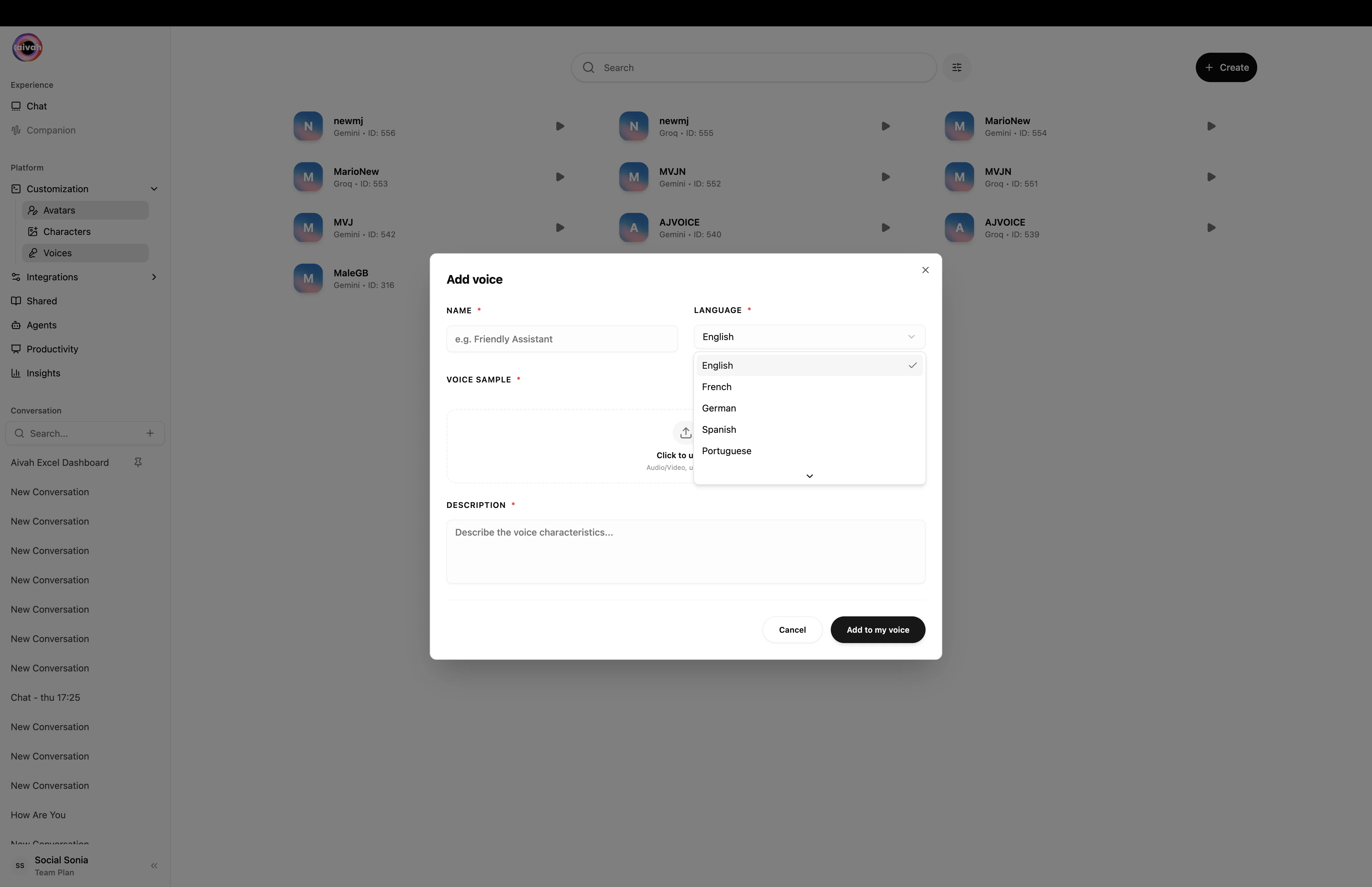
Pick the language
Select the language the voice will primarily speak (English, French, German, Spanish, Portuguese, etc.).
Language picker in the Add voice modal
3
Upload a clean reference recording – or record one
You can either Upload File (a short, mono audio file up to 10 MB) or Record Audio directly in the browser (up to 1 minute). For best results:
Keep the recording free of background noise, music, or other voices
Aim for natural pacing – read a short paragraph rather than a single sentence
Use a quality microphone and the highest-fidelity export available
Record Audio mode – capture up to 1 minute right in the browser
4
Name and describe the voice
Give the voice a short, descriptive name (for example Sarah – Casual) and add a description of the voice characteristics. This is what appears in pickers throughout Aivah.
5
Add to my voice
Click Add to my voice. The new voice enters processing. Once processed, it shows up in the list and can be selected wherever a voice can be picked.
Mark a voice as your default to pre-fill the picker every time you start a new conversation. You can change the default at any time from the Voices page.
Cleanly trim recordings – background noise during the training clip is reproduced in the clone.
Match accent and language – clone voices reproduce the linguistic patterns of the source.
Test before publishing – preview the clone in the Playground before assigning it to a shared agent or a phone number.
Pair voice and LLM – some voice families are only available with specific LLM providers; if a voice disappears, switch the LLM back to the matching family.