
Creating and Using Realtime Interactive Presenter Agents
Realtime Interactive Presenter Agents transform a single PDF deck (or a single video) into an interactive experience. Instead of clicking through slides, audiences can ask questions, jump to chapters, take a built-in Quiz, and get tailored explanations in real time.What Makes a Presenter Agent Different?
- Single document focus – One uploaded PDF or video anchors the entire conversation.
- Guided navigation – Users can request summaries, ask for the next slide, or revisit earlier sections.
- Context awareness – The agent understands slide order and their relationships, keeping answers on-track.
- Built-in Quiz – Multiple-choice questions defined for the presenter agent are exposed as a floating Quiz overlay in Avatar chat.
- Always on-brand – Deliver consistent demos and trainings without relying on a live presenter.
Conversational Slides
Navigate decks through natural language instead of manual slide controls.
Instant Recaps
Generate quick summaries for any slide or section within the deck.
Audience Q&A
Field questions as they arise while staying grounded in the uploaded content.
Consistent Delivery
Keep messaging uniform across every presentation and channel.
When to Choose a Presenter Agent
Sales and Marketing
Sales and Marketing
- Product demos and discovery calls
- Proposal walkthroughs
- Event or campaign recaps
Enablement and Training
Enablement and Training
- Employee onboarding decks
- Compliance refreshers
- Certification prep
Executive and Investor Updates
Executive and Investor Updates
- Strategy briefings
- Board presentations
- Quarterly reports
Create a Realtime Interactive Presenter Agent
1
Open the Agents Workspace
Navigate to Agents in the side navigation (
/agents) and click the Plus (+) icon to open /agents/create.2
Name and Configure
- Enter a descriptive name (e.g., “Product Demo Presenter”, “Compliance Training Deck”). The name becomes the slug (
@product-demo-presenter). - Turn the Presenter toggle on to switch from a knowledge-base agent to a presenter configuration.
- Write an Agent prompt and a Persona to set tone and behaviour.
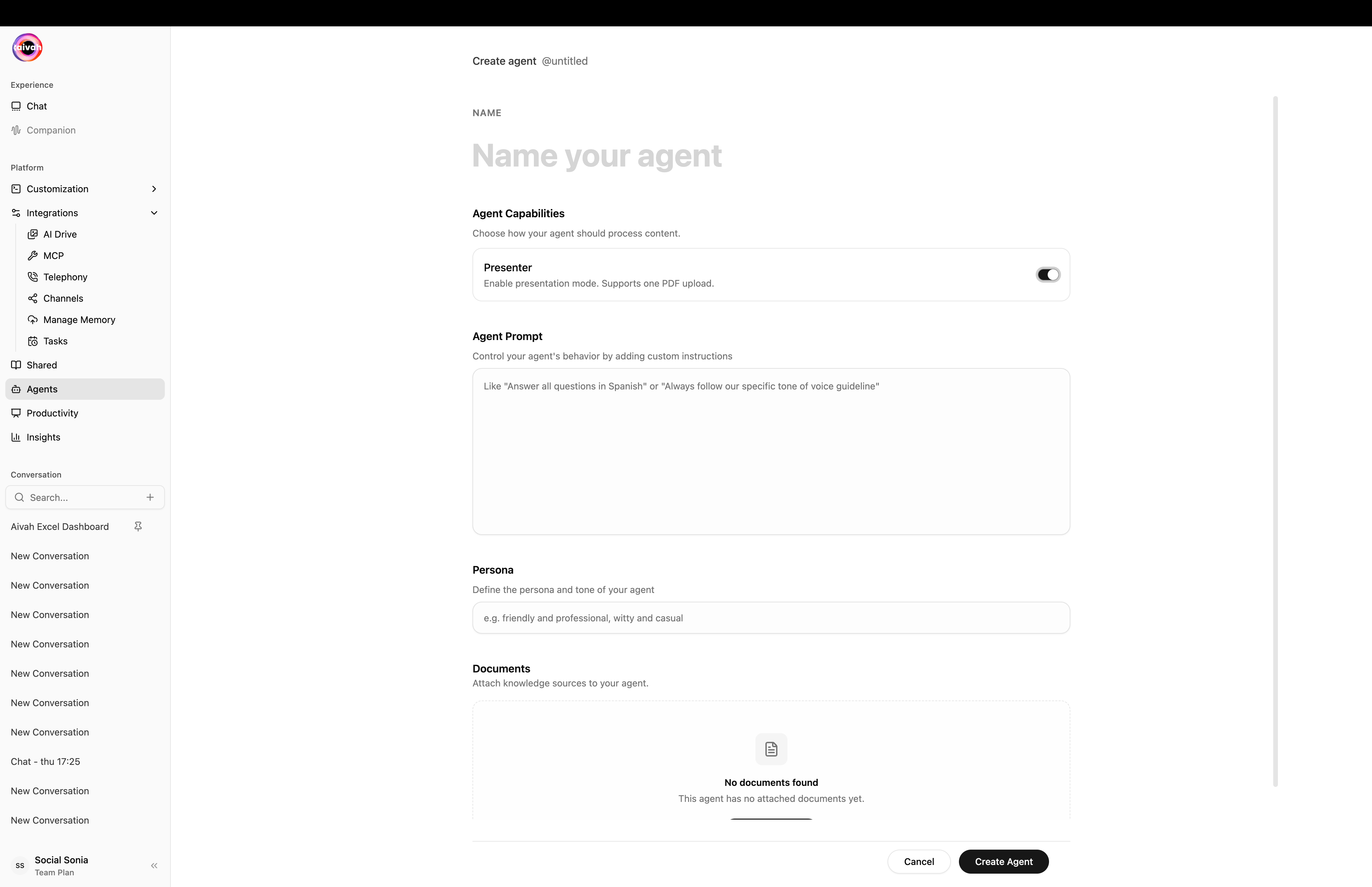
Presenter toggle ON – this constrains the agent to a single PDF or video
3
Upload the Deck
- Open the Add document dropdown. For presenter agents you only see the Add PDF / Video option.
- Add your PDF (or a single video). Wait for the confirmation message: “Document uploaded successfully. Delete the existing document to upload a new one.”
- Click Create agent to publish.
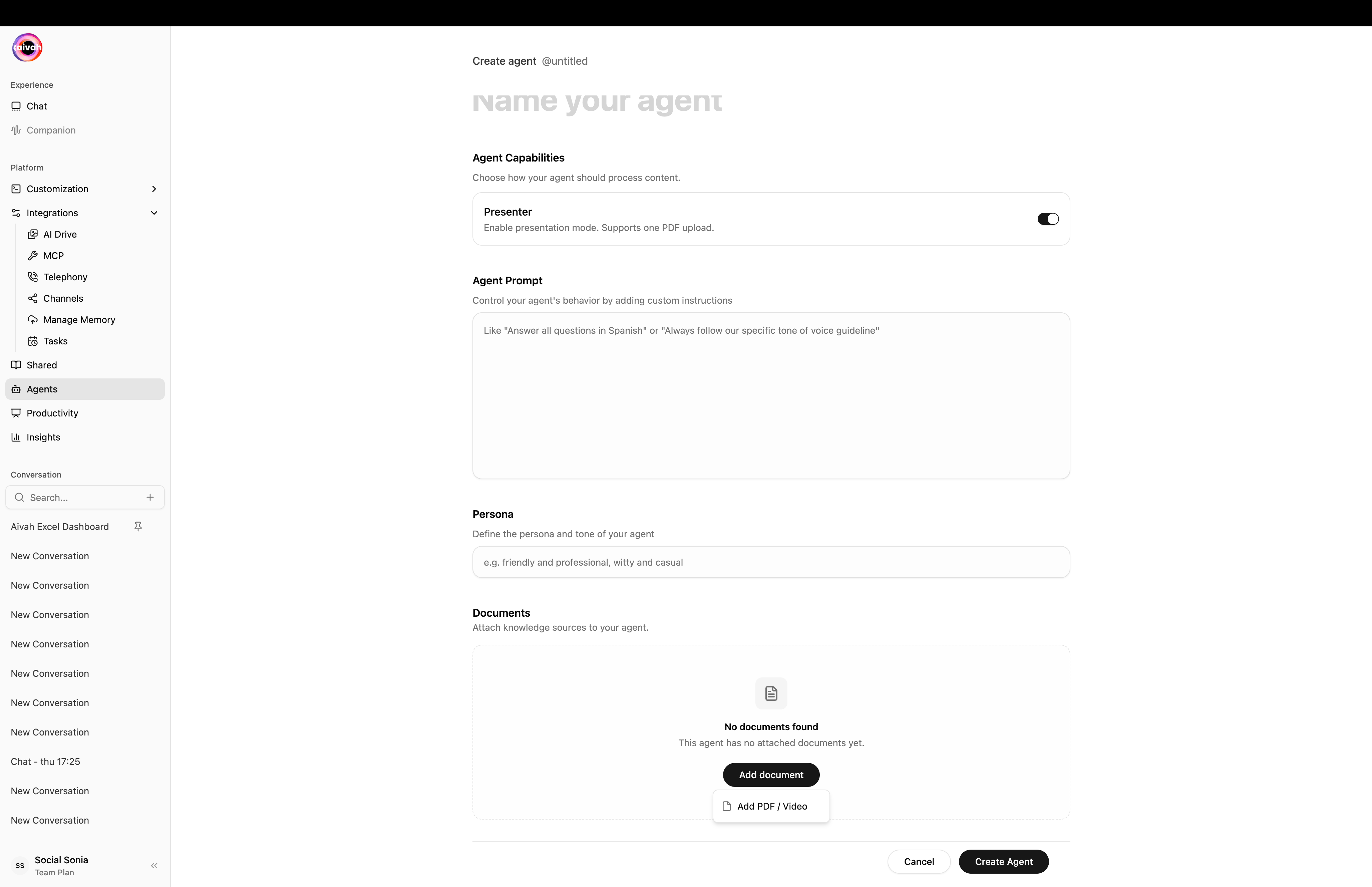
Presenter-only Add document menu – PDF or video only

4
Verify the Setup
After creation, the document appears in Agent Settings with its processing status. Confirm a character count displays to ensure the deck is ready.
Optimize Your Presentation File
- Document Checklist
- Storytelling Tips
- Export to PDF with selectable text (avoid image-only slides).
- Use clear slide titles and headings.
- Keep slide numbers visible for easy references.
- Ensure charts and visuals include captions or supporting text.
Manage Presenter Content
1
Access Agent Settings
Open the Agents workspace, select your presenter agent, and view the Presentation panel.
2
Replace the Deck
Delete the current file using the trash icon, then upload the new version.
3
Confirm Processing
Wait for the processing banner to finish and verify the character count updates.
Presenter Agents do not accept additional knowledge sources. For multi-document experiences, create a knowledge-base agent instead (toggle Presenter off when creating the agent).
Using the Quiz Overlay
When you talk to a Presenter Agent in Avatar chat, a Quiz icon appears in the floating toolbar next to the chat composer. Click it to:- Step through multiple-choice questions defined on the agent’s content
- Check answers without leaving the conversation
- Use the Hint button when stuck, then Next to progress
- Re-open the overlay any time during the session
/agents) so you can preview the quiz outside of a live chat.
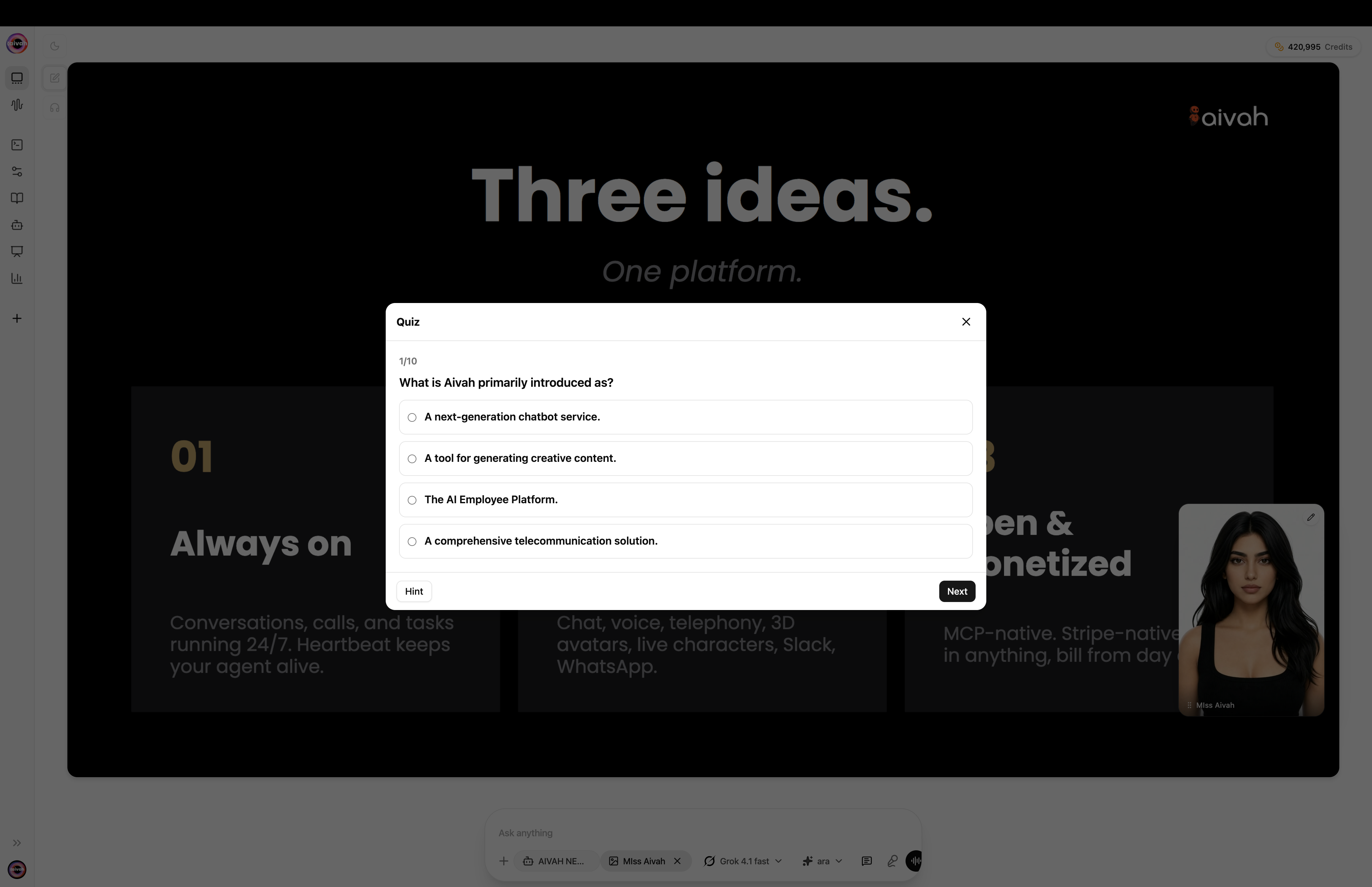
Quiz overlay during a presenter agent session – multiple-choice with Hint and Next
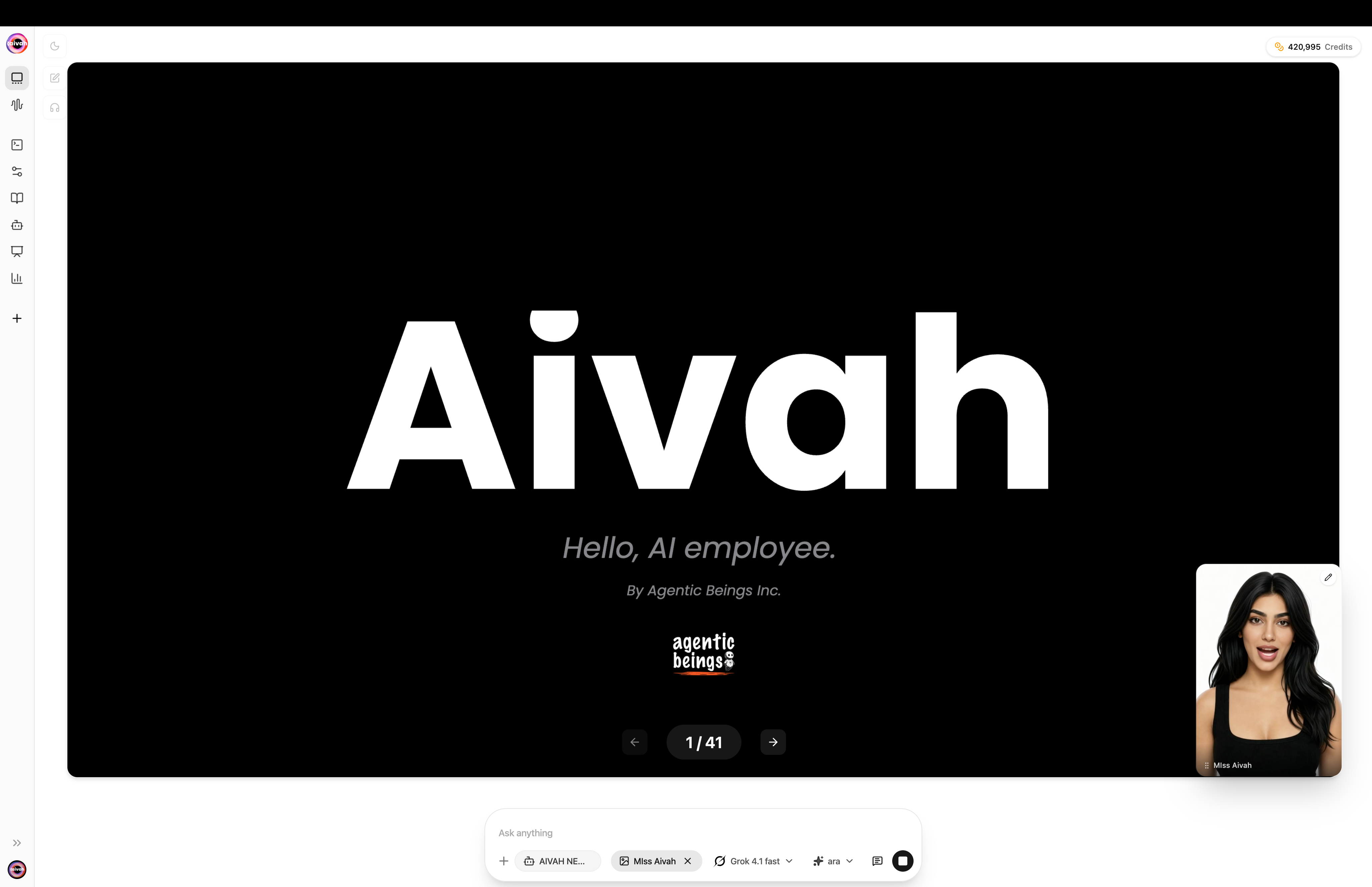
Presentation scene rendering a slide while the avatar narrates in the bottom-right
Delivering a Great Experience
- Rehearse navigation prompts so you know how the agent references each slide.
- Prepare likely questions and validate the responses stay aligned with your narrative.
- Pair with knowledge-base agents when you need deeper knowledge or integrations beyond the deck.
- Monitor Insights to see which slides and questions resonate most with audiences.
Troubleshooting
Upload stalls or fails
Upload stalls or fails
Confirm the PDF is not password-protected, stays under size limits, and contains selectable text.
Answers feel incomplete
Answers feel incomplete
Add supporting context or summary bullets to the relevant slides before re-uploading. The agent relies on the information in the document.
Need multiple documents
Need multiple documents
Create a knowledge-base agent instead (toggle Presenter off when creating), or link multiple presenter agents together using share links.