Channels
Aivah’s Channels integration (Side nav → Integrations → Channels, or /integrations/channels) lets an agent respond directly inside the chat tools your audience already uses. Two channels are supported out of the box: Slack and WhatsApp.
Each channel appears as a collapsible card. Inside every card you select:
- Agent – which agent will respond on that channel
- LLM model – the model pinned to that channel for consistent behaviour
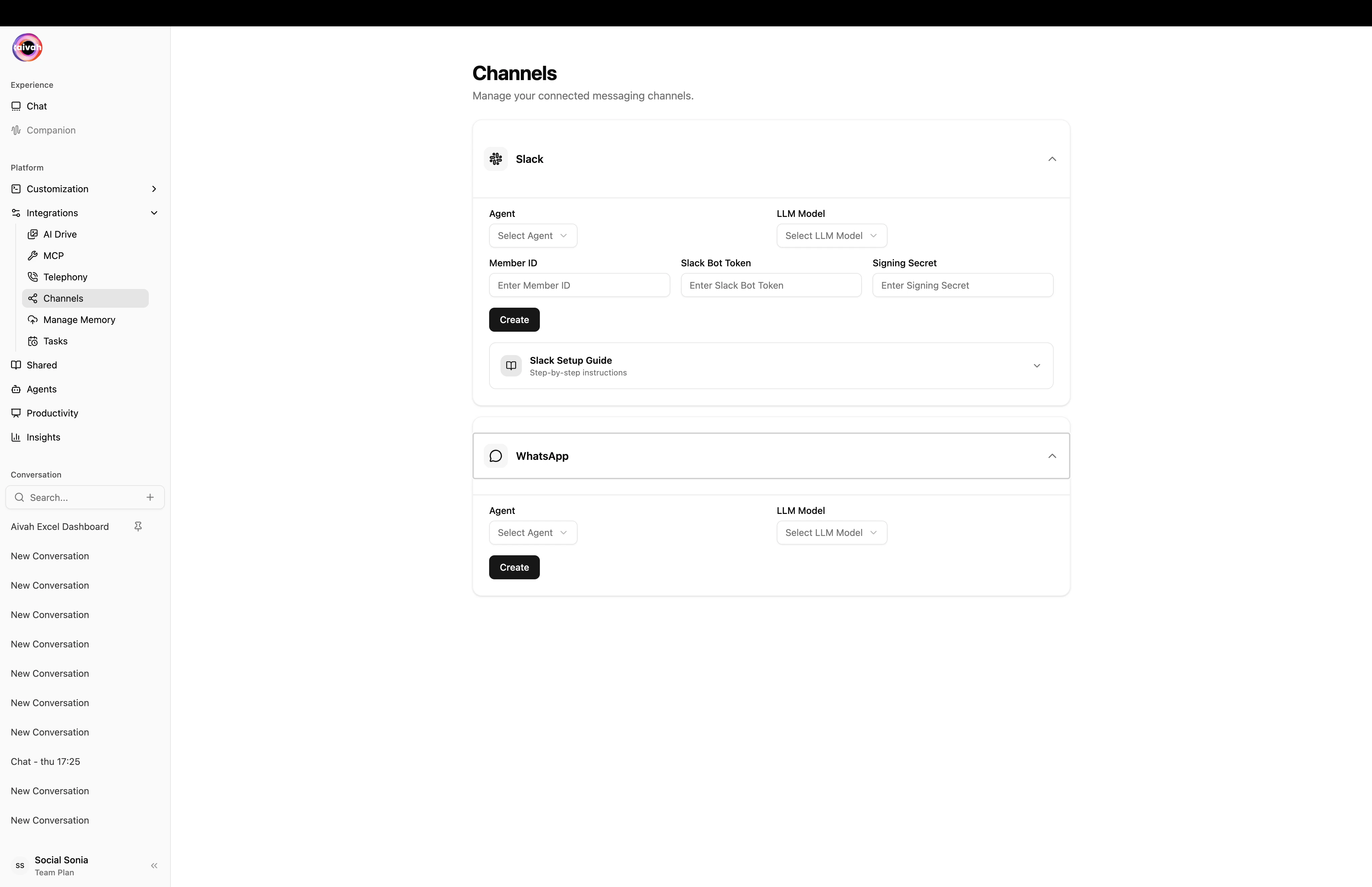
Channels page – Slack card with Member ID / Bot Token / Signing Secret, and WhatsApp card below
Slack
The Slack card includes a Slack Setup Guide that expands to step-by-step instructions. The configuration is a one-time exchange of three values between Slack and Aivah.What you’ll need from Slack
Setup steps
1
Create the Slack app
Go to https://api.slack.com/apps and click Create New App → From an app manifest. Paste the App Manifest copied from the Slack card in Aivah.The manifest pre-configures the bot scopes, the slash command
/aivah, event subscriptions, and the request URL that points back to Aivah.2
Install the app to your workspace
Inside the new Slack app, open Install App and authorize installation. Slack issues the Bot Token here.
3
Configure Aivah
Back in the Slack card on the Channels page, paste:
- Member ID – your Slack profile member id
- Bot Token – from Slack’s Install App page
- Signing Secret – from Slack’s Basic Information → App Credentials
4
Invite the bot to a channel
In any Slack channel run
/invite @aivah-bot. The bot only listens in channels it has been explicitly invited to.5
Talk to the agent
Use
/aivah followed by your question. The bot replies in-thread with the same intelligence as the agent in the Playground.6
Toggle Active
Flip the Active switch in the Slack card. The channel is now live.
Troubleshooting Slack
- Bot does not respond – confirm the bot was invited (
/invite @aivah-bot), the Active toggle is on in Aivah, and the Bot Token / Signing Secret you pasted match what Slack shows. Re-install the Slack app if you regenerated tokens. - Manifest changes – if you edit the manifest after install, you’ll be prompted to re-install. Repeat the steps above to refresh the tokens.
1
Click Connect
The panel switches to Connecting… and renders a QR code.
2
Pair your phone
On your phone open WhatsApp → Linked Devices → Link a device → scan the QR.
3
Confirm pairing
The status flips to Connected and the card shows the linked phone number.
4
Manage the link
Two extra controls appear once paired:
- Refresh – fetches a new QR if the current one expires
- Power – disconnects the linked phone
Troubleshooting WhatsApp
- QR expired – click Refresh in the WhatsApp panel; a fresh QR is generated and the status returns to qr_ready.
- Phone shows “device removed” – use Power to disconnect on the Aivah side, then re-run the Connect flow.
- Messages stop arriving – verify the linked phone is online and on a recent WhatsApp version. Pairings expire if the device stays offline for a long time.
Per-channel agent & model
Both Slack and WhatsApp cards expose:- Agent – select any agent in your workspace, including knowledge-base and presenter agents.
- LLM model – pin a model so the channel always speaks with the same brain.
Related guides
- Agents
- Twilio Phone Setup for telephony
- MCP Tools for extending the agent with external apps