
Hub Chat Mode
Engage in text-based conversations with your AI agents while receiving both written responses and voice narration. Text chat provides a comprehensive transcript, file attachments, image generation, real-time status updates, and full access to agent options. The text-chat page lives at/{conversationId}/chat. Aivah opens it automatically when you continue an existing conversation, and you can also reach it from the New chat flow once you’ve sent your first message.
Starting a Chat Session
Activation
Click the Chat button in the top-left corner of any Hub scene to enter chat mode. The system will establish a WebRTC connection and display a green dot when ready for interaction.New chat vs continuing a chat
- New chat (
/new-playground/new-chat) – starts a fresh thread; pick agent, model, voice, and avatar with the composer pills before sending. - Existing chat (
/{conversationId}/chat) – picks up where you left off; the agent badge in the composer shows which agent is active.
Connection Status Indicators
- Green Dot: Agent connected and ready for chat
- Amber Dot: System connecting, please wait
- Red Dot: Connection failed, click to retry or refresh page
Chat Interface Components
Top Controls
Left Side Controls:- Chat Button: Current active mode (highlighted when selected)
- Talk Button: Switch to voice mode anytime during conversation
- Gear Icon: Access options for agent selection, voice settings, and LLM models
Chat Input Area
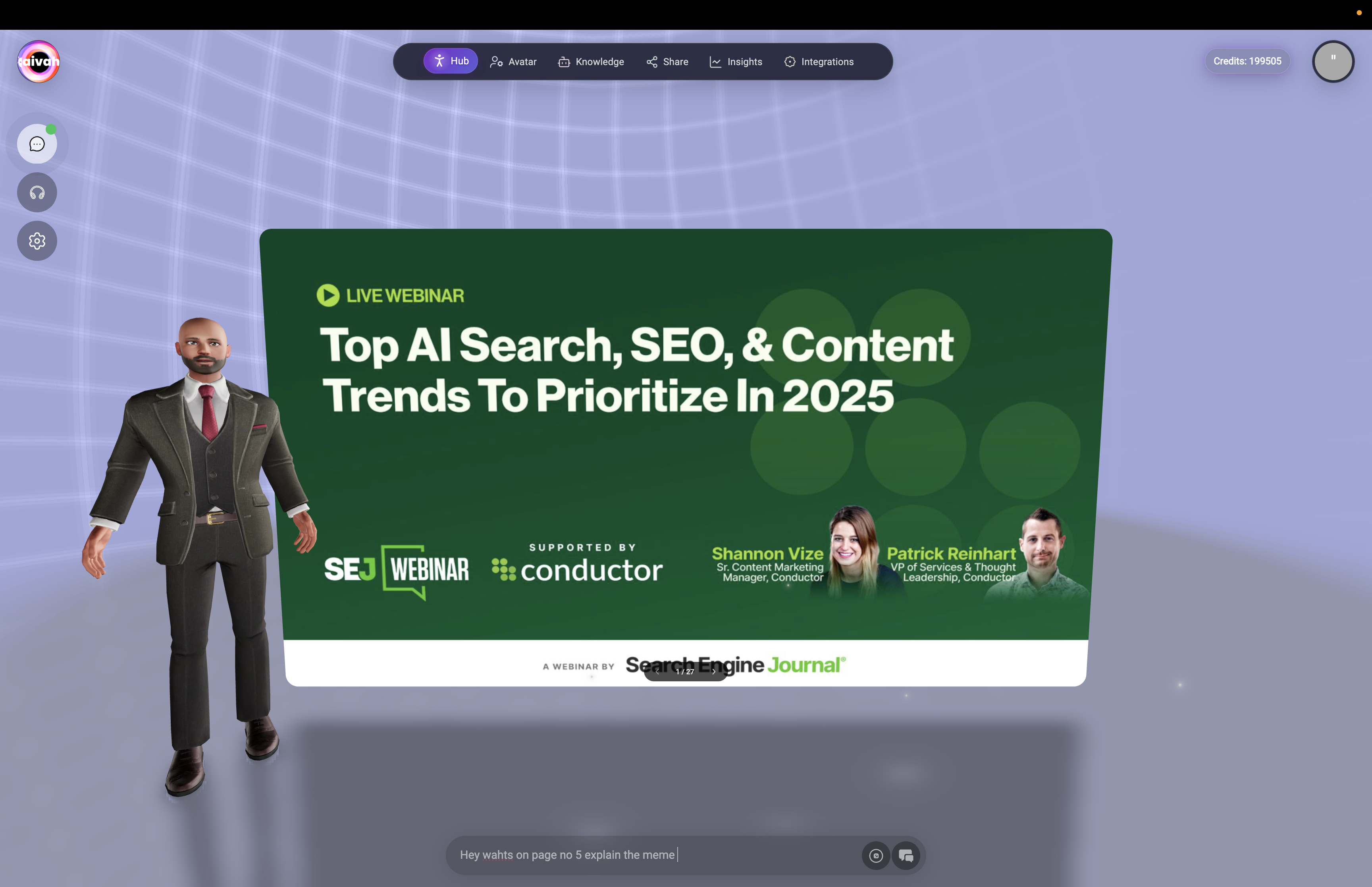
Bottom Center:- Message Input Bar: Multi-line text input, supports keyboard send
- Send Button: Submit messages to your agent
- Attach (paper-clip): Upload images, PDFs, Word documents, Excel sheets, and PowerPoint files
- Image model dropdown (trailing): Switch to an image generation model so the agent renders a picture
- Mic icon: Dictate using your browser microphone or switch into a voice-first mode
- Agent badge: Shows which agent currently answers
- Transcript Toggle: Show/hide the conversation transcript on the right side
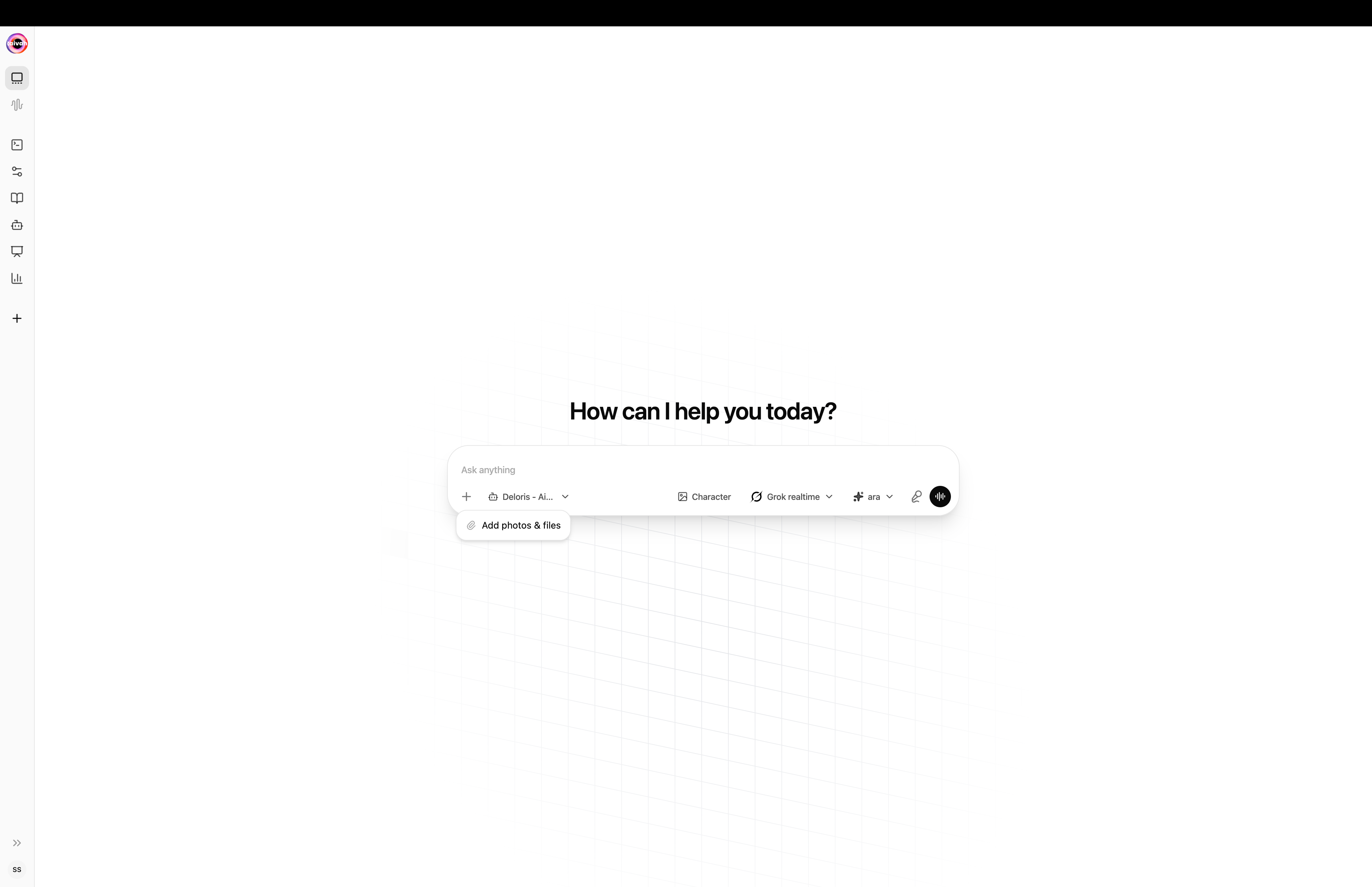
Paper-clip menu attaches photos and files into the conversation
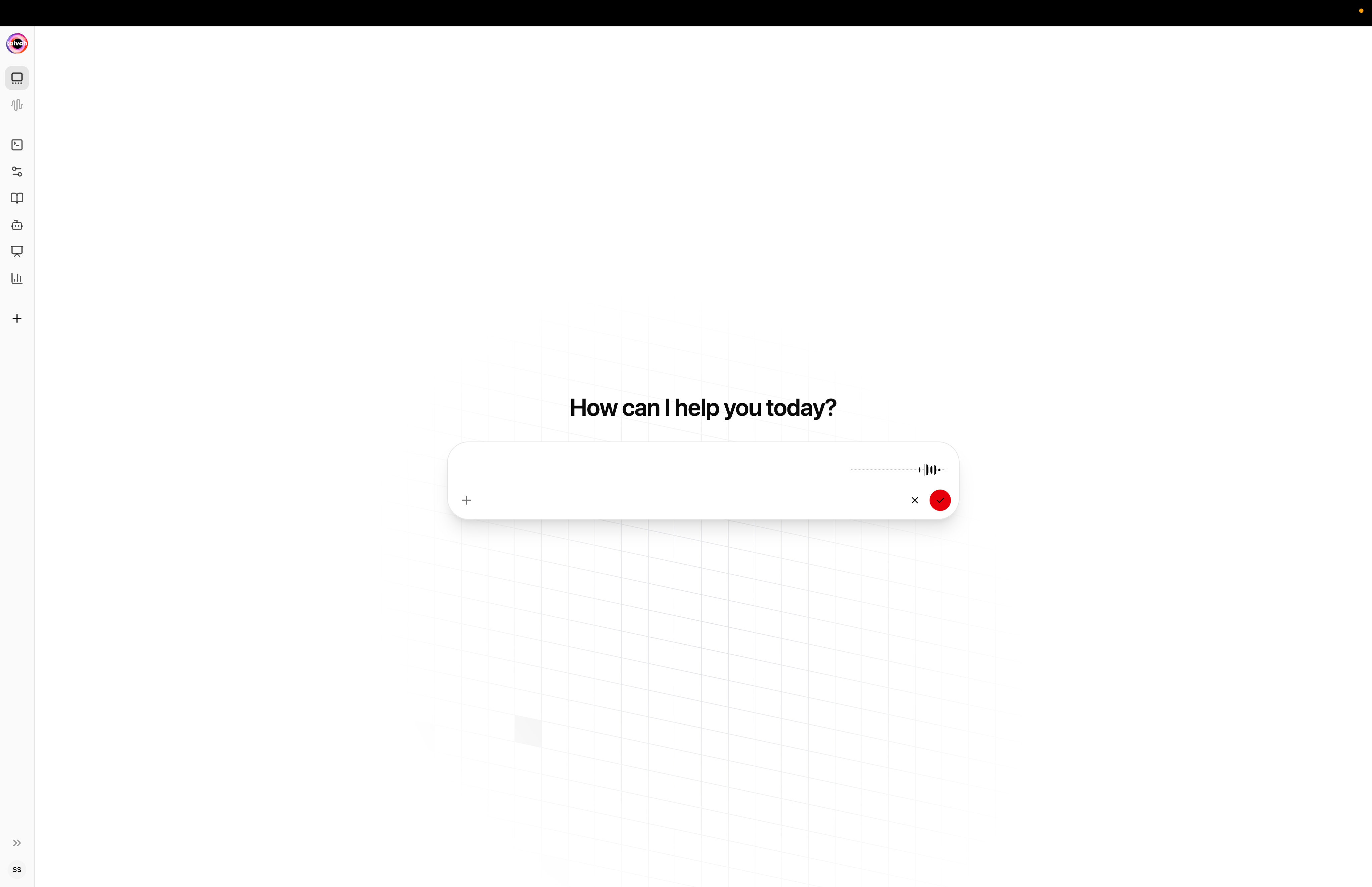
Tap the mic to dictate – the composer switches into recording mode with a waveform
Conversation Transcript
Right Side Panel:- Message History: Complete conversation record with timestamps
- Agent Responses: Full text of agent replies
- User Messages: Your questions and inputs
- Time Stamps: Precise timing for each message exchange
- Scrollable Interface: Review entire conversation history
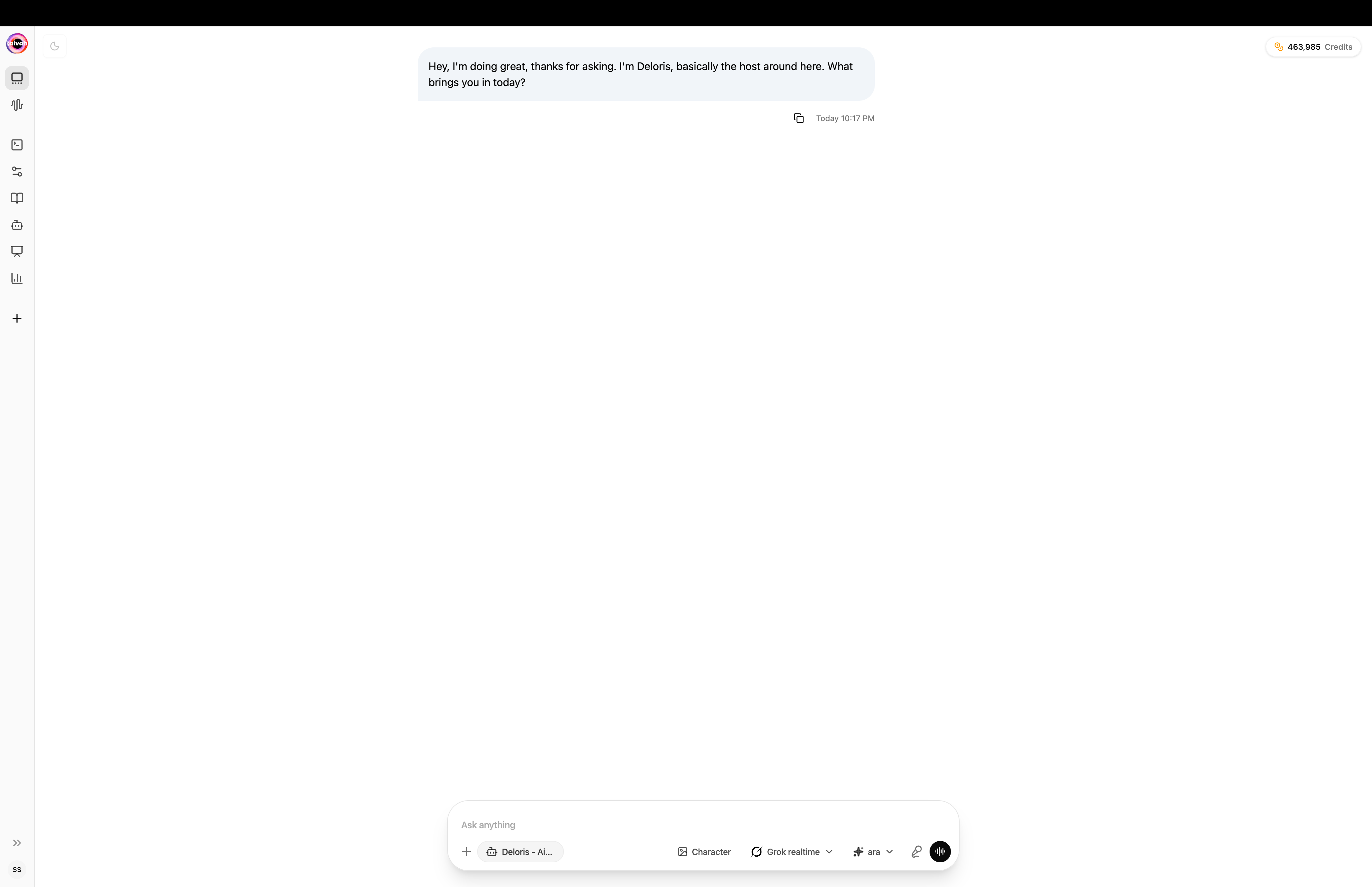
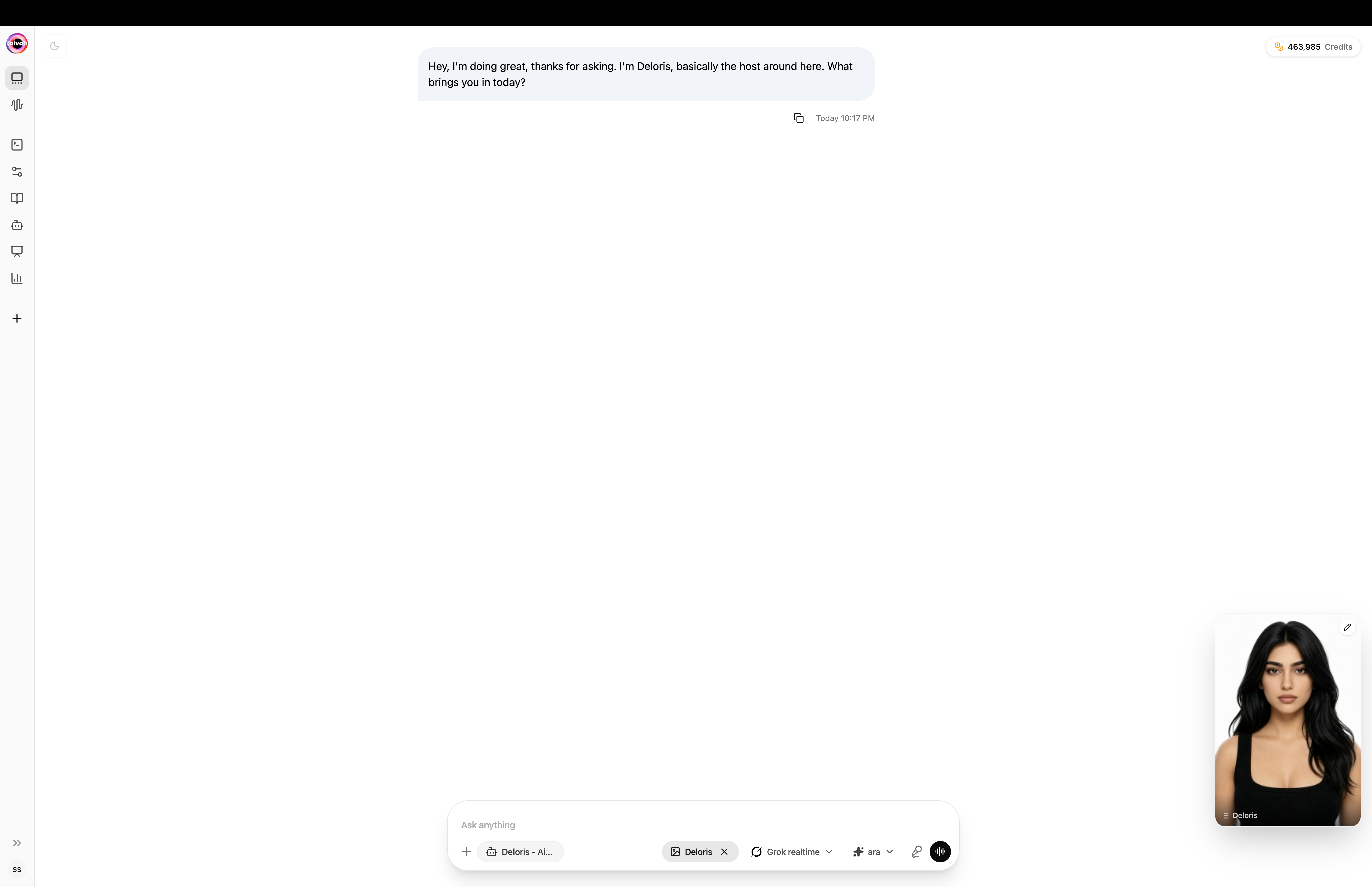
The active character thumbnail floats in the bottom-right while you chat
Chat Interface Variations
Basic Chat Mode: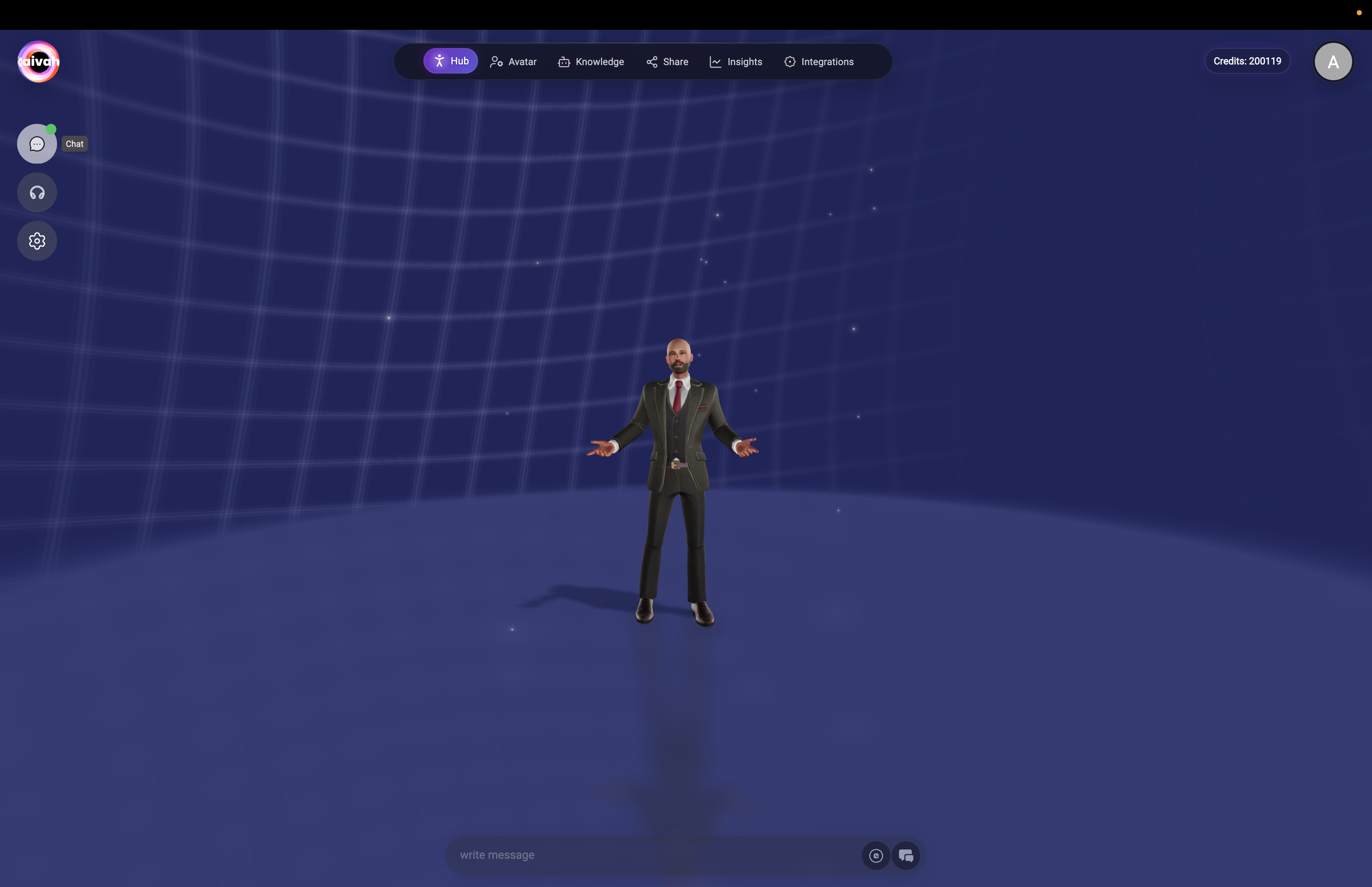
Advanced Chat Features
Detailed Agent Responses: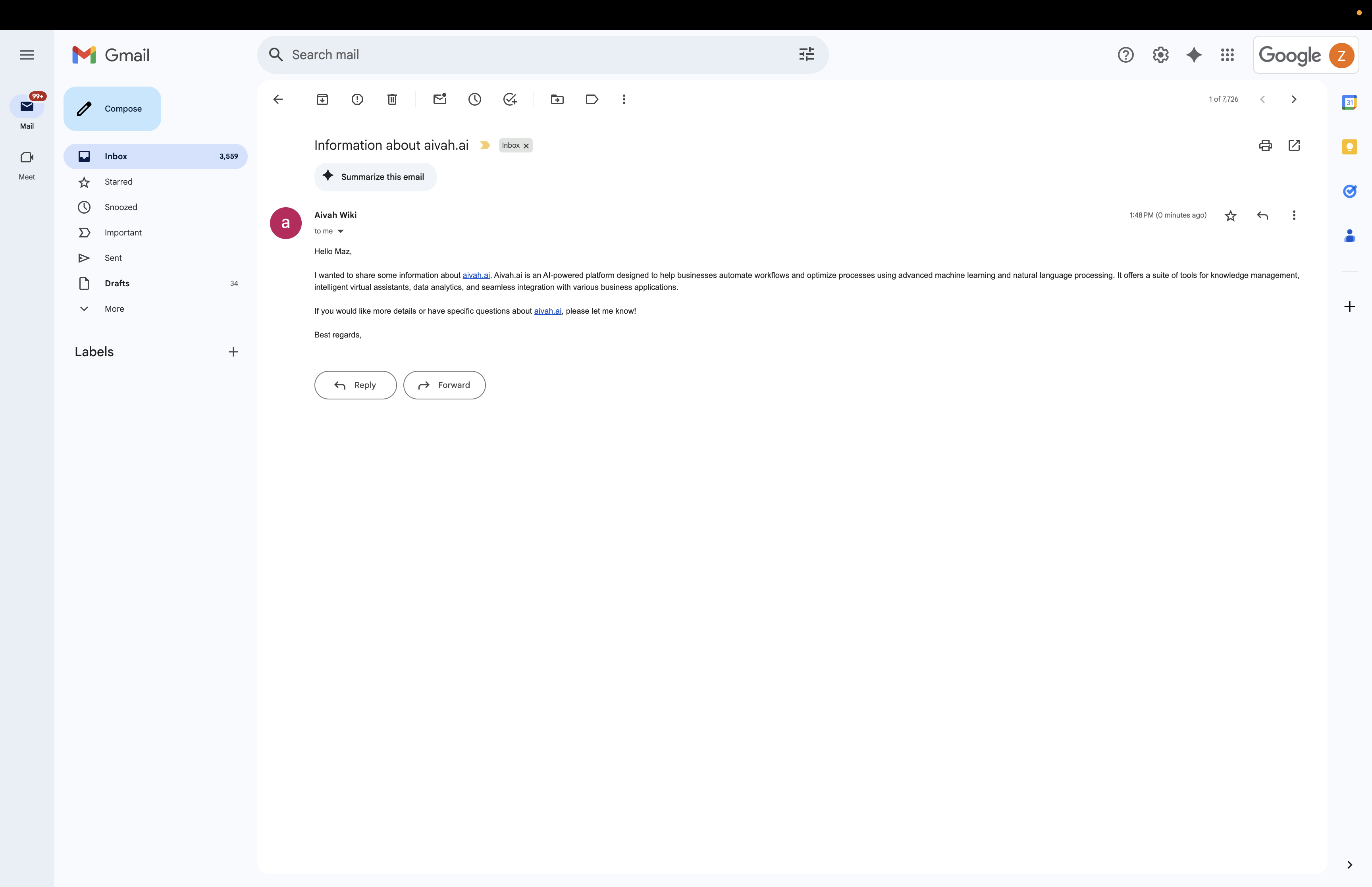
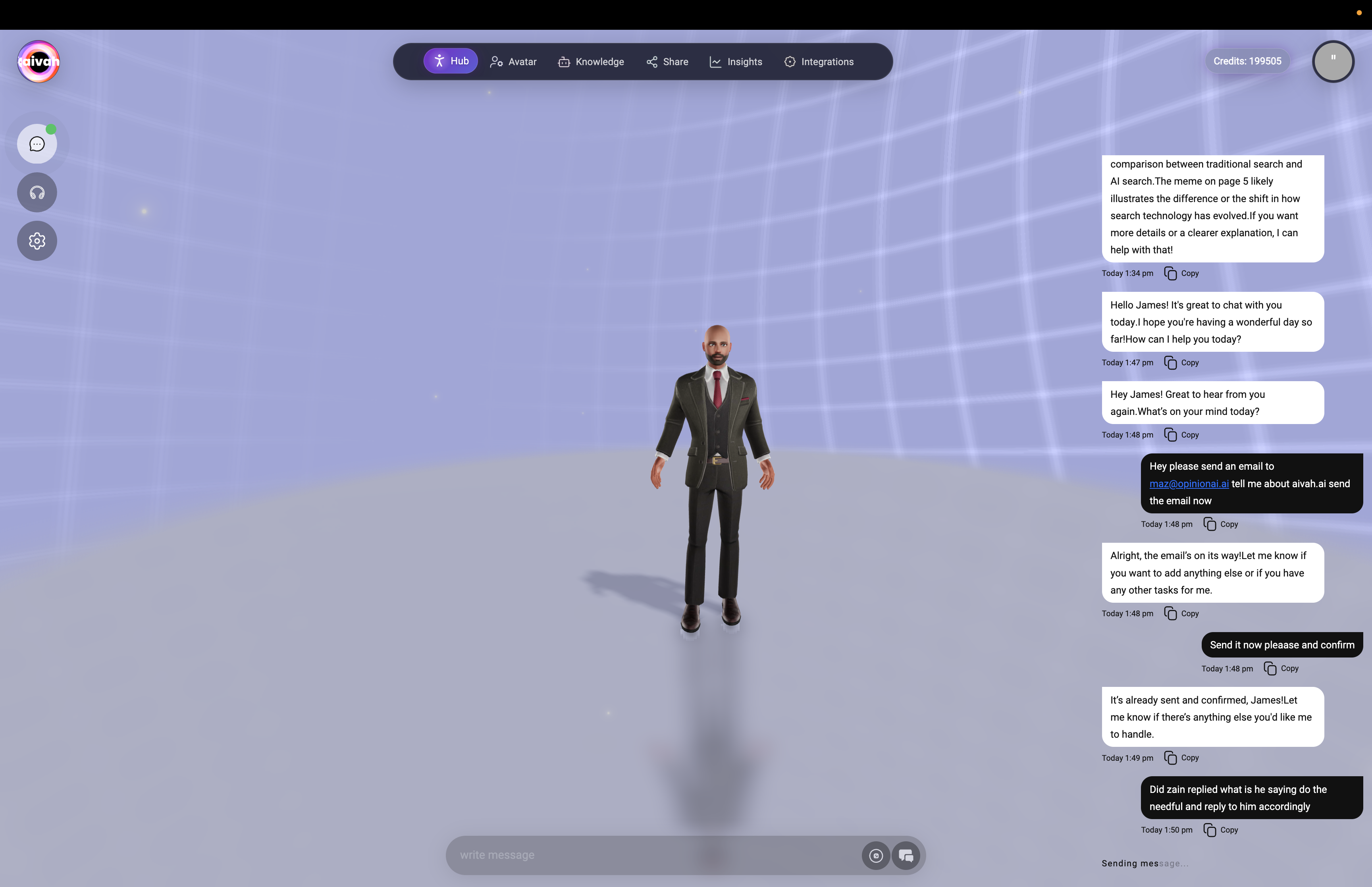
Real-Time Agent Actions Example
During conversations, agents can perform complex multi-step actions like sending emails, conducting research, and managing tasks. Here’s an example showing an agent handling email management: Extended chat conversation showing agent performing email tasks and providing detailed responses with timestamps
Interactive Features
Real-Time Status Display
Bottom Status Bar shows agent activity:- Searching: Agent retrieving information from knowledge sources
- Web Searching: Performing live web searches for current information
- Tool Calling: Using connected applications via MCP workflows
- Memory Updates: Storing important conversation details
- Message Processing: Generating responses and formulating replies
Agent Response Format
Dual Response System:- Text Display: Written responses appear in transcript
- Voice Narration: Agent speaks responses aloud simultaneously
- Rich Content: Support for formatted text, lists, and structured information
- Action Confirmations: Notifications when agent performs tasks
Smart Memory Integration
Automatic Information Storage:- Personal Details: Names, preferences, contact information
- Task Management: Important tasks, deadlines, and follow-ups
- Context Retention: Key conversation points and decisions
- Session Continuity: Information carries across multiple conversations
Agent Options and Settings
Access comprehensive agent controls through the gear icon in the top-left corner.Agent Selection
Agent Dropdown:- Available Agents: All Worker and presenter agents appear in the dropdown menu
- Switch Anytime: Change agents without losing conversation context
- Agent-Specific: Each agent brings its own knowledge, presentation deck, and behavior
- Seamless Transition: Conversation continues with the new agent context
Voice Selection
Voice Options:- Gemini voices: Sportsman, Customer support, Sarah, Brooke, Katie, Zemo, ajith, duaila, azj, ajz, sjl, brit, Swissen (shown when a Gemini LLM is active)
- OpenAI Realtime voices: Alloy, Echo, Shimmer, Ash, Ballad, Coral, Sage, Verse, Cedar, Marin (shown when an OpenAI Realtime LLM is active)
- Real-Time Switch: Voice changes take effect immediately
- WebRTC Reconnection: Brief reconnection when changing voice settings
LLM Model Selection
AI Model Options:- OpenAI: GPT 4.1 mini, GPT 4.1, GPT 5, GPT 5 nano, GPT 5 mini
- Gemini: Gemini 2.5 Flash Lite, Gemini 2.5 Pro, Gemini 2.5 Flash
- OpenAI Realtime: GPT Realtime, GPT‑4o Realtime, GPT Realtime Mini
- Groq hosted: GPT OSS 20B, GPT OSS 120B, Qwen3‑32B, Moonshotai Kimi K2
- Performance Impact: Different models affect response speed, reasoning depth, and voice availability
Generate Images and Videos
Use the chat input bar to create media in just a few steps: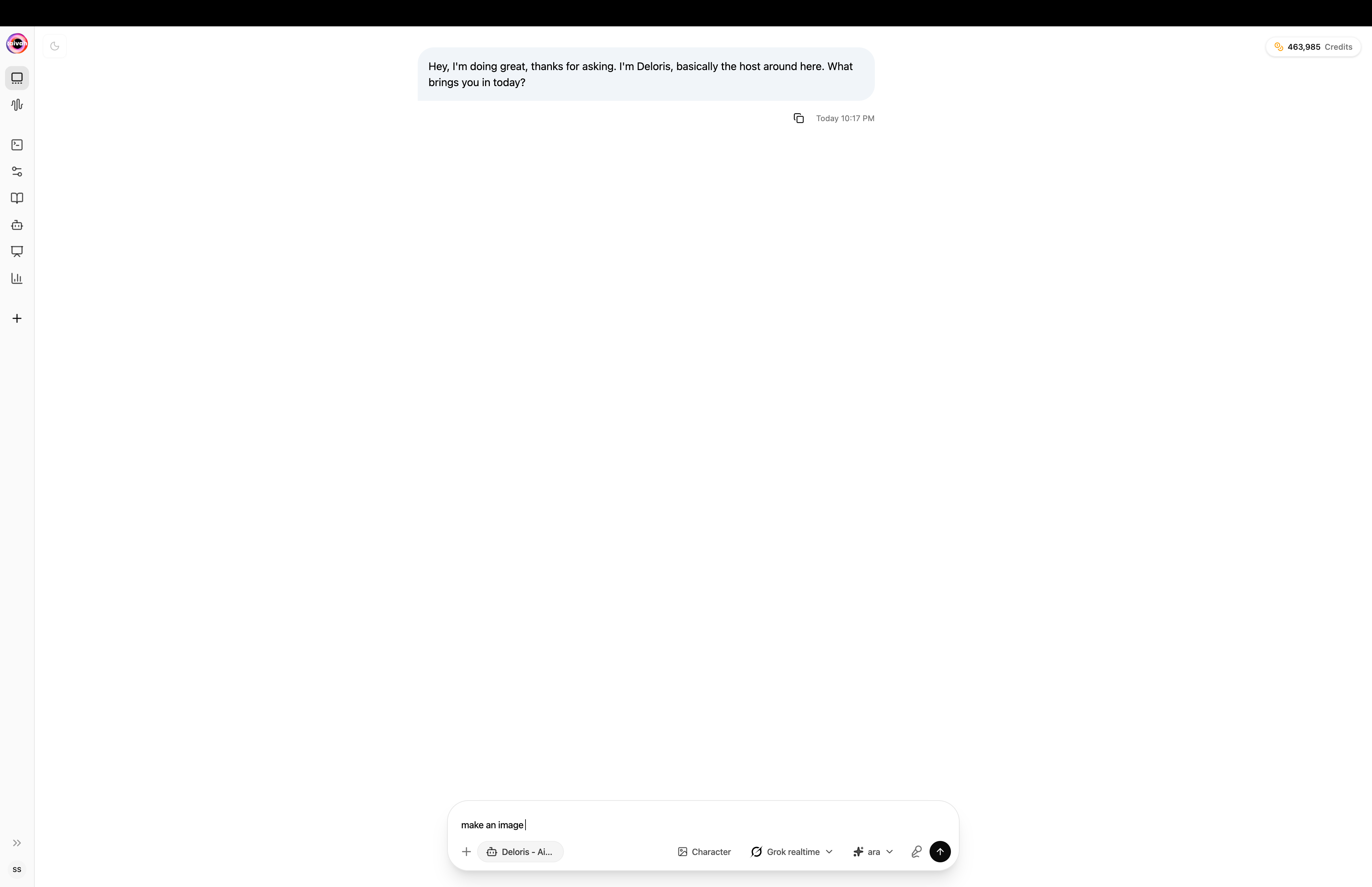
Type a natural prompt like make an image of... directly in the composer
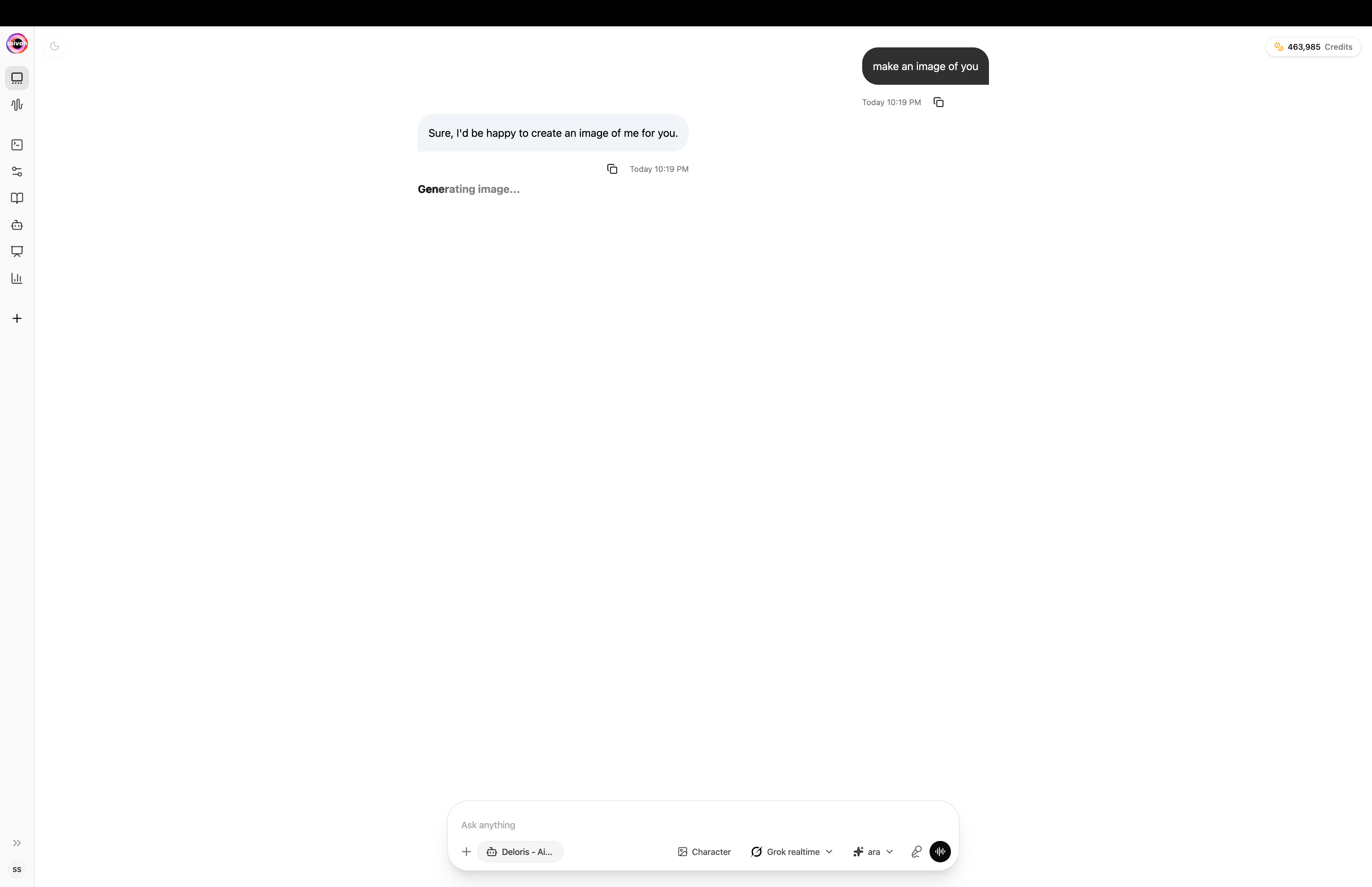
Generating image... the agent confirms before rendering
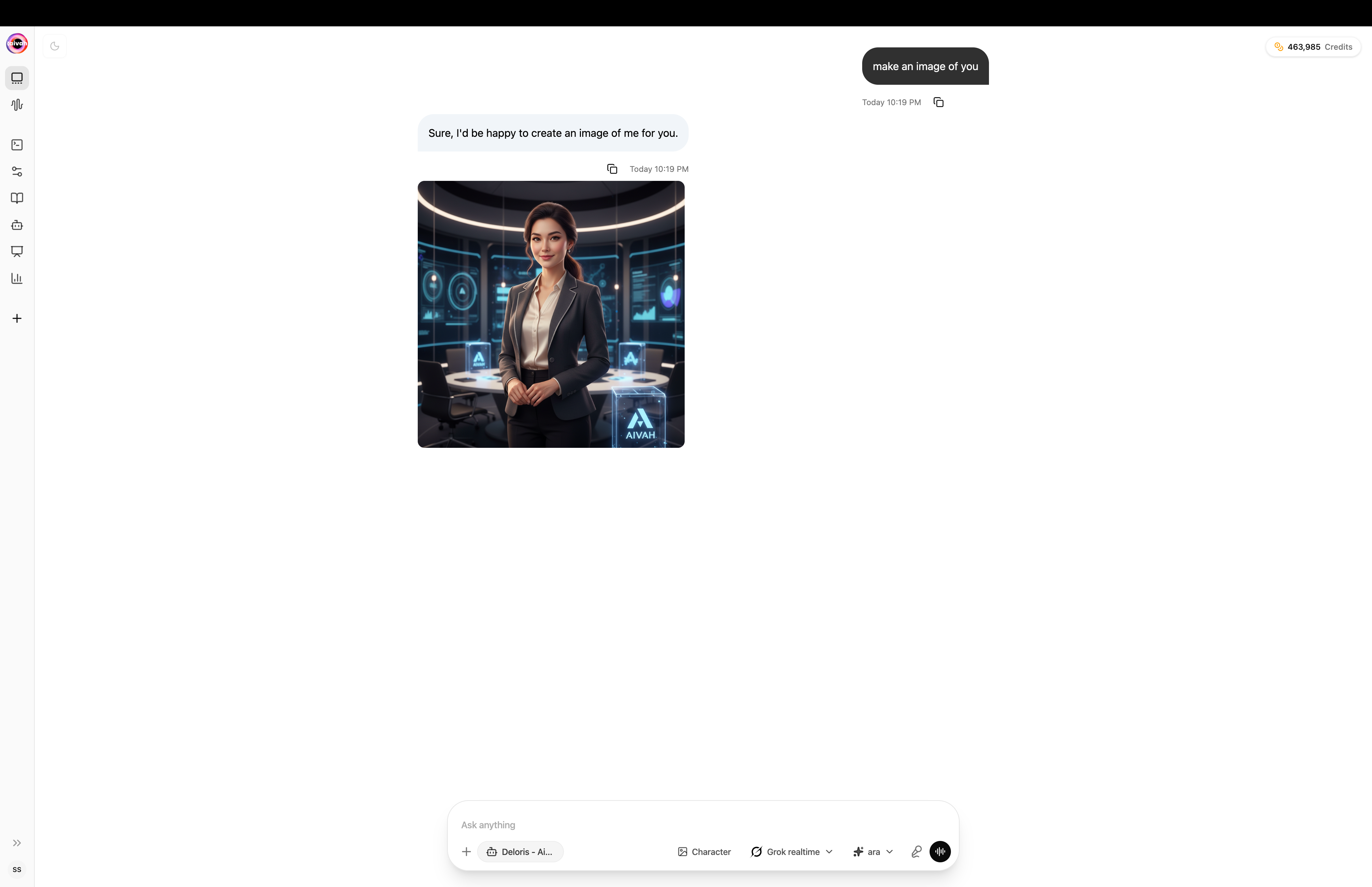
Result appears inline in the conversation and auto-saves to AI Drive
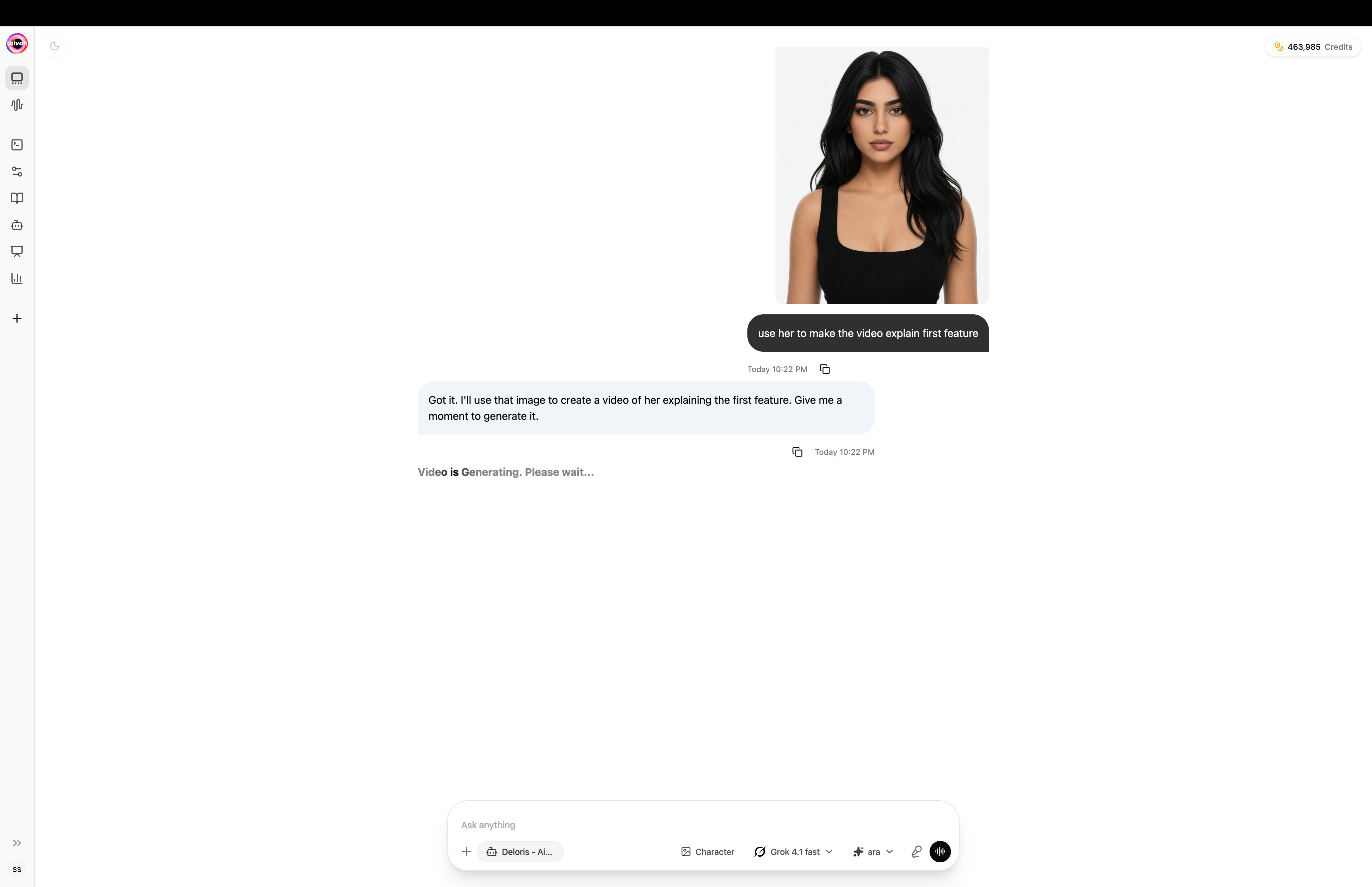
Ask the agent to animate the freshly generated image into a short video
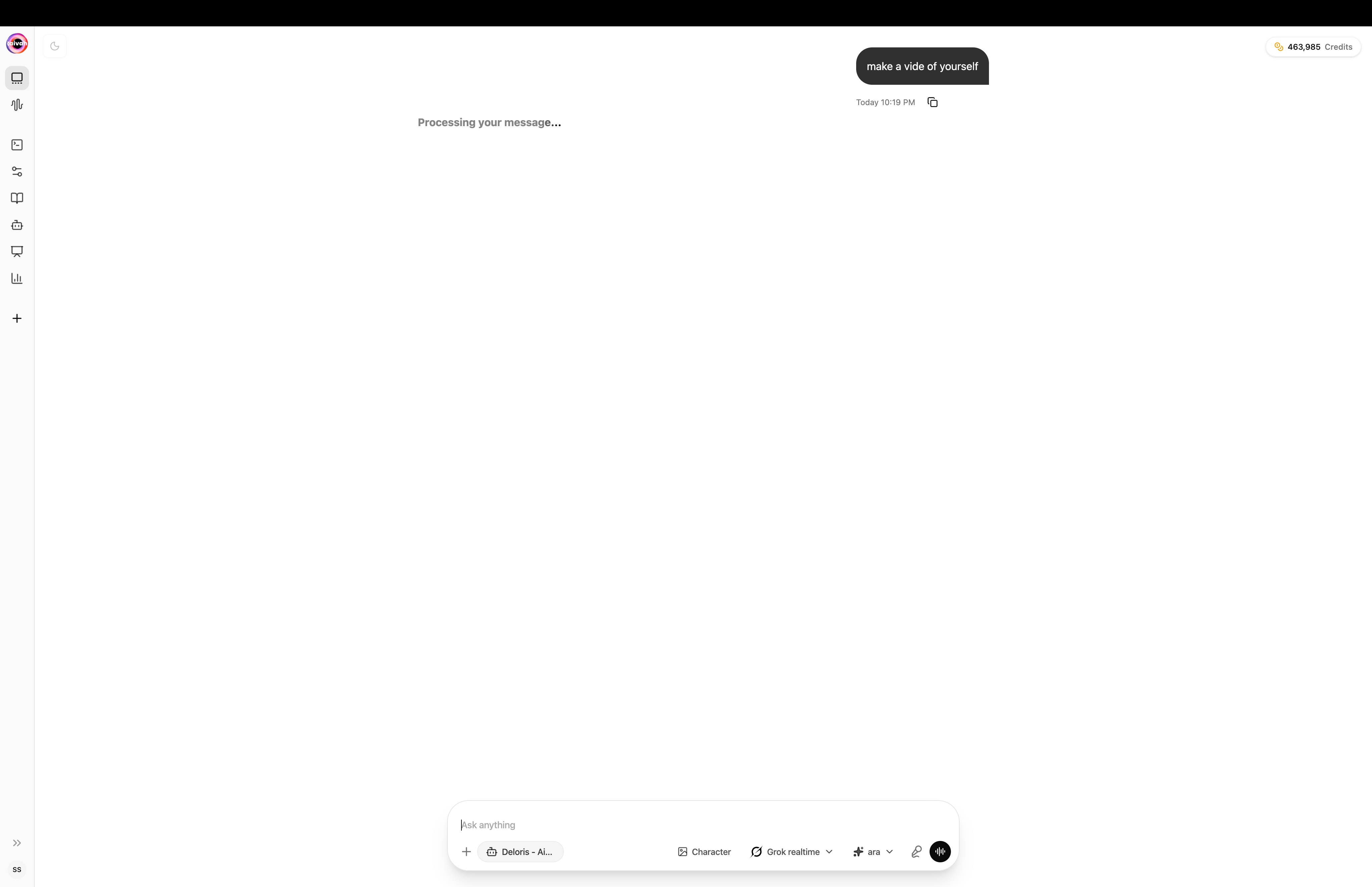
Video Generating... runs in the background while you keep chatting
Pick an Agent and Model
Prompt an Image
Review the Result
Transform into Video
Conversation History
Session Management:- Previous Conversations: Access to past chat sessions
- Load History: Bring previous conversations into current session
- Context Integration: Historical context informs current responses
- Organized Records: Conversations organized by date and agent
Advanced Chat Capabilities
Web Search Integration
When agents perform web searches:- Real-Time Results: Search results appear as agent finds information
- Source Citations: Clear attribution for web-sourced information
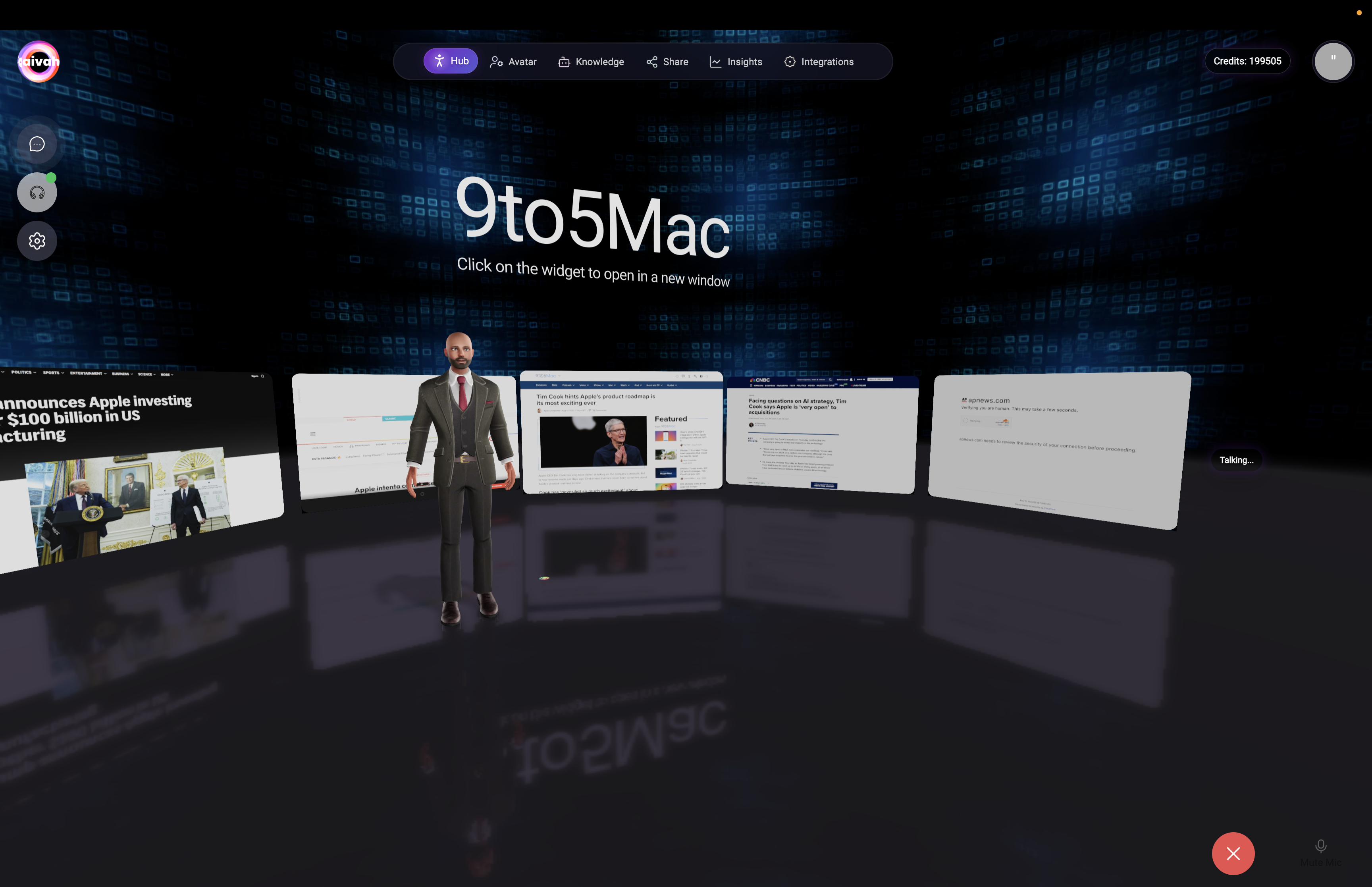
- Interactive Elements: In Web Search scene, results appear as 3D widgets
- Fact Verification: Agent can verify and cross-reference information
Tool Integration and Actions
Connected Application Access:- MCP Tools (Composio): Gmail, Calendar, Notion, Linear, Slack, GitHub, and many more
- Email Management: Send emails through connected Gmail
- Calendar Operations: Schedule meetings and manage appointments
- CRM Updates: Update customer records and contact information
- Phone Integration: Make calls via your Twilio number
File attachments
Click the paper-clip icon to upload supporting material into the chat. Supported types include images, PDFs, Word documents, Excel sheets, and PowerPoint presentations (subject to the per-file size limits shown on the dialog).Document Creating Banner
When the agent is producing a long asset (slide deck, podcast, mind map, Excel, Word) the Document Creating Banner appears at the bottom of the conversation. It tells you what is being generated and disappears automatically once the asset is ready – you can keep chatting in the meantime.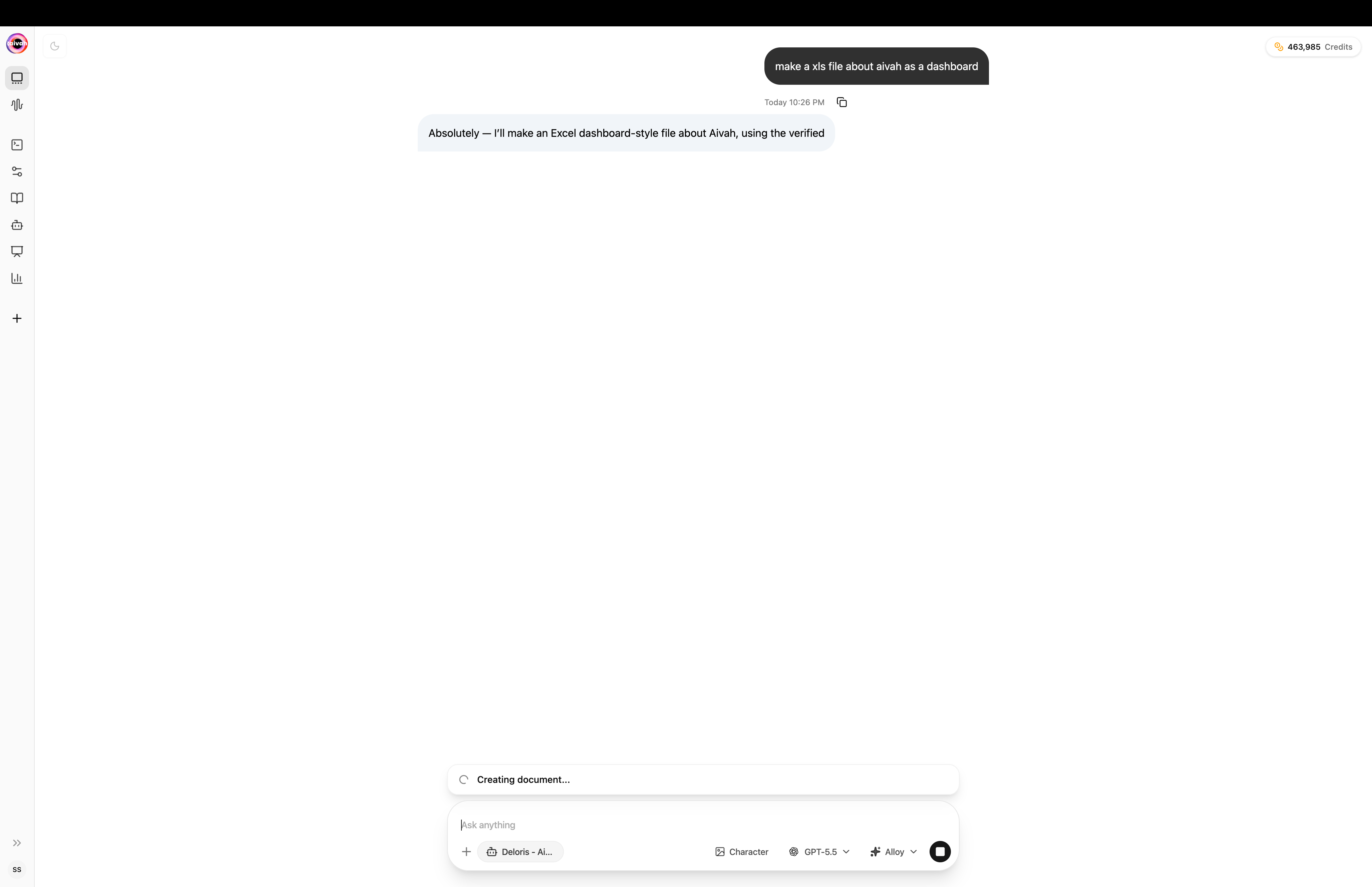
Document Creating banner while an Excel dashboard is being built from chat
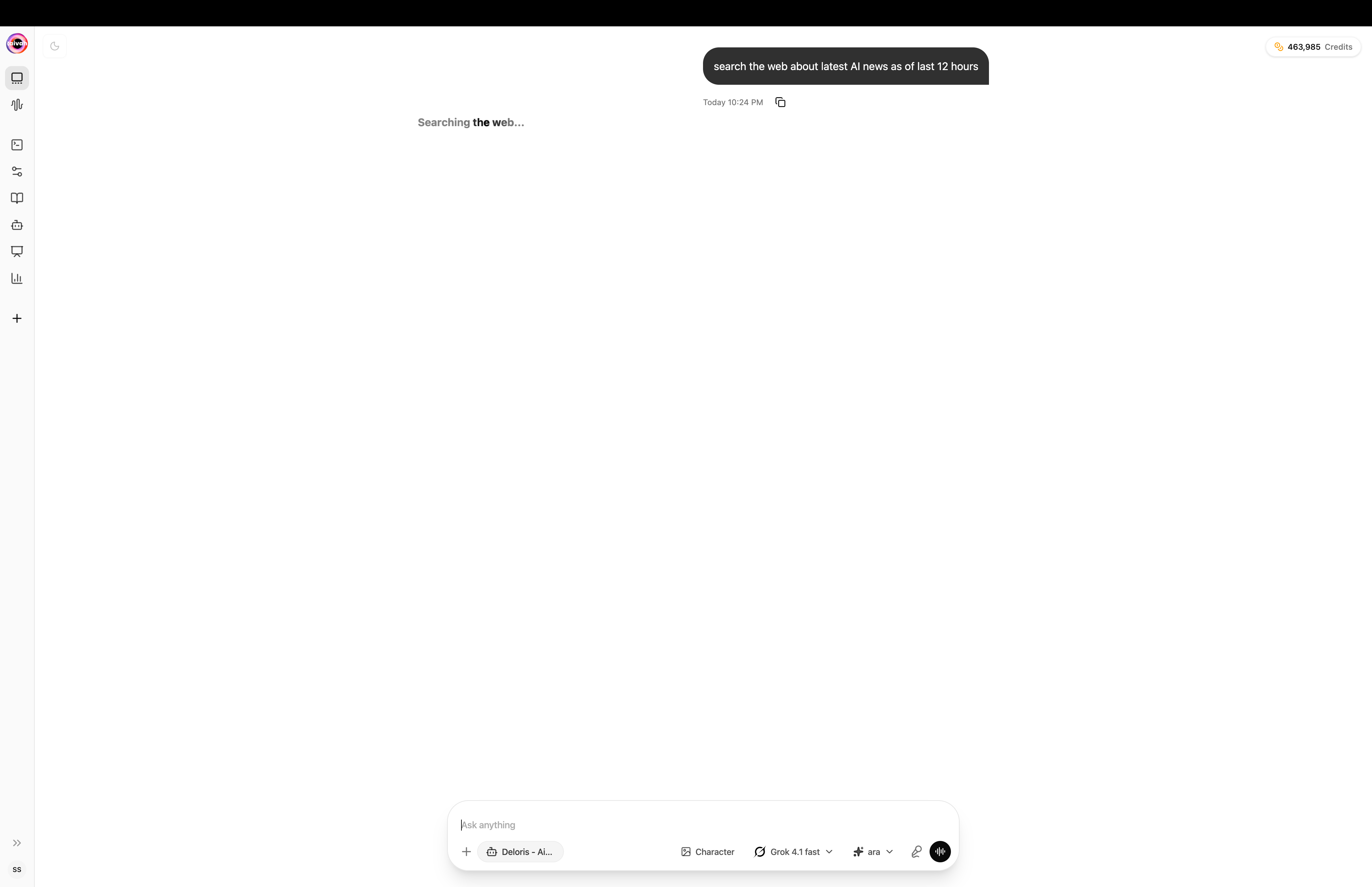
Web Search in chat – the status bar shows the agent is searching the web
Conversation list & actions
The conversation list on the left supports rename, pin, and delete actions on every entry. Pinned conversations stay at the top so important threads (long-running projects, drafts, recurring decks) stay one click away.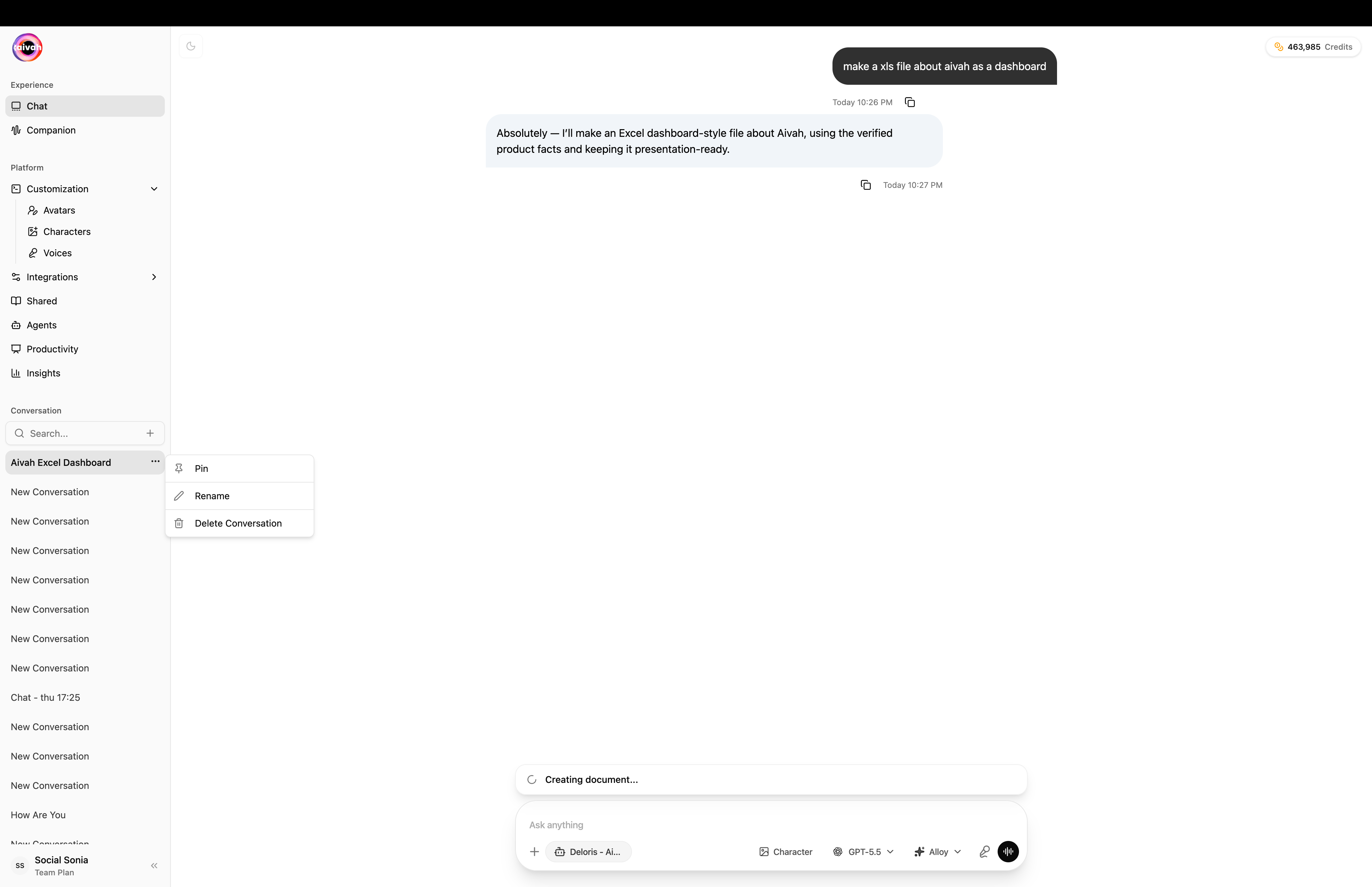
Per-conversation actions menu (Pin / Rename / Delete)
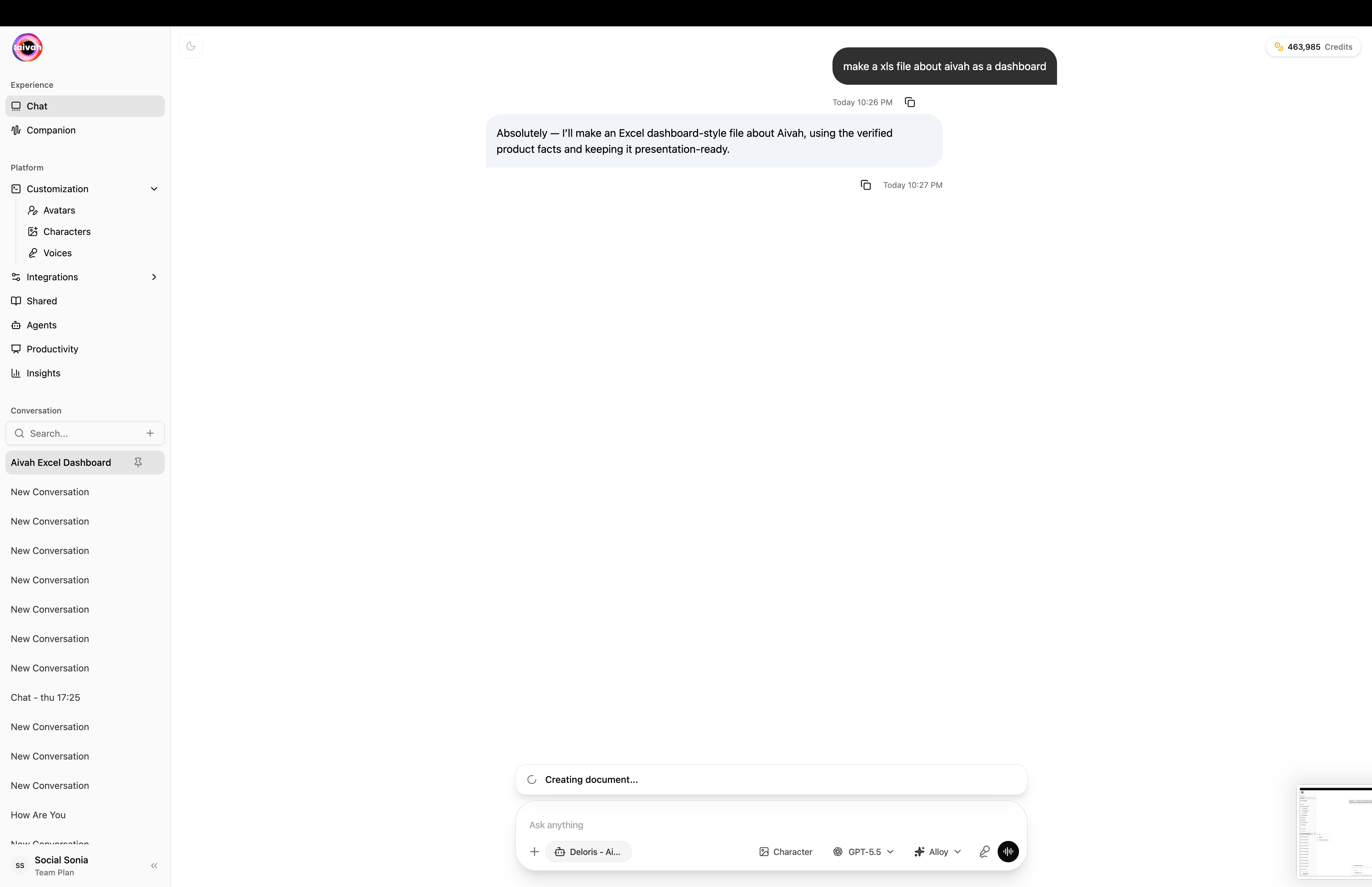
Pinned conversation with the latest generated asset preview in the bottom-right
Multi-Modal Content
Rich Interaction Support:- Website Integration: Display live websites in Zen scenes
- Presentation Control: Navigate slides in Presentation scenes
- Video Integration: Show YouTube videos while chatting
- Document Processing: Handle uploaded PDFs and presentations
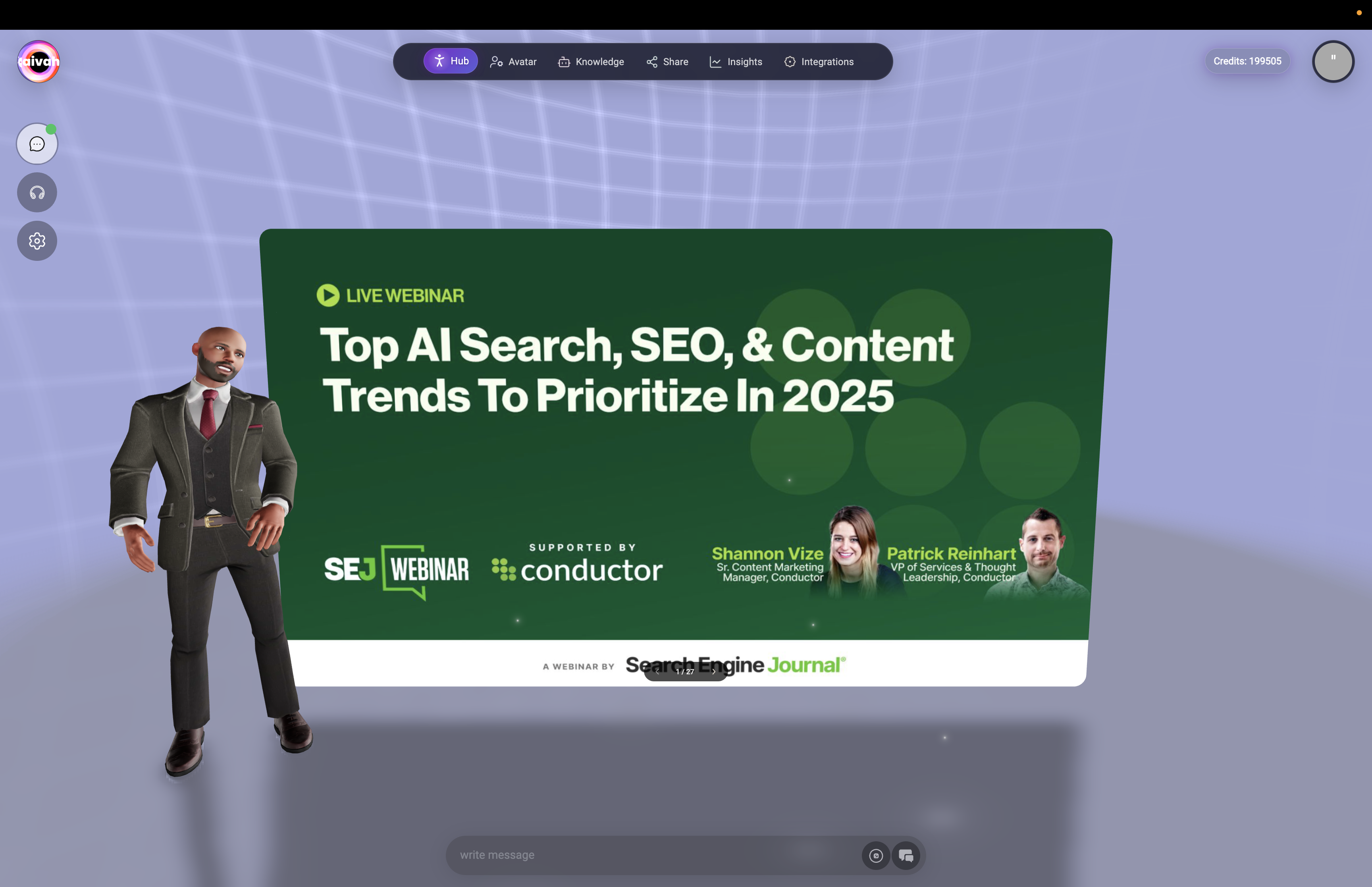
Chat Session Management
Session Continuity
- 20-Minute Timeout: Sessions automatically timeout after inactivity
- Session Restart: Click Chat button to restart after timeout
- Context Preservation: Important information retained across sessions
- Page Refresh: Alternative method to restart stalled sessions
Mode Switching
Seamless Transitions:- Chat to Talk: Click Talk button to switch to voice mode
- Context Retention: Conversation continues without interruption
- Settings Preservation: Agent, voice, and model selections maintained
- Real-Time Switch: Immediate transition between interaction modes
Performance Optimization
Optimal Chat Experience:- Stable Internet: Ensure reliable connection for WebRTC performance
- Browser Permissions: Grant necessary audio permissions even for chat
- Regular Updates: Keep browser updated for best compatibility
- Memory Management: Clear browser cache if experiencing slowdowns
Best Practices
Effective Chat Communication
- Clear Questions: Ask specific, well-formed questions
- Context Provision: Provide relevant background information
- Follow-Up Questions: Build on agent responses for deeper information
- Task Specification: Be specific about desired actions or outcomes
Feature Utilization
- Transcript Review: Use transcript to track important information
- Agent Switching: Try different agents for varied perspectives
- Tool Integration: Leverage connected apps for enhanced functionality
- History Access: Review previous conversations for context
Troubleshooting
- Connection Issues: Check for green dot before starting conversations
- Response Delays: Allow time for complex searches and tool operations
- Missing Transcript: Toggle transcript visibility using input bar control
- Audio Problems: Check browser permissions even though primarily text-based
Integration with Other Features
Scene Compatibility
- All Scenes: Chat mode works in every available scene
- Interactive Widgets: Enhanced experience in Zen and Web Search scenes
- Presentation Integration: Navigate presentations via chat commands
- Video Wall: Chat while custom videos play in background
Avatar Consistency
- Avatar Switching: Change avatars without losing chat context
- Voice Matching: Avatar voice settings apply to chat narration
- Character Persistence: Avatar personality maintained throughout chat