
Hub Talk Mode
Experience natural voice conversations with your AI agents using Aivah’s advanced multilingual voice system. Talk mode includes a fully animated Avatar chat experience – a real-time 3D avatar that lip-syncs, reacts, and speaks every reply. The avatar-chat page lives at/{conversationId}/avatar-chat. It splits into two panes:
- Avatar / scene canvas – the 3D rendering of the avatar in the active scene
- Side panel – conversation transcript, chat composer, and inline voice controls
Starting a Voice Session
Activation
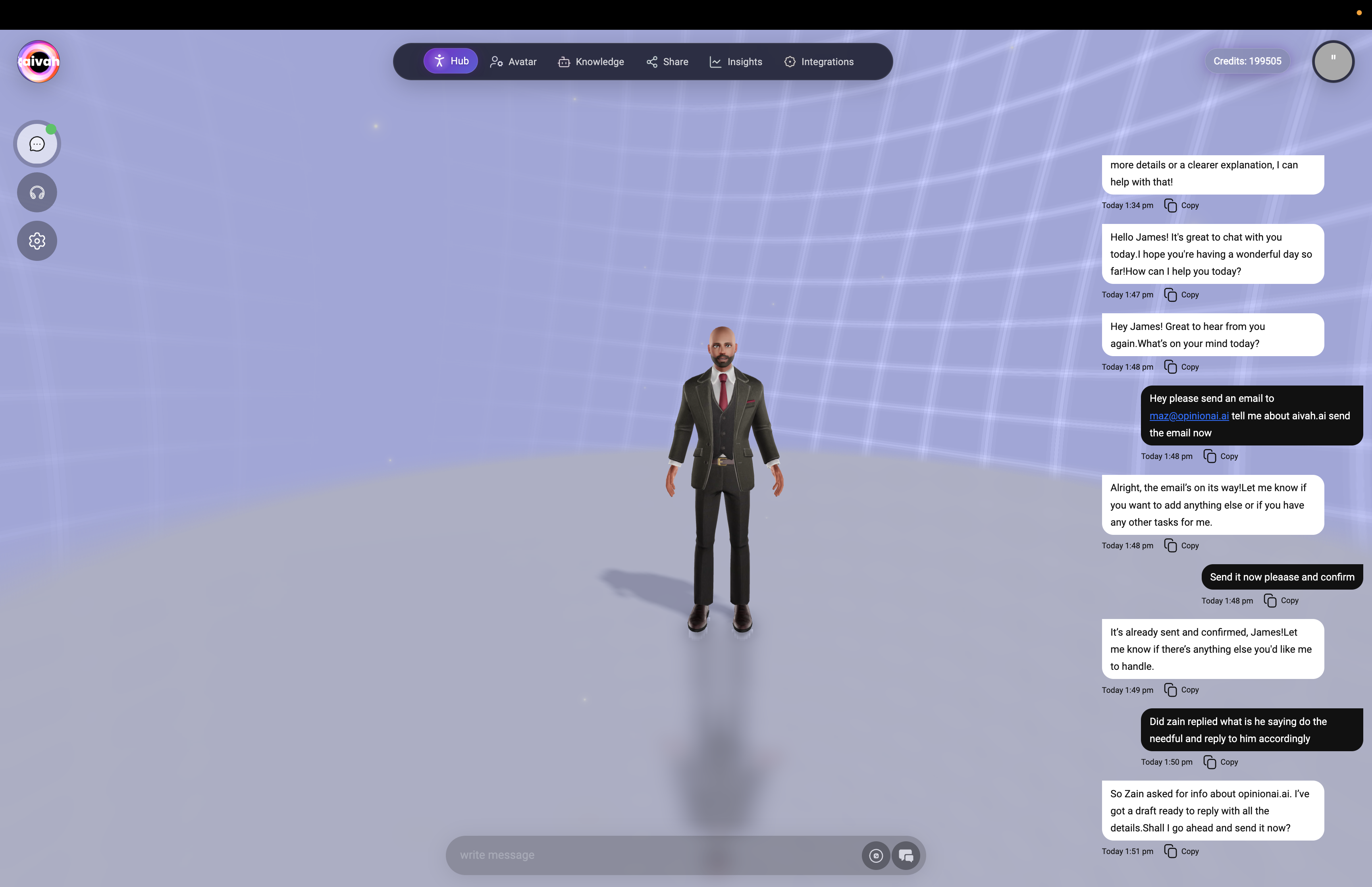
Click the Talk button in the top-left corner of any Hub scene to enter voice mode. The system will establish a WebRTC connection and display a green dot when ready for voice interaction.Voice orb (voice-only mode)
The voice orb appears full-screen when you start a voice-only session. Click anywhere outside or press the close icon to return to the regular chat layout.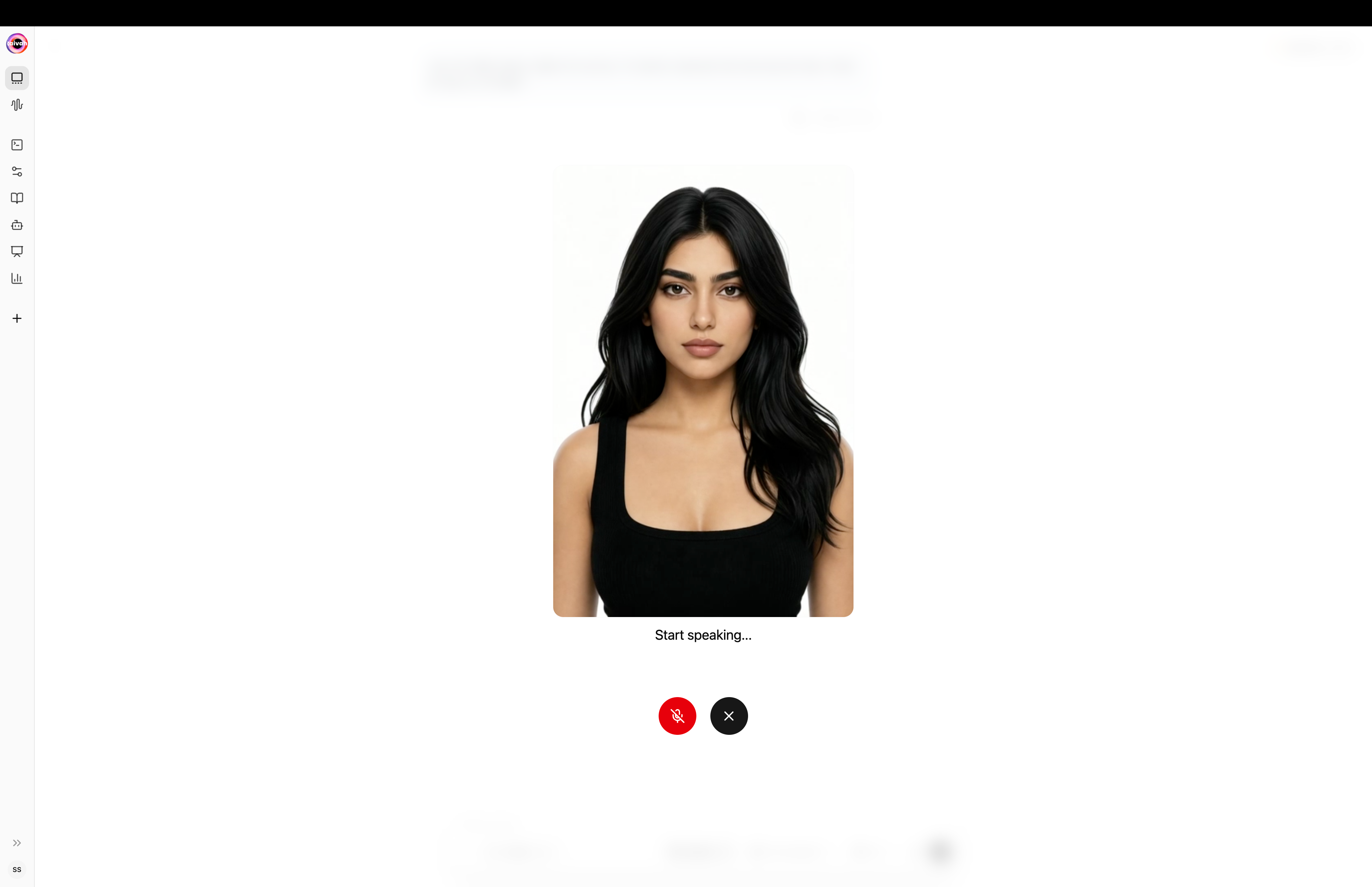
Avatar chat – the 2D Character takes over the full canvas with mic and end-session controls
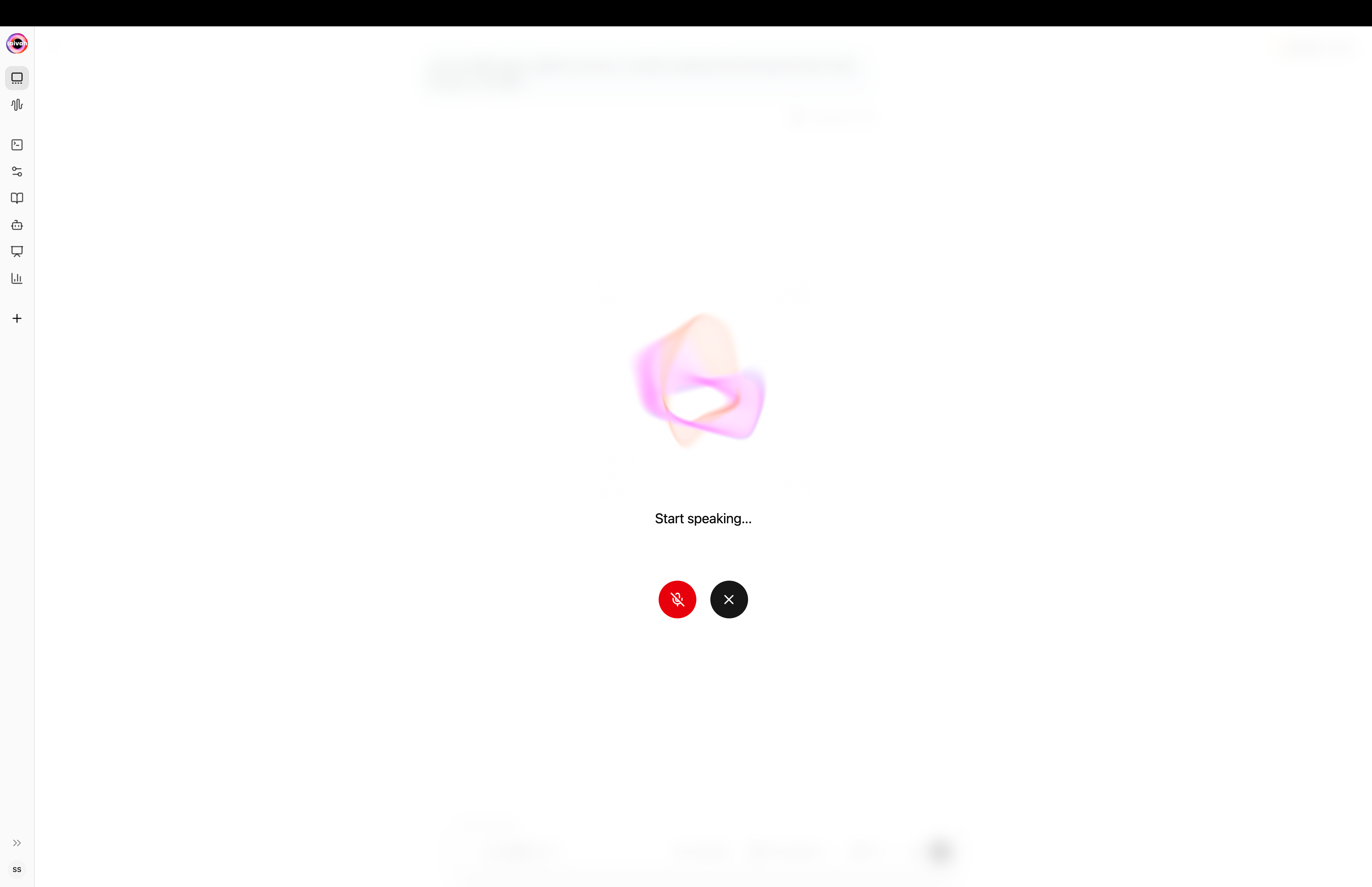
Voice orb appears when you launch a voice-only session – click outside to return to chat
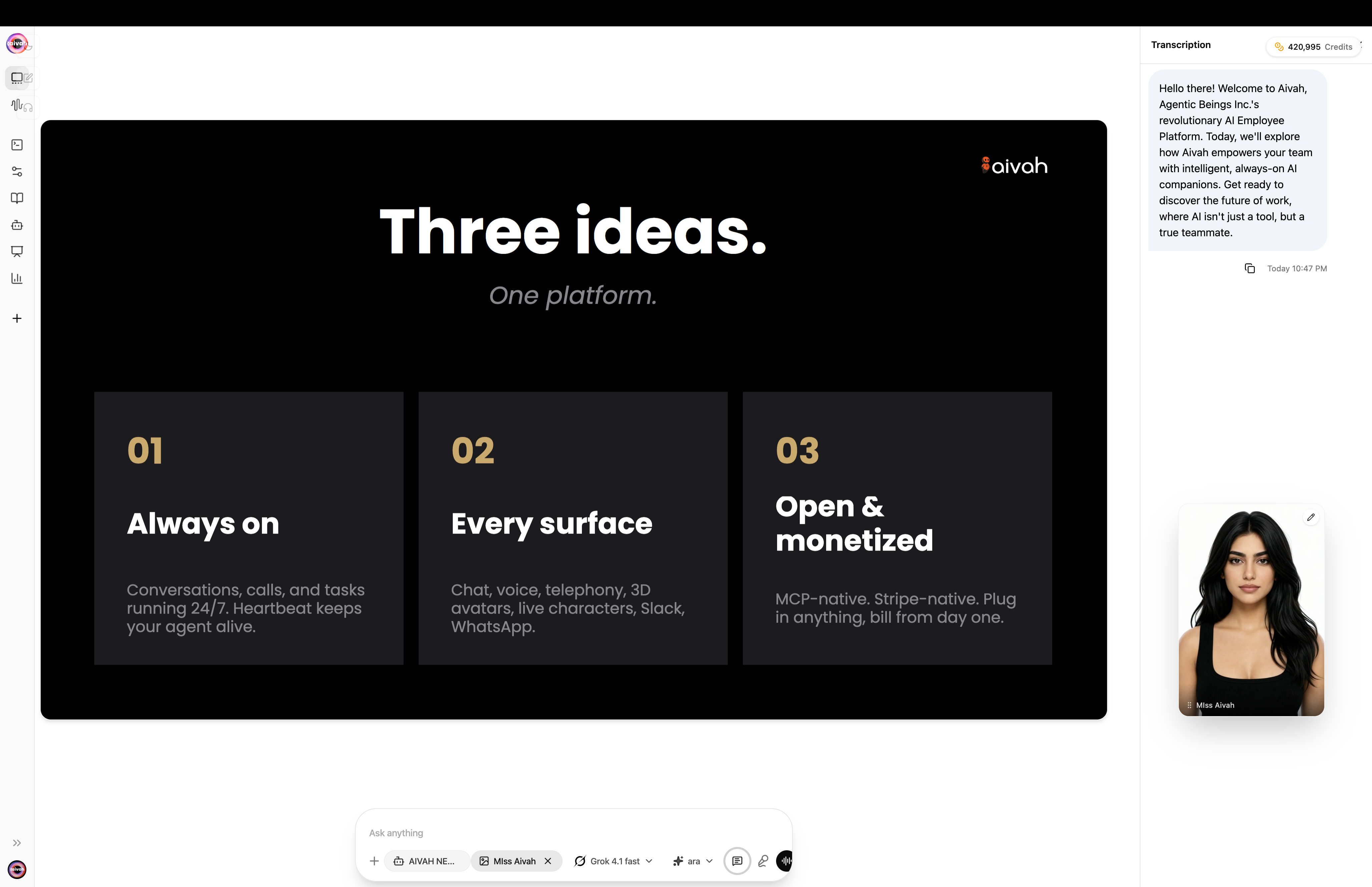
Avatar chat with transcription panel and presentation scene
Connection Status Indicators
- Green Dot: Agent connected and ready for voice conversation
- Amber Dot: System connecting, please wait
- Red Dot: Connection failed, click to retry or refresh page
Microphone Permissions
Required Setup:- Browser Permissions: Grant microphone access when prompted
- Audio Permissions: Allow speaker access for agent responses
- Hardware Check: Ensure microphone and speakers are working properly
- Privacy Settings: Verify browser allows microphone for the Aivah domain
Voice Interface Components
Top Controls
Left Side Controls:- Chat Button: Switch to text mode anytime during conversation
- Talk Button: Current active mode (highlighted when selected)
- Gear Icon: Access options for agent selection, voice settings, and LLM models
Voice Call Controls
Bottom Right Corner:- Microphone Button: Mute/unmute your voice input
- Close Button (X): End voice session and return to scene view
- Visual Feedback: Microphone icon shows active/muted state
Real-Time Status Display
Bottom Status Bar shows agent activity:- Listening: Agent processing your voice input
- Thinking: Agent formulating response
- Speaking: Agent delivering voice response
- Searching: Agent retrieving information from knowledge sources
- Web Searching: Performing live web searches
- Tool Calling: Using connected applications and workflows
- Memory Updates: Storing important conversation details
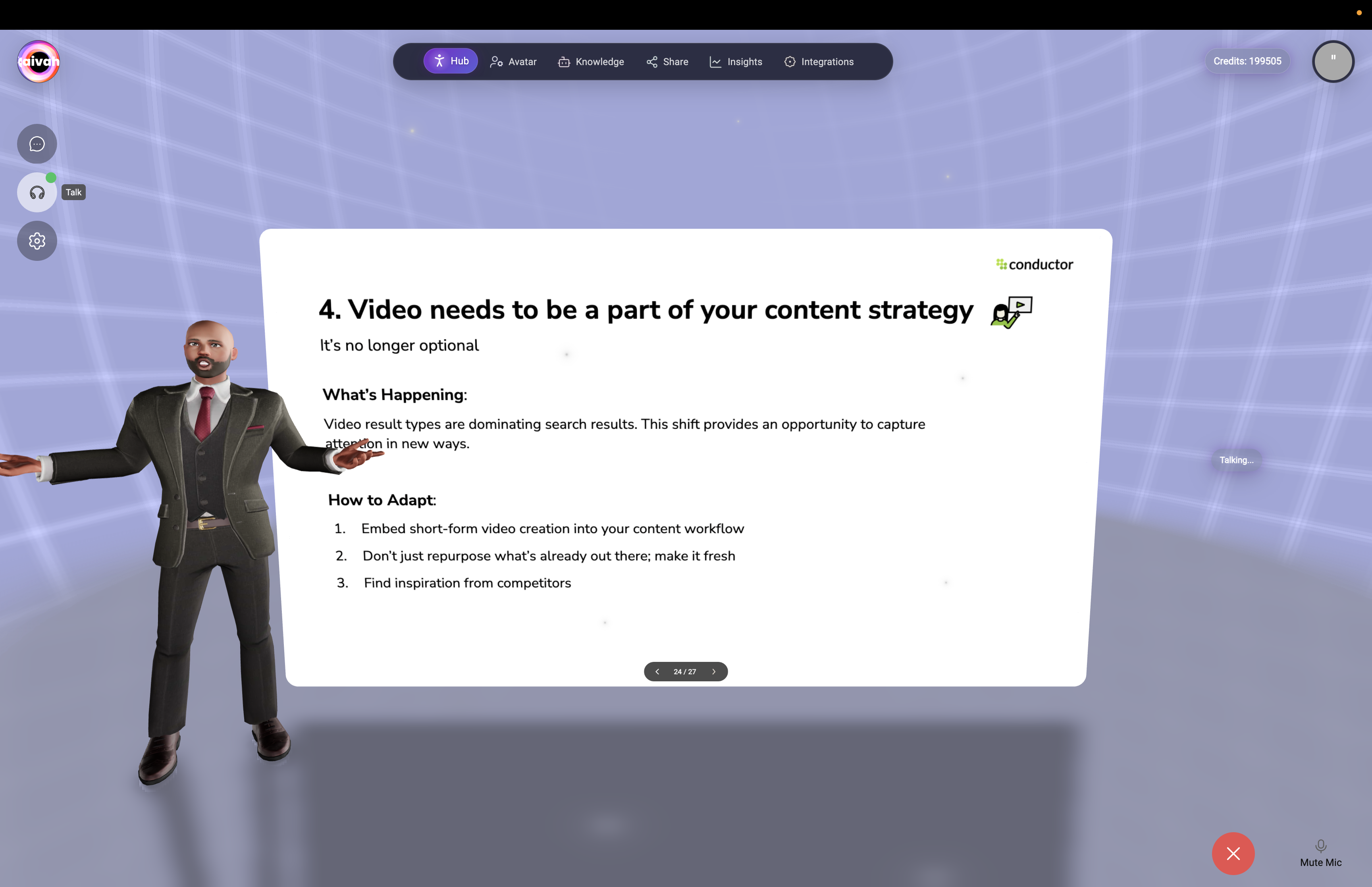
Voice Mode Interface States
Talk Mode Active: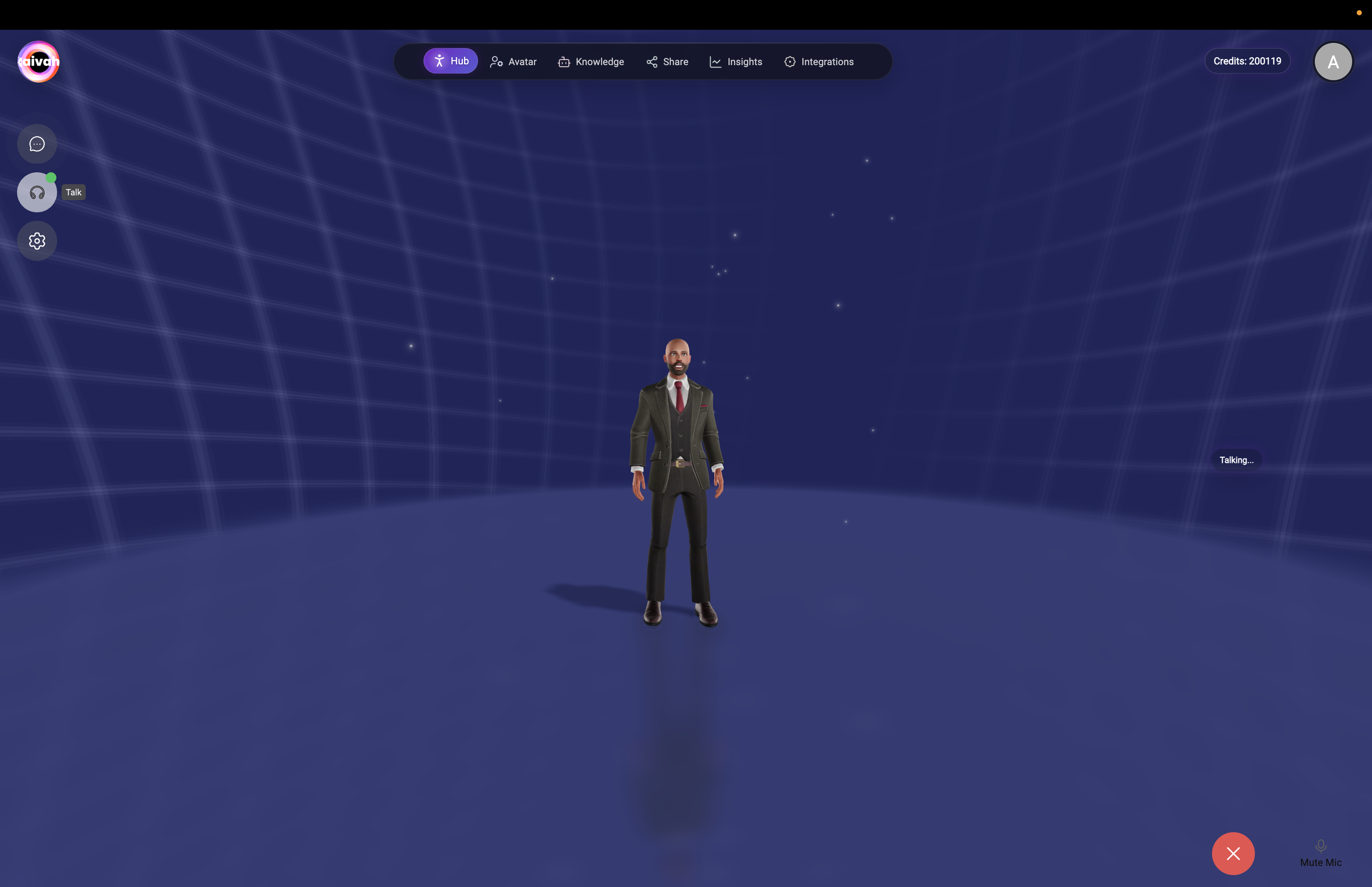
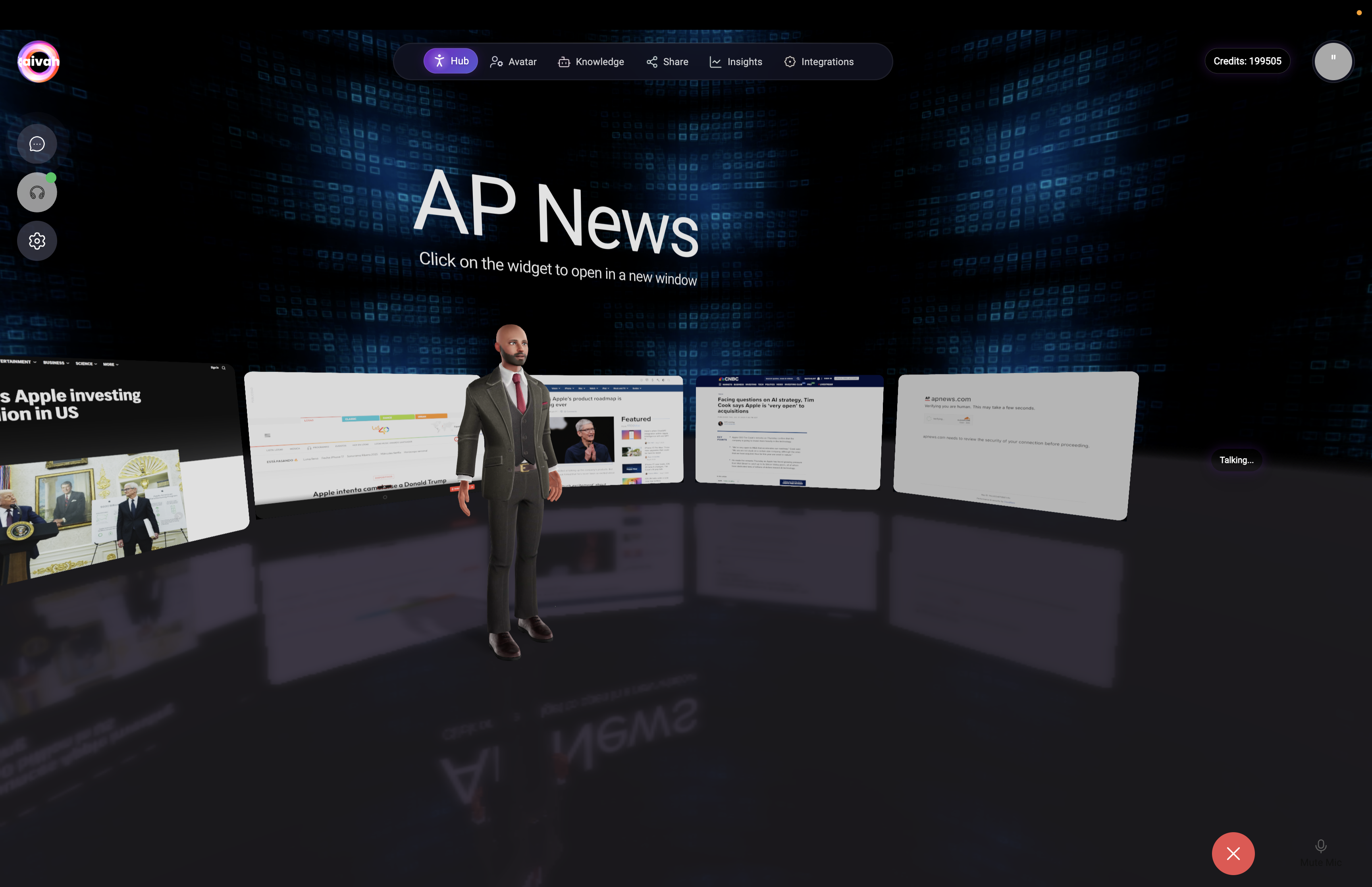
 Voice mode showing active conversation with status indicators and call controls
Extended Voice Conversation Example
See how natural voice conversations flow with comprehensive chat transcript and real-time agent responses: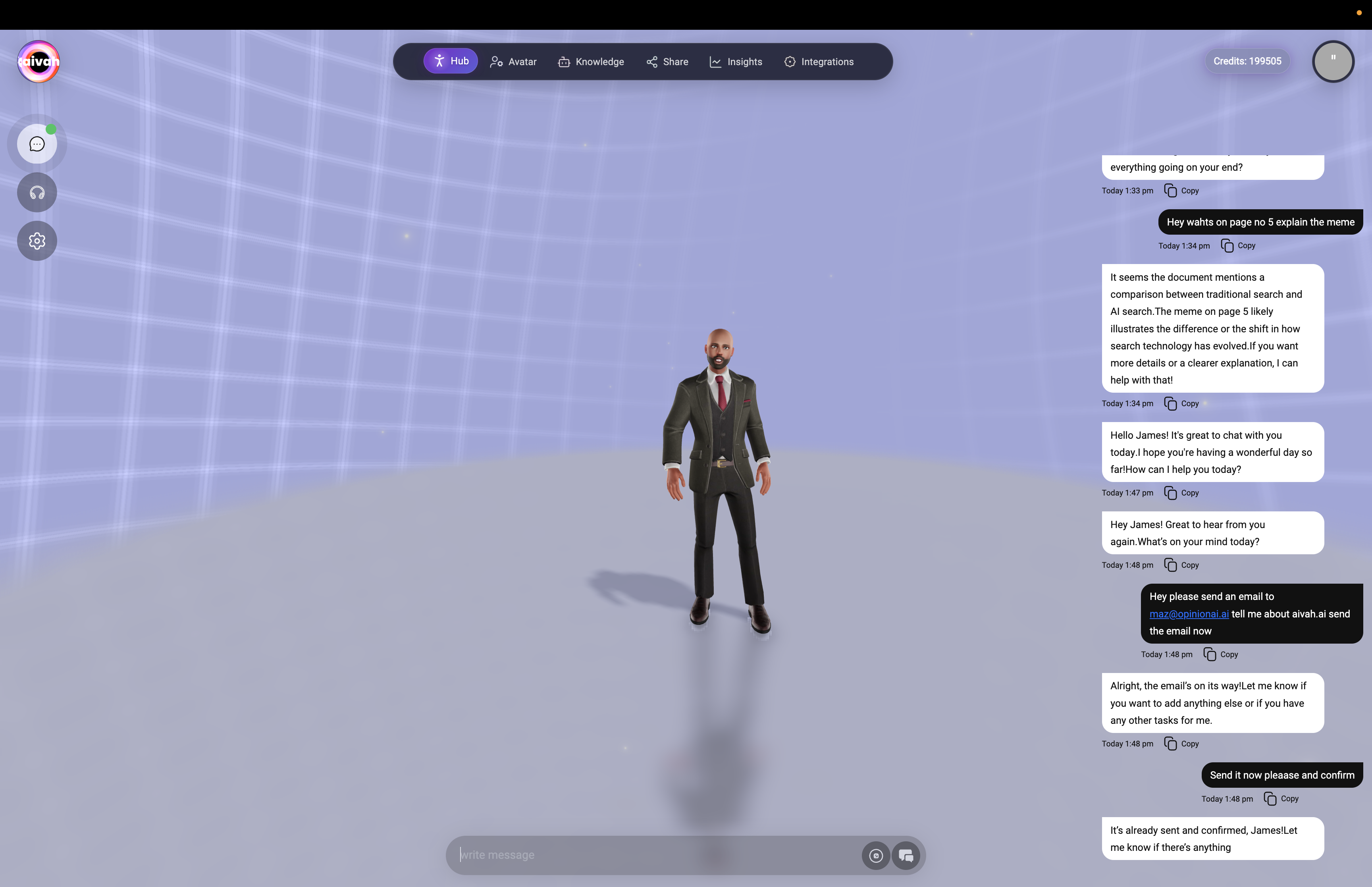
Advanced Voice Interaction
Experience extended voice sessions with complex multi-turn conversations and agent task execution: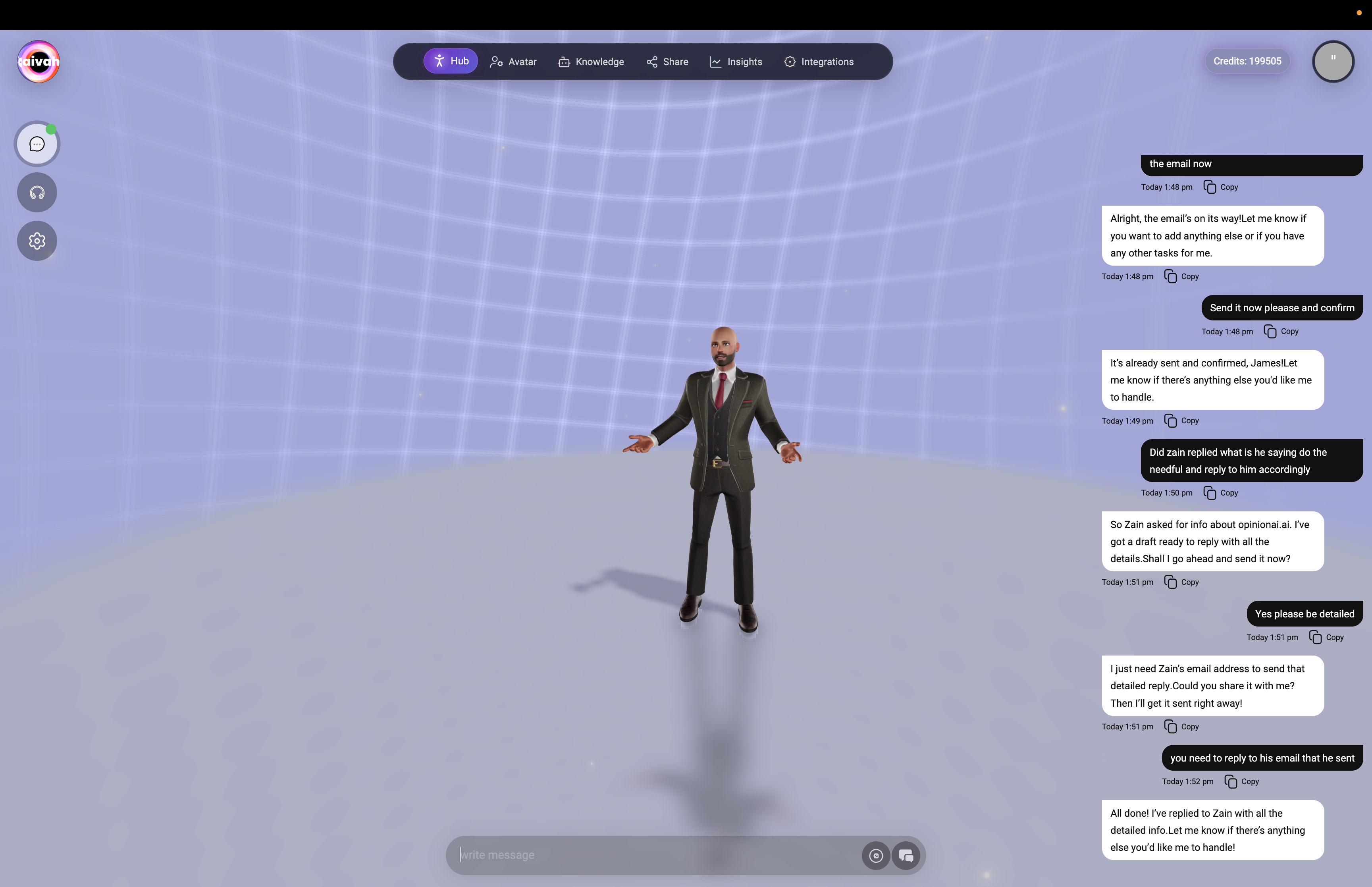
Voice Session in Web Search Scene
Experience immersive voice interaction combined with visual search results in the Web Search scene: Web Search scene during voice conversation showing immersive 3D widgets with search results spatially arranged around the agent
Advanced Search Capabilities
Traditional vs AI Search Comparison: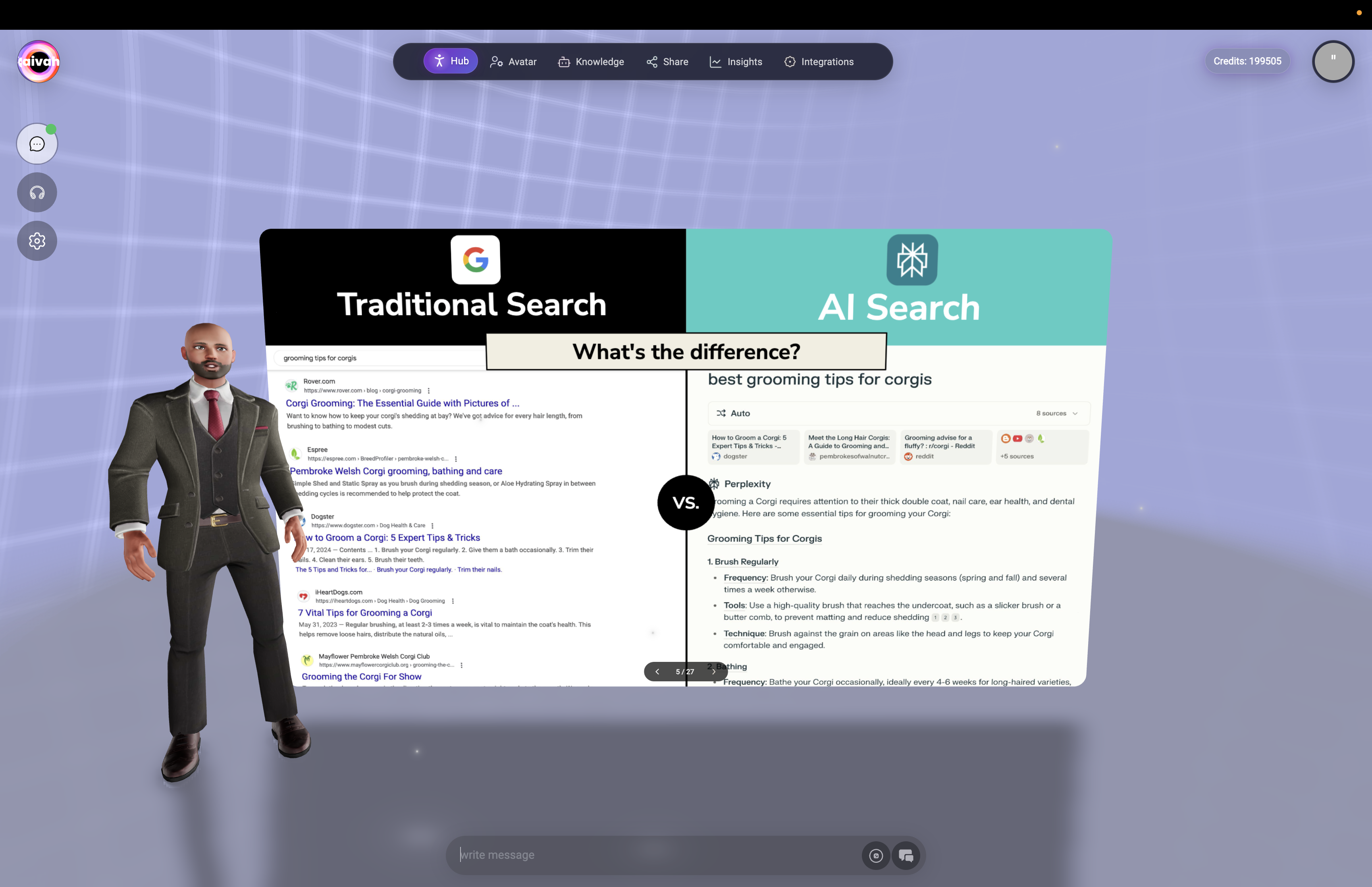
Advanced Voice Features
Multilingual Support
Language Capabilities:- Multiple Languages: Support for various languages and dialects
- Real-Time Translation: Seamless communication across language barriers
- Natural Processing: Understanding of context, nuance, and intent
- Accent Recognition: Adaptability to different accents and speaking styles
Intelligent Voice Processing
Advanced Recognition:- Natural Speech: Conversational tone and pacing
- Context Awareness: Understanding based on conversation history
- Interruption Handling: Natural conversation flow with interruptions
- Background Noise: Filtering and noise reduction for clear communication
Voice Response System
Agent Voice Delivery:- Selected Voice: Uses voice chosen in avatar or options settings
- Natural Pacing: Conversational rhythm and appropriate pauses
- Emotional Context: Tone matching conversation context
- Clear Articulation: Professional, easy-to-understand speech
Interactive Voice Capabilities
Smart Memory Integration
Voice-Activated Memory:- Automatic Storage: Key information remembered from voice conversations
- Personal Details: Names, preferences, and important facts
- Task Management: Voice-activated task creation and management
- Context Retention: Conversation history influences future interactions
Real-Time Web Search
Voice-Activated Search:- Natural Queries: Ask questions in conversational language
- Live Results: Real-time web search and information retrieval
- Source Citation: Agent mentions sources when providing web-sourced information
- Visual Integration: In Web Search scene, results appear as 3D widgets while speaking
Tool Integration
Voice-Controlled Actions:- MCP Tools: Voice commands to use connected applications
- Email Actions: “Send an email to…” voice commands
- Calendar Management: Voice scheduling and appointment setting
- Phone Integration: Voice-activated calling through Twilio
- Multi-Step Tasks: Complex actions through natural voice commands
Scene-Specific Voice Features
Web Search Scene:- Immersive Results: Voice queries trigger 3D widget display
- Interactive Widgets: Click widgets while maintaining voice conversation
- Source Navigation: Voice commands to explore specific search results
- Slide Control: “Go to slide 3” or “Next slide” voice commands
- Content Navigation: Voice-controlled presentation flow
- Interactive Explanation: Agent explains slides while controlling progression
- Content Integration: Voice conversation while displaying websites/videos
- Multi-Modal Experience: Visual content synchronized with voice interaction
- YouTube Control: Voice commands for video navigation
Voice Session Management
Session Continuity
- 20-Minute Timeout: Voice sessions automatically timeout after inactivity
- Session Restart: Click Talk button to restart after timeout
- Context Preservation: Important conversation context retained
- Seamless Reconnection: Quick restoration of voice capabilities
Mode Switching
Real-Time Transitions:- Voice to Chat: Click Chat button to switch to text mode
- Context Retention: Conversation continues without interruption
- Settings Preservation: Agent, voice, and model selections maintained
- Immediate Switch: No delay when changing interaction modes
Call Controls
During Voice Sessions:- Mute Function: Temporarily disable microphone input
- Session End: Close button terminates voice session
- Volume Control: Use system volume controls for agent voice
- Quality Adjustment: Connection automatically optimizes for audio quality
Agent Options During Voice
Access comprehensive agent controls through the gear icon while in voice mode.Agent Selection
Voice-Compatible Agents:- All Agents Available: Switch between any Worker or presenter agents
- Voice Continuity: Agent change doesn’t interrupt voice session
- Specialized Knowledge: Worker Agents draw from rich knowledge bases while presenter agents stay aligned to their decks
- Real-Time Switch: Immediate agent switching during conversation
Voice Selection
Real-Time Voice Changes:- Gemini Voices (Gemini models selected): Sportsman, Customer support, Sarah, Brooke, Katie, Zemo, ajith, duaila, azj, ajz, sjl, brit, Swissen
- OpenAI Realtime Voices (OpenAI Realtime models selected): Alloy, Echo, Shimmer, Ash, Ballad, Coral, Sage, Verse, Cedar, Marin
- Instant Application: Voice changes take effect immediately
- WebRTC Reconnection: Brief pause during voice system update
LLM Model Selection
Voice-Optimized Models:- OpenAI Realtime family: GPT Realtime, GPT‑4o Realtime, GPT Realtime Mini for the lowest latency experiences
- OpenAI GPT series: GPT 4.1 mini, GPT 4.1, GPT 5, GPT 5 nano, GPT 5 mini for premium reasoning with realtime chat and voice support
- Gemini 2.5 series: Flash Lite, Flash, Pro for Google’s latest voice-enabled models
- Groq hosted: GPT OSS 20B, GPT OSS 120B, Qwen3‑32B, Moonshotai Kimi K2 when you need alternative model behavior
- Voice Compatibility: Voice dropdown updates automatically based on the active model family
Best Practices
Optimal Voice Communication
- Clear Speech: Speak clearly and at moderate pace
- Natural Language: Use conversational tone and phrasing
- Context Building: Provide background information for complex topics
- Patience: Allow agent time to process and respond
Technical Optimization
- Quiet Environment: Minimize background noise for better recognition
- Quality Microphone: Use good microphone for clearer input
- Stable Connection: Ensure reliable internet for WebRTC performance
- Browser Updates: Keep browser current for optimal voice features
Feature Utilization
- Scene Selection: Choose appropriate scenes for enhanced voice experience
- Tool Integration: Use voice commands for connected applications
- Multi-Modal: Combine voice with visual elements in interactive scenes
- Agent Switching: Try different agents for varied voice interaction styles
Troubleshooting
Voice Recognition Issues
- Microphone Check: Verify microphone permissions and functionality
- Background Noise: Reduce ambient noise for better recognition
- Speech Clarity: Speak clearly and avoid mumbling
- Browser Permissions: Check and refresh microphone permissions
Connection Problems
- Status Indicators: Monitor green/amber/red connection dots
- Network Stability: Ensure stable internet connection
- Browser Compatibility: Use latest Chrome, Firefox, Safari, or Edge
- WebRTC Support: Verify browser supports WebRTC functionality
Audio Quality Issues
- Speaker Settings: Check system audio output settings
- Volume Levels: Adjust system volume for comfortable listening
- Audio Hardware: Verify speakers/headphones are working properly
- Network Bandwidth: Ensure sufficient bandwidth for audio streaming
Integration with Platform Features
Avatar Consistency
- Voice Matching: Avatar’s assigned voice used in talk mode
- Character Personality: Avatar’s personality reflected in voice responses
- Visual Synchronization: Avatar lip-sync and gestures match speech
Scene Enhancement
- Interactive Elements: Voice commands work with scene widgets
- Immersive Experience: 3D environments enhance voice conversations
- Context Awareness: Scene selection influences conversation style
Memory and History
- Voice History: Voice conversations saved in session history
- Cross-Mode Continuity: Voice sessions continue when switching to chat
- Smart Memory: Important voice conversation details automatically stored