
Chat Bubble Integration
The chat bubble embed allows you to add a floating chat interface to any website. Users can click the bubble to start conversations with your AI agent without leaving the current page.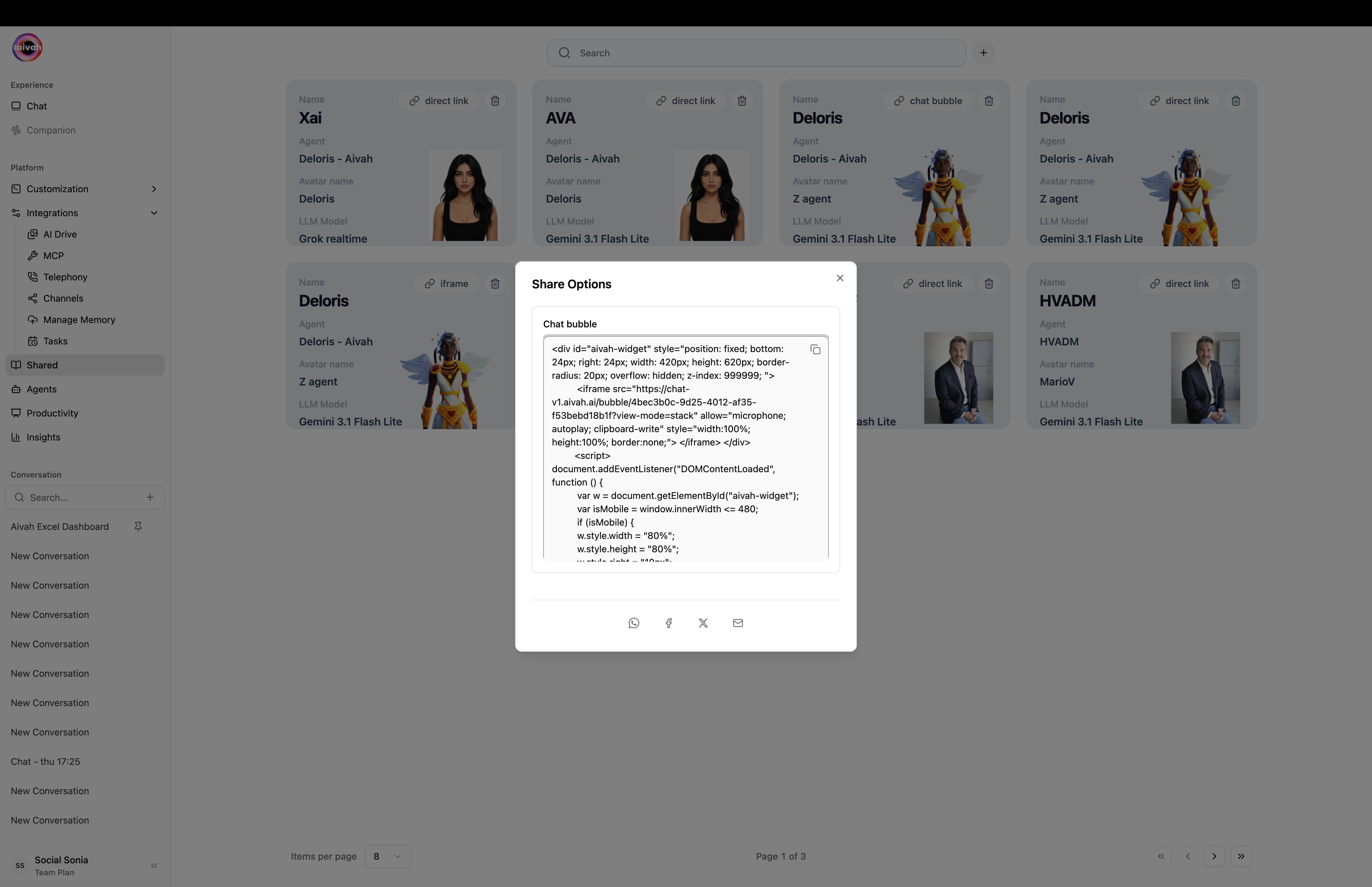
Share Options dialog – Chat bubble tab with the copy-ready script snippet
How Chat Bubbles Work
Floating Interface
- Non-intrusive Design: Small bubble that doesn’t interfere with website content
- Always Accessible: Positioned for easy access without blocking important elements
- Expandable Interface: Clicking opens a larger chat window
- Contextual Help: Users get assistance while browsing your content
User Experience
- Instant Availability: Agent is ready to help at any moment
- Seamless Integration: Feels like a native part of your website
- Mobile Responsive: Works perfectly on all device sizes
- Customizable Appearance: Match your website’s design and branding
Implementation
JavaScript Embed Code
The platform generates JavaScript code that you can add to your website:
Configuration Variables
The embed script uses several configuration variables:- window.aivahUrl: Avatar image URL for the bubble
- window.aivahBackground: Background color for the bubble
- window.baseUrl: Base URL for the chat interface
- window.contentUrl: Direct link to your agent with bubble view type
Customization Options
Visual Appearance
- Avatar Image: Use your agent’s avatar in the bubble
- Background Color: Match your website’s color scheme
- Bubble Size: Adjust dimensions to fit your design
- Position: Choose corner placement (typically bottom-right)
Behavioral Settings
- Auto-open: Configure if bubble should open automatically
- Trigger Timing: Set when the bubble becomes active
- Animation Effects: Control how the bubble appears and behaves
- Click Behavior: Define what happens when users interact
Installation Process
Step 1: Generate Code
- Configure your agent’s behavior and appearance
- Navigate to the Share section
- Select “Chat bubble” as distribution method
- Copy the provided JavaScript code
Step 2: Website Integration
- Paste the code before the closing
</body>tag - Test the implementation on a staging environment
- Verify mobile responsiveness
- Check that the bubble doesn’t interfere with existing functionality
Step 3: Optimization
- Monitor performance impact
- Test user interactions
- Adjust positioning if needed
- Configure any additional settings
Technical Considerations
Performance Impact
- Lightweight Script: Minimal impact on page load times
- Lazy Loading: Agent interface loads only when needed
- CDN Delivery: Script served from optimized content delivery network
- Caching: Efficient caching for return visitors
Compatibility
- Modern Browsers: Works with all current web browsers
- Mobile Support: Full functionality on smartphones and tablets
- Framework Agnostic: Compatible with any website technology
- CMS Integration: Works with WordPress, Shopify, and other platforms
Security
- Secure Delivery: All scripts served over HTTPS
- Content Security Policy: Compatible with CSP implementations
- No Data Collection: Script doesn’t collect website visitor data
- Privacy Compliant: Respects user privacy preferences
Customization Best Practices
Design Integration
- Brand Consistency: Match bubble colors to your brand palette
- Visual Hierarchy: Ensure bubble doesn’t compete with important elements
- Accessibility: Maintain sufficient color contrast and size
- Mobile Optimization: Test thoroughly on mobile devices
User Experience
- Clear Purpose: Make it obvious what the bubble does
- Appropriate Timing: Don’t overwhelm users immediately on arrival
- Help Context: Position bubble where users might need assistance
- Fallback Options: Provide alternative contact methods
Use Cases
Customer Support
- 24/7 Availability: Provide instant help outside business hours
- Common Questions: Handle frequently asked questions automatically
- Escalation Path: Direct complex issues to human agents
- Support Documentation: Help users find relevant information
Lead Generation
- Qualification: Ask qualifying questions to identify prospects
- Information Collection: Gather contact details for follow-up
- Product Demos: Offer interactive product demonstrations
- Meeting Scheduling: Help visitors book appointments
Content Assistance
- Navigation Help: Guide users to relevant content
- Product Recommendations: Suggest appropriate products or services
- FAQ Responses: Answer common questions about your offerings
- Process Guidance: Walk users through complex procedures
Monitoring and Analytics
Performance Metrics
- Bubble Clicks: Track how often users engage with the bubble
- Conversation Starts: Monitor successful chat initiations
- User Satisfaction: Collect feedback on chat experiences
- Conversion Tracking: Measure impact on business goals
Optimization Strategies
- A/B Testing: Test different bubble designs and positions
- Usage Patterns: Analyze when users are most likely to engage
- Content Effectiveness: Evaluate which responses work best
- Technical Performance: Monitor load times and error rates