Customization Overview
Aivah’s Customization workspace is where you craft the persona that wraps your agent. It is split into three sections in the side navigation:Avatars (3D)
Side nav → Customization → Avatars.
- Paginated grid of every 3D avatar your account has access to.
- Use the search field to filter by name.
- Click a card to preview, set it as the default for the Playground, or use it inside New chat.
- Pagination controls live at the bottom; pick a page size or jump to any page. A scroll indicator appears when more cards are below the fold.
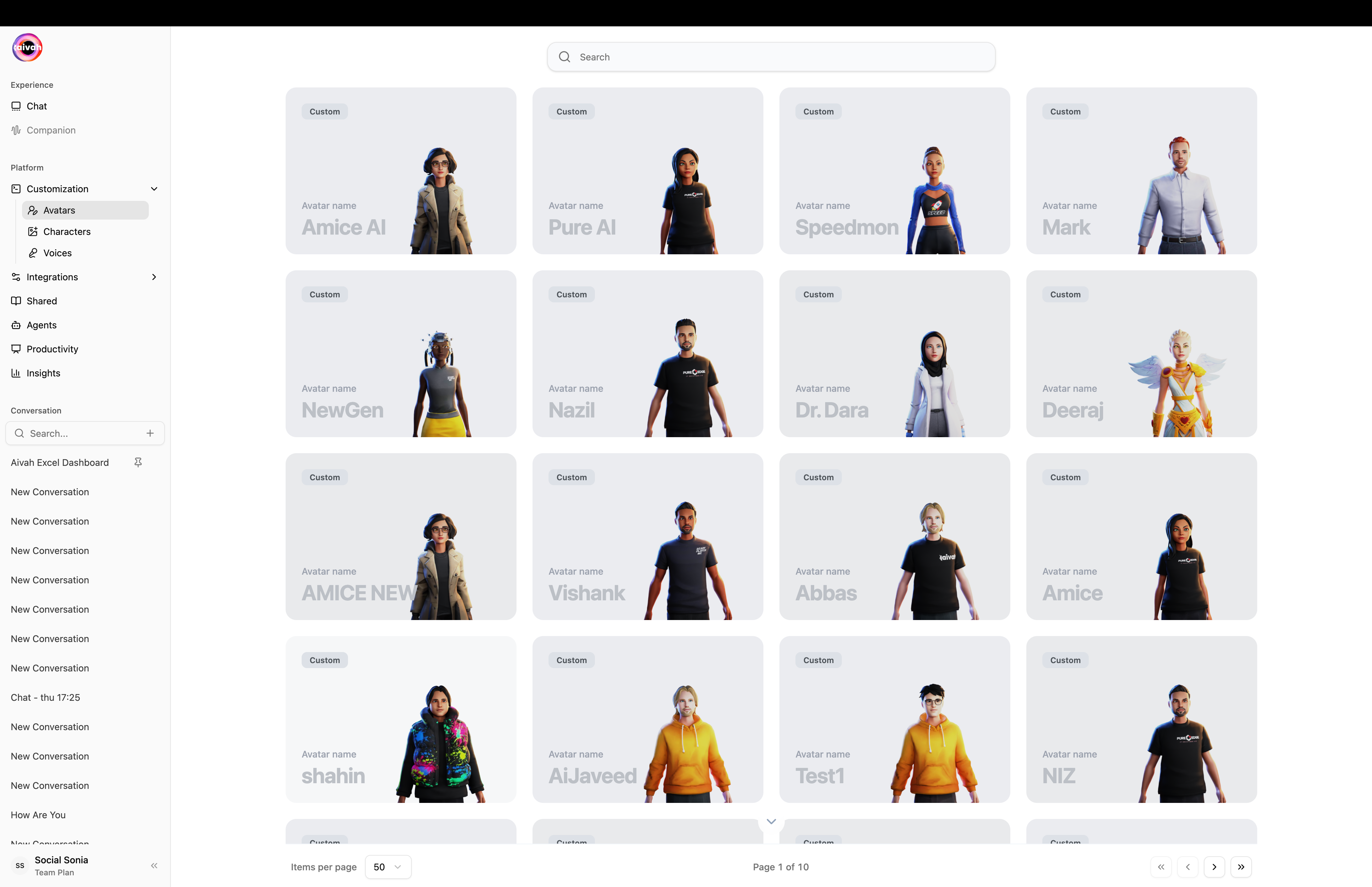
Avatars page – every 3D companion (custom Ready Player Me + system avatars) in a paginated grid
Avatar Types
Custom Avatars (Ready Player Me)
- Designed using Ready Player Me’s advanced 3D builder.
- Full customization of appearance, clothing, and style.
- Can be previewed, shared, and deleted by the creator.
- Ideal for branded, role-specific representations.
System Avatars
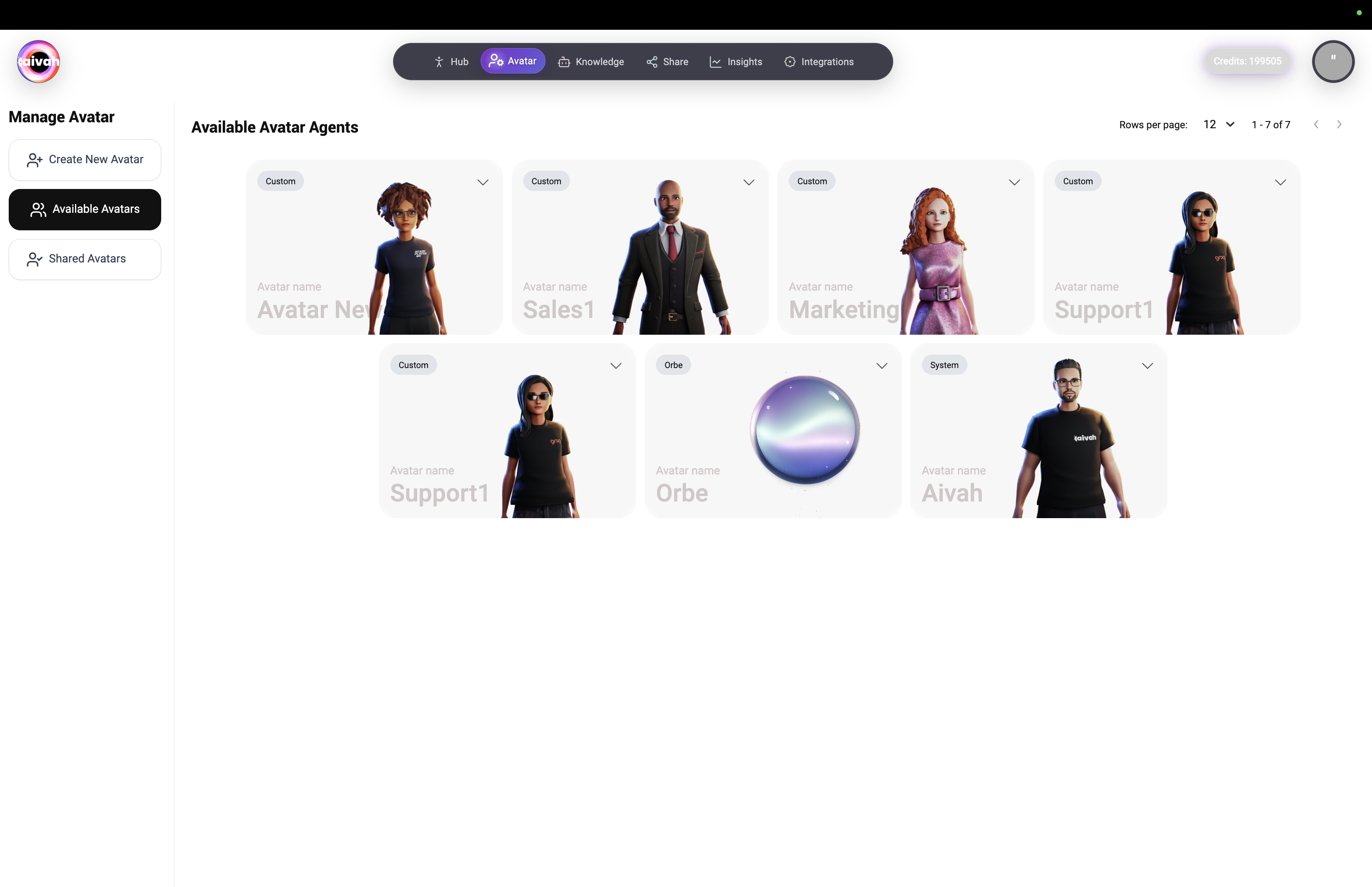
- Orbe – a professional sphere avatar for universal use.
- Ready to use without any customization.
- Orbe can be shared; other system avatars are reference-only.
- Optimized for performance across every deployment type.
Characters (image-based)
Side nav → Customization → Characters.
Characters are 2D personas: a single picture cropped to the face and shoulders. Use them when you want a lightweight, instantly recognizable avatar without the cost of a full 3D rig.
See the Characters guide for the full upload, crop, and management flow.
Voices
Side nav → Customization → Voices.
A single library that lists both Aivah’s built-in voices and any voice clones you upload. Each voice card supports playback and can be selected as the default speech voice in the chat composer, telephony configuration, or channels.
See the Voices guide to learn how to clone your own voice from a short reference recording.
Shared Avatar Agents
Track and manage deployed avatar agents:- Deployment Links: Direct links, iframe embeds, and chat bubble scripts
- Model Information: View associated agents and LLM models
- Copy & Share: Easily copy deployment links from avatar cards
- Usage Tracking: Monitor which avatars are actively shared
Getting Started Workflow
-
Create Your First Avatar
- Navigate to Create New Avatar
- Choose between Ready Player Me design or URL import
- Set name, voice, and create your avatar
-
Add a Character (optional)
- Open Characters → Upload Image
- Crop to the face, give it a name
- The character becomes selectable in the chat composer
-
Pick or Clone a Voice
- Open Voices and pick a built-in voice, or
- Use Clone voice to mint a personal voice from a short clean recording
-
Test Your Persona
- Go to the Playground after creation to interact with your new persona
- Verify appearance, voice, and personality work correctly
-
Manage Your Collection
- Use the per-card edit / delete actions to keep things tidy
- Shared characters cannot be deleted while the share is live – unpublish first
-
Deploy & Share
- Generate shareable links, embeds, or chat bubbles
- Track deployments in Shared Avatar Agents