Hub Overview
The Hub – also known as the Playground – is your primary interaction space where you talk to your AI agents. It ships in three related modes, all built on the same chat composer:
The home route (
/) automatically loads your most recent conversation. If you don’t have one yet, it redirects to New chat.
Hub Components
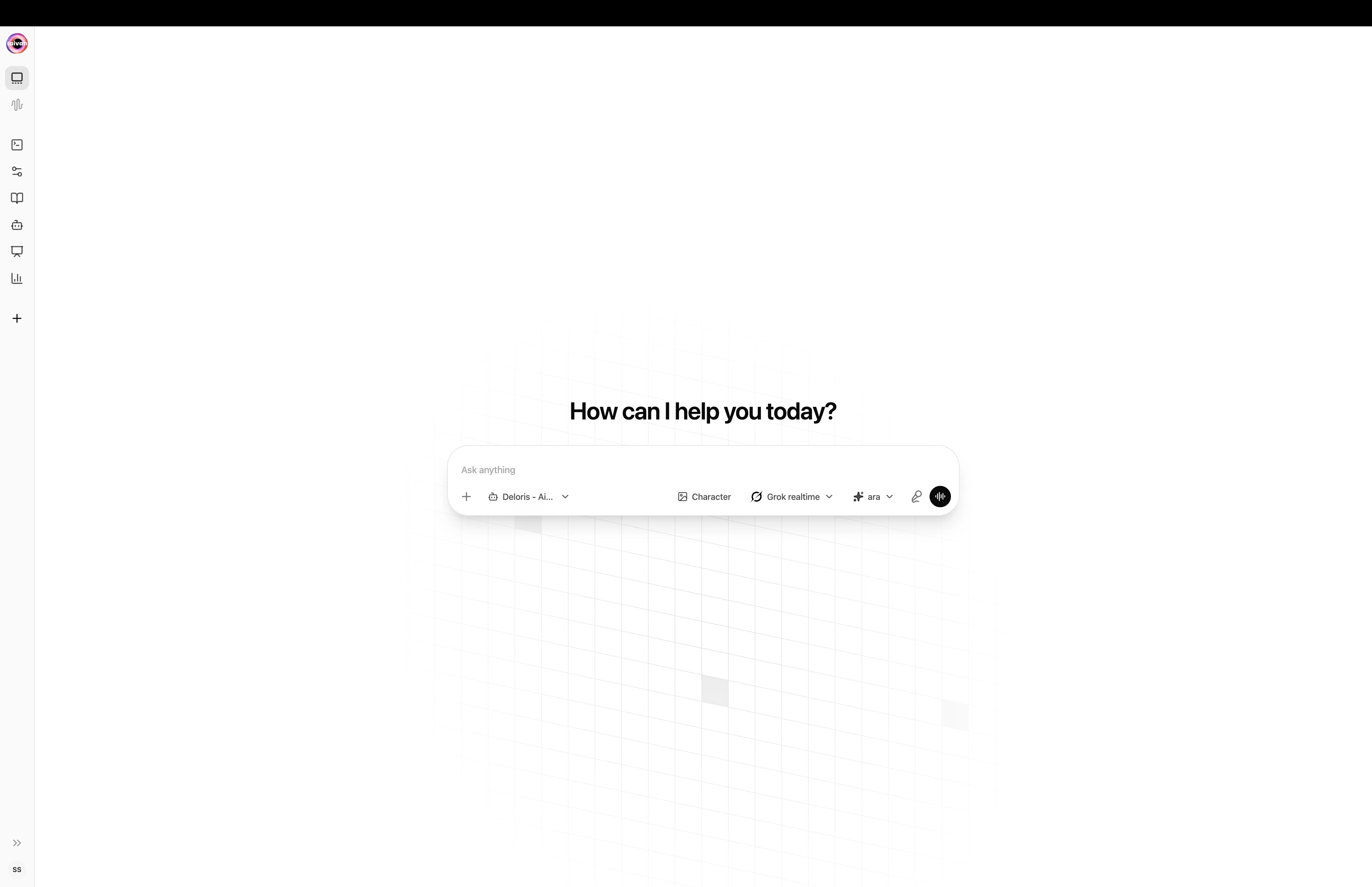
New chat composer
When you open New chat you see a welcome line and a single chat composer with configuration pills:- Knowledge base / Agent – which agent answers you
- LLM model – which large language model to use
- Voice – which voice the avatar will speak with
- Avatar / Character – the 3D companion or 2D character that appears
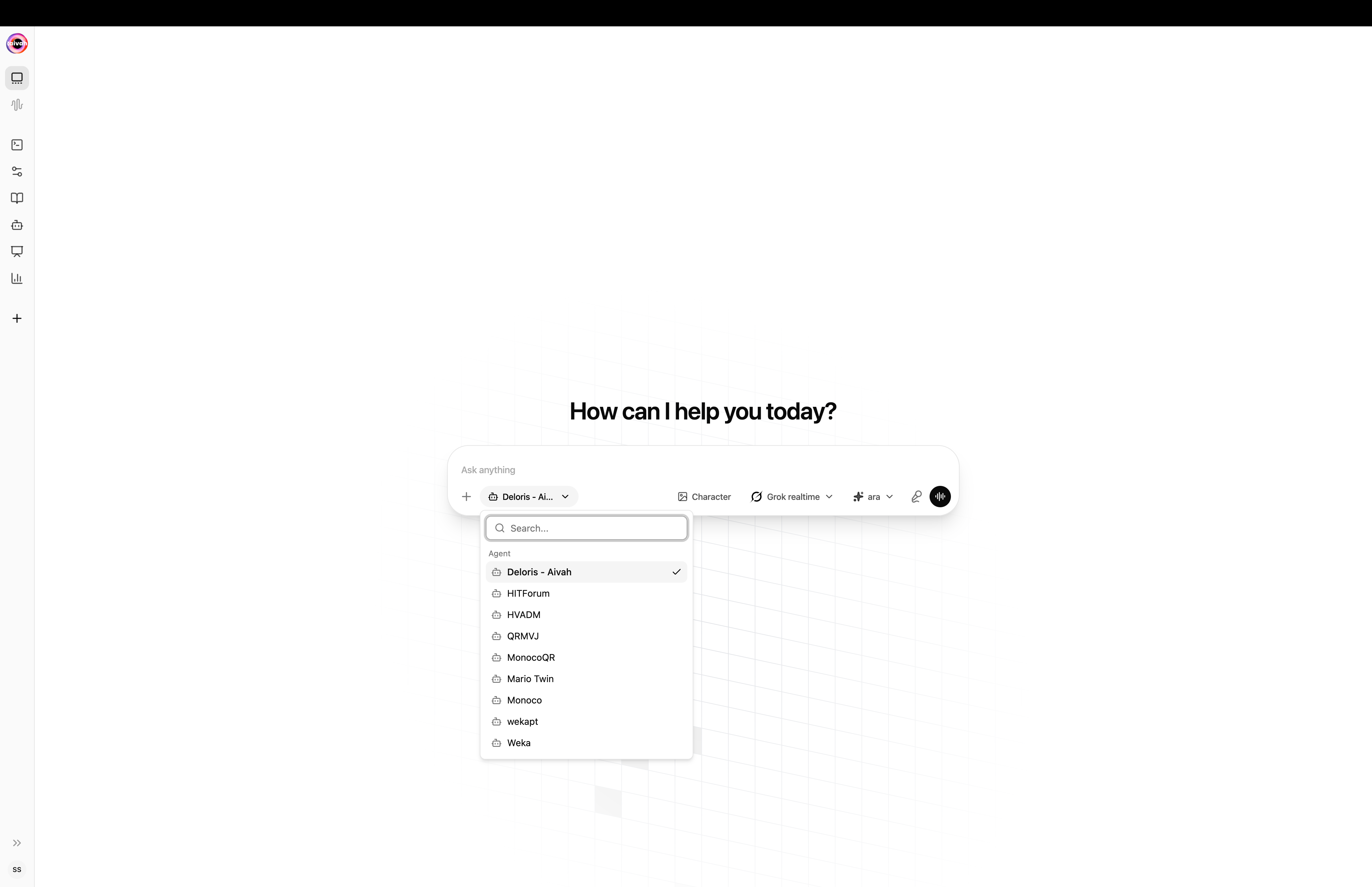
Switching agent from the composer pill
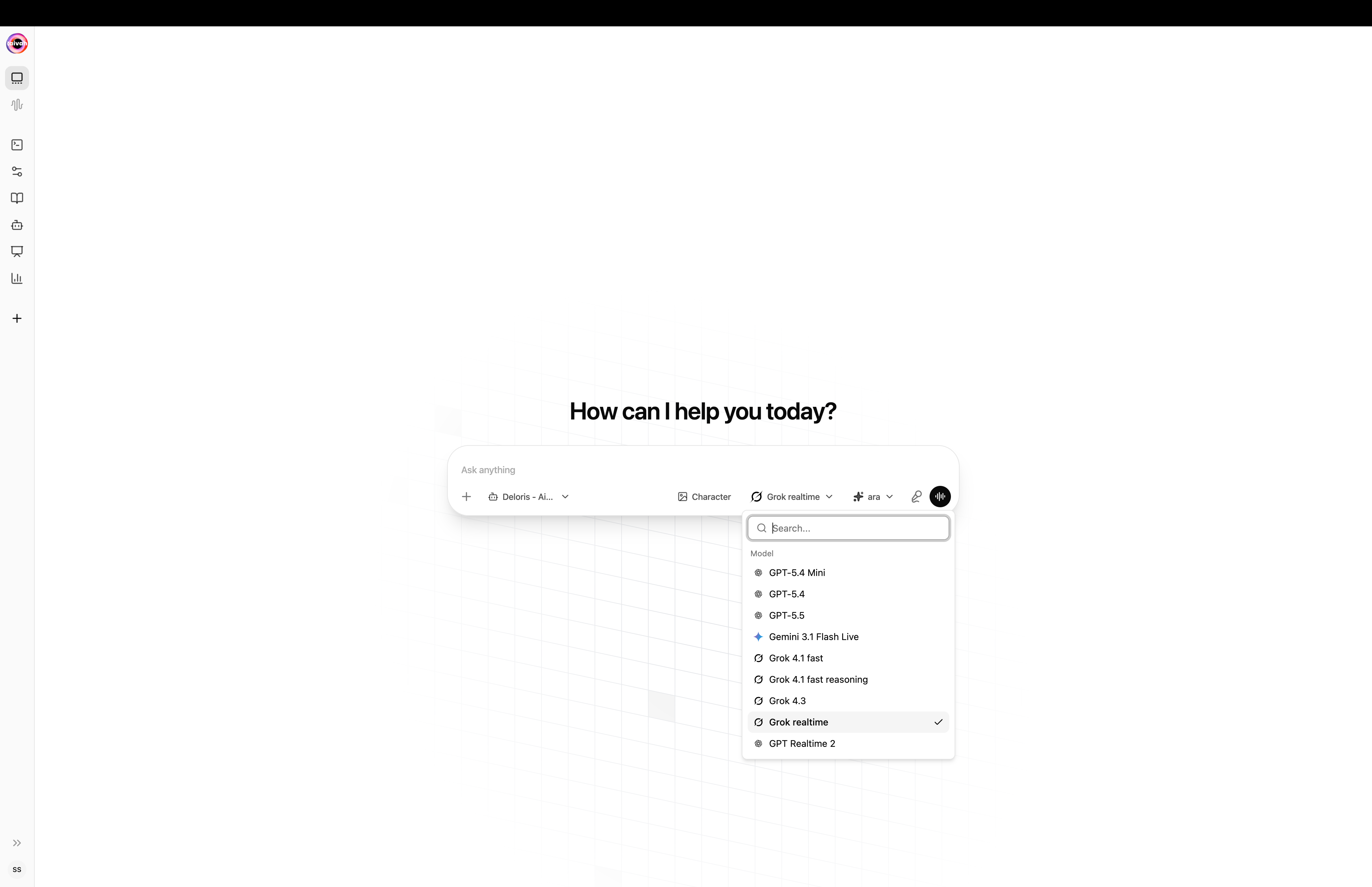
LLM picker covers OpenAI, Gemini, Grok and OpenAI Realtime model families
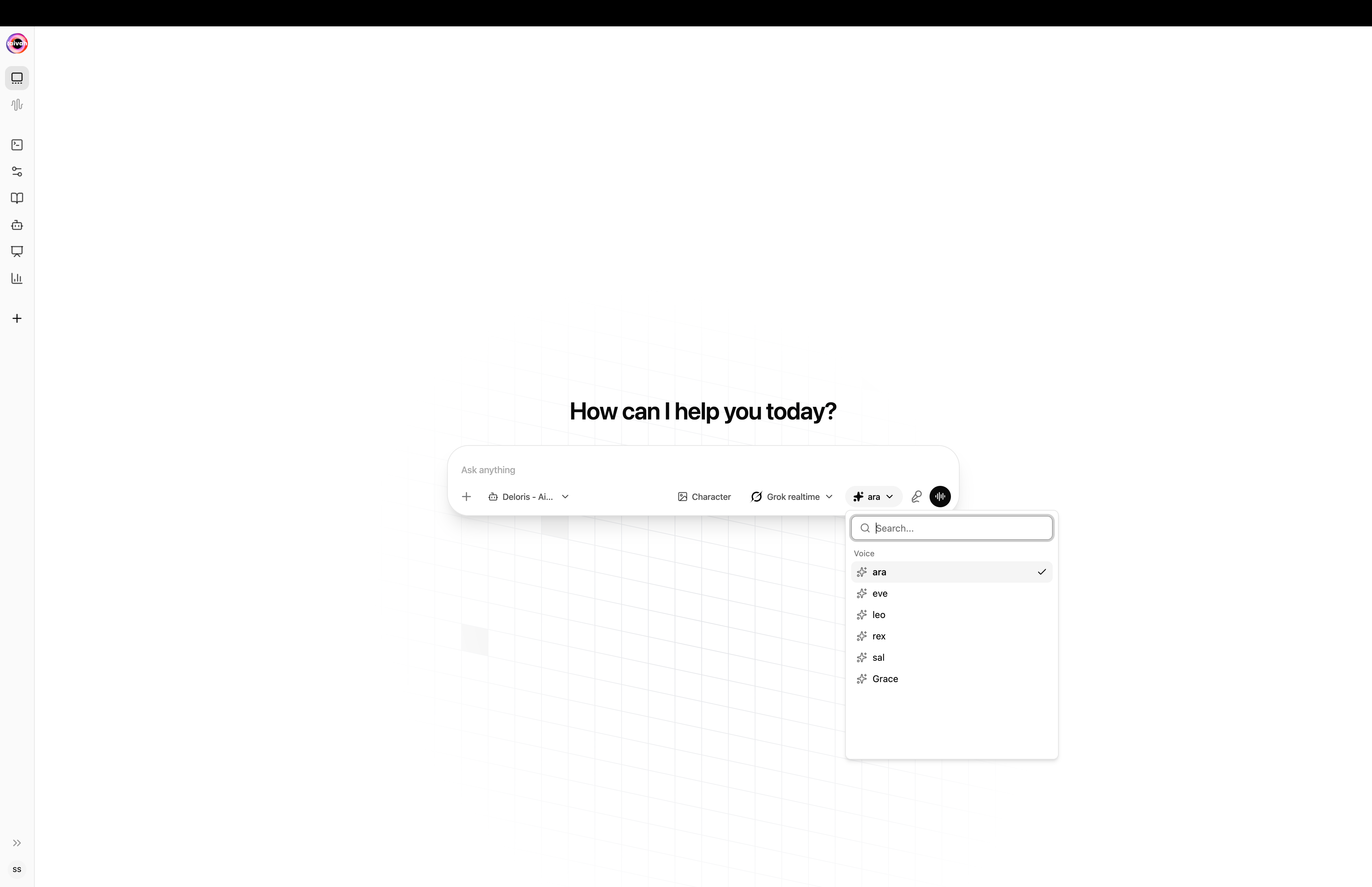
Voice picker filters to the voices supported by the active LLM
Avatar / scene canvas (Avatar chat)
On/{conversationId}/avatar-chat the page splits in two:
- Avatar / scene canvas – a real-time 3D rendering with lip-sync that reacts to audio
- Side panel – chat transcript, composer, and inline voice controls
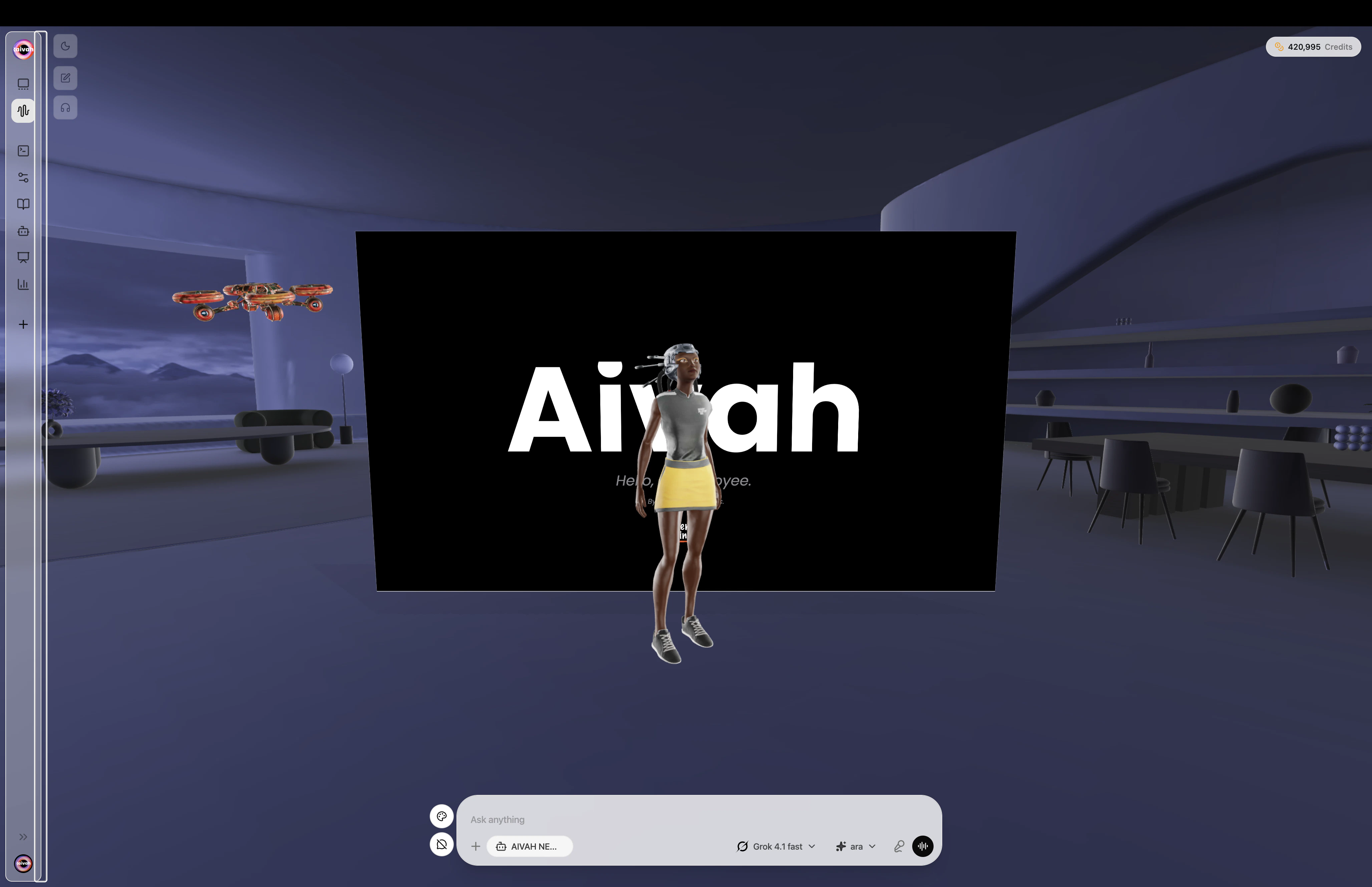
Avatar chat in a Zen scene with the productivity toolbar visible on the left rail
Scene Selection
The palette icon next to the composer opens Preferences, where you choose your default avatar and scene. The first time you visit Avatar chat without an avatar selected, Preferences opens automatically.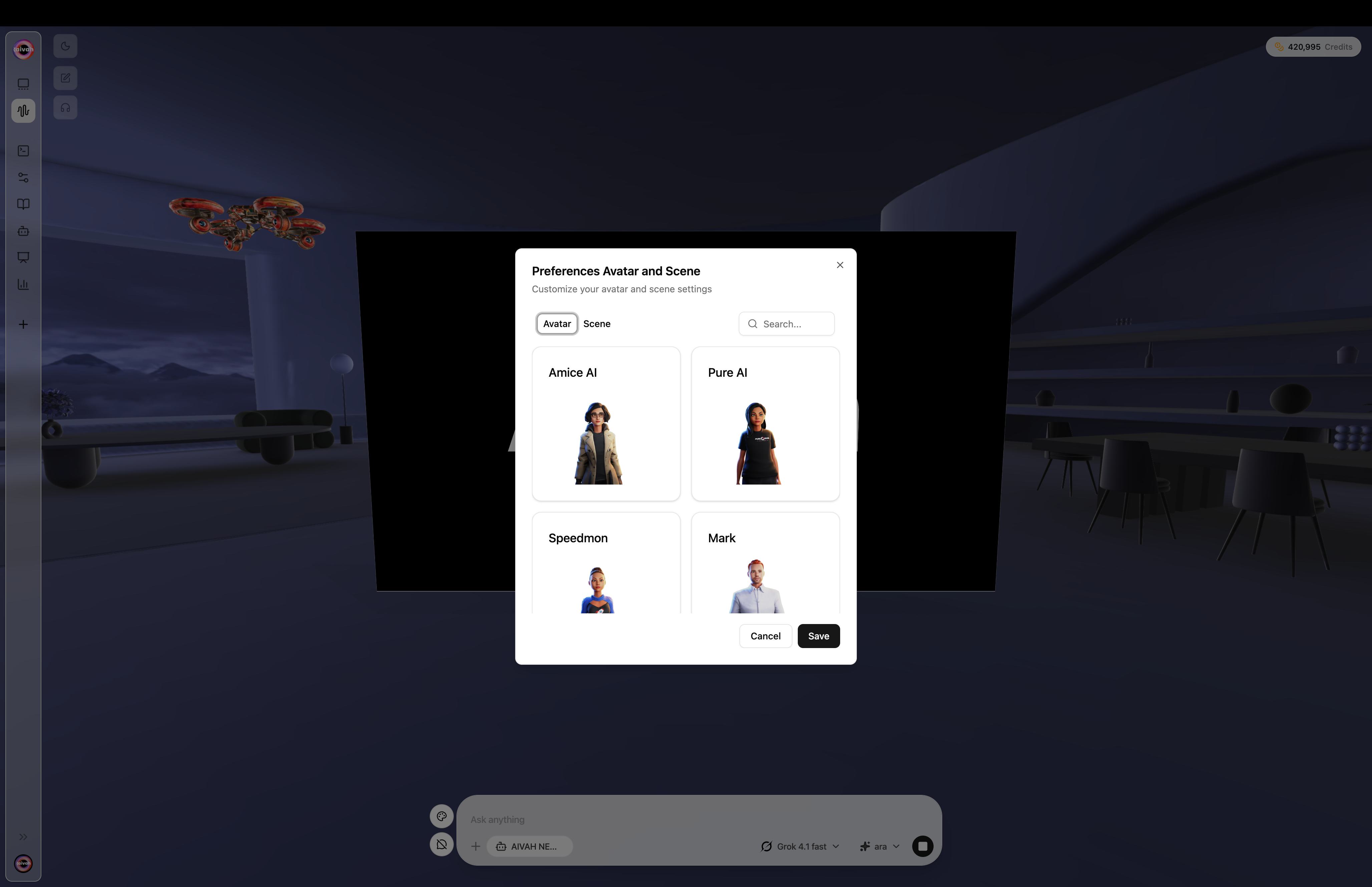
Preferences modal – Avatar tab
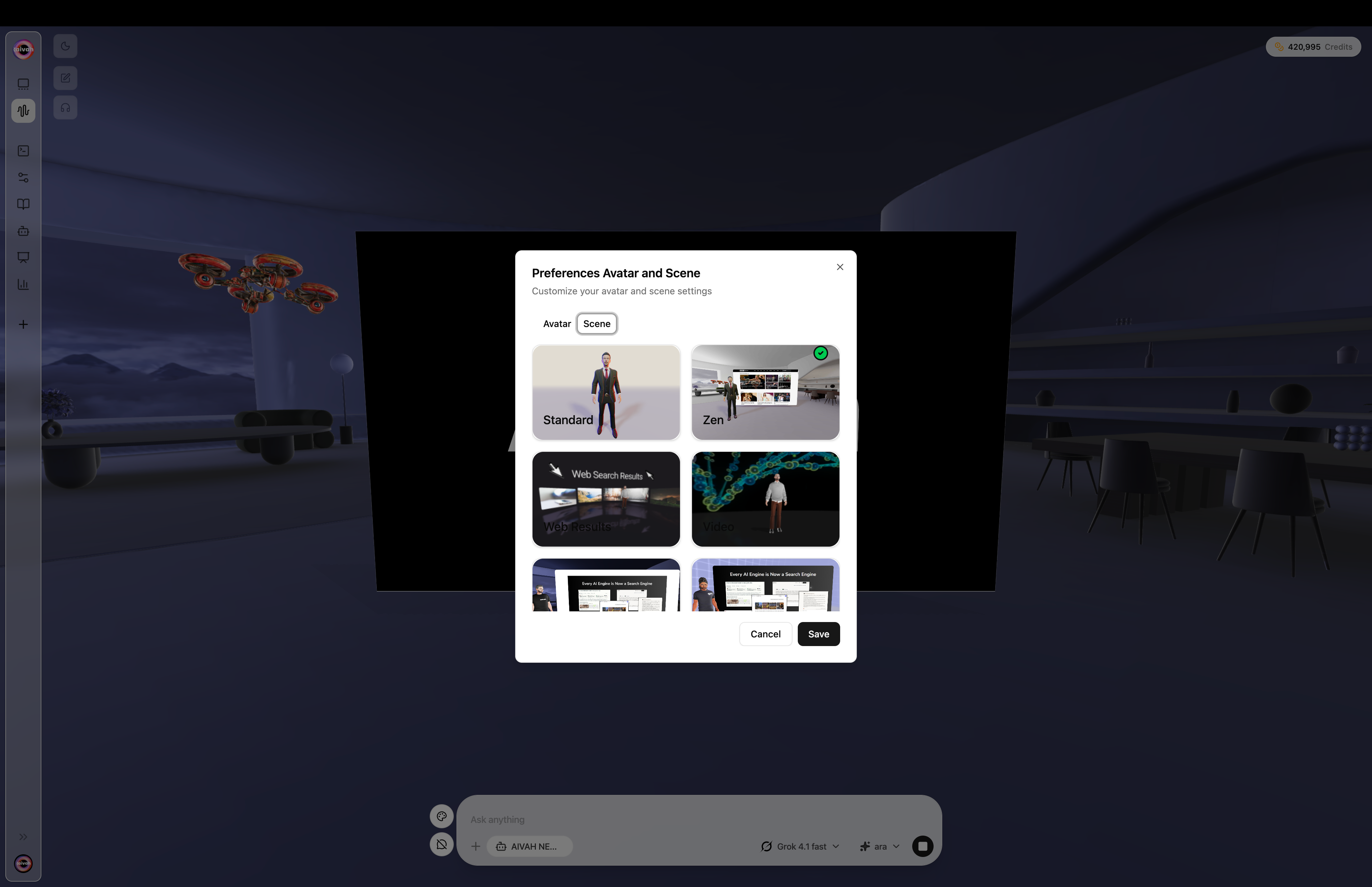
Preferences modal – Scene tab
Floating productivity toolbar
When the active agent supports them, additional icons surface next to the chat composer:- Quiz overlay – multiple-choice questions for presentation agents
- Mind map – an interactive mind map for the current content
- Podcast player – plays the latest generated podcast for this agent
- Chat toggle (speech bubble) – hide or show the transcript so the avatar has more room
Credits badge
A small pill in the top-right of Avatar chat shows your live credit balance and updates whenever the agent consumes credits (chat tokens, voice generation, image generation, etc.).Core Functionality
Avatar & Character Management
- 3D Avatars and 2D Characters: Switch between fully animated companions and image-based personas
- Seamless Switching: Change avatars without losing conversation context
- Real-Time Loading: Avatars load instantly with visual feedback
- Voice Consistency: Each avatar can be paired with a built-in or cloned voice
Scene Environments
Multiple immersive environments enhance different interaction types: Standard Scene: Clean professional environment for general interactions Zen Scenes: Interactive widgets displaying websites, videos, or presentations Web Search Scene: Immersive search results with clickable source widgets Video Wall Scene: Customizable video backgrounds with upload capability Presentation Scenes: Interactive presentation delivery with slide controlCommunication Options
Three Interaction Modes:- New chat: Pick agent, model, voice, and avatar before sending your first message
- Text chat: Classic message thread with file attach and image generation
- Avatar chat: Real-time 3D avatar with voice and lip-sync
- Hybrid Support: Switch between text and voice within the same conversation
Chat composer features
The composer is shared by every mode:- Text input – multi-line, supports keyboard send
- File attach – paper-clip icon attaches images, PDFs, Word docs, Excel sheets, PowerPoint
- Image generation – pick an image model from the trailing dropdown to ask the agent to create a picture
- Voice – tap the mic icon to dictate or switch to voice-first mode
- Agent badge – shows which agent is currently active
- Inline selectors – agent / model / voice pickers (visible on New chat)
Realtime Media Creation
- Prompt-Based Images: Generate high-quality visuals without leaving the Hub
- Instant Video Transformations: Convert fresh images into short clips in seconds
- Powered Models: Google Nano Banana, Veo 3.1, and Sora 2 handle rendering behind the scenes
- AI Drive Sync: Every asset drops automatically into the AI Drive integration for reuse
Getting Started
Initial Setup
- Mic/Audio Permissions: Grant browser permissions for voice interaction
- Avatar Selection: Choose your preferred avatar from the right carousel
- Scene Selection: Pick appropriate scene for your intended interaction
- Connection Status: Look for green dot indicating agent readiness
First Interaction
- Click Chat or Talk: Start your session with preferred communication mode
- Wait for Green Dot: Amber dot means connecting, green means ready, red means disconnected
- Begin Conversation: Ask questions or give instructions to your agent
- Explore Features: Try different scenes and avatar combinations
Session Management
- Active Sessions: Green dot shows active connection status
- Idle Timeout: Sessions expire after 20 minutes of inactivity
- Reconnection: Click chat or talk icons to restart, or refresh page
- WebRTC Connection: System uses WebRTC for optimal real-time performance
Advanced Features
Smart Memory Management
- Context Retention: Agents remember key information across conversations
- Personal Data: Names, preferences, tasks, and important details stored
- Session History: Previous conversations accessible through options menu
Agentic Capabilities
- RAG Integration: Intelligent retrieval from your knowledge sources
- Web Search: Live web search with immersive result display
- Tool Integration: Composio MCP connectors for Gmail, Calendar, Notion, Linear, Slack, GitHub and more
- Channel Integration: Native Slack and WhatsApp bots that respond using the same agent
- Phone Capabilities: Bring-your-own Twilio number for inbound and outbound calls
- Tasks: Cron jobs and heartbeat monitors created on demand from chat
Interactive Status Display
Real-time status indicators show agent activities:- Searching: Agent finding information in knowledge base
- Web Searching: Performing live web searches
- Tool Calling: Using connected applications and workflows
- Memory Updates: Storing important conversation details
- Message Processing: Generating responses and taking actions
Agent Tool Integration Example
Watch agents perform real-world tasks like sending emails through connected applications: Agent successfully sending email through Gmail integration, showing tool calling capabilities and real-world task execution
Scene-Specific Features
Presentation Mode
- Interactive Slides: Agent controls slide progression
- Content-Aware Navigation: Slides advance based on conversation context
- Presentation Upload: PDF presentations integrated with agent knowledge
Video Wall Experience
- Custom Videos: Upload MP4 files under 50MB
- Background Integration: Videos play while maintaining agent interaction
- Upload Controls: Access upload button near talk/chat controls
Web Search Visualization
- Immersive Results: Search results displayed as interactive 3D widgets
- Source Access: Click widgets to open cited sources in new tabs
- Visual Context: Search results spatially arranged around agent
Interactive Widgets (Zen Scenes)
- Website Display: Show live websites from knowledge source URLs
- YouTube Integration: Play videos while maintaining agent interaction
- Presentation Viewer: Display uploaded presentations with agent commentary
Best Practices
Optimal Usage
- Grant Permissions: Always allow microphone and audio access
- Stable Connection: Ensure reliable internet for smooth WebRTC performance
- Scene Selection: Choose scenes that match your interaction goals
- Session Awareness: Monitor connection status indicators
Troubleshooting
- Connection Issues: Look for red dots and refresh if needed
- Audio Problems: Check browser permissions and microphone settings
- Avatar Loading: Allow time for character switching and scene changes
- Session Timeout: Restart sessions after extended idle periods
Integration with Platform
Avatar Library Connection
- Directly connected to your Available Avatars collection
- Changes to avatars and Characters reflect immediately in Hub
- System avatars like Orbe available alongside custom avatars
Voices
- Choose from Aivah’s built-in voice library or your own voice clones
- Switching the LLM provider may filter the available voice list
Agent Integration
- Access all created agents through the composer pills or the side navigation
- Switch between different AI models and voice settings
- Conversation history maintained across agent switches
Sharing Preparation
- Test avatars and agents thoroughly in Hub before sharing
- Validate voice, appearance, and knowledge accuracy
- Use Hub testing to refine agent responses and behaviors