Creating Your First Agent

This guide walks you through the complete process of creating an agent in Aivah’s Agents workspace (/agents/create). Once your agent is created, Aivah automatically trains it on your added content, making it ready for use immediately.
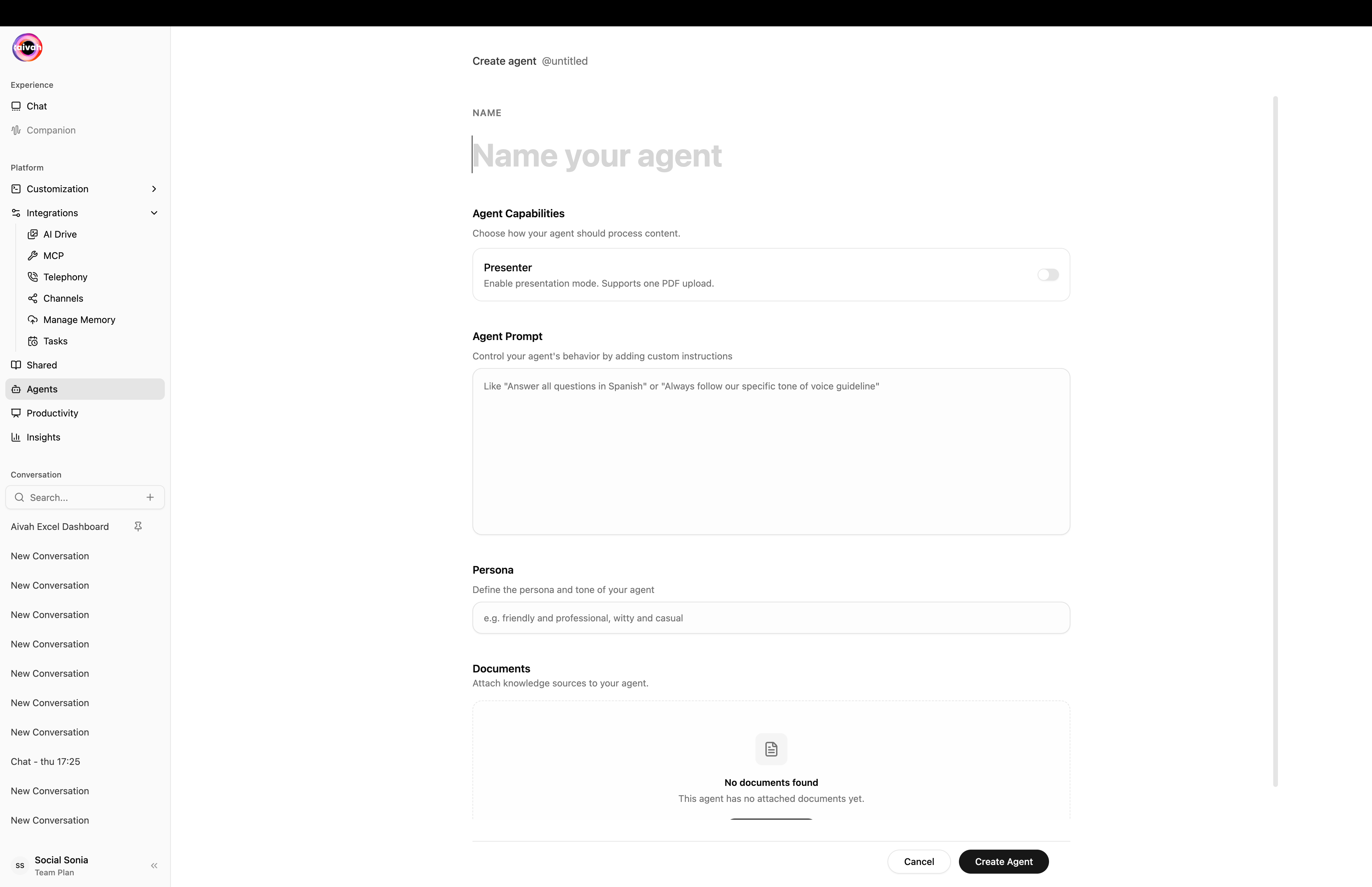
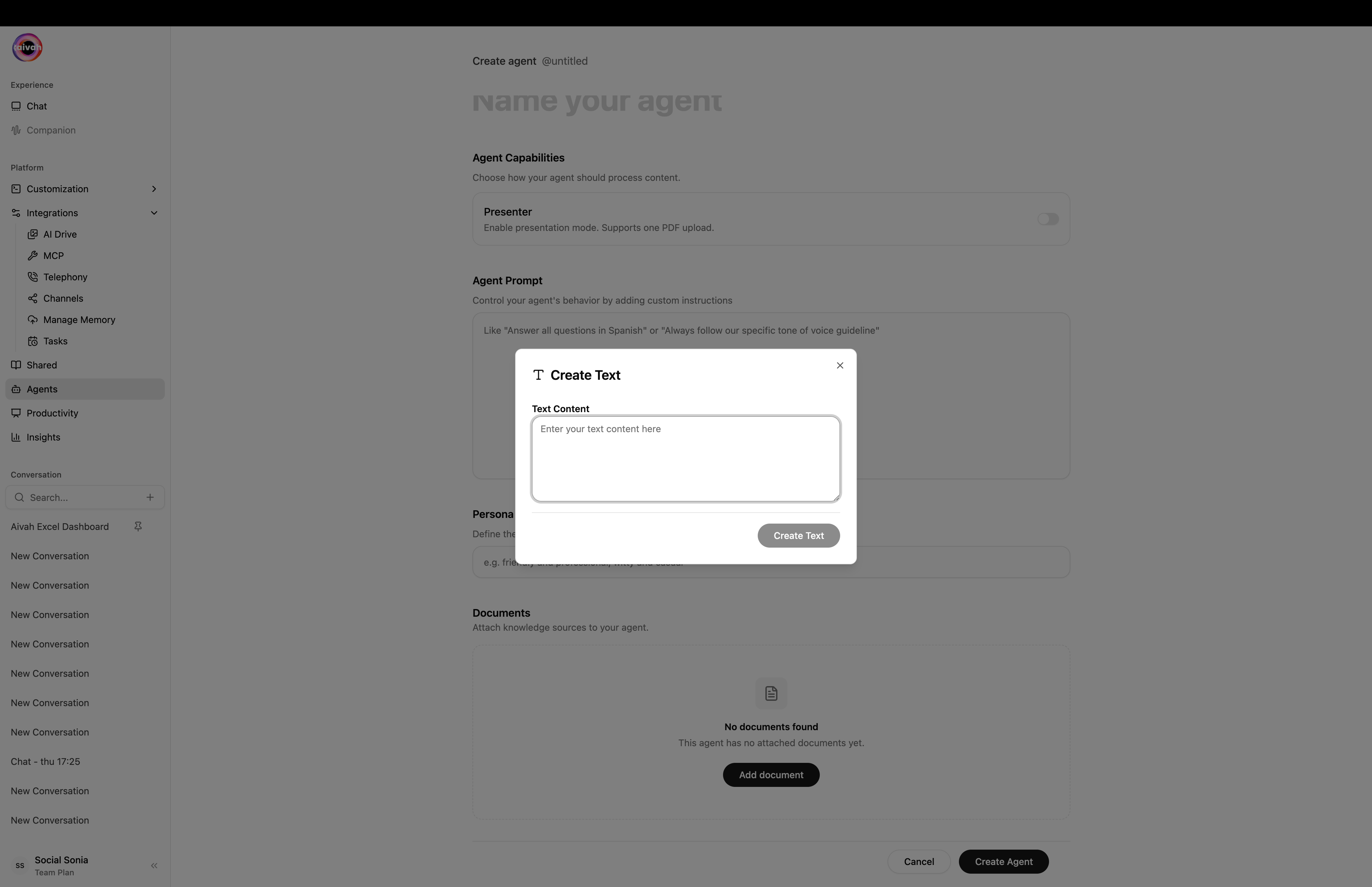
Create agent form
Create New Agent Interface

Prerequisites

Before creating your agent, ensure you have:
  • An active Aivah account with Agents workspace access
  • Your content ready (documents, URLs, text, audio, or video)
  • A clear understanding of your agent’s purpose

Step-by-Step Creation Process

1. Access the Agents Workspace

1

Navigate to Agents

Sign in to your Aivah account and click Agents in the side navigation (/agents).
2

Start Agent Creation

Click the Plus (+) icon in the agents list header to open /agents/create.

2. Configure Basic Settings

1

Name Your Agent

Enter a descriptive name in the Name field. The name becomes the slug shown next to the heading (for example @customer-support).
2

Pick the Capability Profile

Under Agent capabilities, decide whether the agent is a Knowledge base or a Presenter:
  • Presenter toggle Off (default): a regular knowledge-base agent. Accepts URLs, documents, text, audio, video, and images.
  • Presenter toggle On: a presentation agent. Accepts a single PDF or a single video, produces slide-aligned answers, and supports the in-chat Quiz overlay.
3

Write the Agent Prompt

Use Agent prompt to give free-form instructions that shape behaviour (for example “Always answer in Spanish” or “Use a friendly tone and short sentences”).
4

Set a Persona

In Persona, give a short label of your agent’s tone, such as witty and casual or formal and concise.
Choose your agent name carefully – it becomes the slug and is visible to users.

3. Add Initial Knowledge

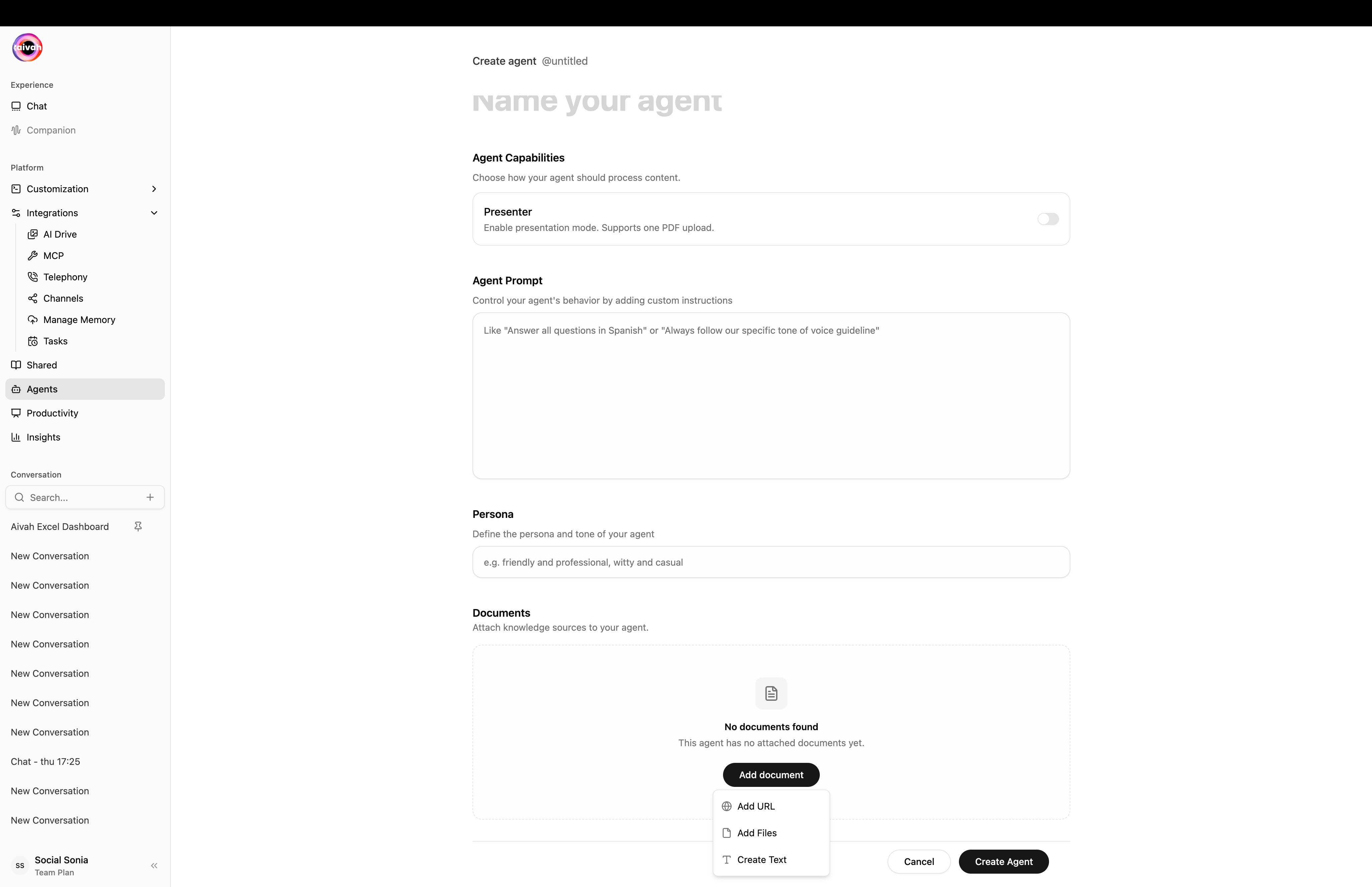
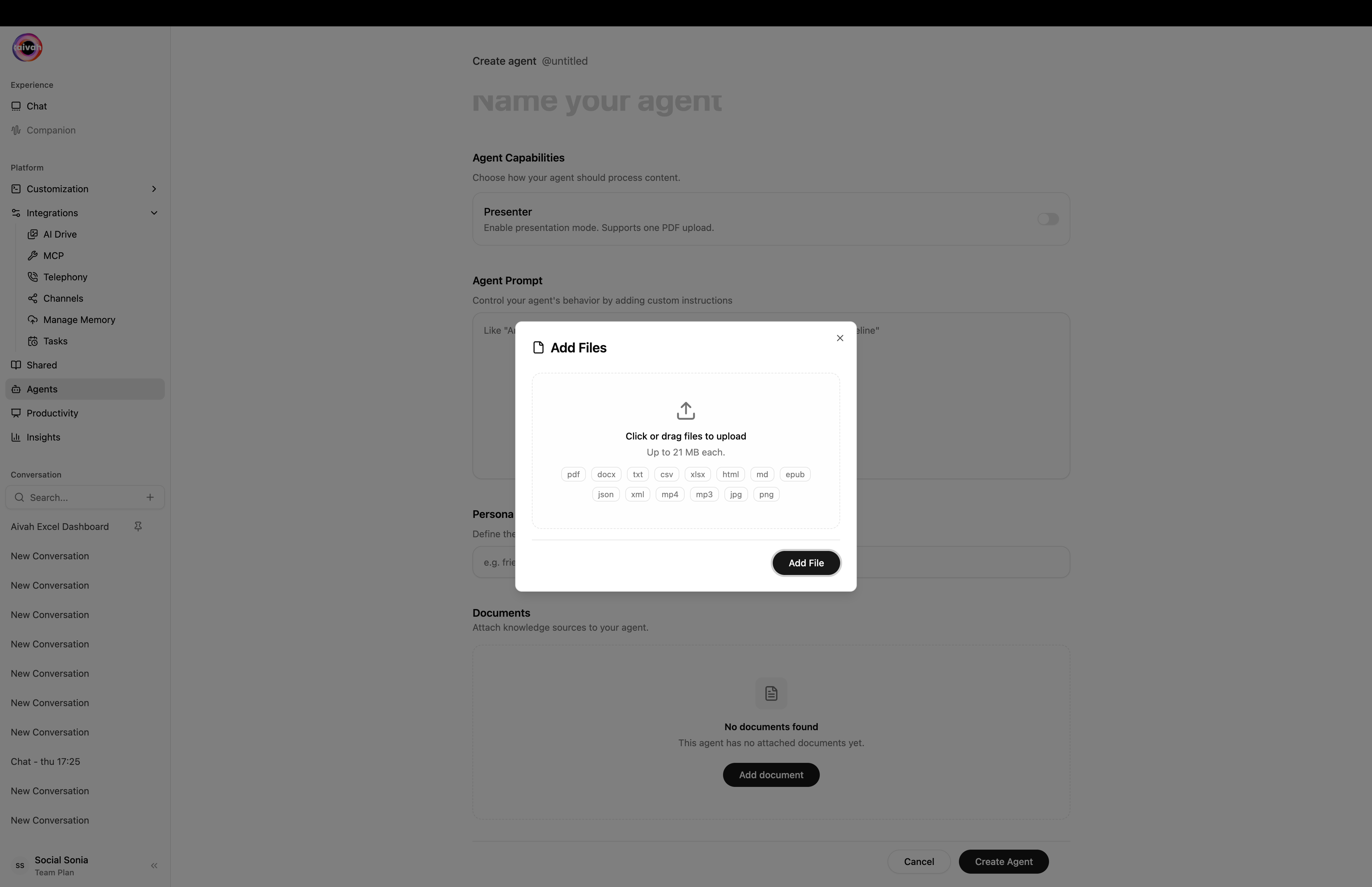
Open the Add document dropdown to attach knowledge sources. Knowledge-base agents accept any combination of the methods below; Presenter agents accept only a single PDF or video.
Add document dropdown
Web Content Integration
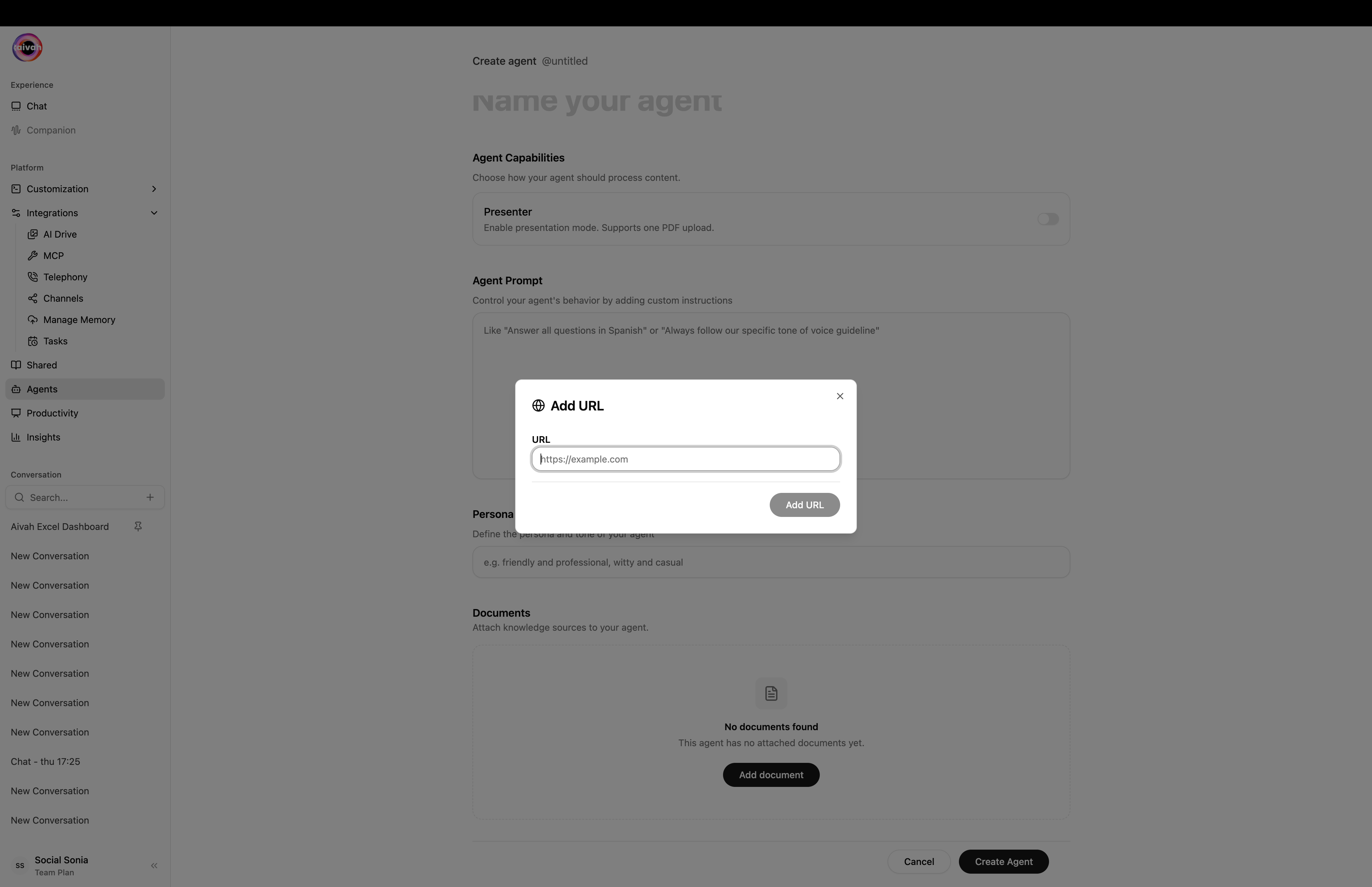
  1. Pick Add URL from the Add document dropdown.
  2. Paste a publicly accessible link – website pages, blog posts, YouTube/Vimeo videos, and public documentation all work.
  3. Aivah fetches and indexes the page automatically.
Add URL modal

4. Create and Verify

1

Click Create agent

Press Create agent. The upload starts, the agent enters processing, and the page redirects back to the agents list.
2

Watch the live training status

The agents list polls every 10 seconds while any agent is in pending or processing and shows a Refresh icon automatically. The status flips to completed once training is done.Upload Progress Notification
3

Open the agent detail view

Click any row in the agents list to open /agents/{id}. From here you can:
  • View every URL, file, or text snippet with its ingestion status (uploaded, processing, completed, failed).
  • Retry a single failing source with the inline refresh icon (no need to retrain the whole agent).
  • Open the Edit button (top right) to change name, prompt, persona, and add or remove documents.

Agent Knowledge Settings - List View

Post-Creation Configuration

Knowledge Management

Once created, you can manage your agent’s knowledge:
  • Add Content: Use the Add content button for additional sources
  • Edit Sources: Click any source to modify or update it
  • Remove Content: Use trash icons or Delete All for bulk removal
  • Monitor Processing: Ensure all sources show character counts (indicates successful processing)
You can also switch to Card View to see a visual representation of your knowledge sources: Agent Knowledge Settings - Card View

Next Steps

After creating your agent:
  1. Test Interactions: Verify the agent responds accurately to test questions
  2. Configure Behavior: Set up response style and limitations in Share settings
  3. Deploy: Generate sharing links or embeds for your users
  4. Monitor Performance: Use Insights to track usage and effectiveness

Best Practices

  • Use clear, well-structured documents
  • Ensure information is current and accurate
  • Remove outdated or contradictory content
  • Group related content together
  • Use descriptive titles for uploaded documents
  • Regularly review and update your knowledge base
  • Test with common user questions
  • Verify accuracy of responses
  • Check for knowledge gaps and fill them

Common Issues and Solutions

Large files and some websites require extended processing time. Keep your browser tab open until the upload banner shows completion.
Ensure the URL is:
  • Publicly accessible (not behind login)
  • Not geo-restricted
  • Contains readable content (not just images)
  • Review your source content for accuracy
  • Remove conflicting information
  • Add more specific examples or context
Ready to enhance your agent further? Learn about adding more content or explore agent types for advanced configurations.