> ## Documentation Index
> Fetch the complete documentation index at: https://opinionai.mintlify.site/llms.txt
> Use this file to discover all available pages before exploring further.
# Experience Settings
> Customize the visual appearance and user interface of your shared agent
# User Experience Customization
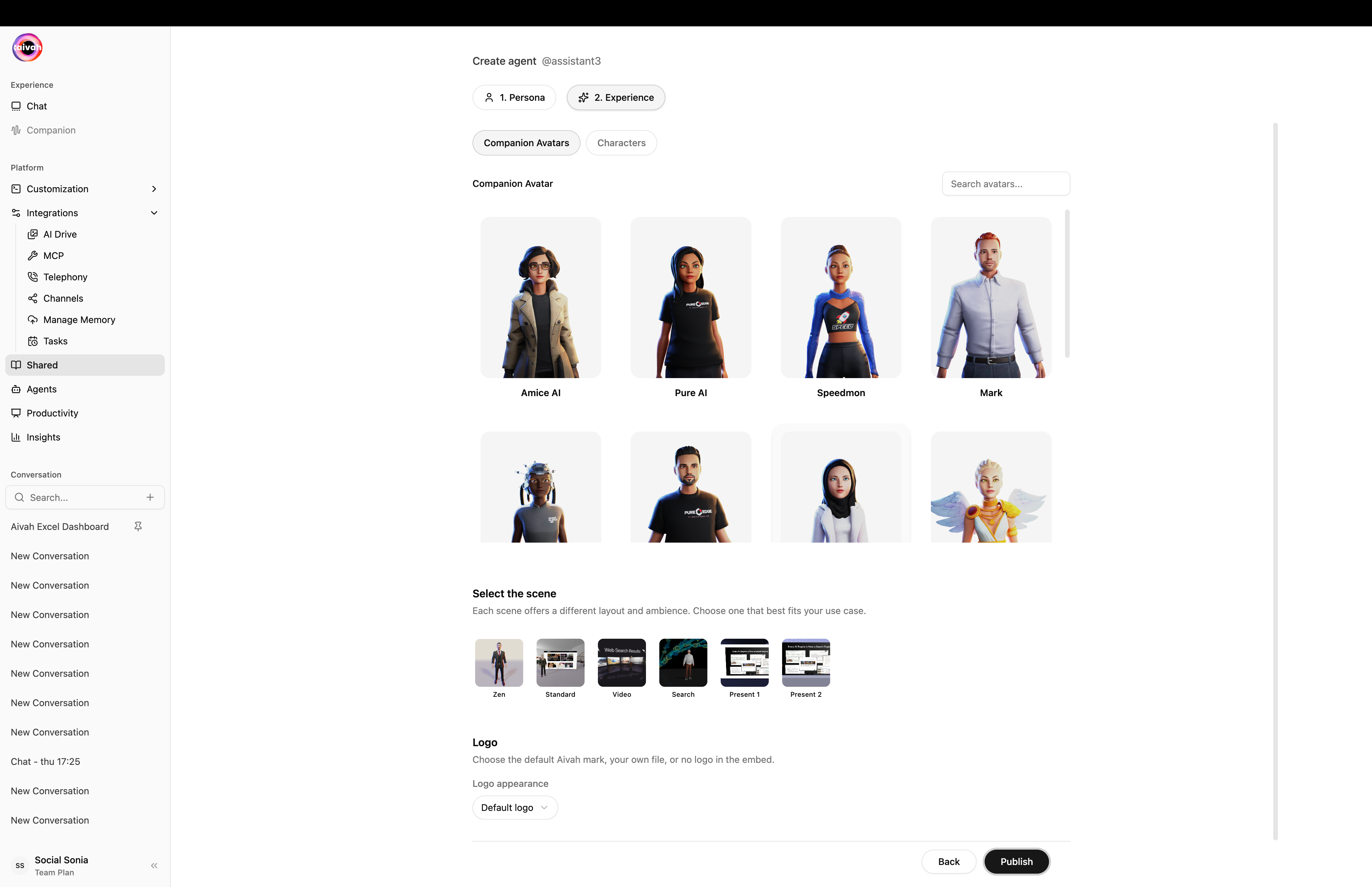
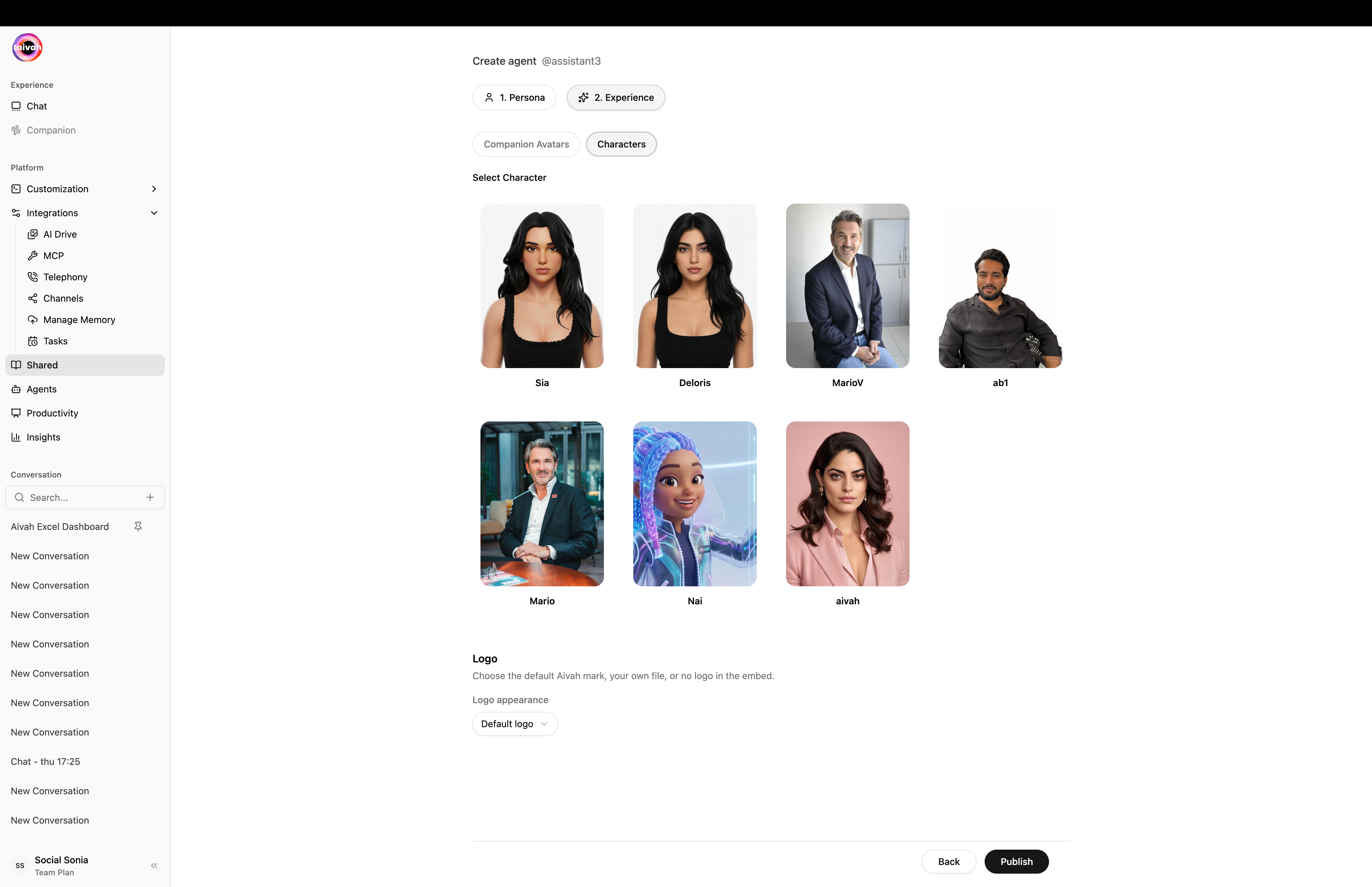
The Experience tab allows you to customize the visual appearance, environment, and user interface elements of your shared AI agent.
 ### Logo options
 ## Visual Environment
### Background Selection
Choose from multiple background colors for your companion:
* **Color Palette**: Select from predefined colors (blue, brown, yellow, green, cyan, purple, etc.)
* **Custom Colors**: Use hex codes for specific brand colors
* **Background Themes**: Match your brand or use case aesthetic
### Scene Selection
Choose from various visual environments:
* **Office Settings**: Professional workspace backgrounds
* **Presentation Rooms**: Formal meeting environments
* **Casual Spaces**: Relaxed, friendly atmospheres
* **Tech Environments**: Modern, digital-focused scenes
* **Custom Scenes**: Upload your own background environments
## Avatar Customization
### Avatar Options
* **Pre-built Avatars**: Choose from available character designs
* **Professional Appearance**: Business-appropriate avatars
* **Diverse Representation**: Multiple ethnicities and styles available
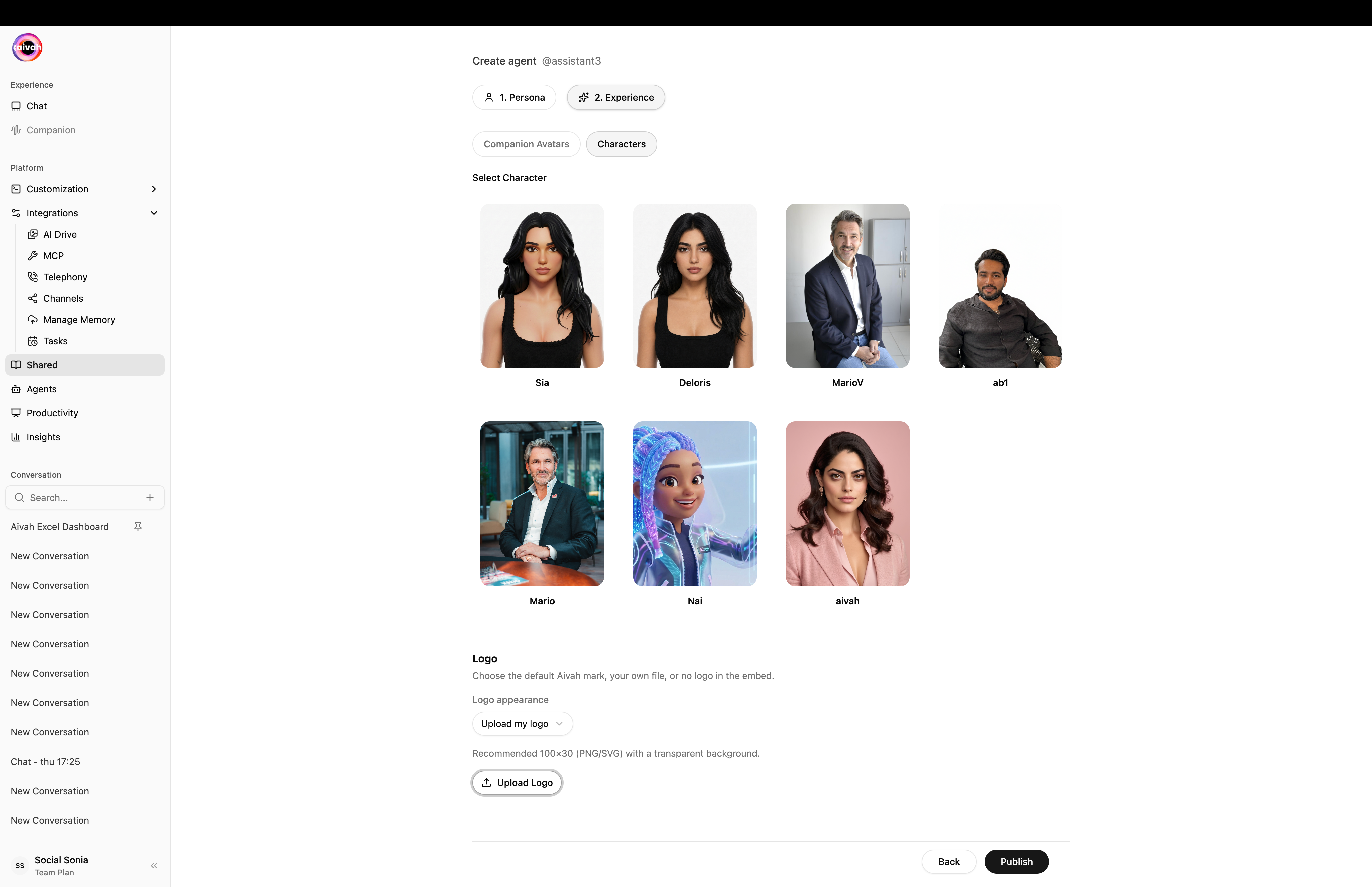
* **Custom Upload**: Upload your own avatar images (1600x30 pixels recommended)
## Visual Environment
### Background Selection
Choose from multiple background colors for your companion:
* **Color Palette**: Select from predefined colors (blue, brown, yellow, green, cyan, purple, etc.)
* **Custom Colors**: Use hex codes for specific brand colors
* **Background Themes**: Match your brand or use case aesthetic
### Scene Selection
Choose from various visual environments:
* **Office Settings**: Professional workspace backgrounds
* **Presentation Rooms**: Formal meeting environments
* **Casual Spaces**: Relaxed, friendly atmospheres
* **Tech Environments**: Modern, digital-focused scenes
* **Custom Scenes**: Upload your own background environments
## Avatar Customization
### Avatar Options
* **Pre-built Avatars**: Choose from available character designs
* **Professional Appearance**: Business-appropriate avatars
* **Diverse Representation**: Multiple ethnicities and styles available
* **Custom Upload**: Upload your own avatar images (1600x30 pixels recommended)
 ### Avatar Identity
* **Avatar Name**: Set the display name for your avatar
* **Voice Selection**: Choose matching voice characteristics
* **Personality Alignment**: Match visual appearance with behavioral traits
## Interface Styling
### Typography and Colors
* **Font Family**: Choose appropriate font styles
* **Font Size**: Customize text sizing (default: 14px)
* **Color Scheme**: Set colors for different interface elements:
* User font color (#FFFFFF)
* Prompts font color (#111)
* Aivah font color (#111)
* Input background color (#FFF)
* Scroll bar color (#637381)
### Layout Options
* **Face Focus vs Body Focus**: Choose between close-up or full-body avatar views
* **Interface Positioning**: Adjust where elements appear on screen
* **Responsive Design**: Ensure compatibility across devices
## User Interface Elements
### Input Controls
* **Input Placeholder Text**: Customize the "Write message" prompt
* **Message Styling**: Configure how conversations appear
* **Interactive Elements**: Buttons, forms, and action controls
### Data Collection Integration
* **Form Styling**: Match data collection forms to your visual theme
* **Call-to-Action Design**: Customize buttons and prompts
* **Progress Indicators**: Show form completion progress
## Brand Consistency
### Logo Integration
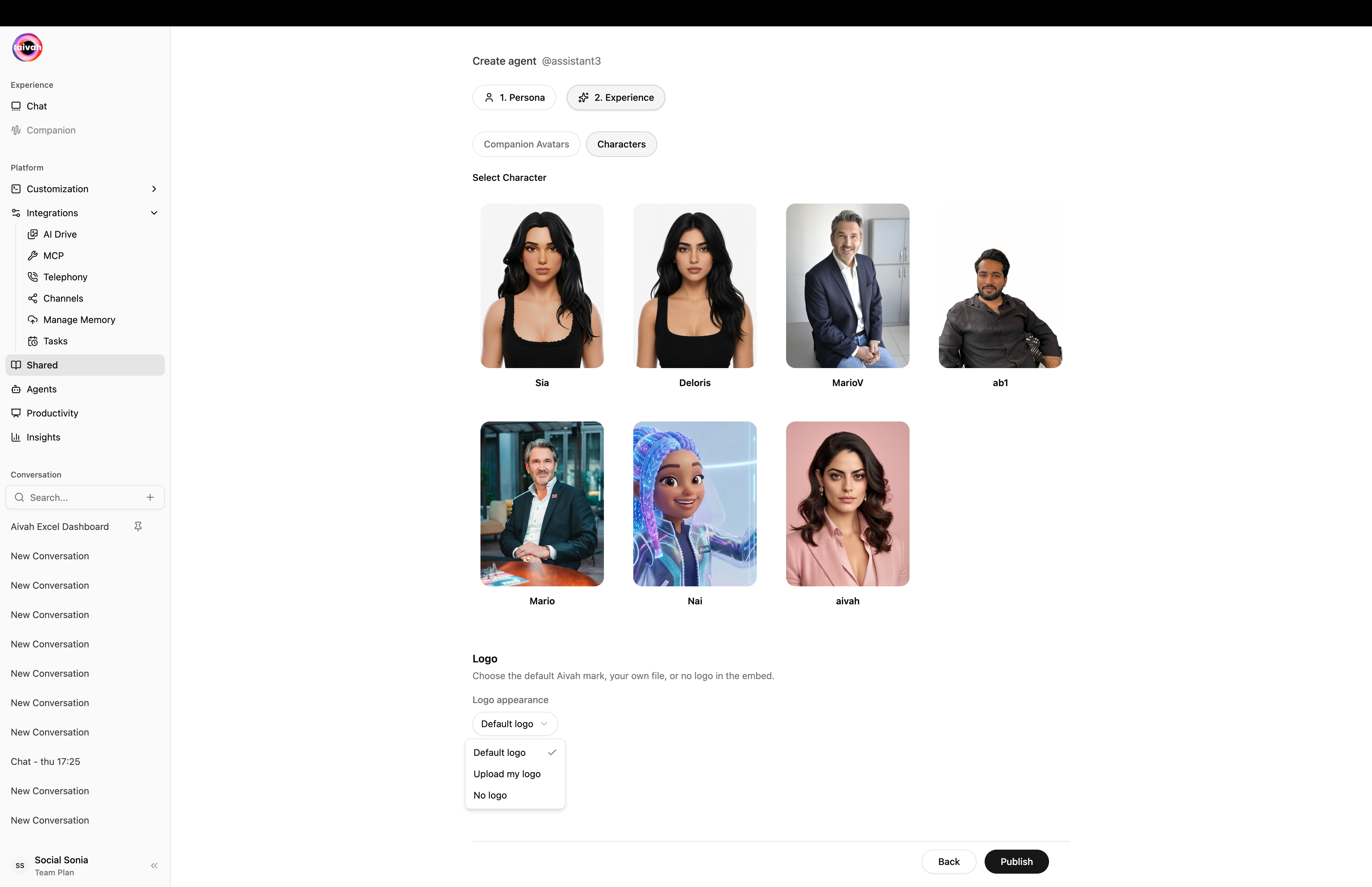
* **Upload Logo**: Add your company or product logo (1600x30 pixels)
* **Logo Positioning**: Choose where your logo appears
* **Brand Colors**: Ensure consistent color usage throughout
### White-Label Options
* **Remove Aivah Branding**: Create fully branded experiences
* **Custom Footer**: Add your own attribution or links
* **Domain Customization**: Use your own domain for sharing links
## Best Practices
1. **Brand Alignment**: Match colors and styling to your existing brand
2. **User Testing**: Test appearance across different devices and browsers
3. **Accessibility**: Ensure sufficient color contrast and readable fonts
4. **Performance**: Optimize images and assets for fast loading
5. **Consistency**: Maintain visual consistency across all touchpoints
The experience configuration creates the first impression users have of your AI agent.
### Avatar Identity
* **Avatar Name**: Set the display name for your avatar
* **Voice Selection**: Choose matching voice characteristics
* **Personality Alignment**: Match visual appearance with behavioral traits
## Interface Styling
### Typography and Colors
* **Font Family**: Choose appropriate font styles
* **Font Size**: Customize text sizing (default: 14px)
* **Color Scheme**: Set colors for different interface elements:
* User font color (#FFFFFF)
* Prompts font color (#111)
* Aivah font color (#111)
* Input background color (#FFF)
* Scroll bar color (#637381)
### Layout Options
* **Face Focus vs Body Focus**: Choose between close-up or full-body avatar views
* **Interface Positioning**: Adjust where elements appear on screen
* **Responsive Design**: Ensure compatibility across devices
## User Interface Elements
### Input Controls
* **Input Placeholder Text**: Customize the "Write message" prompt
* **Message Styling**: Configure how conversations appear
* **Interactive Elements**: Buttons, forms, and action controls
### Data Collection Integration
* **Form Styling**: Match data collection forms to your visual theme
* **Call-to-Action Design**: Customize buttons and prompts
* **Progress Indicators**: Show form completion progress
## Brand Consistency
### Logo Integration
* **Upload Logo**: Add your company or product logo (1600x30 pixels)
* **Logo Positioning**: Choose where your logo appears
* **Brand Colors**: Ensure consistent color usage throughout
### White-Label Options
* **Remove Aivah Branding**: Create fully branded experiences
* **Custom Footer**: Add your own attribution or links
* **Domain Customization**: Use your own domain for sharing links
## Best Practices
1. **Brand Alignment**: Match colors and styling to your existing brand
2. **User Testing**: Test appearance across different devices and browsers
3. **Accessibility**: Ensure sufficient color contrast and readable fonts
4. **Performance**: Optimize images and assets for fast loading
5. **Consistency**: Maintain visual consistency across all touchpoints
The experience configuration creates the first impression users have of your AI agent.