> ## Documentation Index
> Fetch the complete documentation index at: https://opinionai.mintlify.site/llms.txt
> Use this file to discover all available pages before exploring further.

# Setup Your First Agent

> Setup your first agent guide

# Setup Your First Agent

Build your first AIVAH agent in five short steps. This walkthrough mirrors the live product flow: create an agent, give it a face and a voice, test it in the Playground, share it publicly, and wire it up to your tools.

## Step 1: Create Your Agent

Open **Agents** in the side navigation (`/agents`) and click the **+** button to start a fresh agent at `/agents/create`.
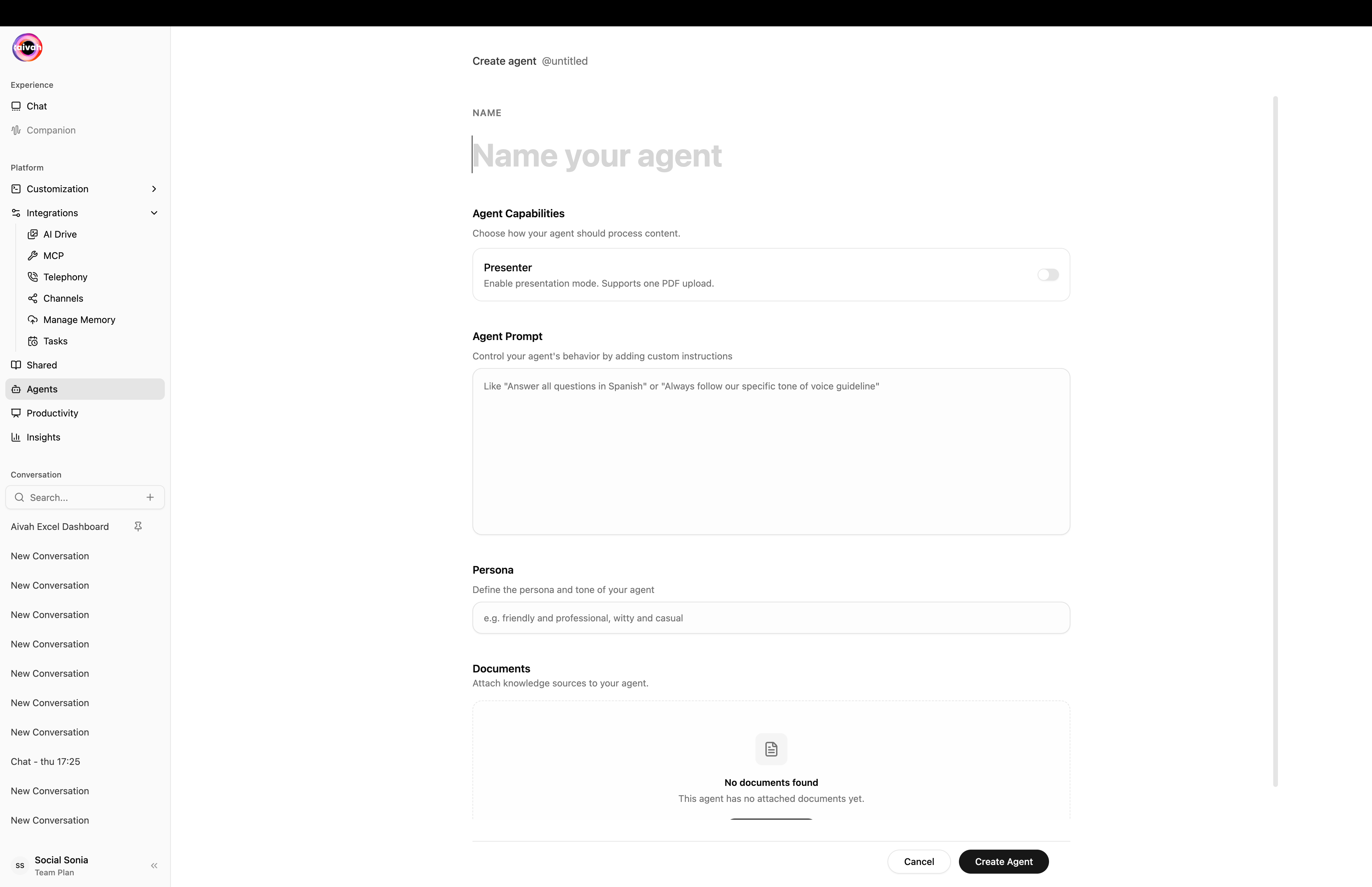
<Frame caption="Create agent form – Name, Agent Capabilities, Agent Prompt, Persona, and Documents">
  <img src="https://mintcdn.com/opinionai/tR4nAAll3jemMkvA/images/agent-create-form.png?fit=max&auto=format&n=tR4nAAll3jemMkvA&q=85&s=9f27e0af48728b797e8e496f9ec1baca" alt="Create agent form" width="4112" height="2658" data-path="images/agent-create-form.png" />
</Frame>

### Configure the basics

* **Name** – becomes the slug shown next to the heading (`@my-agent`).
* **Agent Capabilities → Presenter** – leave **off** for a knowledge-base agent that accepts URLs, files, and text. Turn **on** for a presenter that takes a single PDF or video and produces slide-aligned answers with a built-in **Quiz** overlay.
* **Agent Prompt** – freeform instructions that shape behaviour.
* **Persona** – a short label of your agent's tone (for example *witty and casual*).
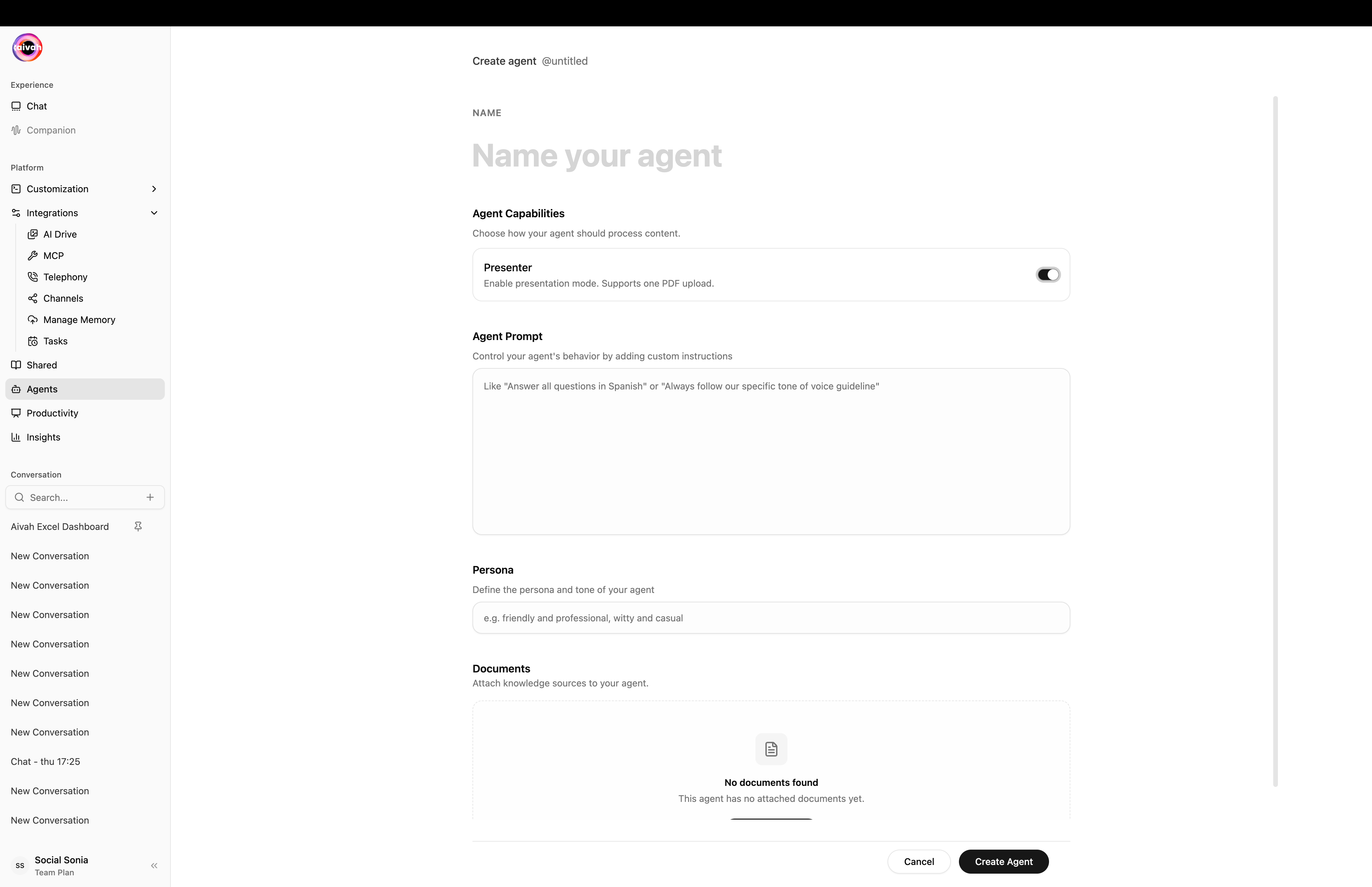
<Frame caption="Presenter toggle on – this constrains the agent to a single PDF or video and unlocks the Quiz overlay">
  <img src="https://mintcdn.com/opinionai/tR4nAAll3jemMkvA/images/agent-presenter-toggle.png?fit=max&auto=format&n=tR4nAAll3jemMkvA&q=85&s=b2f36a024d9c47817679194519feb25e" alt="Presenter toggle" width="4112" height="2658" data-path="images/agent-presenter-toggle.png" />
</Frame>

### Add knowledge content

Click **Add document** to attach knowledge sources. Knowledge-base agents accept any mix of URL / Files / Text; presenter agents accept a single PDF or video.
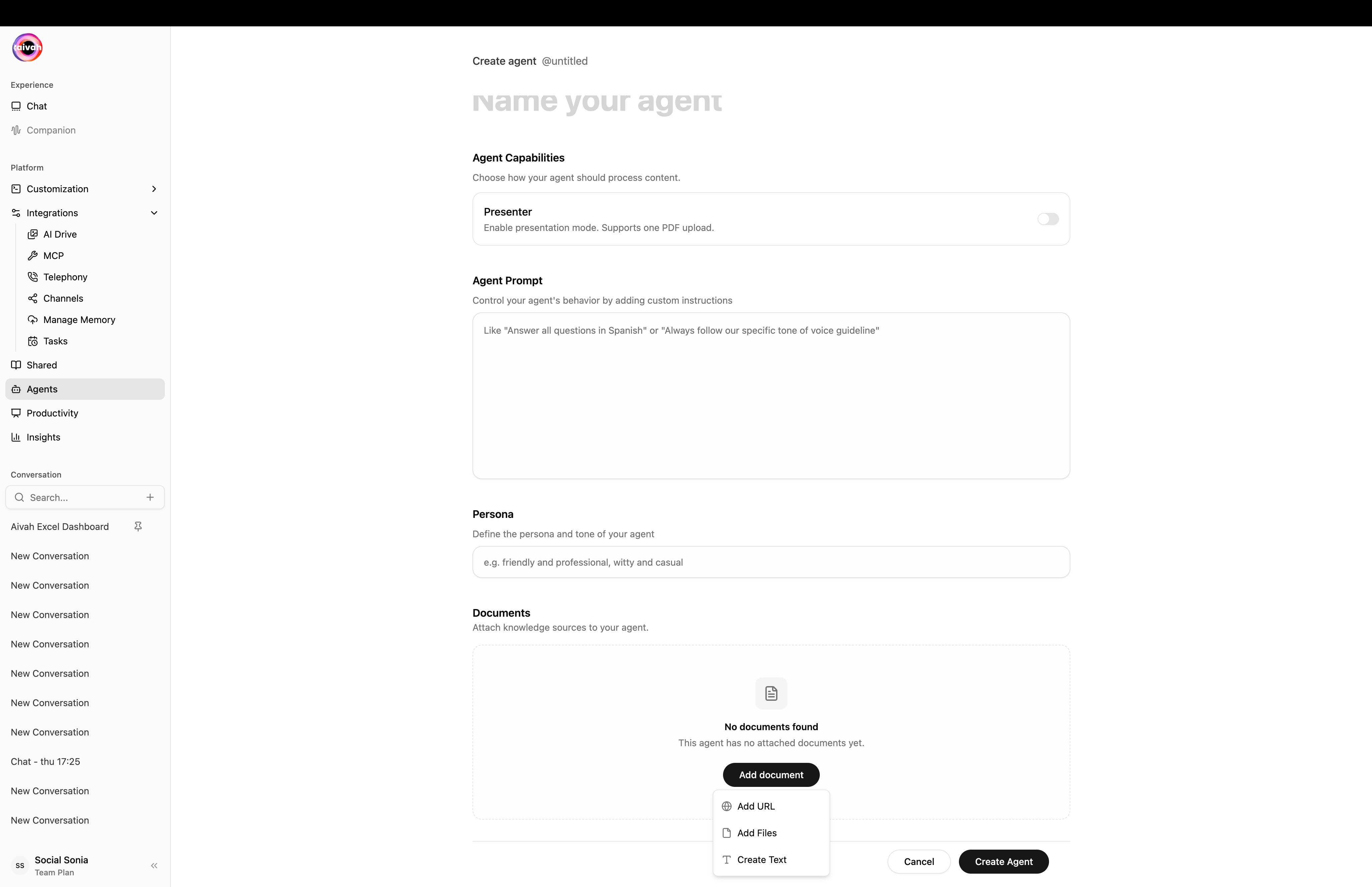
<Frame caption="Add document dropdown – Add URL, Add Files, or Create Text">
  <img src="https://mintcdn.com/opinionai/tR4nAAll3jemMkvA/images/agent-add-document-dropdown.png?fit=max&auto=format&n=tR4nAAll3jemMkvA&q=85&s=84c356a900553dde5e34d1d908b24231" alt="Add document dropdown" width="4112" height="2658" data-path="images/agent-add-document-dropdown.png" />
</Frame>

<Tabs>
  <Tab title="Add URL">
    Paste any publicly accessible link – website pages, blog posts, YouTube/Vimeo videos, or documentation. Aivah fetches and indexes the page automatically.
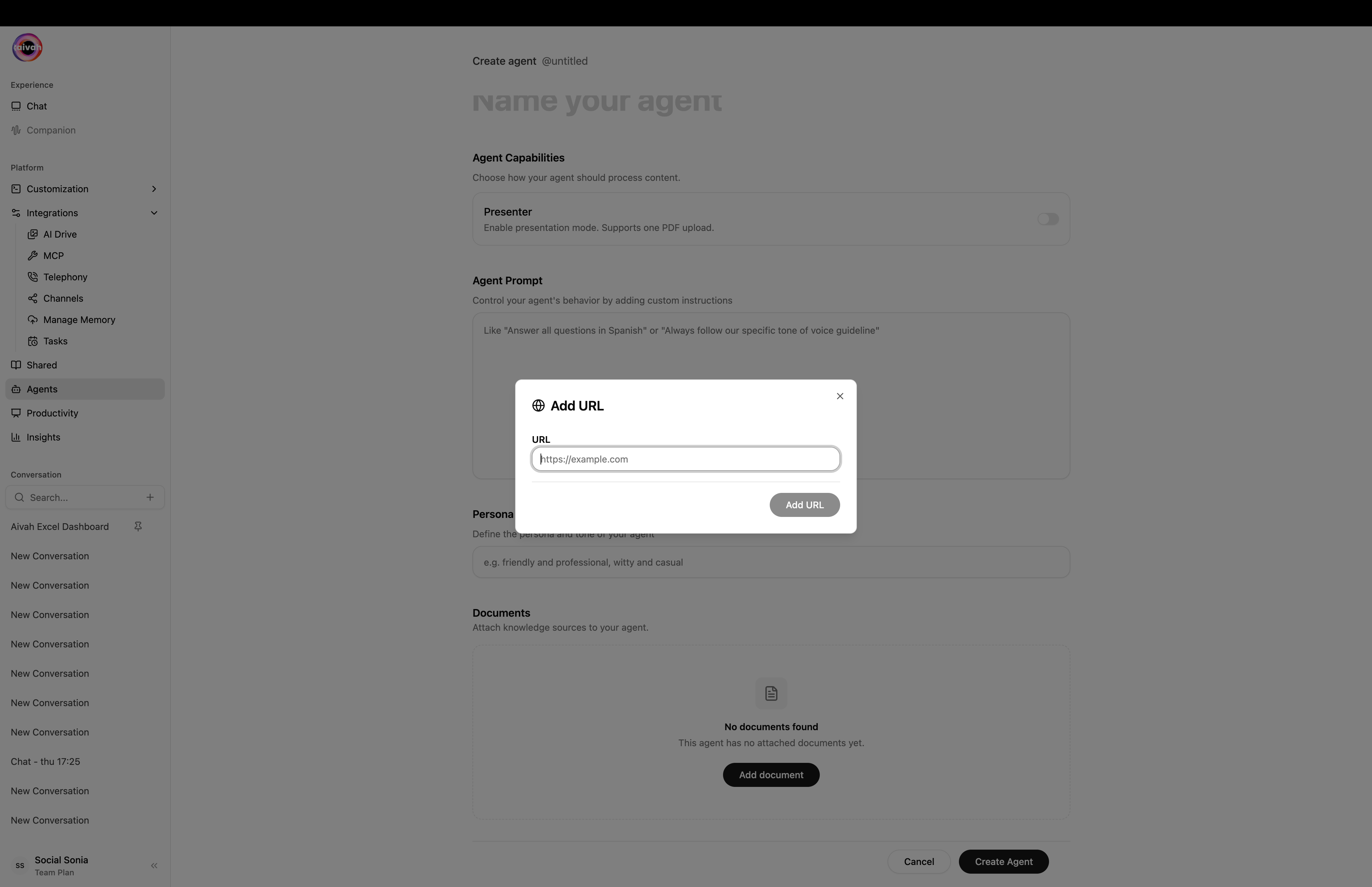
    <Frame caption="Add URL modal">
      <img src="https://mintcdn.com/opinionai/tR4nAAll3jemMkvA/images/agent-add-url-modal.png?fit=max&auto=format&n=tR4nAAll3jemMkvA&q=85&s=cba6dfdbba9668ddef50d5bc1fffdbf6" alt="Add URL modal" width="4112" height="2658" data-path="images/agent-add-url-modal.png" />
    </Frame>
  </Tab>

  <Tab title="Add Files">
    Drag-and-drop or pick files (up to 21 MB each). Supported types include `.pdf`, `.docx`, `.txt`, `.csv`, `.xlsx`, `.html`, `.md`, `.epub`, `.json`, `.xml`, `.mp4`, `.mp3`, `.jpg`, `.png`.
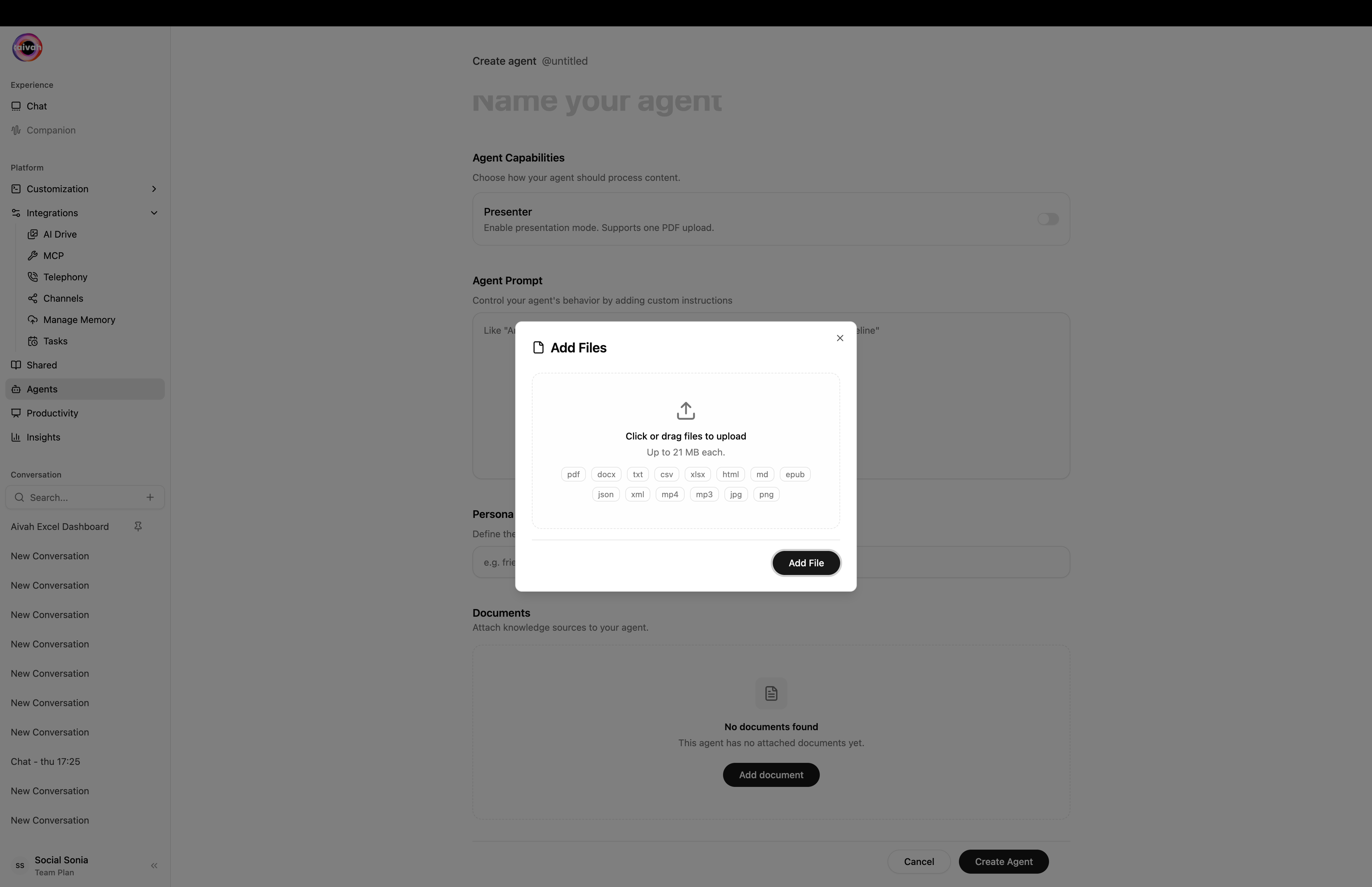
    <Frame caption="Add Files modal with the full list of supported file types">
      <img src="https://mintcdn.com/opinionai/tR4nAAll3jemMkvA/images/agent-add-files-modal.png?fit=max&auto=format&n=tR4nAAll3jemMkvA&q=85&s=b5d6e570e2e94354f3c10e82995a40b3" alt="Add Files modal" width="4112" height="2658" data-path="images/agent-add-files-modal.png" />
    </Frame>
  </Tab>

  <Tab title="Create Text">
    Paste raw text content – ideal for FAQs, policies, or short snippets.
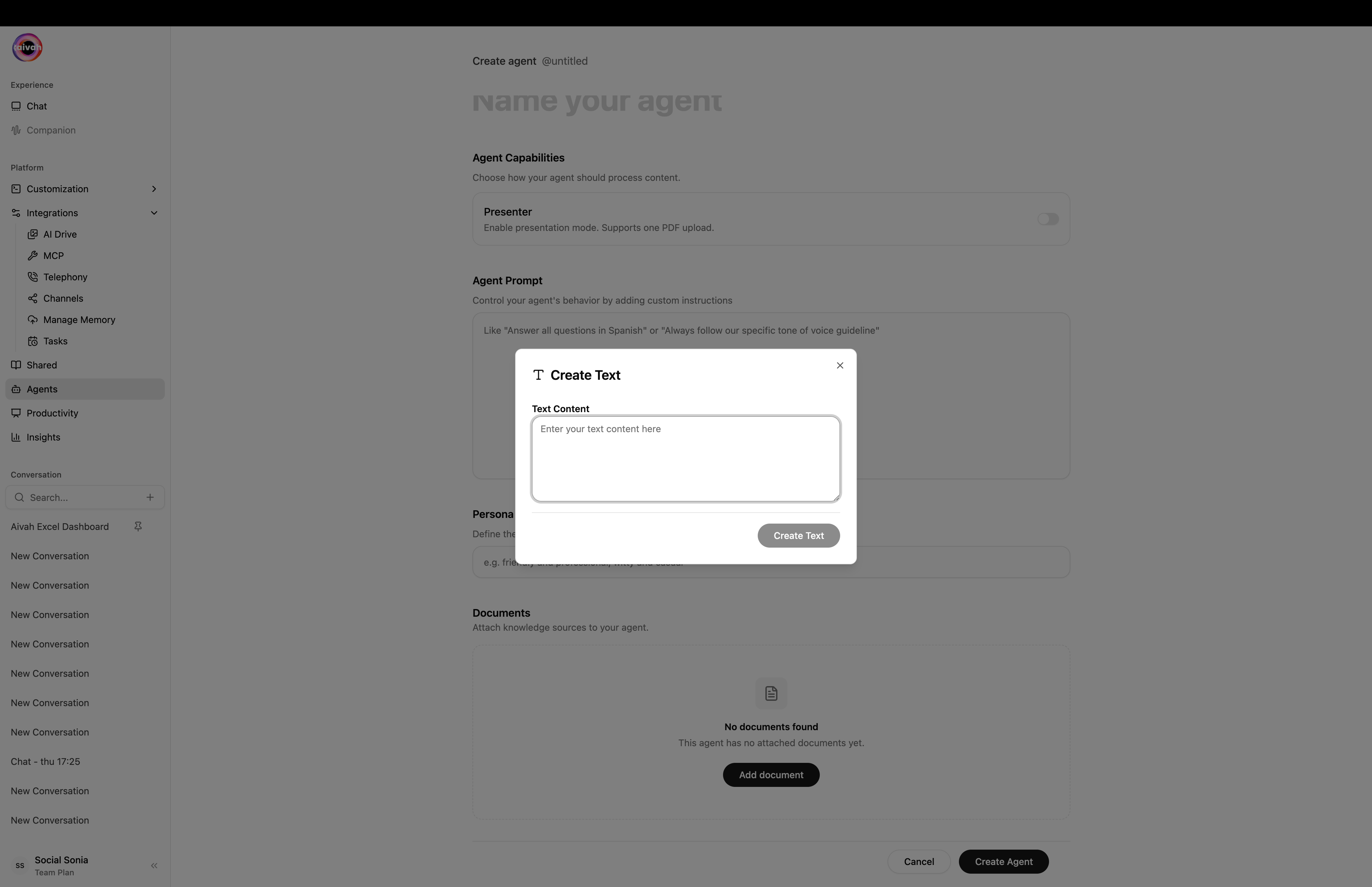
    <Frame caption="Create Text modal">
      <img src="https://mintcdn.com/opinionai/tR4nAAll3jemMkvA/images/agent-create-text-modal.png?fit=max&auto=format&n=tR4nAAll3jemMkvA&q=85&s=e828f992a394d5b5327dabdfc421de1b" alt="Create Text modal" width="4112" height="2658" data-path="images/agent-create-text-modal.png" />
    </Frame>
  </Tab>
</Tabs>

<Note>Presenter agents accept only a single PDF or a single video at a time. Delete the existing file to replace the deck.</Note>

### Finalise

Click **Create Agent**. The agent enters `processing`, you're redirected to the agents list, and Aivah polls every few seconds until the status flips to `completed`. If a single source fails, open the agent detail view and hit the inline refresh on just that item.
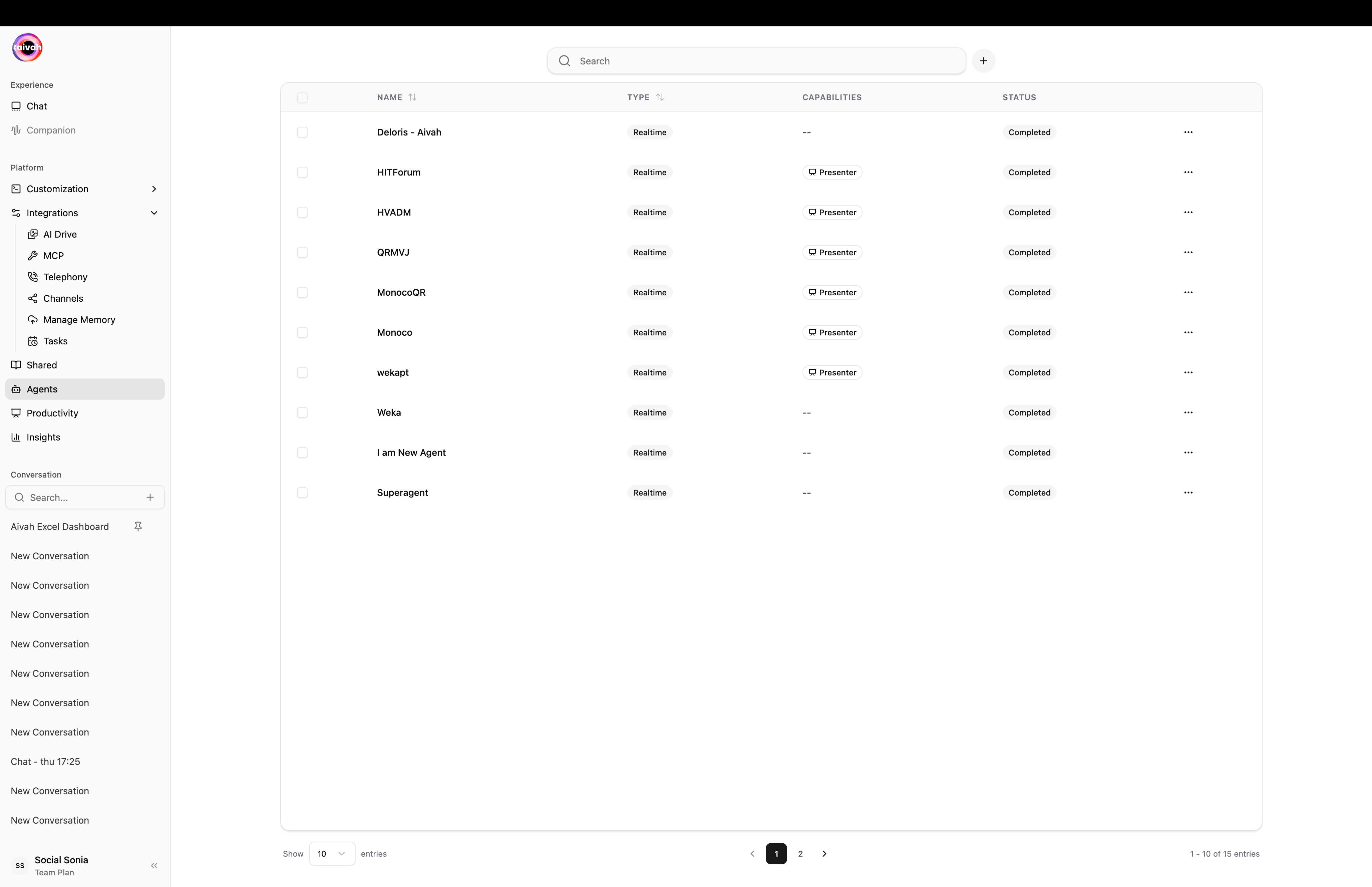
<Frame caption="Agents workspace – every agent with its type, capability badges, and live training status">
  <img src="https://mintcdn.com/opinionai/tR4nAAll3jemMkvA/images/agents-list.png?fit=max&auto=format&n=tR4nAAll3jemMkvA&q=85&s=6b10f274a6ad63bed77f0af1d1c0a3ad" alt="Agents list" width="4112" height="2658" data-path="images/agents-list.png" />
</Frame>

***

## Step 2: Pick a Persona – Avatar, Character, and Voice

Aivah keeps everything visual in one workspace: `Side nav → Customization`.

### Avatars (3D)

Browse the full Ready Player Me-based avatar library and set defaults from `Customization → Avatars`.
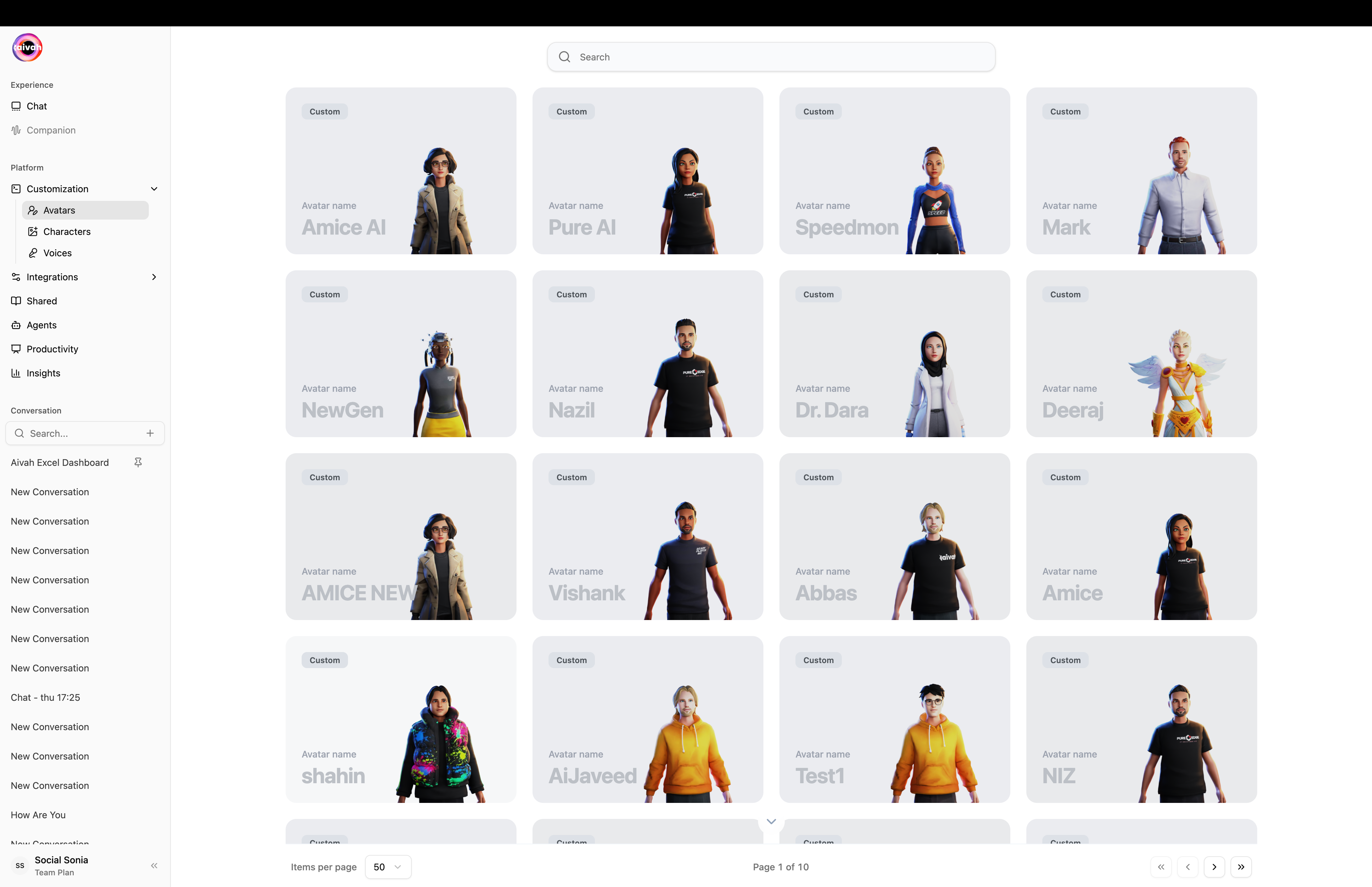
<Frame caption="Avatars grid – every 3D companion in your account">
  <img src="https://mintcdn.com/opinionai/tR4nAAll3jemMkvA/images/avatars-grid.png?fit=max&auto=format&n=tR4nAAll3jemMkvA&q=85&s=f05e054c3c9eed4e85497085b92cb671" alt="Avatars grid" width="4112" height="2658" data-path="images/avatars-grid.png" />
</Frame>

For step-by-step avatar creation, see [Create Avatar](/avatars/create-avatar).

### Characters (2D)

Characters are lightweight image-based personas – upload a photo, crop it, name it, and it's instantly selectable everywhere a character can be picked.
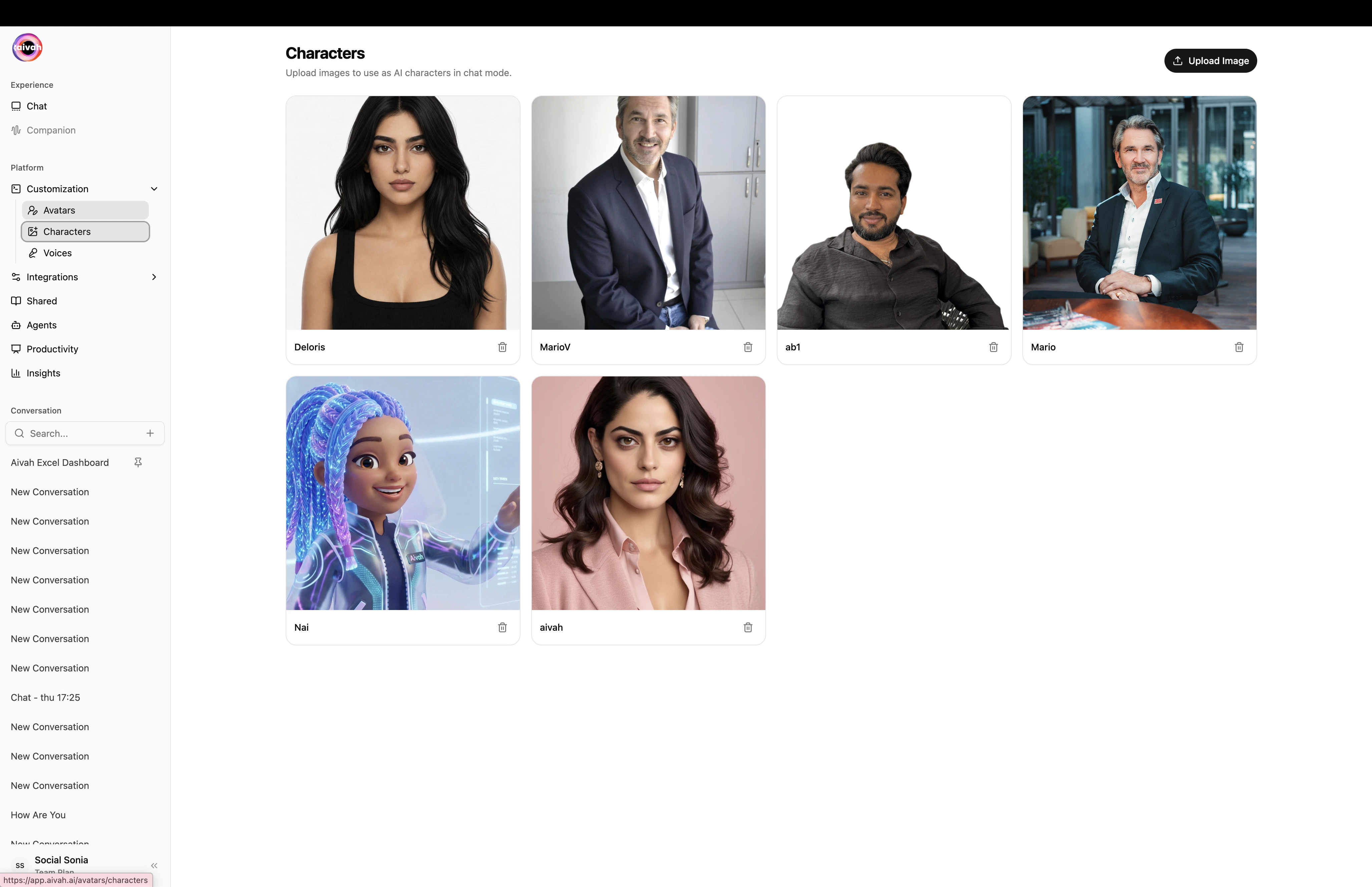
<Frame caption="Characters page – upload an image and it becomes a selectable 2D persona">
  <img src="https://mintcdn.com/opinionai/tR4nAAll3jemMkvA/images/characters-page.png?fit=max&auto=format&n=tR4nAAll3jemMkvA&q=85&s=b133cbd11179fb8eaba8671b24a1dd9e" alt="Characters page" width="4112" height="2658" data-path="images/characters-page.png" />
</Frame>

<Steps>
  <Step title="Click Upload Image">
    Open `Customization → Characters` and pick a photo. JPG, PNG, and WEBP are supported.
  </Step>

  <Step title="Crop the face">
    The **Crop Character Image** modal opens. Pick an aspect ratio (1:1, 3:4, 4:5, or Custom), name the character, then save.
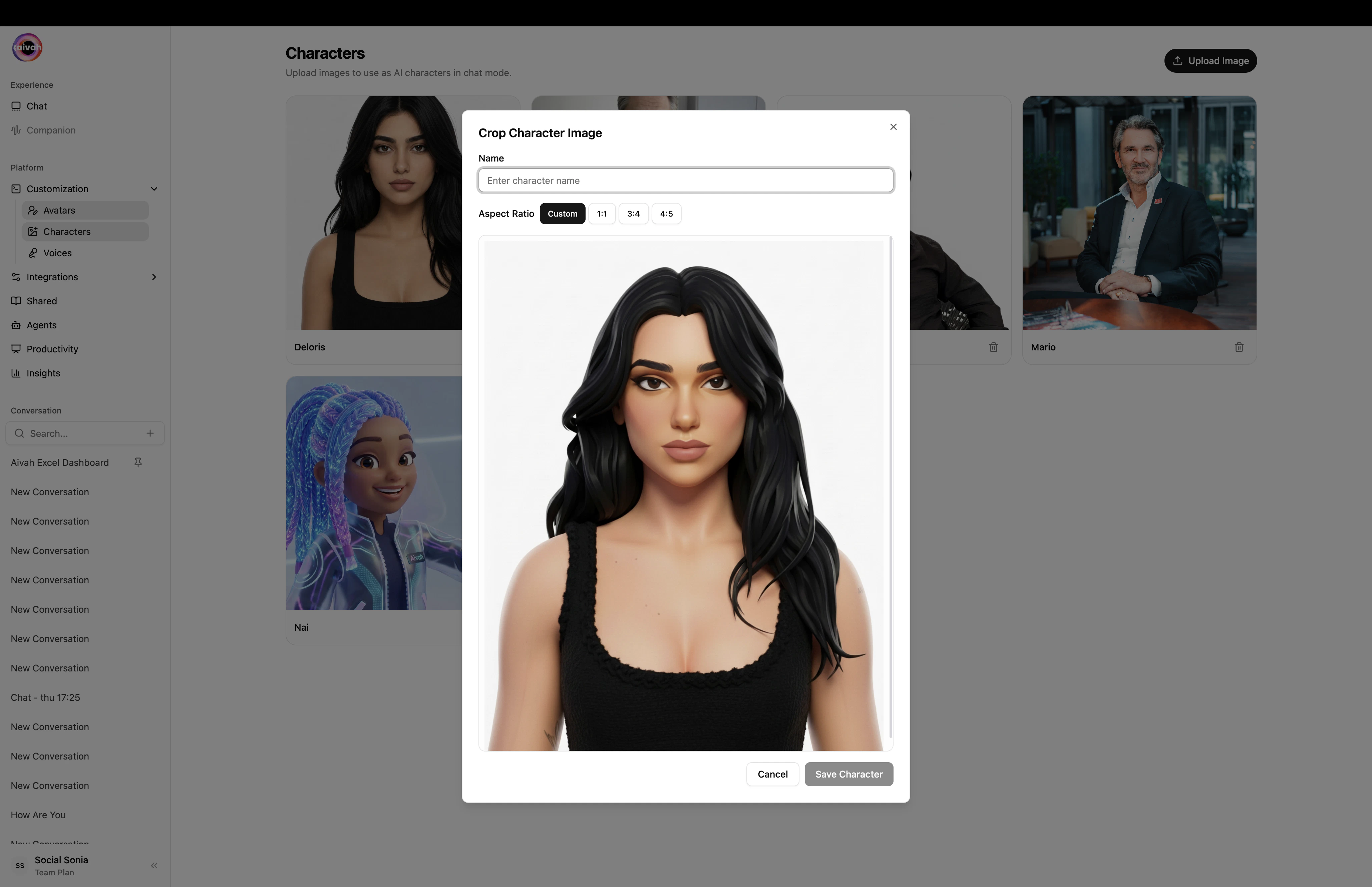
    <Frame caption="Crop Character Image modal">
      <img src="https://mintcdn.com/opinionai/tR4nAAll3jemMkvA/images/character-crop-modal.png?fit=max&auto=format&n=tR4nAAll3jemMkvA&q=85&s=726c765e4f663f5c71674b22e424d911" alt="Character crop modal" width="4112" height="2658" data-path="images/character-crop-modal.png" />
    </Frame>
  </Step>

  <Step title="Edit or delete anytime">
    The pencil icon reopens an Edit modal where you can change the name, **Agent Prompt**, and **Agent Idle Prompt** that describe how the character behaves when speaking or idle.
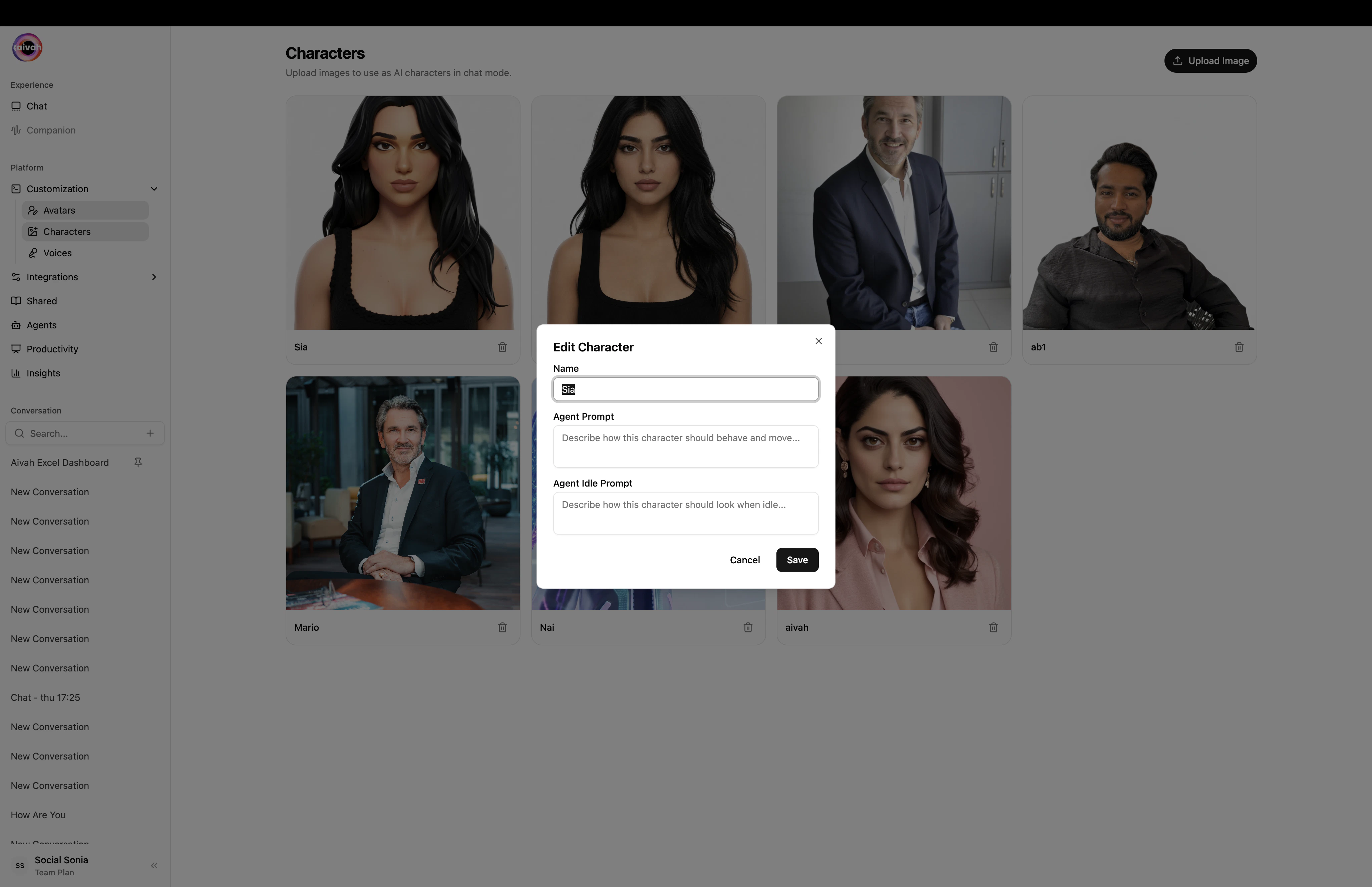
    <Frame caption="Edit Character modal">
      <img src="https://mintcdn.com/opinionai/tR4nAAll3jemMkvA/images/character-edit-modal.png?fit=max&auto=format&n=tR4nAAll3jemMkvA&q=85&s=4252b03b5e9f6c88e859213fbfcaba71" alt="Edit character modal" width="4112" height="2658" data-path="images/character-edit-modal.png" />
    </Frame>
  </Step>
</Steps>

### Voices

`Customization → Voices` lists every built-in voice plus any clones you've made. Click **+ Create** to add your own.
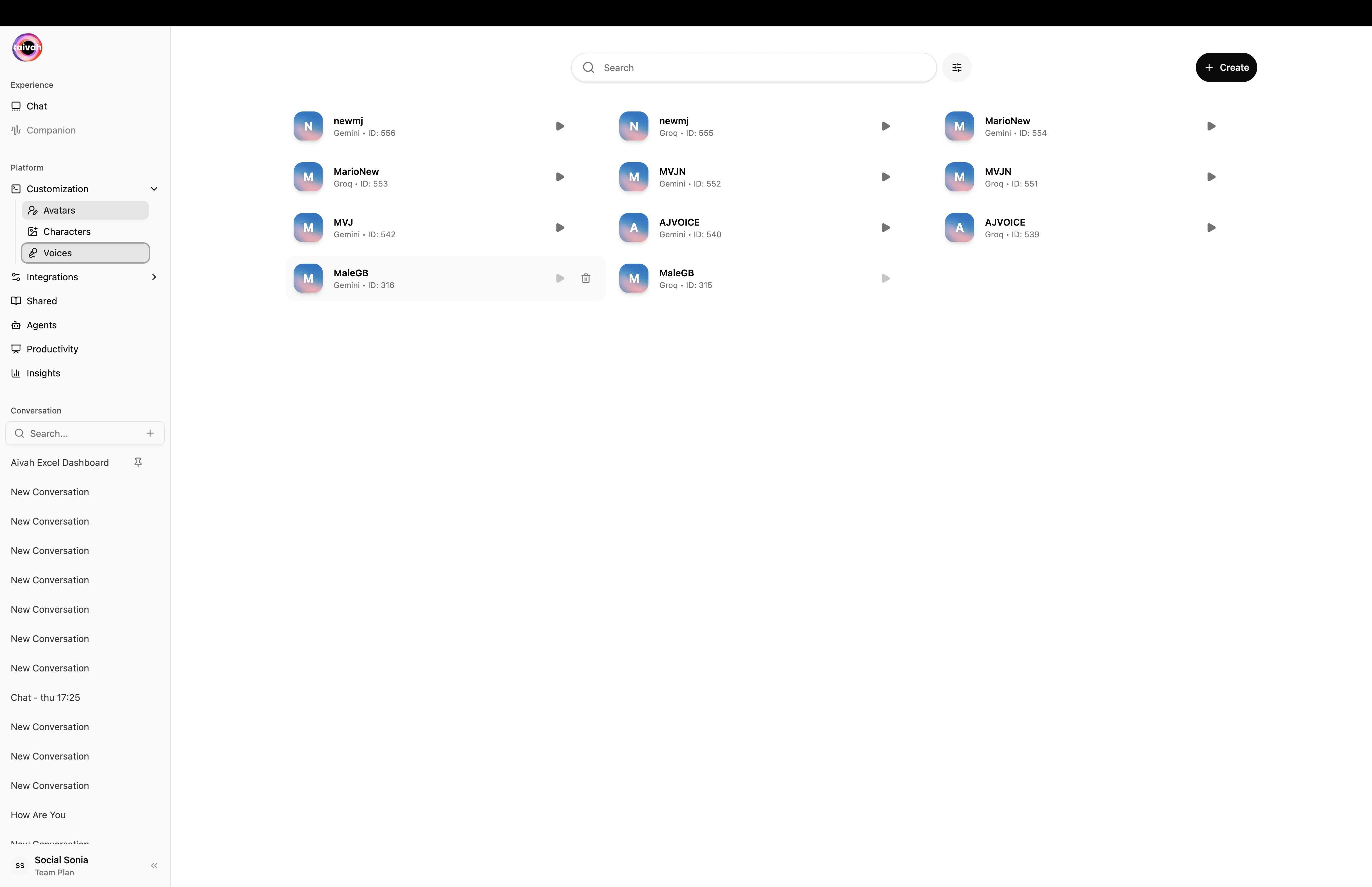
<Frame caption="Voices page – built-in voices plus your private clones">
  <img src="https://mintcdn.com/opinionai/tR4nAAll3jemMkvA/images/voices-list.png?fit=max&auto=format&n=tR4nAAll3jemMkvA&q=85&s=08cc8c5c564225ded338e4c1ced12ecf" alt="Voices list" width="4112" height="2658" data-path="images/voices-list.png" />
</Frame>

<Steps>
  <Step title="Open the Add voice modal">
    Click **+ Create** to launch the dialog.
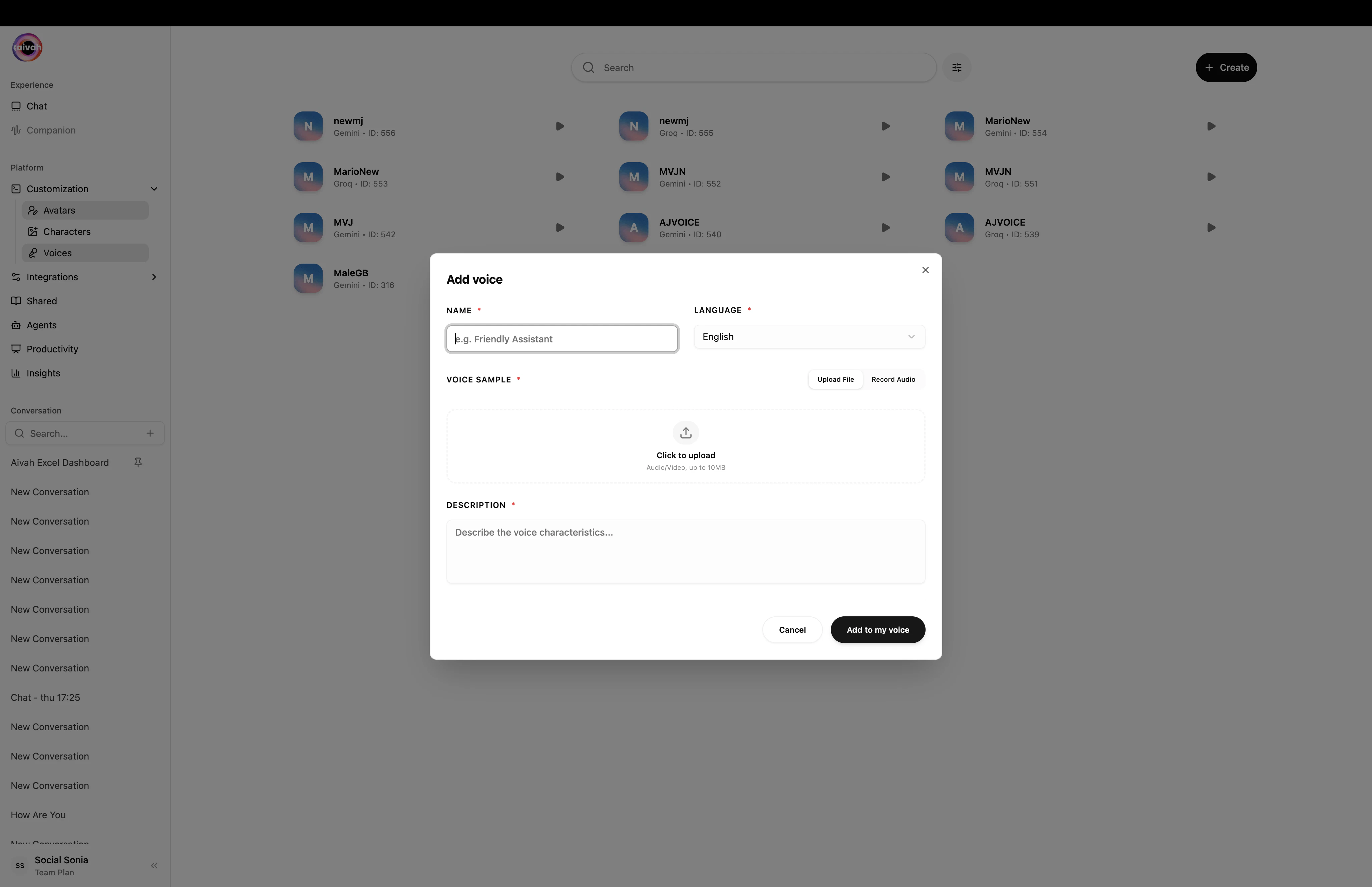
    <Frame caption="Add voice modal – Name, Language, Voice Sample, and Description">
      <img src="https://mintcdn.com/opinionai/tR4nAAll3jemMkvA/images/voice-clone-modal.png?fit=max&auto=format&n=tR4nAAll3jemMkvA&q=85&s=fb22673edd8a3a9827f471838fdfae7e" alt="Add voice modal" width="4112" height="2658" data-path="images/voice-clone-modal.png" />
    </Frame>
  </Step>

  <Step title="Pick the language">
    Choose from English, French, German, Spanish, Portuguese, and more.
  </Step>

  <Step title="Upload or record a sample">
    Use **Upload File** for a clean mono recording (up to 10 MB) or **Record Audio** in the browser (up to 1 minute).
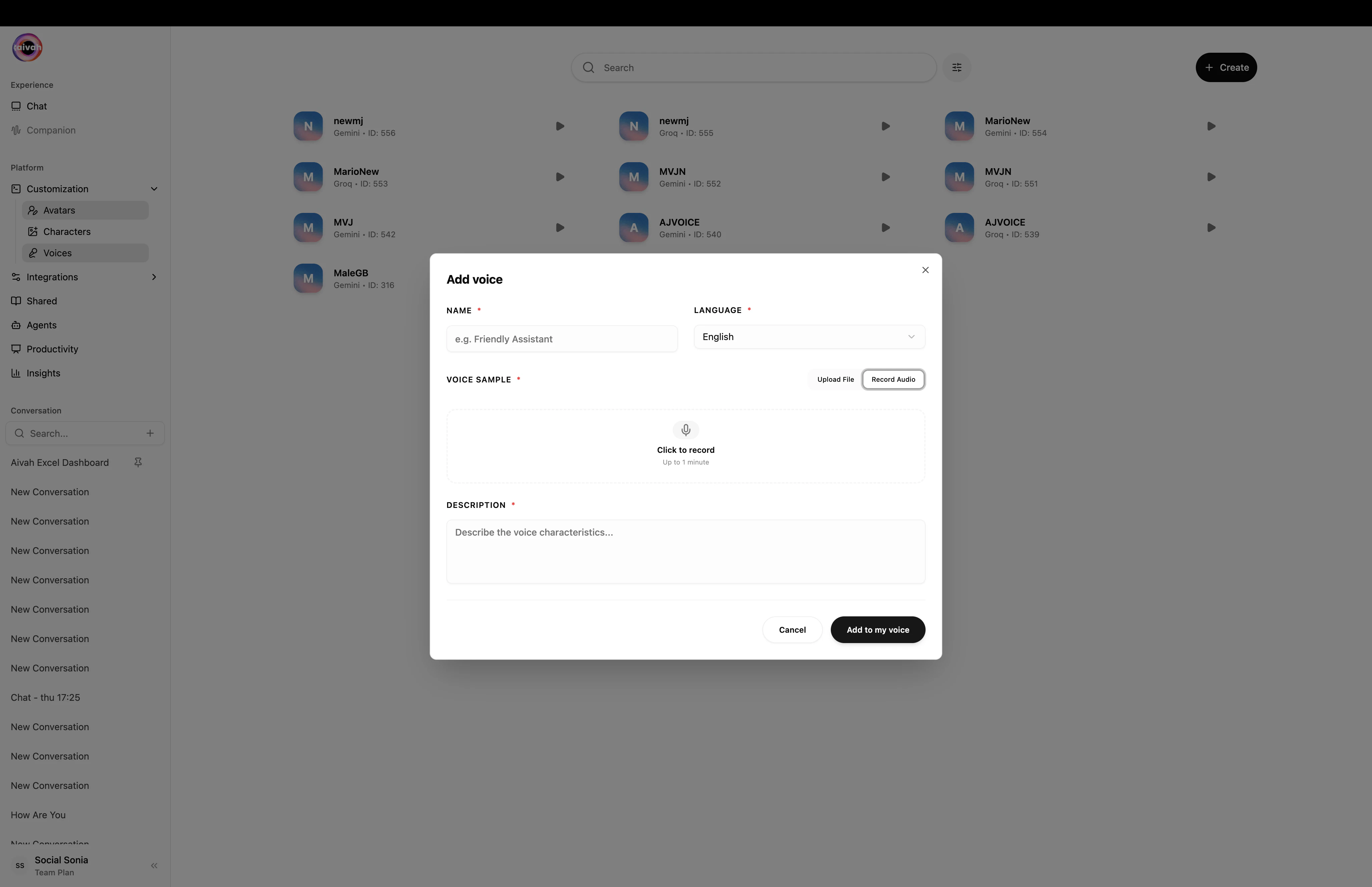
    <Frame caption="Record Audio mode – capture up to 1 minute right in the browser">
      <img src="https://mintcdn.com/opinionai/tR4nAAll3jemMkvA/images/voice-clone-record-audio.png?fit=max&auto=format&n=tR4nAAll3jemMkvA&q=85&s=a83b0892416c6aa89b6bf09f09a45c57" alt="Voice clone record audio" width="4112" height="2658" data-path="images/voice-clone-record-audio.png" />
    </Frame>
  </Step>

  <Step title="Save">
    Click **Add to my voice**. Once processed, the voice appears wherever voices can be picked.
  </Step>
</Steps>

***

## Step 3: Test in the Playground

Open the **Chat** workspace from the side navigation. New chats start at `/new-playground/new-chat`; existing conversations live at `/{conversationId}/chat` and `/{conversationId}/avatar-chat`.
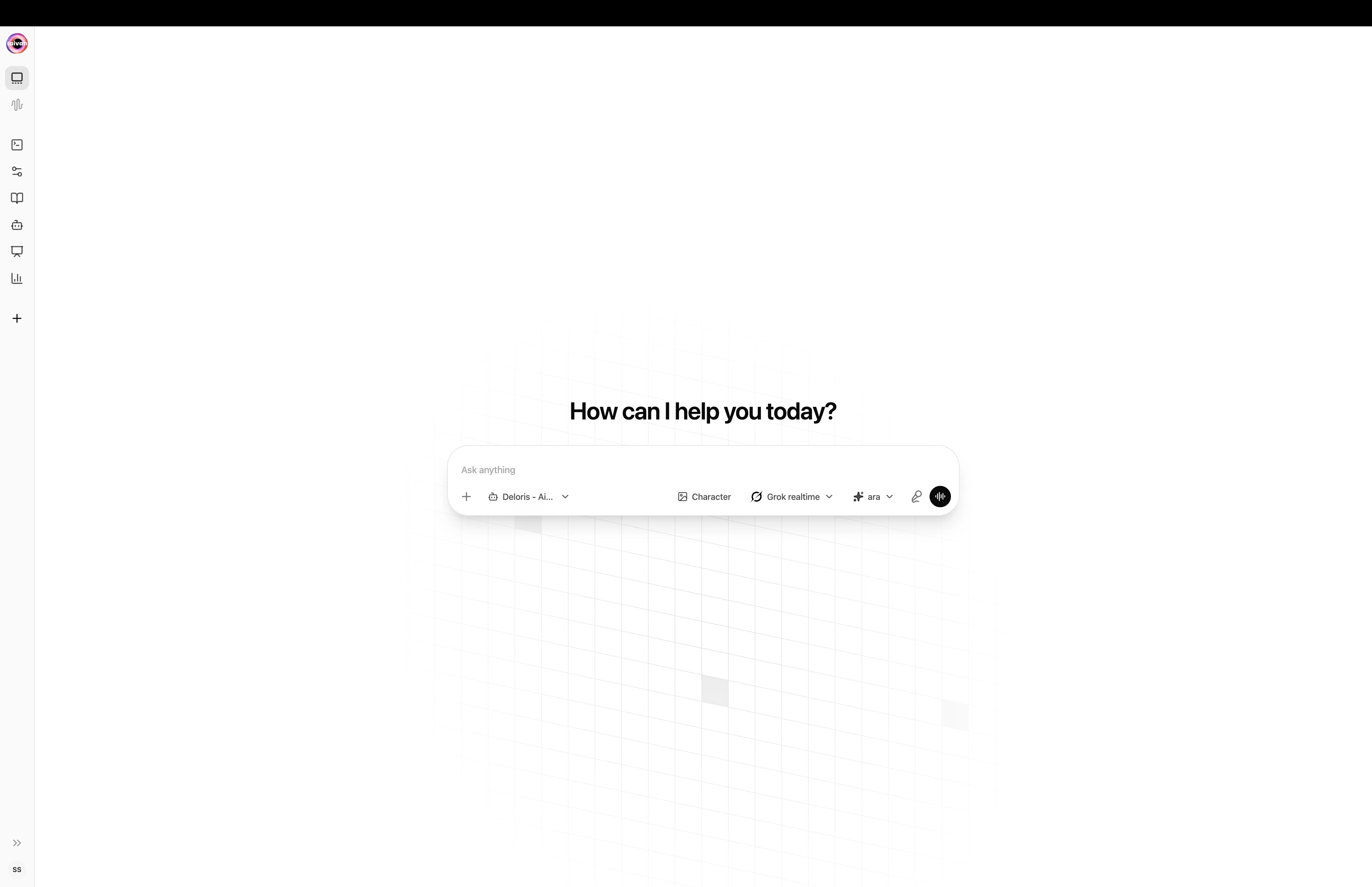
<Frame caption="New chat composer – pick agent, character, model, and voice from the pills">
  <img src="https://mintcdn.com/opinionai/tR4nAAll3jemMkvA/images/new-chat-composer.png?fit=max&auto=format&n=tR4nAAll3jemMkvA&q=85&s=c8203ed39c490586ab71073cda5e2044" alt="New chat composer" width="4112" height="2658" data-path="images/new-chat-composer.png" />
</Frame>

### Configure the conversation from the composer pills

Every important option is one click away from the composer:
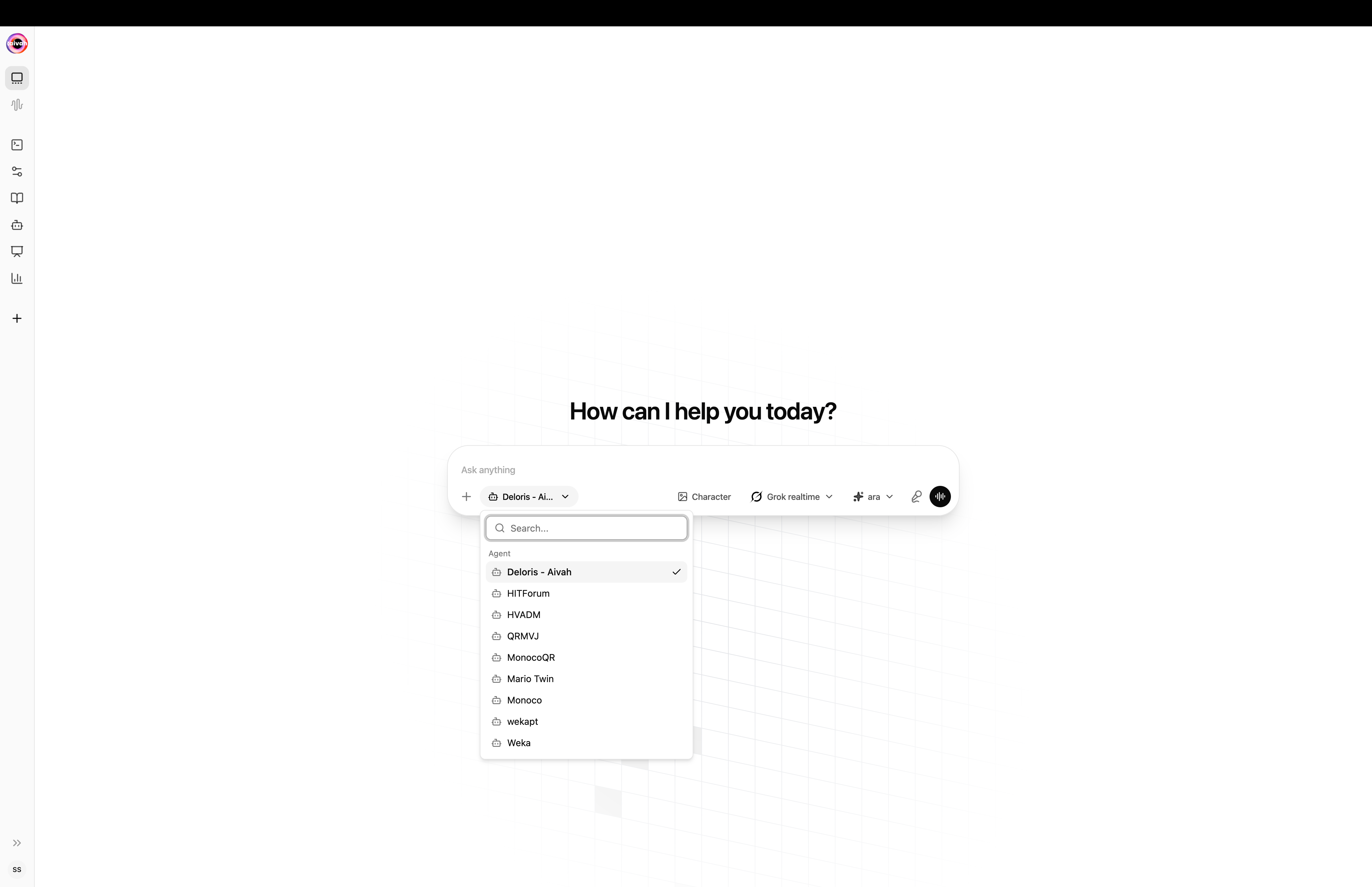
<Tabs>
  <Tab title="Agent">
    <Frame caption="Switch the active agent without leaving the composer">
      <img src="https://mintcdn.com/opinionai/tR4nAAll3jemMkvA/images/composer-agent-picker.png?fit=max&auto=format&n=tR4nAAll3jemMkvA&q=85&s=9bfd4e8c5029d30e3524cff2009610a1" alt="Composer agent picker" width="4112" height="2658" data-path="images/composer-agent-picker.png" />
    </Frame>
  </Tab>

  <Tab title="LLM">
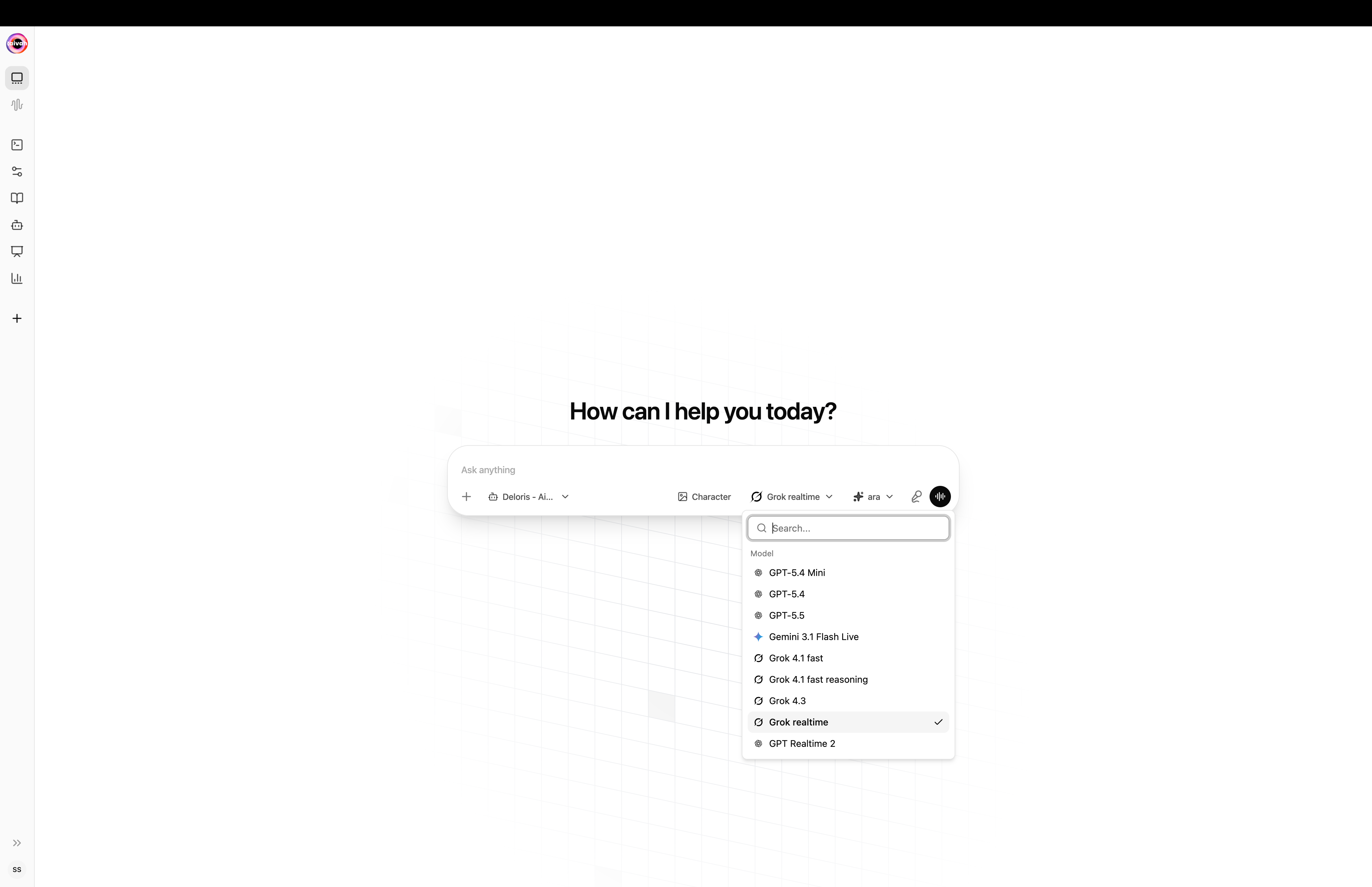
    <Frame caption="Pick between OpenAI, Gemini, Grok, and OpenAI Realtime model families">
      <img src="https://mintcdn.com/opinionai/tR4nAAll3jemMkvA/images/composer-llm-picker.png?fit=max&auto=format&n=tR4nAAll3jemMkvA&q=85&s=4f8b2275fc2d81e3a5f88a336fa1c6d9" alt="Composer LLM picker" width="4112" height="2658" data-path="images/composer-llm-picker.png" />
    </Frame>
  </Tab>

  <Tab title="Voice">
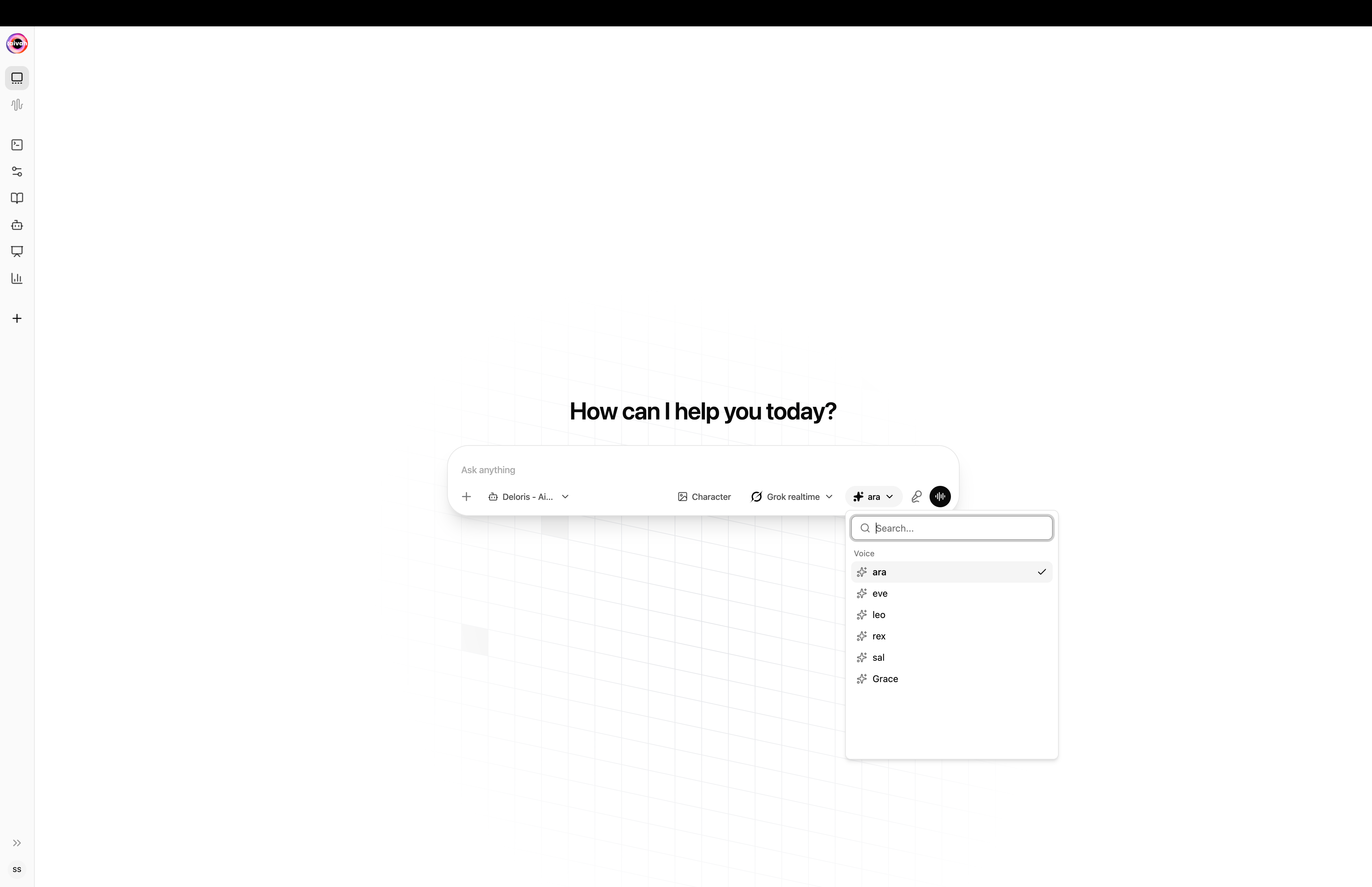
    <Frame caption="Voices are filtered to those supported by the selected model">
      <img src="https://mintcdn.com/opinionai/tR4nAAll3jemMkvA/images/composer-voice-picker.png?fit=max&auto=format&n=tR4nAAll3jemMkvA&q=85&s=d1fb1a9c702c6671e47cd833ba256910" alt="Composer voice picker" width="4112" height="2658" data-path="images/composer-voice-picker.png" />
    </Frame>
  </Tab>

  <Tab title="Character">
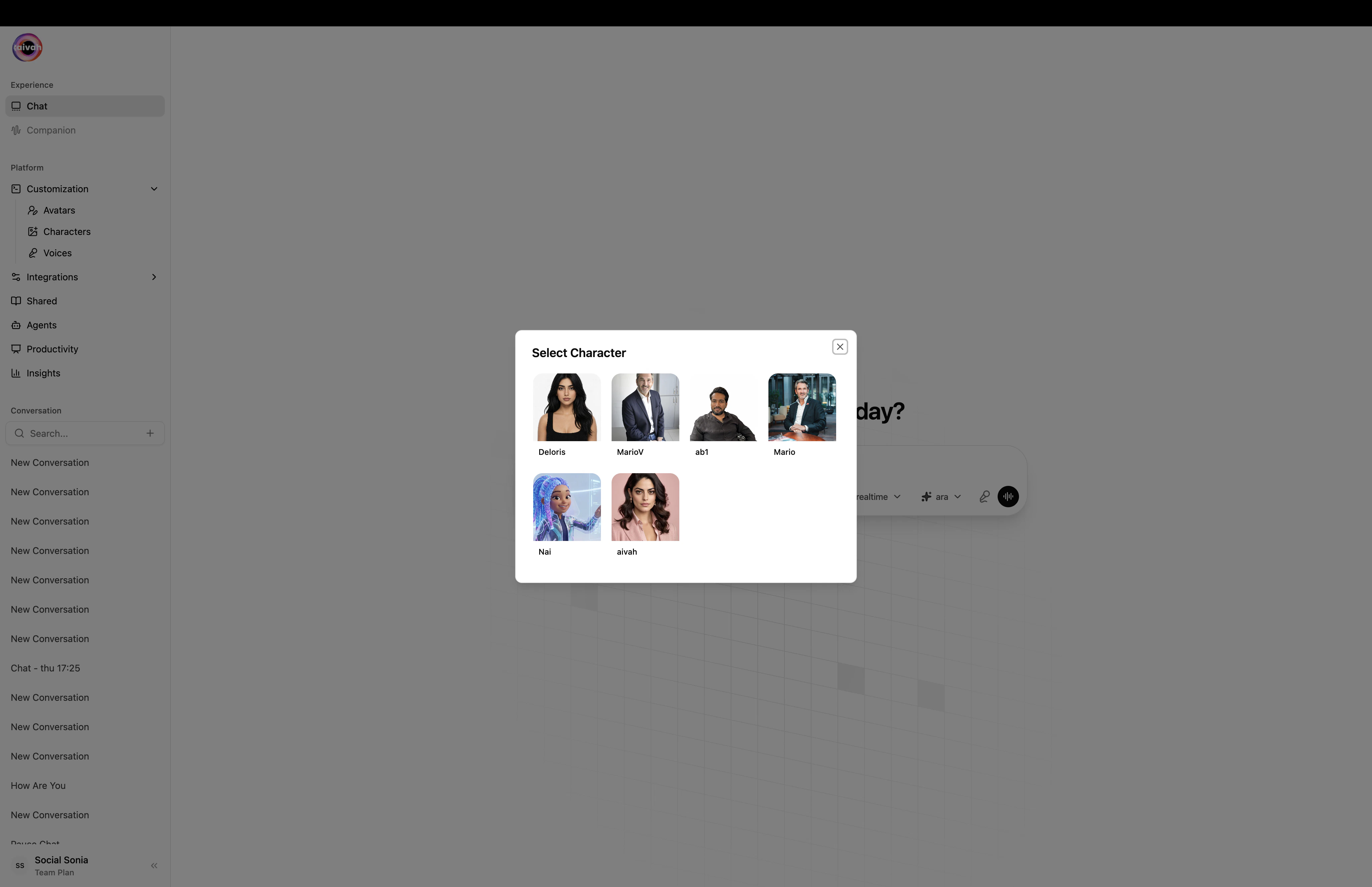
    <Frame caption="The Character picker covers 2D personas, including the ones you've uploaded">
      <img src="https://mintcdn.com/opinionai/tR4nAAll3jemMkvA/images/character-picker-modal.png?fit=max&auto=format&n=tR4nAAll3jemMkvA&q=85&s=ea4d9785fcf917b041291229b0acb5b5" alt="Character picker modal" width="4112" height="2658" data-path="images/character-picker-modal.png" />
    </Frame>
  </Tab>
</Tabs>

### Try the three modes

<Tabs>
  <Tab title="Text chat">
    Type your message, attach files with the paper-clip, ask for an image or video, or trigger a web search inline.
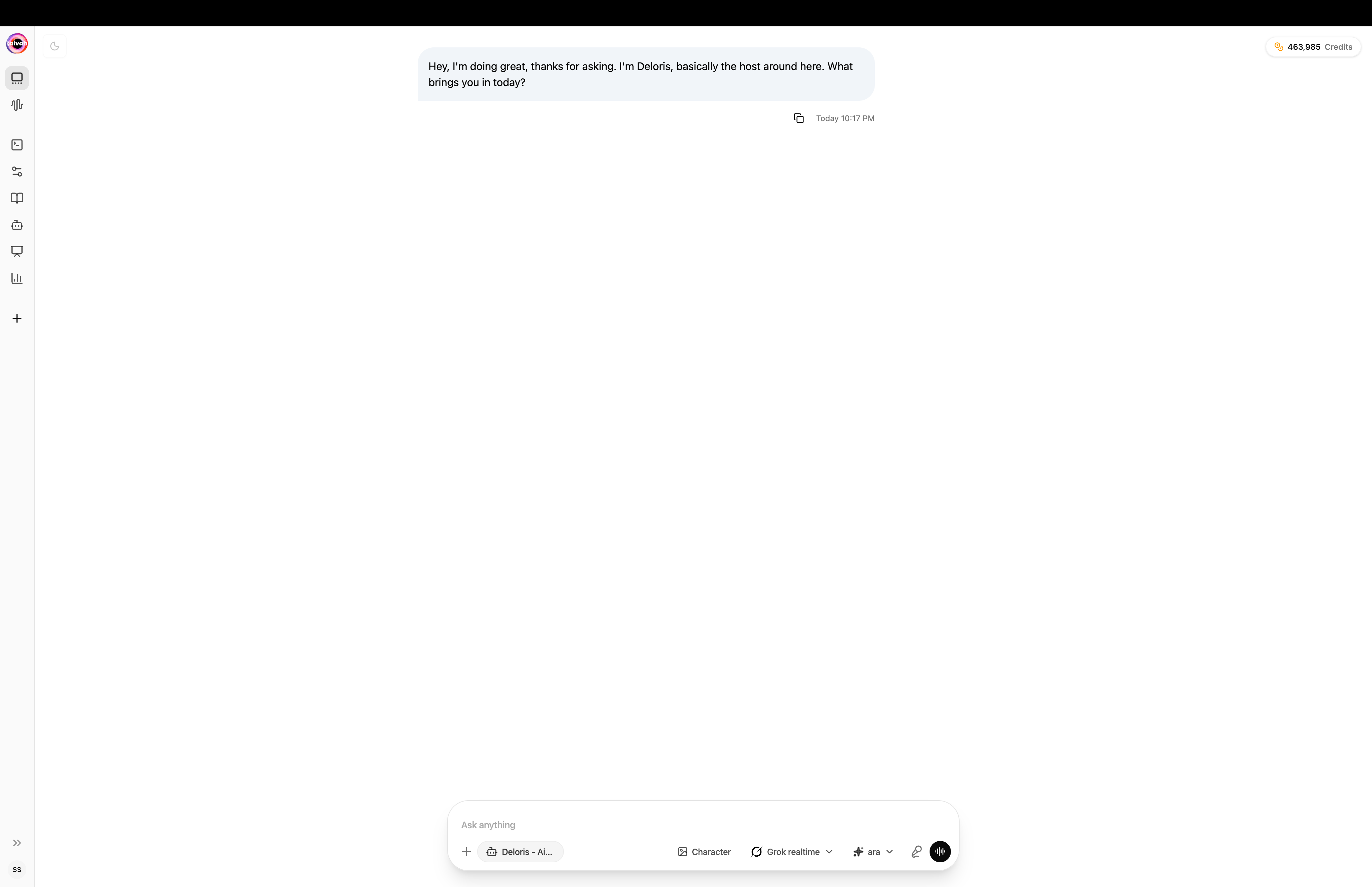
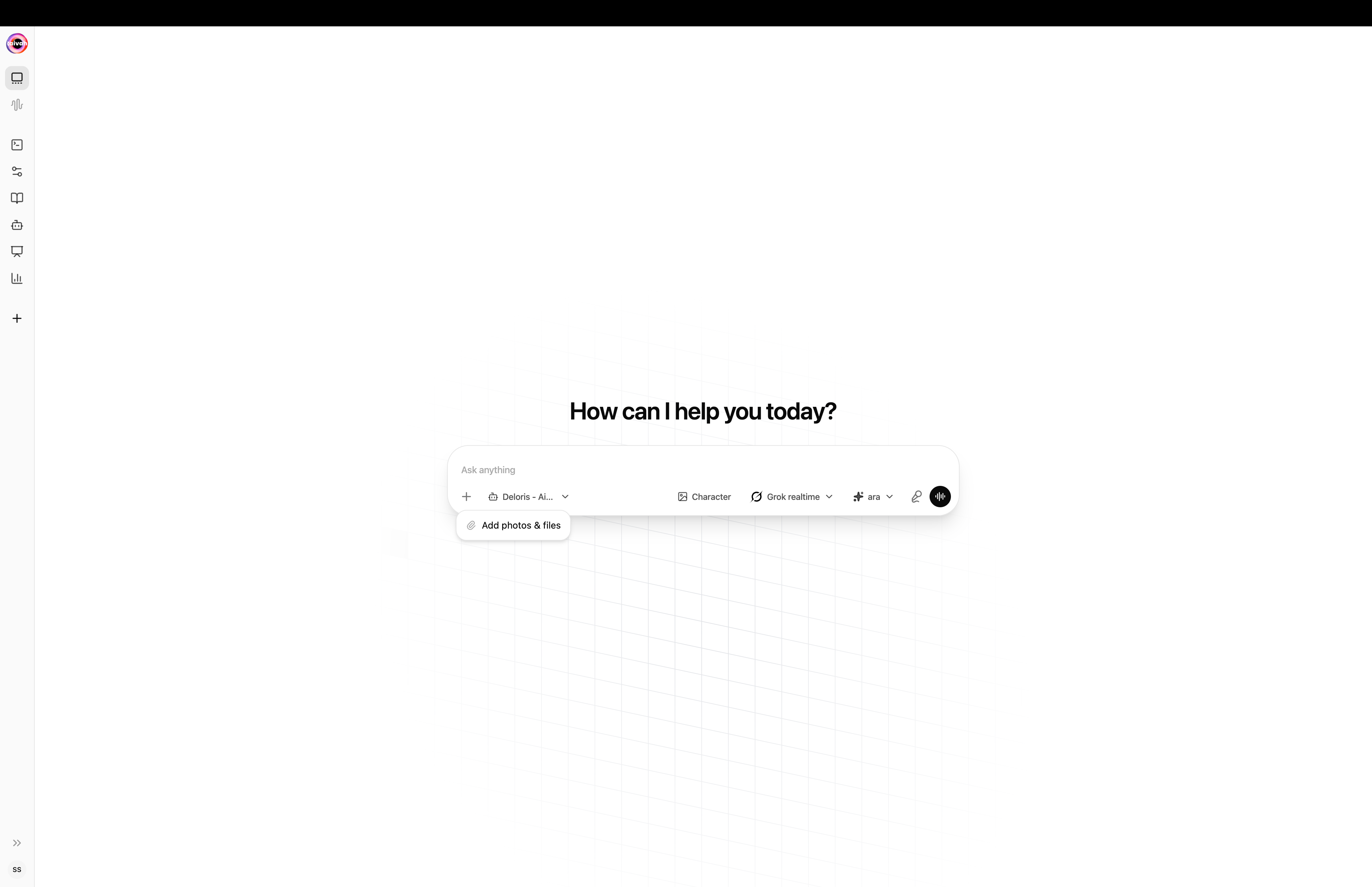
    <Frame caption="Text chat conversation with credits badge in the top-right">
      <img src="https://mintcdn.com/opinionai/tR4nAAll3jemMkvA/images/chat-text-conversation.png?fit=max&auto=format&n=tR4nAAll3jemMkvA&q=85&s=2261f53f47f57201a53c43fdebc5d030" alt="Text chat conversation" width="4112" height="2658" data-path="images/chat-text-conversation.png" />
    </Frame>

    <Frame caption="Add photos and files directly from the composer">
      <img src="https://mintcdn.com/opinionai/tR4nAAll3jemMkvA/images/composer-file-attach.png?fit=max&auto=format&n=tR4nAAll3jemMkvA&q=85&s=c7f24717da3944656cf4fa15734b4e97" alt="Add photos and files" width="4112" height="2658" data-path="images/composer-file-attach.png" />
    </Frame>
  </Tab>

  <Tab title="Avatar chat">
    The 3D avatar fills the canvas and the side panel keeps the transcript + composer in view.
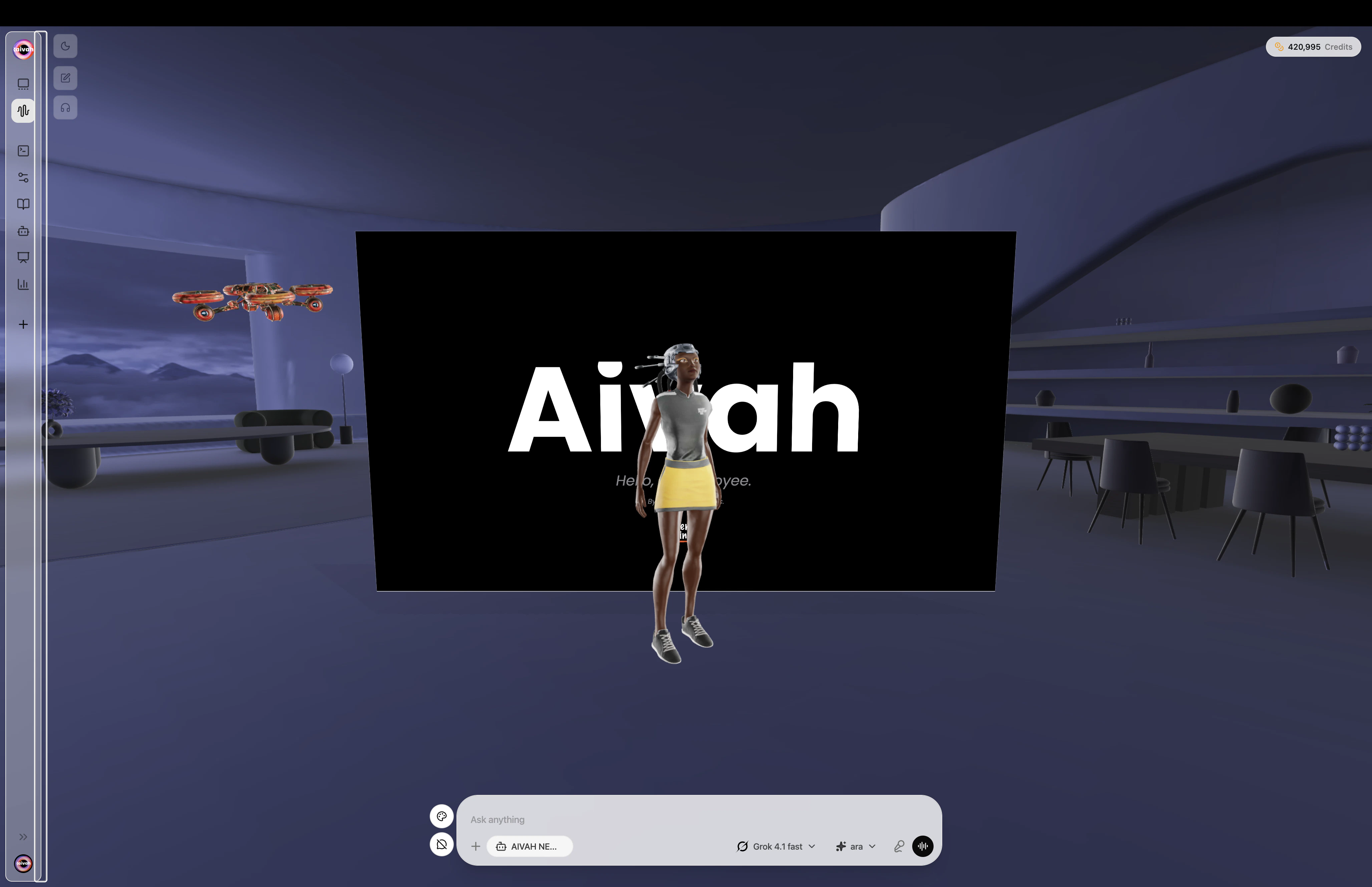
    <Frame caption="Avatar chat in a Zen scene with the productivity toolbar on the left rail">
      <img src="https://mintcdn.com/opinionai/tR4nAAll3jemMkvA/images/avatar-chat-zen-scene.png?fit=max&auto=format&n=tR4nAAll3jemMkvA&q=85&s=5b70bdfeddf3cb28b5c0291ade07d1ad" alt="Avatar chat zen scene" width="4112" height="2658" data-path="images/avatar-chat-zen-scene.png" />
    </Frame>

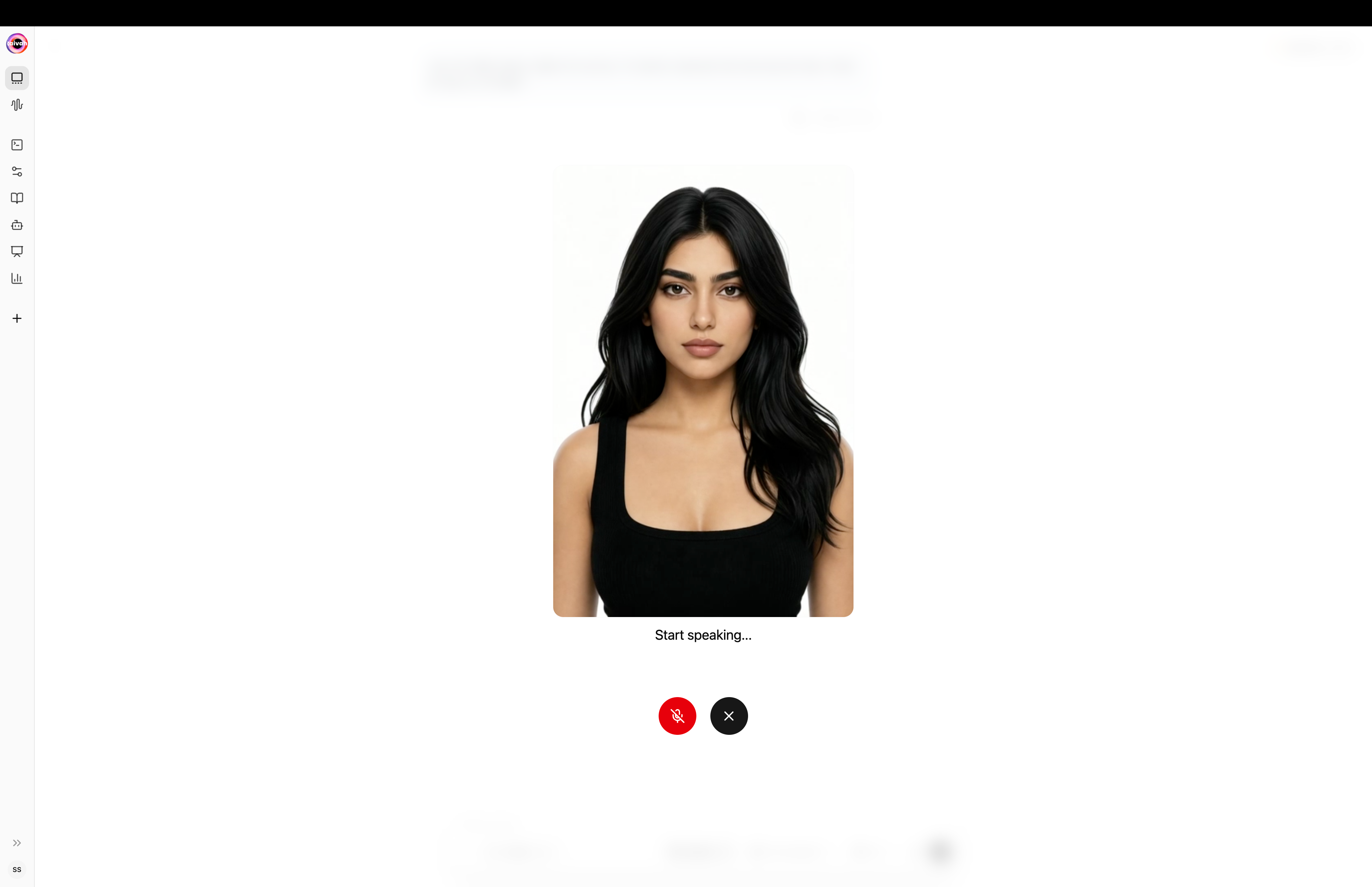
    <Frame caption="Tap a Character to chat with a 2D persona in full-screen mode">
      <img src="https://mintcdn.com/opinionai/tR4nAAll3jemMkvA/images/avatar-chat-character-fullscreen.png?fit=max&auto=format&n=tR4nAAll3jemMkvA&q=85&s=d62b1cc855e7380f6eadafe58b1cb33b" alt="Avatar chat character fullscreen" width="4112" height="2658" data-path="images/avatar-chat-character-fullscreen.png" />
    </Frame>
  </Tab>

  <Tab title="Voice-only">
    Click the mic to start a voice-first session. The voice orb expands while the avatar listens and responds.
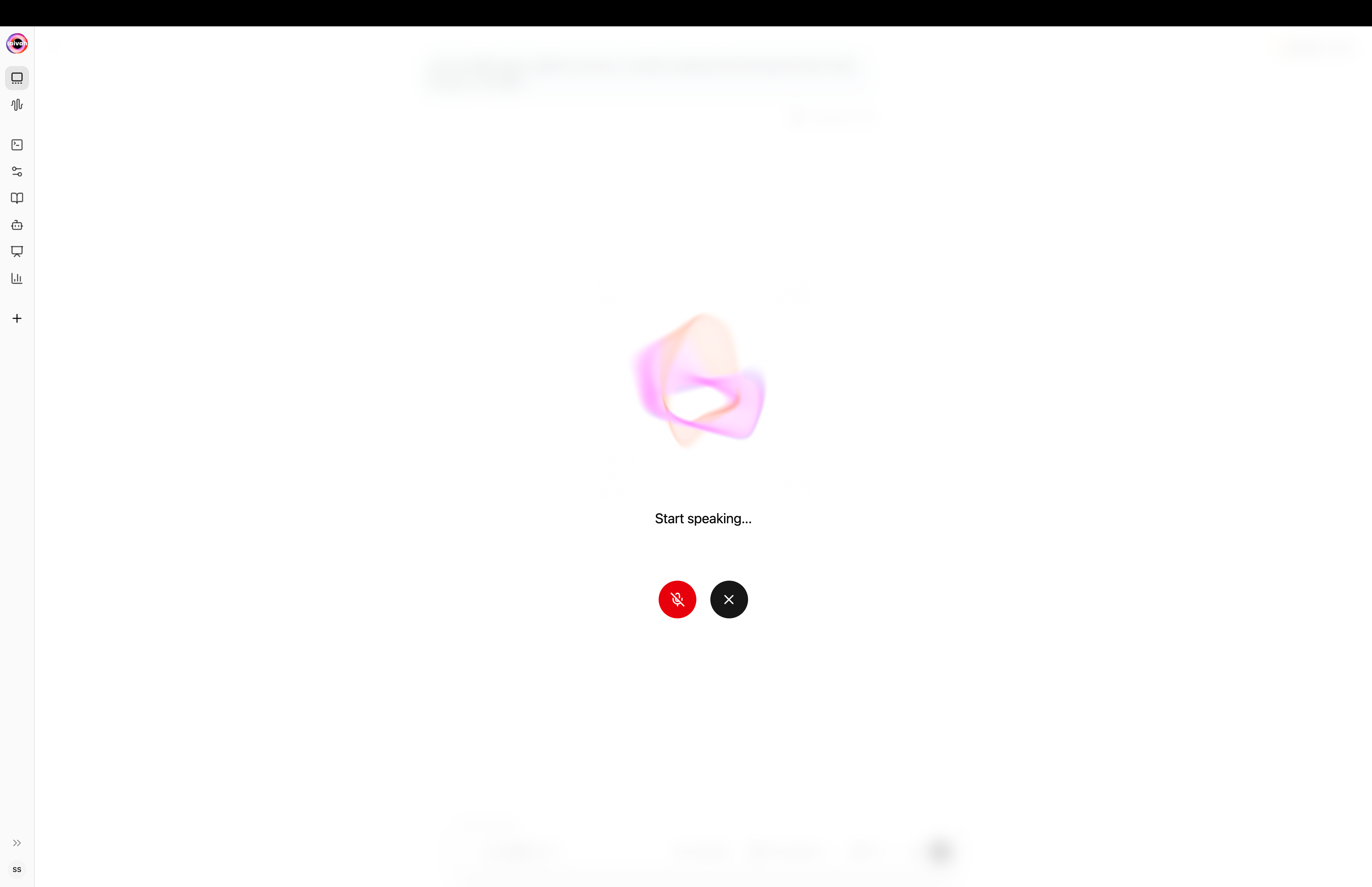
    <Frame caption="Voice orb during a voice-only session">
      <img src="https://mintcdn.com/opinionai/tR4nAAll3jemMkvA/images/voice-orb.png?fit=max&auto=format&n=tR4nAAll3jemMkvA&q=85&s=2640281ed6e9ebddb975597d7dc36745" alt="Voice orb" width="4112" height="2658" data-path="images/voice-orb.png" />
    </Frame>
  </Tab>
</Tabs>

### Generate media right from the composer

Ask the agent to draw, animate, or research – the chat composer routes the request to the right model automatically.
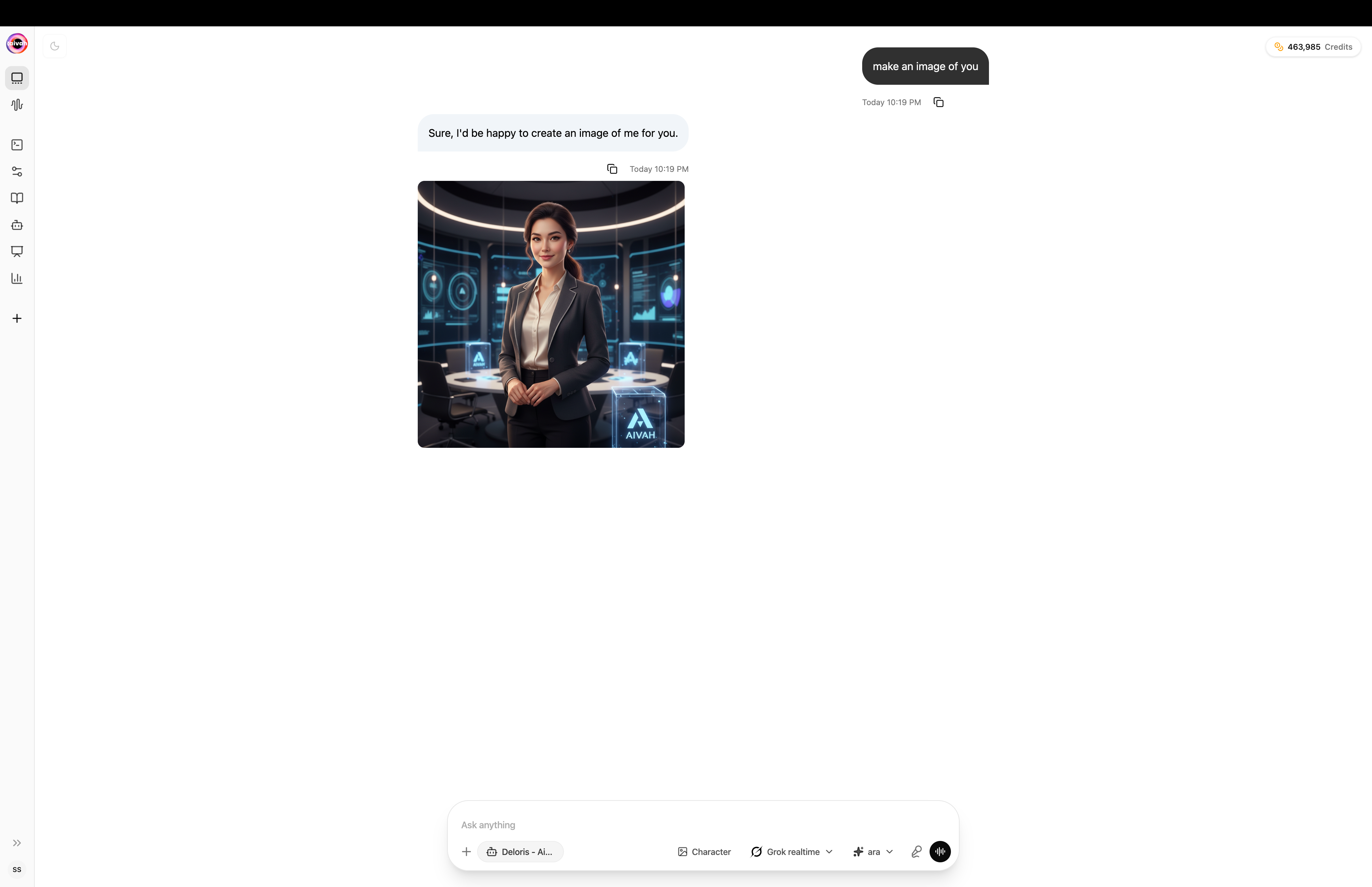
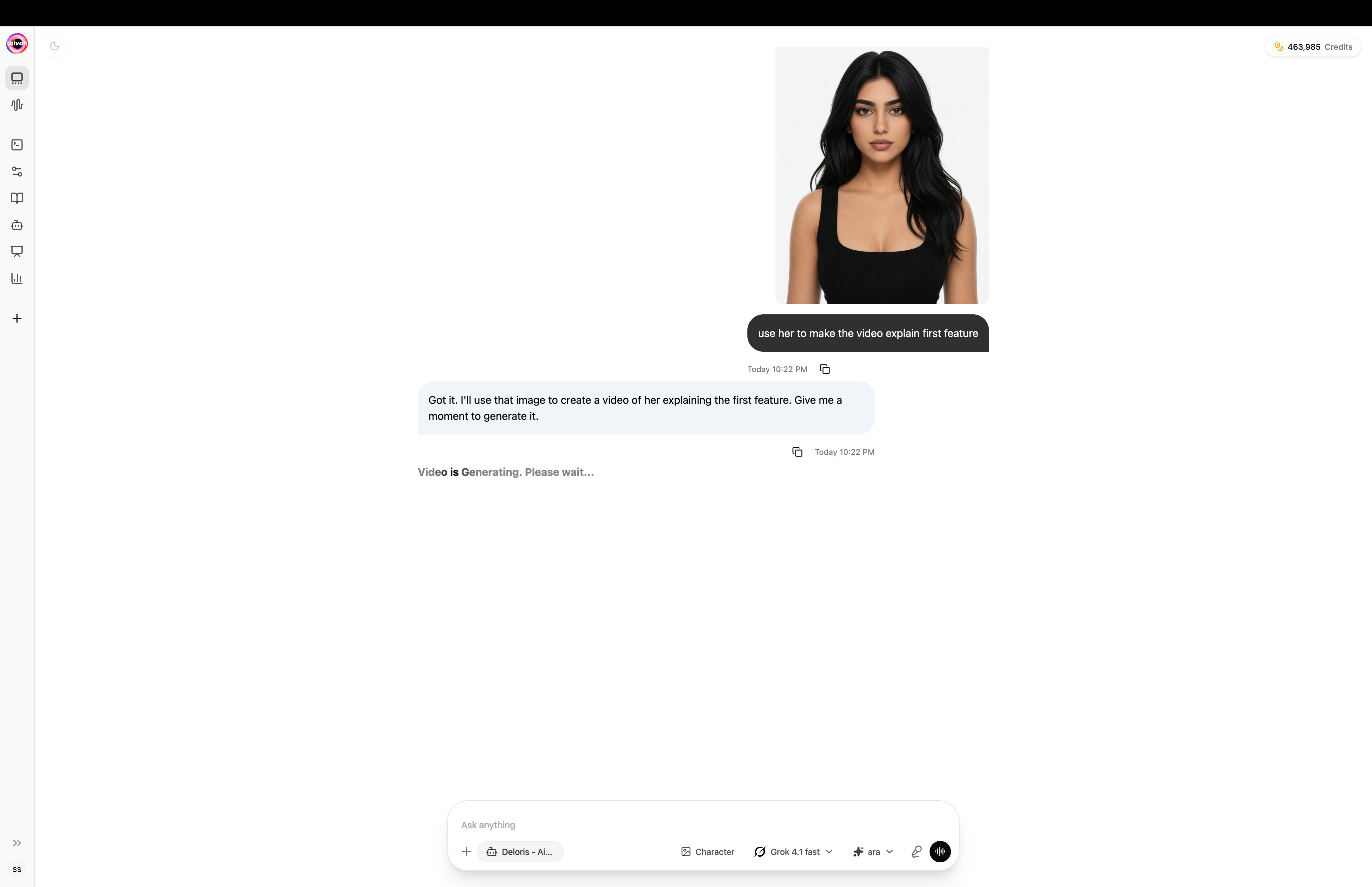
<Frame caption="Image generation runs inline, then the result auto-saves to AI Drive">
  <img src="https://mintcdn.com/opinionai/tR4nAAll3jemMkvA/images/image-generation-result.png?fit=max&auto=format&n=tR4nAAll3jemMkvA&q=85&s=684a8f9ab7f5ac8e70de3aa21b3f8901" alt="Image generation result" width="4112" height="2658" data-path="images/image-generation-result.png" />
</Frame>

<Frame caption="Animate any generated image into a short video with a follow-up prompt">
  <img src="https://mintcdn.com/opinionai/tR4nAAll3jemMkvA/images/video-from-image.png?fit=max&auto=format&n=tR4nAAll3jemMkvA&q=85&s=b6ae6ebdf2b36fc256be363bbf173cd1" alt="Video from image" width="4112" height="2658" data-path="images/video-from-image.png" />
</Frame>

### Tune the avatar and scene from Preferences

The palette icon next to the composer opens **Preferences**. Use it to set the default avatar and the 3D scene the avatar chat opens in.
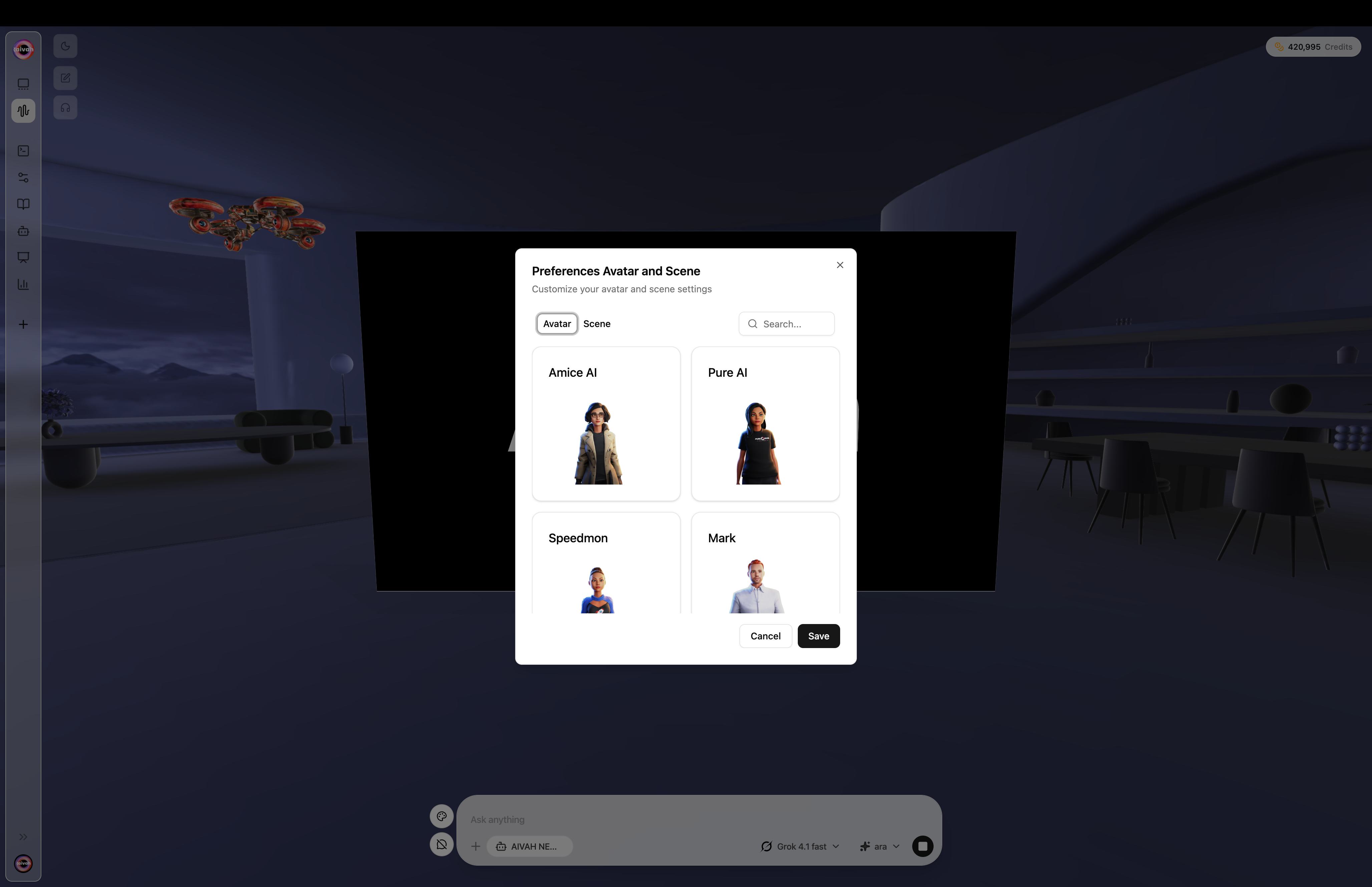
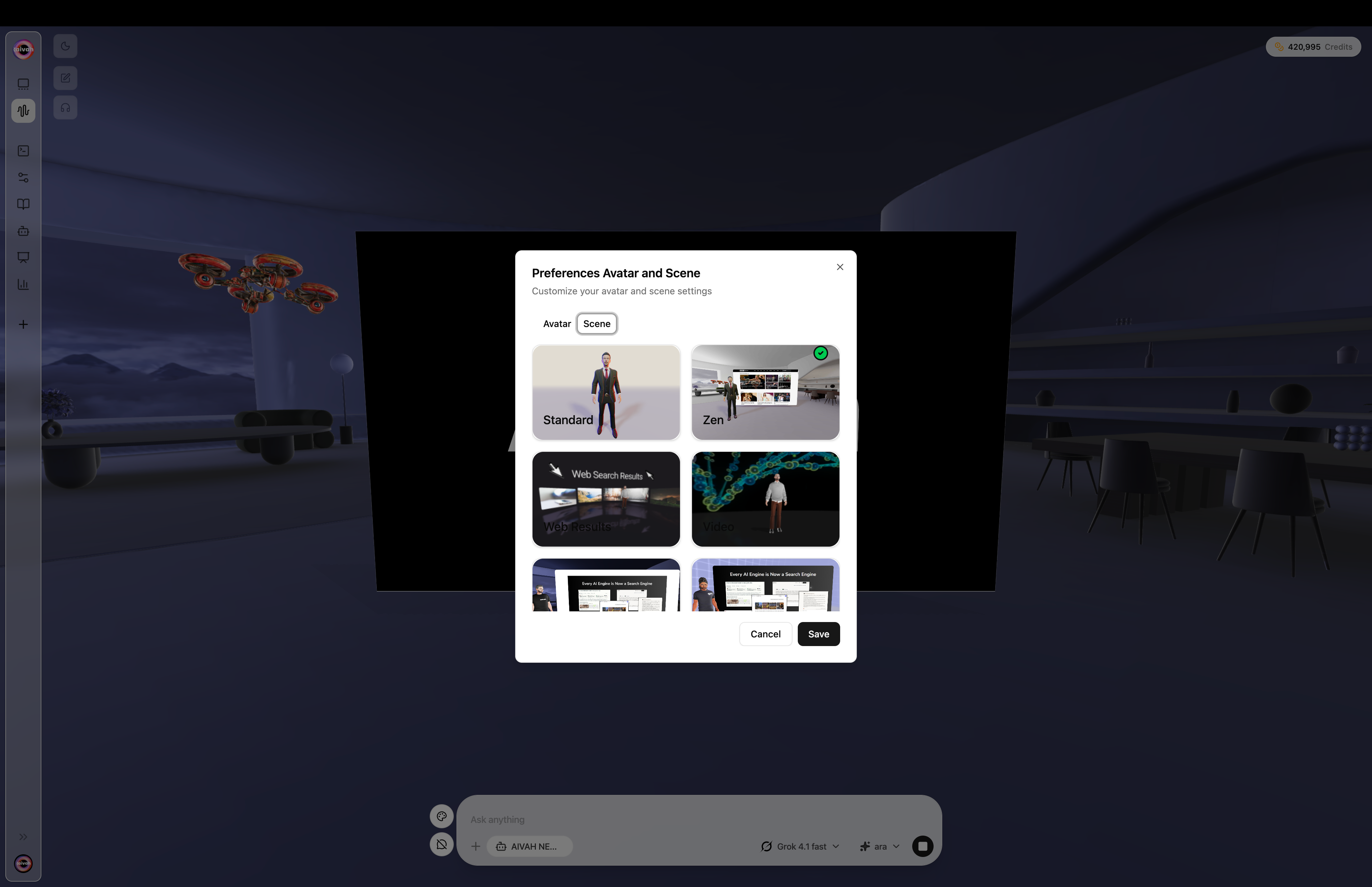
<Frame caption="Preferences modal – Avatar tab">
  <img src="https://mintcdn.com/opinionai/tR4nAAll3jemMkvA/images/preferences-avatar-tab.png?fit=max&auto=format&n=tR4nAAll3jemMkvA&q=85&s=e898295e828f59fbf7210f00374e656b" alt="Preferences avatar tab" width="4112" height="2658" data-path="images/preferences-avatar-tab.png" />
</Frame>

<Frame caption="Preferences modal – Scene tab (Standard, Zen, Web Results, Video, Presenter)">
  <img src="https://mintcdn.com/opinionai/tR4nAAll3jemMkvA/images/preferences-scene-tab.png?fit=max&auto=format&n=tR4nAAll3jemMkvA&q=85&s=04a777209db68d815a7af68d4305db65" alt="Preferences scene tab" width="4112" height="2658" data-path="images/preferences-scene-tab.png" />
</Frame>

***

## Step 4: Share Your Agent

Open **Shared** in the side navigation to publish a public link, bubble, or iframe.
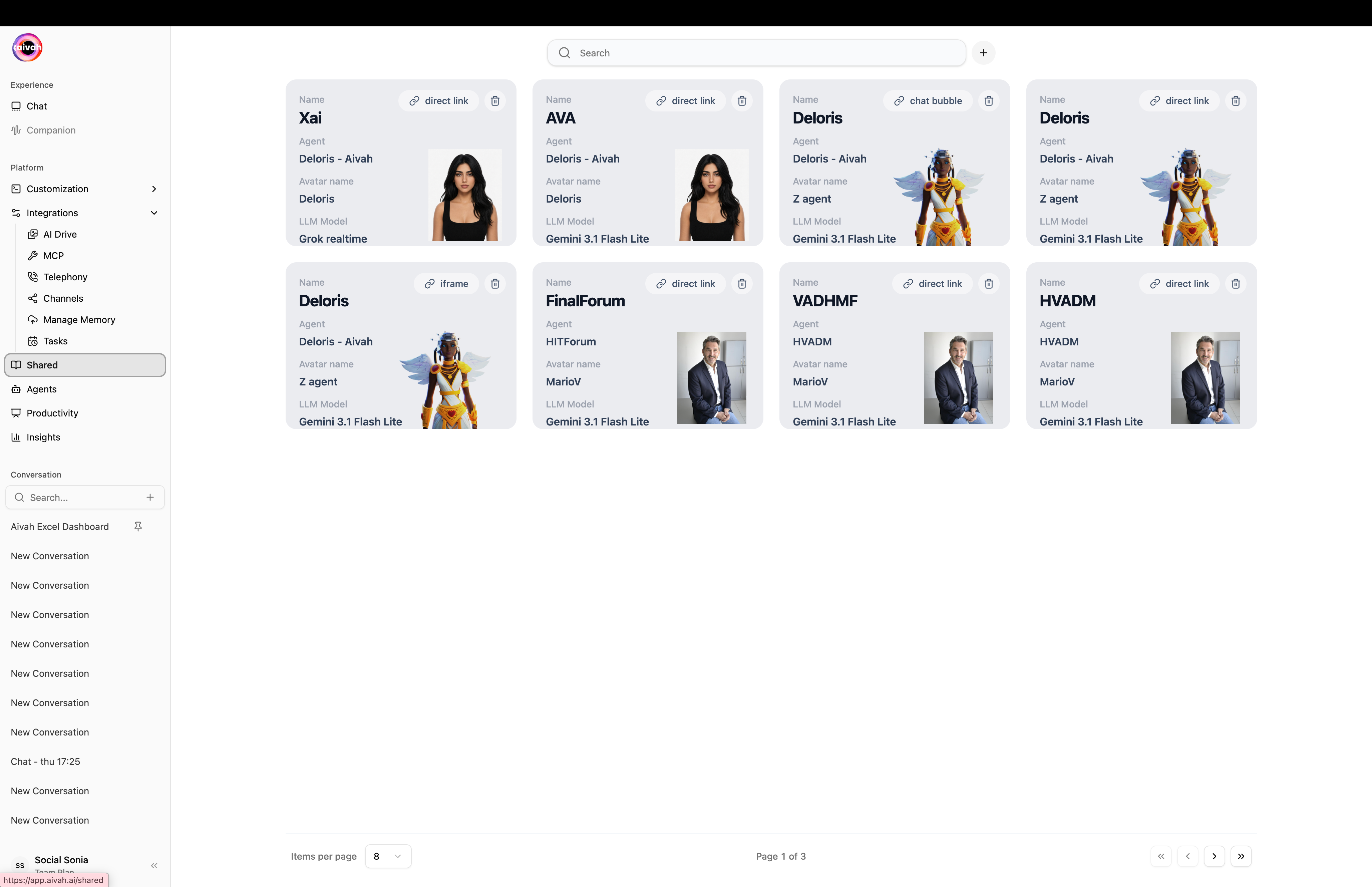
<Frame caption="Shared workspace – every published agent with its link type badge">
  <img src="https://mintcdn.com/opinionai/tR4nAAll3jemMkvA/images/shared-agents-grid.png?fit=max&auto=format&n=tR4nAAll3jemMkvA&q=85&s=5c163cc2197e40f3305f6076d2825dc2" alt="Shared agents grid" width="4112" height="2658" data-path="images/shared-agents-grid.png" />
</Frame>

### Create a shared agent

Click the **+** button to open the two-step create flow.
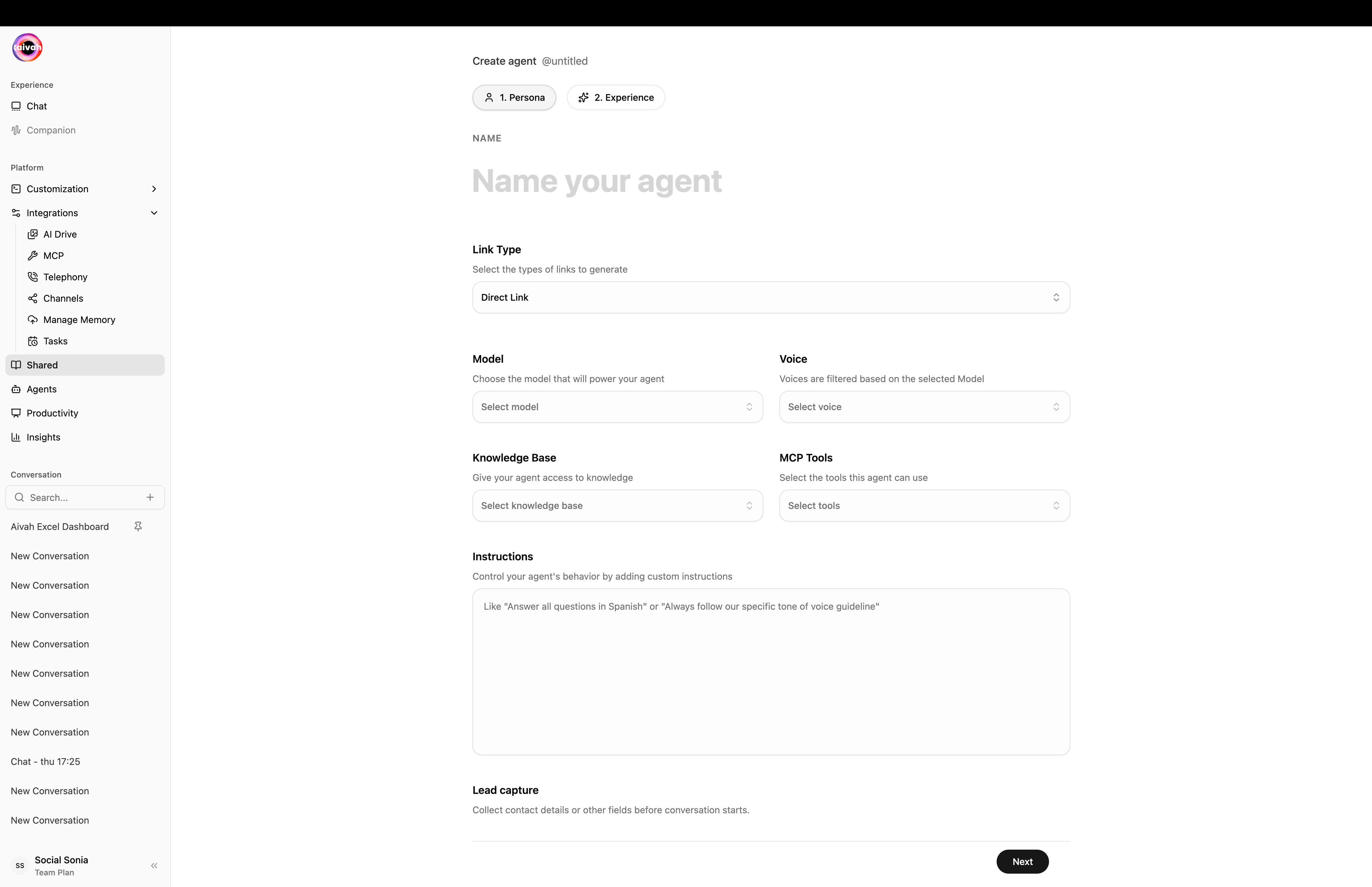
<Steps>
  <Step title="Persona step – pick the agent, model, voice, tools, and instructions">
    <Frame caption="Persona step – Link Type, Model, Voice, Knowledge Base, MCP Tools, Instructions, Lead capture">
      <img src="https://mintcdn.com/opinionai/tR4nAAll3jemMkvA/images/shared-agent-create-form.png?fit=max&auto=format&n=tR4nAAll3jemMkvA&q=85&s=5ea5cd93509077ca379c37cc4cc1013e" alt="Shared agent create form" width="4112" height="2658" data-path="images/shared-agent-create-form.png" />
    </Frame>

    Choose the **Link Type** that fits your distribution plan:

    * **Direct Link** – a clean URL you can post anywhere.
    * **Iframe** – an embeddable widget for your website.
    * **Chat Bubble** – a floating bubble script for any site.
  </Step>

  <Step title="Optional – add a lead capture form">
    Click **Add lead capture form** inside the Persona step. Configure title, consent text, and one or more fields (name, email, phone, custom). Mark each as required or optional.
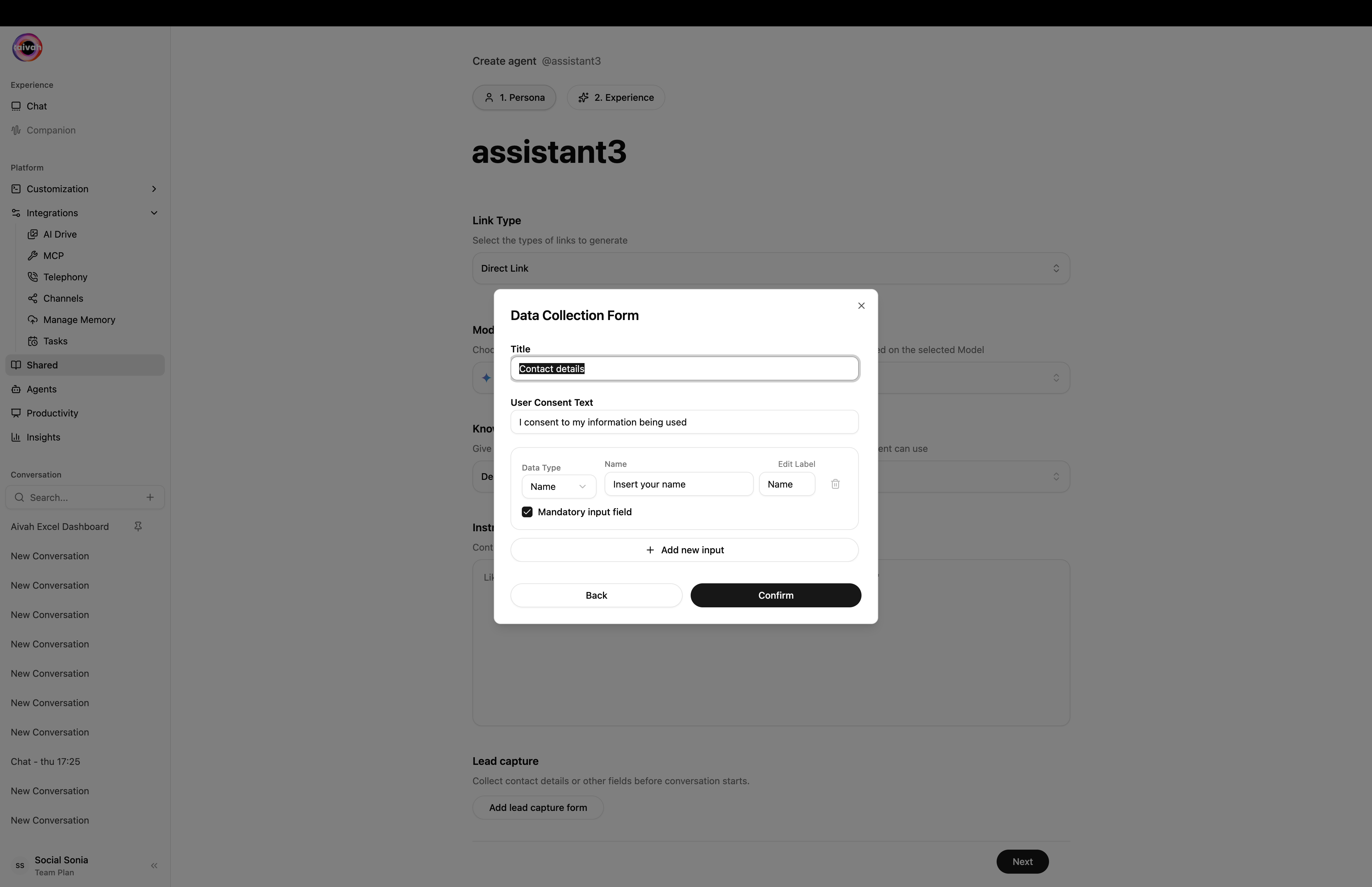
    <Frame caption="Data Collection Form modal – fields, consent, and a Mandatory toggle">
      <img src="https://mintcdn.com/opinionai/tR4nAAll3jemMkvA/images/lead-capture-form.png?fit=max&auto=format&n=tR4nAAll3jemMkvA&q=85&s=902afb0bfb213c1af3ce114ddd6e2f74" alt="Lead capture form modal" width="4112" height="2658" data-path="images/lead-capture-form.png" />
    </Frame>
  </Step>

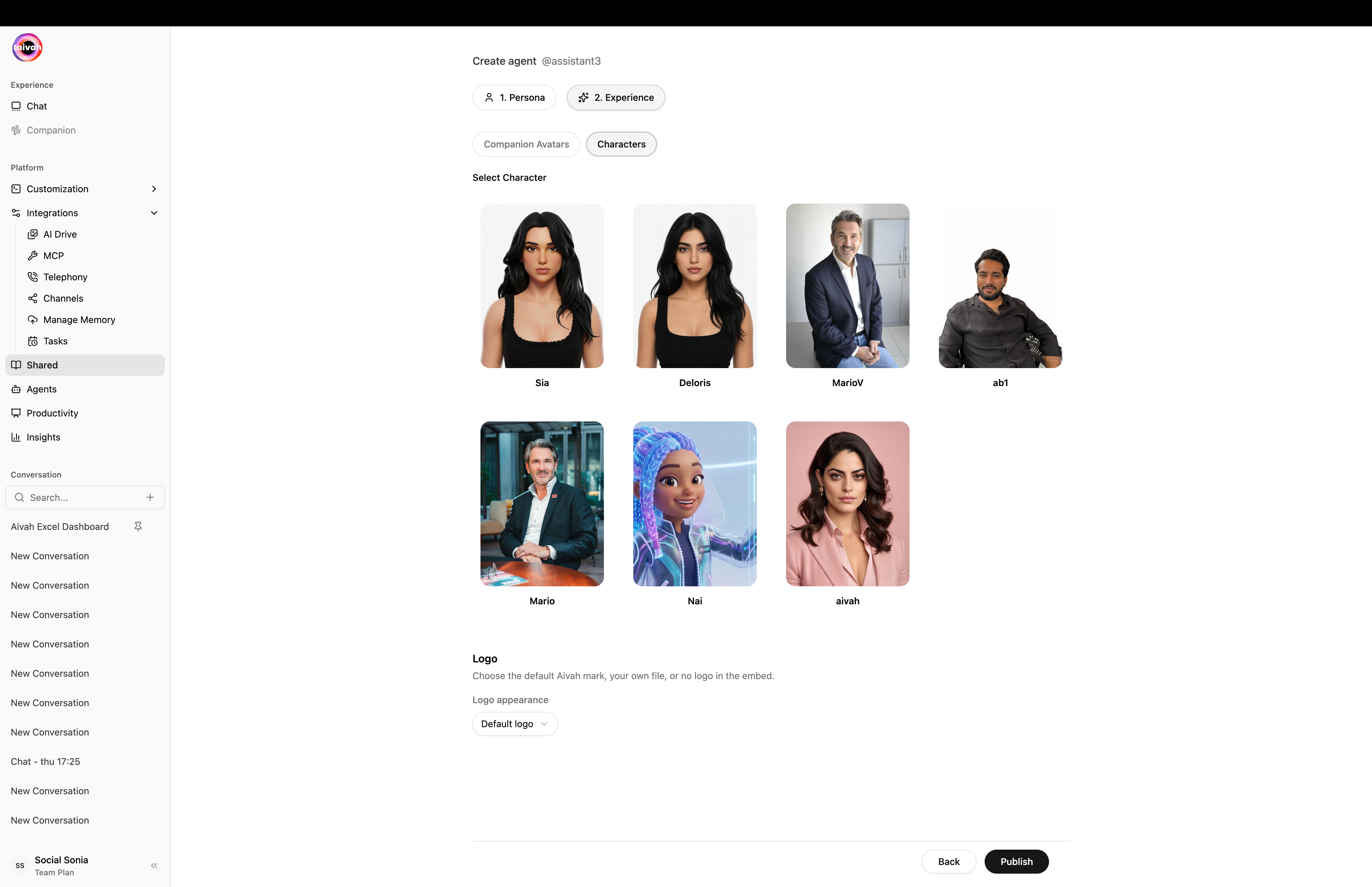
  <Step title="Experience step – pick the avatar / character, scene, and branding">
    Switch tabs between **Companion Avatars** (3D) and **Characters** (2D), pick a scene, and decide what logo appears in the embed.
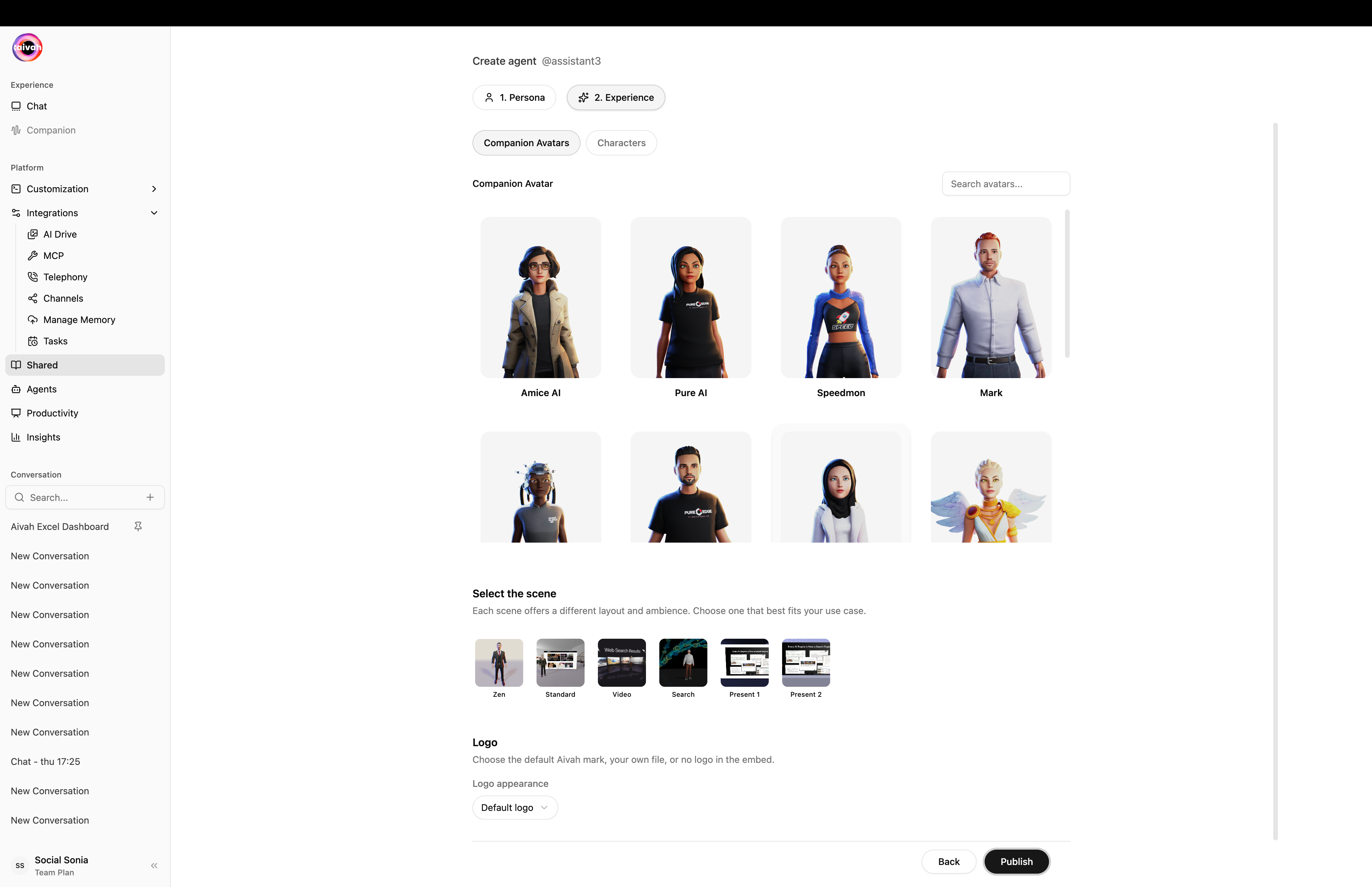
    <Frame caption="Experience step – Companion Avatars tab with scene picker">
      <img src="https://mintcdn.com/opinionai/tR4nAAll3jemMkvA/images/shared-experience-avatars.png?fit=max&auto=format&n=tR4nAAll3jemMkvA&q=85&s=3e61d39b057f2b838d9b13dbbbb3420f" alt="Experience companion avatars" width="4112" height="2658" data-path="images/shared-experience-avatars.png" />
    </Frame>

    <Frame caption="Experience step – Characters tab">
      <img src="https://mintcdn.com/opinionai/tR4nAAll3jemMkvA/images/shared-experience-characters.png?fit=max&auto=format&n=tR4nAAll3jemMkvA&q=85&s=412f327e03e5c899865cb5918c3804b7" alt="Experience characters" width="4112" height="2658" data-path="images/shared-experience-characters.png" />
    </Frame>
  </Step>

  <Step title="Publish">
    Click **Publish**. The agent appears in the Shared list with a copy button for its public URL.
  </Step>
</Steps>

### Pick the right distribution

After publishing, the **Share Options** dialog gives you every distribution snippet for that agent:

<Tabs>
  <Tab title="Direct Link">
    A simple URL plus a Direct Link With Voice variant.
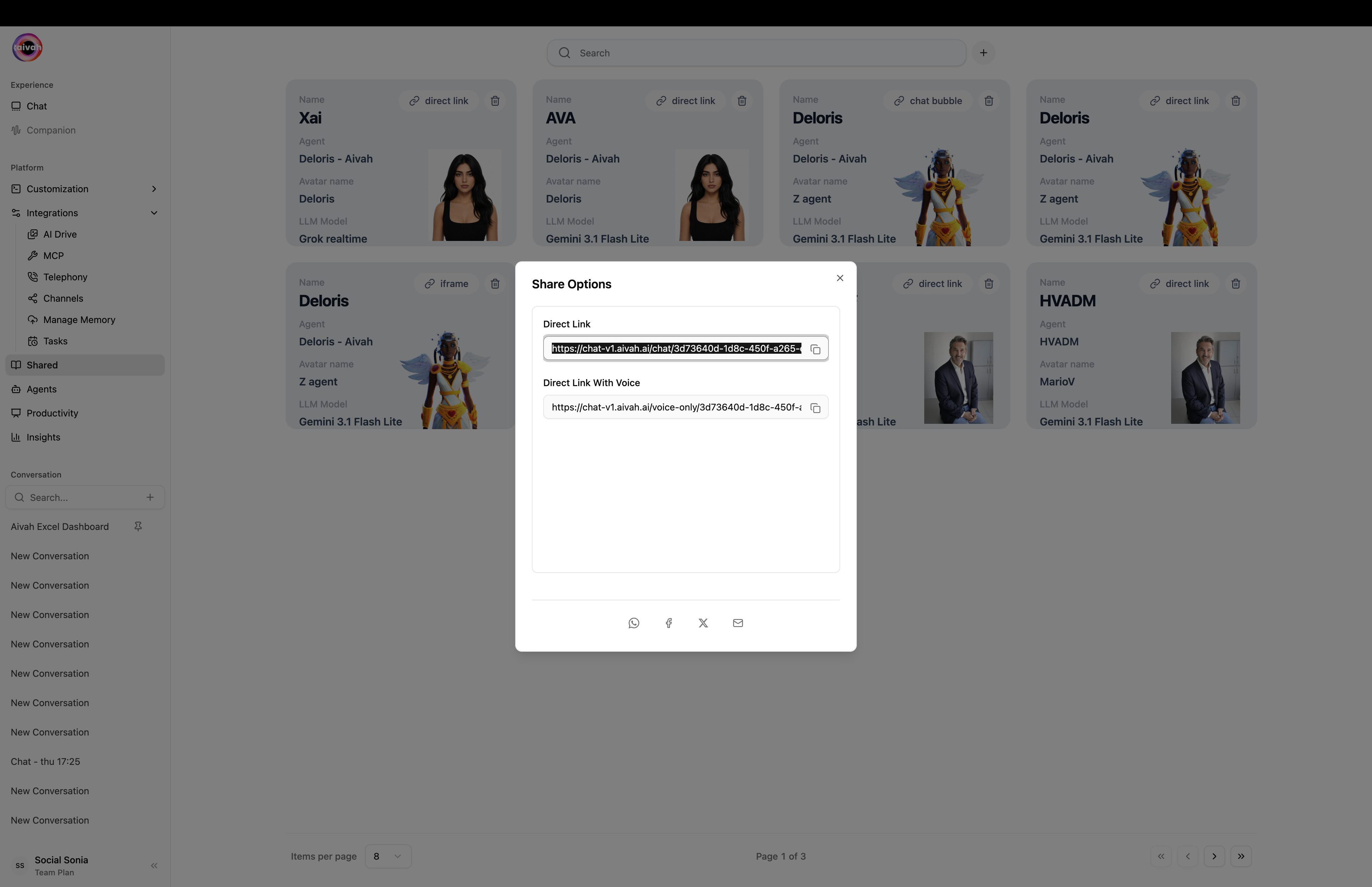
    <Frame caption="Share Options – Direct Link tab">
      <img src="https://mintcdn.com/opinionai/tR4nAAll3jemMkvA/images/share-direct-link.png?fit=max&auto=format&n=tR4nAAll3jemMkvA&q=85&s=56f0bd53159c60d44b65218fe6632780" alt="Share direct link" width="4112" height="2658" data-path="images/share-direct-link.png" />
    </Frame>
  </Tab>

  <Tab title="Iframe">
    Two iframe variants – companion (avatar only) and companion-scene (full scene).
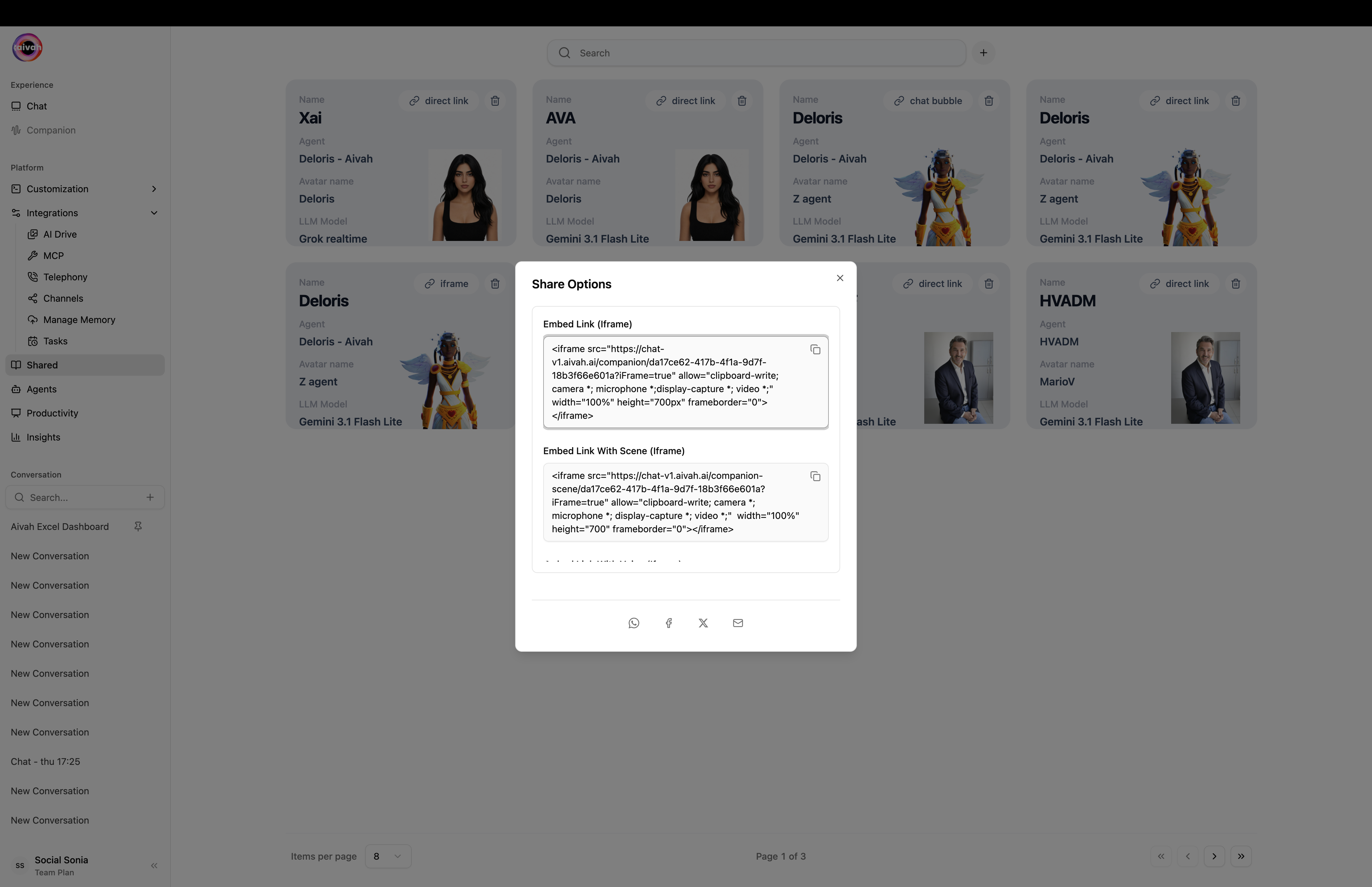
    <Frame caption="Share Options – Iframe tab">
      <img src="https://mintcdn.com/opinionai/tR4nAAll3jemMkvA/images/share-iframe-embed.png?fit=max&auto=format&n=tR4nAAll3jemMkvA&q=85&s=87b3e56cd6aa6f8b7c39f1d32cff51f1" alt="Share iframe embed" width="4112" height="2658" data-path="images/share-iframe-embed.png" />
    </Frame>
  </Tab>

  <Tab title="Chat Bubble">
    A drop-in `<script>` that floats a chat bubble in the corner of any page.

    <Frame caption="Share Options – Chat bubble tab">
      <img src="https://mintcdn.com/opinionai/tR4nAAll3jemMkvA/images/share-bubble-script.png?fit=max&auto=format&n=tR4nAAll3jemMkvA&q=85&s=281b0477405f720e34714637a095a1a0" alt="Share chat bubble script" width="4112" height="2658" data-path="images/share-bubble-script.png" />
    </Frame>
  </Tab>
</Tabs>

***

## Step 5: Connect Channels and Tools

Open **Integrations** in the side navigation to plug your agent into the rest of your stack.

### MCP Tools

One-click OAuth connectors for Gmail, Slack, Notion, Linear, GitHub, Calendar, Drive, Sheets, Outlook, Composio and many more. Toggle on a connector, run the OAuth flow, and Aivah verifies the connection automatically.

<Frame caption="MCP page – every connector with a live X/N Active counter">
  <img src="https://mintcdn.com/opinionai/tR4nAAll3jemMkvA/images/mcp-tools-grid.png?fit=max&auto=format&n=tR4nAAll3jemMkvA&q=85&s=0d8f36f3b65650f21e81188d002603ff" alt="MCP tools grid" width="4112" height="2658" data-path="images/mcp-tools-grid.png" />
</Frame>

### Channels – Slack & WhatsApp

Let the same agent respond inside your team's chat tools.

* **Slack** uses the included App Manifest plus a Bot Token, Signing Secret, and your Member ID. Invite the bot then use `/aivah`.
* **WhatsApp** uses QR pairing – click Connect, scan the QR with WhatsApp → Linked Devices, and you're live.

<Frame caption="Channels page – Slack and WhatsApp configurations side-by-side">
  <img src="https://mintcdn.com/opinionai/tR4nAAll3jemMkvA/images/channels-page.png?fit=max&auto=format&n=tR4nAAll3jemMkvA&q=85&s=3119a2645aa652e3d96f040b81dc2681" alt="Channels page" width="4112" height="2658" data-path="images/channels-page.png" />
</Frame>

### Telephony

Bring your own Twilio number (or mint a free Vapi number). The detail page splits into **Connection** (SIP URI + credentials) and **Interaction** (Language Model + Voice + System Prompt) tabs.

<Frame caption="Telephony empty state – click Create Phone Number to add your first one">
  <img src="https://mintcdn.com/opinionai/tR4nAAll3jemMkvA/images/telephony-empty-state.png?fit=max&auto=format&n=tR4nAAll3jemMkvA&q=85&s=6216793a41923742dd0d5f8ef0e522fe" alt="Telephony empty state" width="4112" height="2658" data-path="images/telephony-empty-state.png" />
</Frame>

<Frame caption="Connection tab – Twilio SIP URI and credentials">
  <img src="https://mintcdn.com/opinionai/tR4nAAll3jemMkvA/images/telephony-connection-config.png?fit=max&auto=format&n=tR4nAAll3jemMkvA&q=85&s=0d546c032cce3f5af3fbbc4a7cd6f708" alt="Telephony Connection config" width="4112" height="2658" data-path="images/telephony-connection-config.png" />
</Frame>

<Frame caption="Interaction tab – Language Model, Voice, and System Prompt for phone calls">
  <img src="https://mintcdn.com/opinionai/tR4nAAll3jemMkvA/images/telephony-interaction-config.png?fit=max&auto=format&n=tR4nAAll3jemMkvA&q=85&s=6758f47c844d1e4d8fa7c210c1311576" alt="Telephony Interaction config" width="4112" height="2658" data-path="images/telephony-interaction-config.png" />
</Frame>

### Tasks – Cron jobs and Heartbeat

Schedule recurring jobs (with a Channel column for Web, Slack, WhatsApp, etc.) or wire up heartbeat monitors. Anything created by you, or by the agent in response to a request, lands here.

<Frame caption="Cron Jobs tab – a scheduled reminder running on the Web channel">
  <img src="https://mintcdn.com/opinionai/tR4nAAll3jemMkvA/images/tasks-cron-jobs.png?fit=max&auto=format&n=tR4nAAll3jemMkvA&q=85&s=0e9f3b42a65d6d772559545e99cb879c" alt="Cron jobs" width="4112" height="2658" data-path="images/tasks-cron-jobs.png" />
</Frame>

### Manage Memory

Every long-term key/value the agent has stored, with timestamps and a **Download CSV** action. Use it for audit, GDPR exports, or quick edits when memories drift.

<Frame caption="Manage Memory – every stored key/value pair with timestamps">
  <img src="https://mintcdn.com/opinionai/tR4nAAll3jemMkvA/images/manage-memory-page.png?fit=max&auto=format&n=tR4nAAll3jemMkvA&q=85&s=8695aa6c223aa51c43e754061a4909b8" alt="Manage Memory page" width="4112" height="2658" data-path="images/manage-memory-page.png" />
</Frame>

***

## You're Live

Your AIVAH agent is now:

* Trained on your knowledge sources and showing as `completed`
* Given a face (Avatar or Character) and a voice
* Tested live in the Playground (text, avatar, and voice-only modes)
* Shared with a public link, optional iframe / chat-bubble, and a lead form
* Wired to MCP tools, Channels, Phone, Tasks, and Memory

## What's next

1. **[Best Practices](./best-practice)** – patterns we've learned from hundreds of agents in production
2. **[Productivity – generate slides, podcasts, mind maps](/productivity/overview)** – turn the same agent into ready-to-share assets
3. **[Insights](/insights/overview)** – track unique users, credits, chat logs, leads, and call logs
4. **[Subscriptions and Credits](/platform-setup/subscriptions)** – pick a plan, top up credits, and manage billing