> ## Documentation Index
> Fetch the complete documentation index at: https://opinionai.mintlify.site/llms.txt
> Use this file to discover all available pages before exploring further.
# Slide Decks
> Generate styled, length-controlled slide decks from an agent's knowledge
# Slide Decks
Generate ready-to-present slide decks from any agent's knowledge base. Aivah pulls the source material the agent was trained on, structures it into a slide narrative, and renders the result so you can review, download, or push it into a live conversation.
Open from `Side nav → Productivity` (`/productivity`) and pick **Slide deck** in the **Type** selector.
## Configure
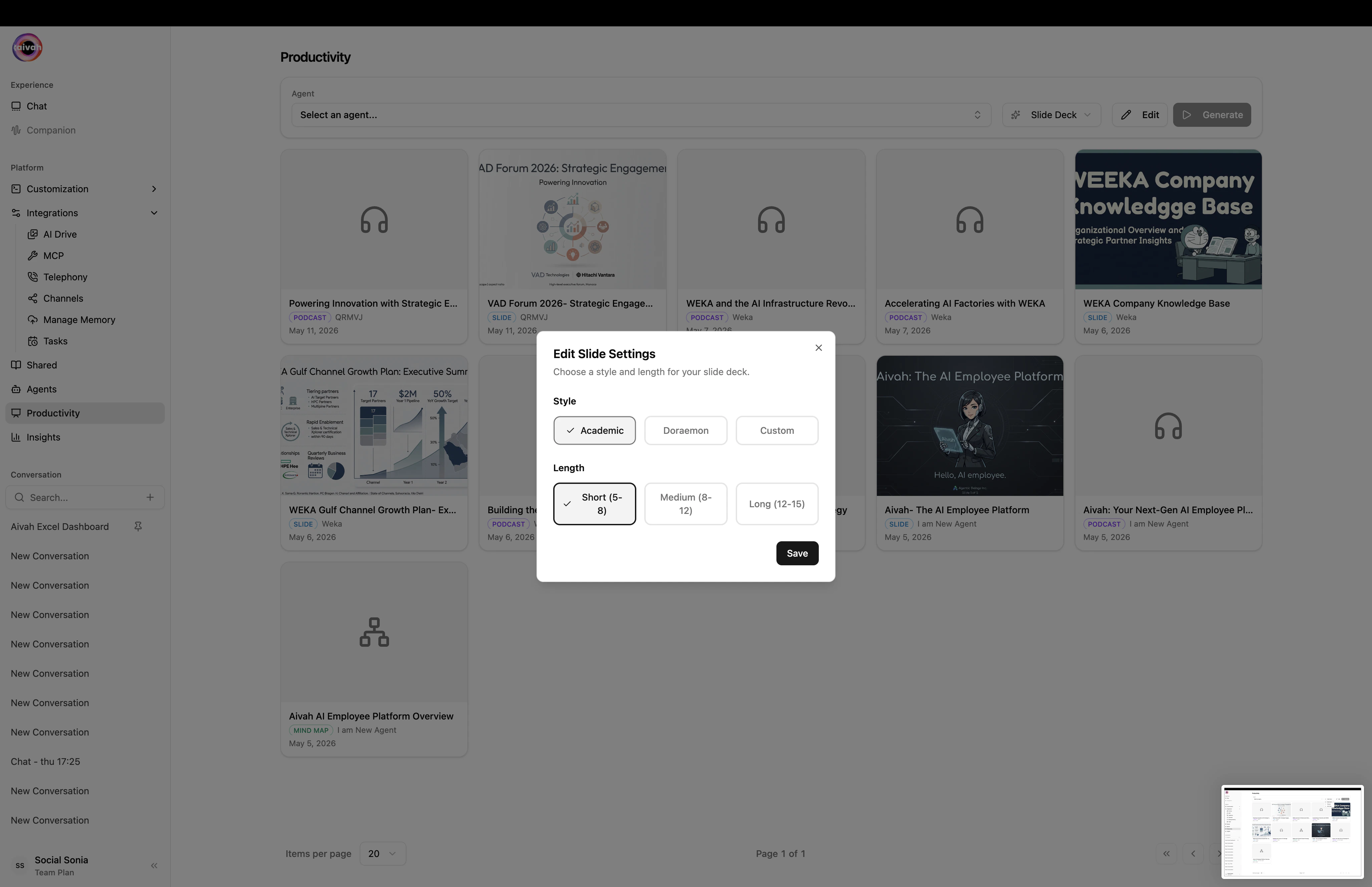
Click **Edit** in the productivity toolbar to open the slide-deck dialog.
| Setting | Options | What it controls |
| ---------- | ---------------------------------------- | ------------------------------------------------------------------------------------------------------------------------------------------------------------------------- |
| **Style** | Academic, Doraemon, Custom | Visual tone and copy density. Academic prioritises citations and dense slides; Doraemon uses a friendlier, more visual look; Custom lets you describe the style yourself. |
| **Length** | Short (5–8), Medium (8–12), Long (12–15) | Approximate slide count. Short is great for an intro or recap; Long covers comprehensive walkthroughs. |
Confirm to save the configuration, then click **Generate** in the toolbar.
 ## Workflow
Use the **Agent** selector. The infinite-scroll search makes it easy to find the right one even in large libraries.
Click **Edit**, set **Style** and **Length**, then close the dialog.
Click **Generate**. The agent enters a generation state and the **Document Creating Banner** appears in any active conversation tied to that agent.
Newly generated decks appear in the gallery under the toolbar. Click any slide to:
* Open it full-screen
* Download the deck
* Push the slide into your active conversation as context
## Where decks live
* **Productivity gallery** – the fastest view, scoped to the active agent.
* **Integrations → AI Drive → Files → Slides** – global, browsable across every agent.
* **Avatar chat** – pick the same agent and open it in a presentation scene (Present 1 / Present 2) to deliver the deck with a 3D avatar.
## Best practices
* **Train the agent thoroughly first** – decks reflect the depth of the underlying knowledge. Add the relevant URLs, PDFs, and notes before generating.
* **Use Academic style for dense, source-heavy decks** – it's the cleanest format for whitepapers and research summaries.
* **Use Custom to dial in your own brand** – describe the tone, palette, or layout you want and the generator will mirror it.
* **Iterate on length** – generate Short for a snapshot, then Long for a full readout once the structure feels right.
* **Pair with [Mind maps](/productivity/mind-maps)** – they're a great way to visualize the relationships between slides before formal delivery.
## Workflow
Use the **Agent** selector. The infinite-scroll search makes it easy to find the right one even in large libraries.
Click **Edit**, set **Style** and **Length**, then close the dialog.
Click **Generate**. The agent enters a generation state and the **Document Creating Banner** appears in any active conversation tied to that agent.
Newly generated decks appear in the gallery under the toolbar. Click any slide to:
* Open it full-screen
* Download the deck
* Push the slide into your active conversation as context
## Where decks live
* **Productivity gallery** – the fastest view, scoped to the active agent.
* **Integrations → AI Drive → Files → Slides** – global, browsable across every agent.
* **Avatar chat** – pick the same agent and open it in a presentation scene (Present 1 / Present 2) to deliver the deck with a 3D avatar.
## Best practices
* **Train the agent thoroughly first** – decks reflect the depth of the underlying knowledge. Add the relevant URLs, PDFs, and notes before generating.
* **Use Academic style for dense, source-heavy decks** – it's the cleanest format for whitepapers and research summaries.
* **Use Custom to dial in your own brand** – describe the tone, palette, or layout you want and the generator will mirror it.
* **Iterate on length** – generate Short for a snapshot, then Long for a full readout once the structure feels right.
* **Pair with [Mind maps](/productivity/mind-maps)** – they're a great way to visualize the relationships between slides before formal delivery.