> ## Documentation Index
> Fetch the complete documentation index at: https://opinionai.mintlify.site/llms.txt
> Use this file to discover all available pages before exploring further.
# Productivity Overview
> Turn an agent's knowledge into slide decks, podcasts, and mind maps
# Productivity
The **Productivity** workspace (`Side nav → Productivity`, or `/productivity`) turns an agent's knowledge base into ready-to-use content. From a single toolbar you can:
* Generate a **slide deck** styled for a specific audience
* Produce a **podcast** with selectable host and expert voices
* Build an interactive **mind map** that you can open from the Avatar chat toolbar
Generated assets are accessible from three places: directly in this workspace's gallery, from the floating productivity toolbar inside **Avatar chat**, and from **Integrations → AI Drive**.
 ## Toolbar
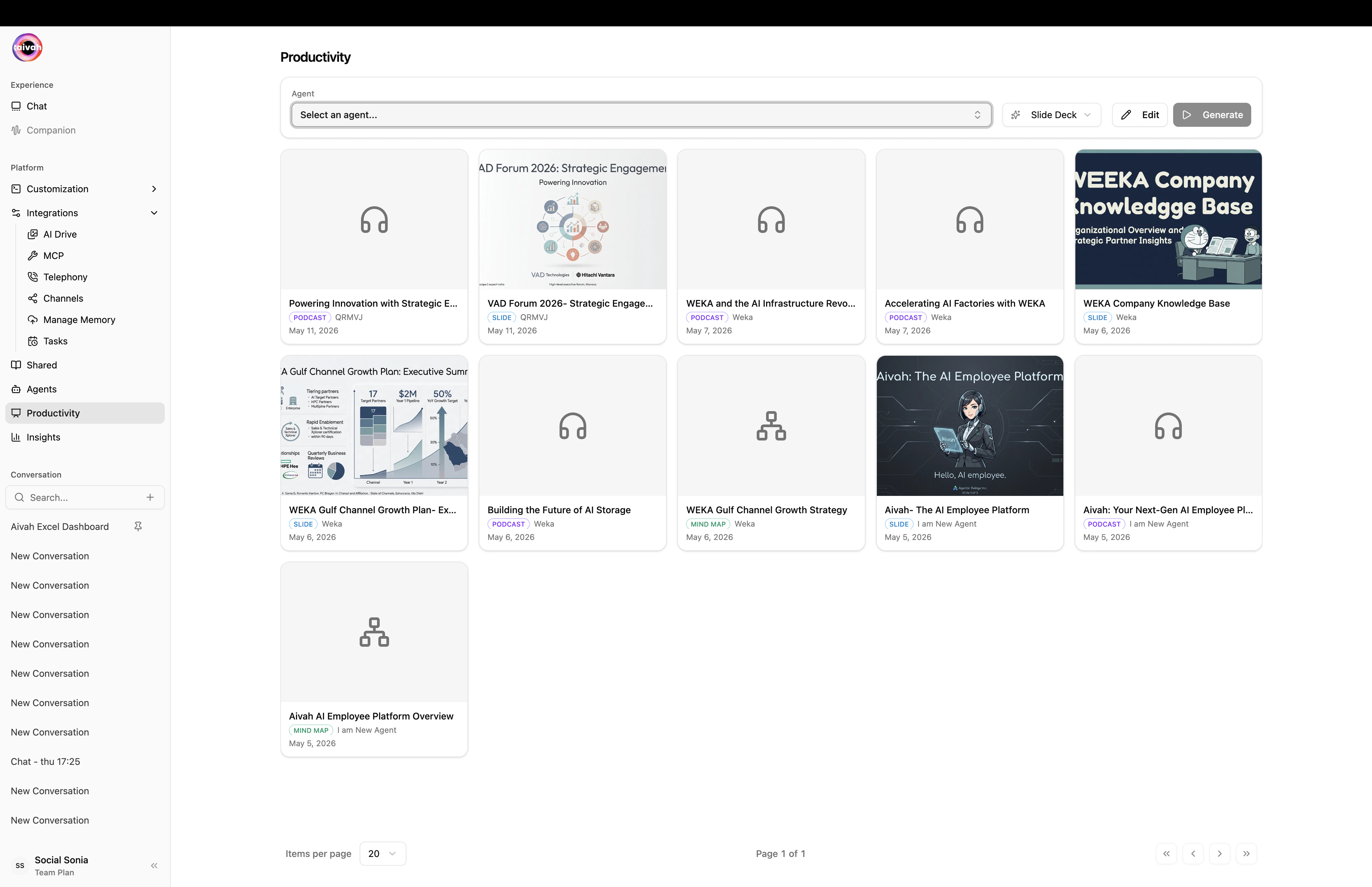
A single bar at the top of the Productivity page exposes every control:
1. **Agent** – the source of the content. Uses infinite-scroll search to handle large agent libraries.
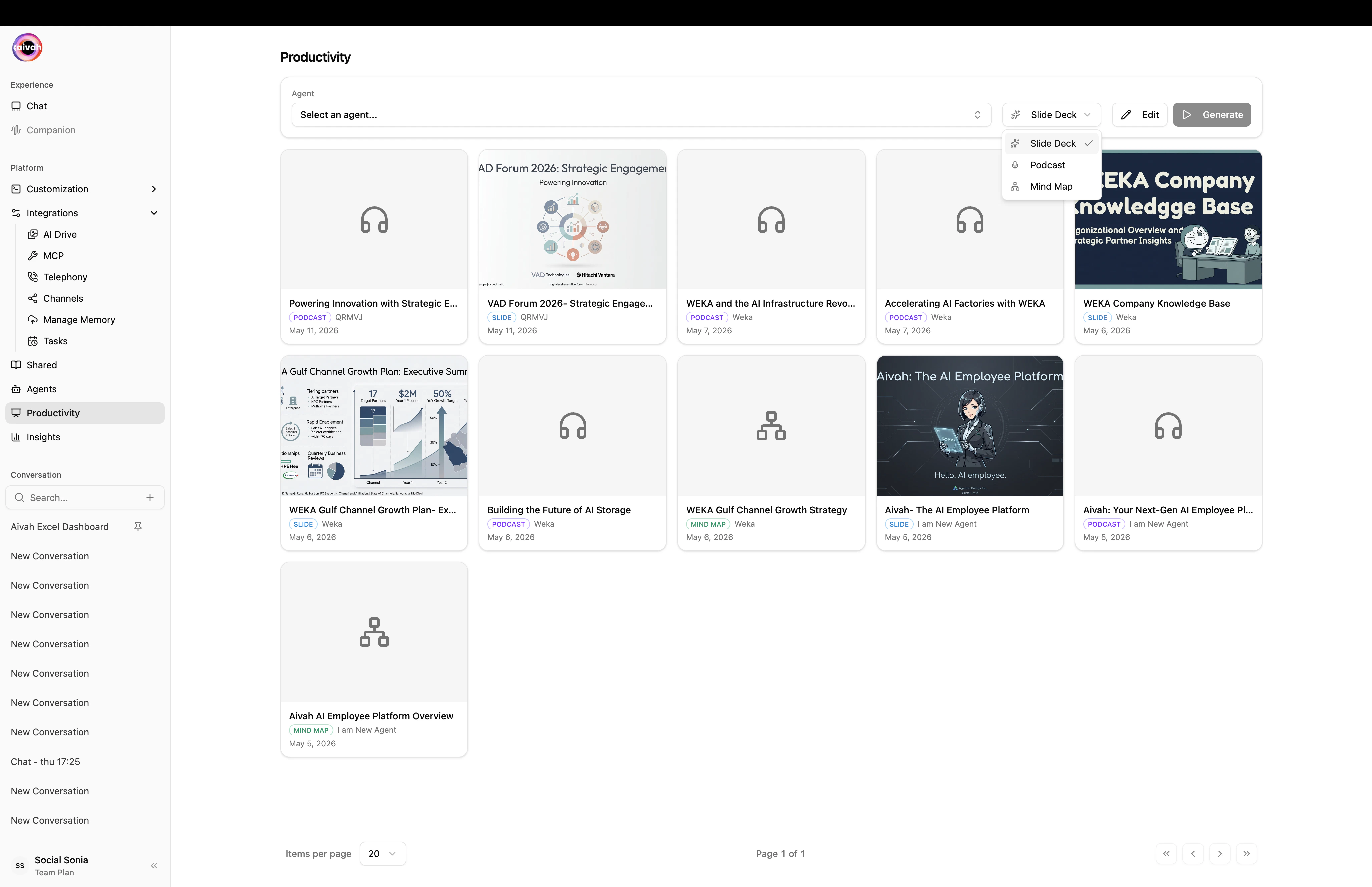
2. **Type** – pick **Slide deck**, **Podcast**, or **Mind map**.
3. **Edit** – opens the type-specific configuration dialog (no edit dialog is needed for mind maps).
4. **Generate** – kicks off the job. The agent moves into a generation state and the **Document Creating Banner** appears in any active conversation for that agent so you can keep working.
## Toolbar
A single bar at the top of the Productivity page exposes every control:
1. **Agent** – the source of the content. Uses infinite-scroll search to handle large agent libraries.
2. **Type** – pick **Slide deck**, **Podcast**, or **Mind map**.
3. **Edit** – opens the type-specific configuration dialog (no edit dialog is needed for mind maps).
4. **Generate** – kicks off the job. The agent moves into a generation state and the **Document Creating Banner** appears in any active conversation for that agent so you can keep working.
 ## Output gallery
Below the toolbar, a gallery shows the previously generated assets:
* **Slides** appear inline as thumbnails. Click any slide to open it, download it, or push it into your active conversation.
* **Podcasts** and **mind maps** are accessible from the floating toolbar inside Avatar chat for the source agent, and from **AI Drive** for global browsing.
## Where assets are stored
Every generated asset lands in **AI Drive** under the relevant tab:
* **Image / Video** – realtime media generated from chat
* **Files → Slides** – generated slide decks
* **Files → Document / Webresults** – ingested documents and live web result snapshots
See the [AI Drive guide](/integration/ai-drive) for filtering, previewing, and downloading.
## Configure & generate each type
* [Slide decks](/productivity/slides) – style + length controls
* [Podcasts](/productivity/podcasts) – length + host/expert voices
* [Mind maps](/productivity/mind-maps) – no configuration needed
## Tips
* **Run productivity jobs on completed agents** – the source agent must have status `completed` in the [Agents list](/knowledge-agent/overview) for high-quality output.
* **Pair with the avatar** – open the same agent in Avatar chat after generation to use the floating toolbar (Quiz, Mind map, Podcast player) live during a session.
* **Push to active conversation** – clicking a slide thumbnail can push it into your current chat as context for follow-up questions.
## Output gallery
Below the toolbar, a gallery shows the previously generated assets:
* **Slides** appear inline as thumbnails. Click any slide to open it, download it, or push it into your active conversation.
* **Podcasts** and **mind maps** are accessible from the floating toolbar inside Avatar chat for the source agent, and from **AI Drive** for global browsing.
## Where assets are stored
Every generated asset lands in **AI Drive** under the relevant tab:
* **Image / Video** – realtime media generated from chat
* **Files → Slides** – generated slide decks
* **Files → Document / Webresults** – ingested documents and live web result snapshots
See the [AI Drive guide](/integration/ai-drive) for filtering, previewing, and downloading.
## Configure & generate each type
* [Slide decks](/productivity/slides) – style + length controls
* [Podcasts](/productivity/podcasts) – length + host/expert voices
* [Mind maps](/productivity/mind-maps) – no configuration needed
## Tips
* **Run productivity jobs on completed agents** – the source agent must have status `completed` in the [Agents list](/knowledge-agent/overview) for high-quality output.
* **Pair with the avatar** – open the same agent in Avatar chat after generation to use the floating toolbar (Quiz, Mind map, Podcast player) live during a session.
* **Push to active conversation** – clicking a slide thumbnail can push it into your current chat as context for follow-up questions.