> ## Documentation Index
> Fetch the complete documentation index at: https://opinionai.mintlify.site/llms.txt
> Use this file to discover all available pages before exploring further.
# Mind Maps
> Generate an interactive mind map from an agent's knowledge
# Mind Maps
A **mind map** turns an agent's knowledge into an interactive node-and-edge view of the underlying topics. It's perfect for spotting structure, gaps, and connections in a corpus that's grown organically over time.
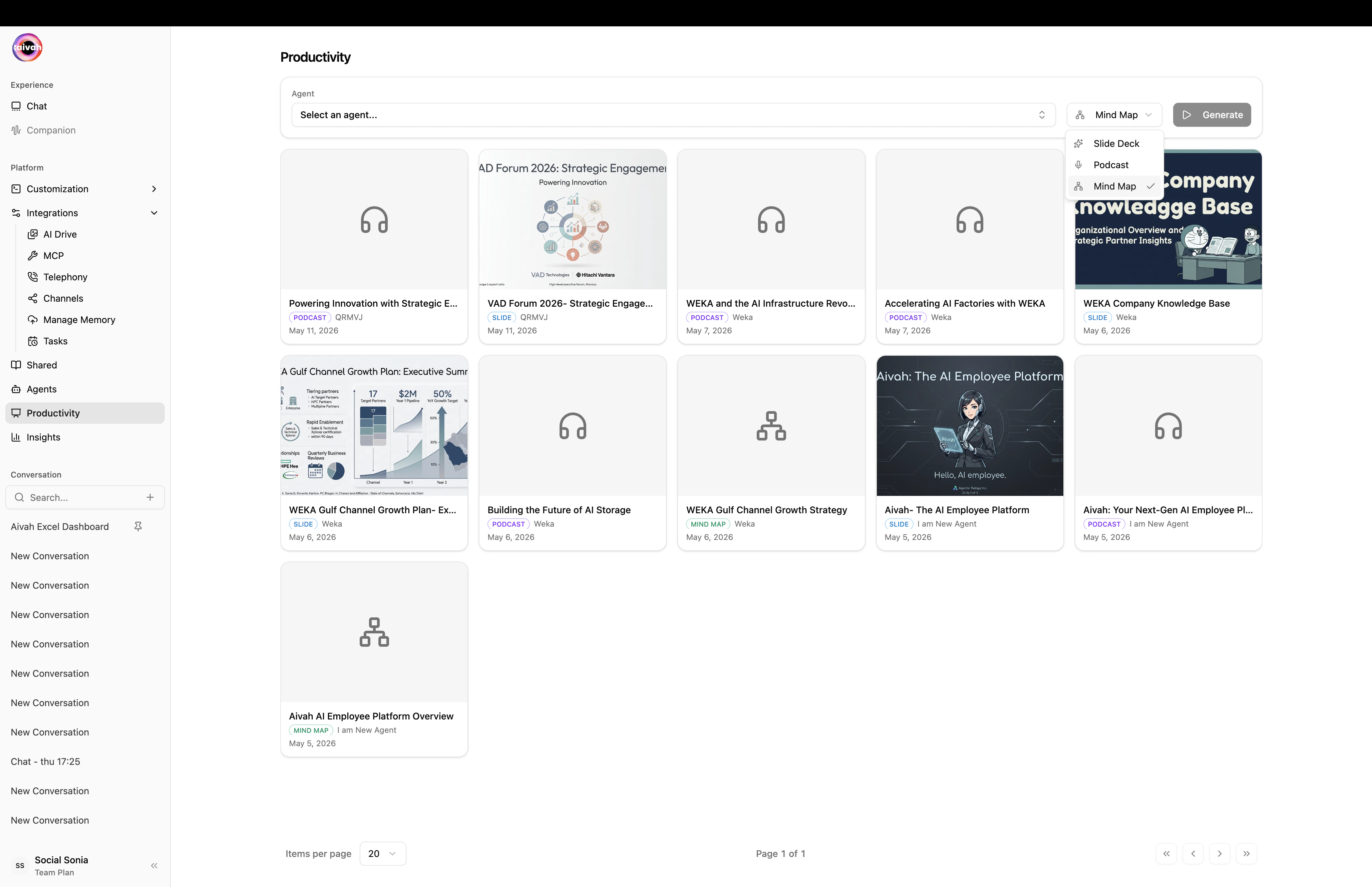
Open from `Side nav → Productivity` (`/productivity`) and pick **Mind map** in the **Type** selector.
## Configure
Mind maps have **no configuration step** – there's no Edit dialog. Aivah builds the map directly from the agent's training material.
 ## Workflow
Use the **Agent** selector in the toolbar. The agent must be in `completed` status to produce a clean map.
Click **Generate**. The **Document Creating Banner** appears in any active conversation for that agent while the map renders.
Mind maps are best explored from [Avatar chat](/interaction-hub/voice). Open the same agent there and click the **Mind map** icon in the floating toolbar – the interactive overlay appears on top of the avatar scene.
## What you can do in the map
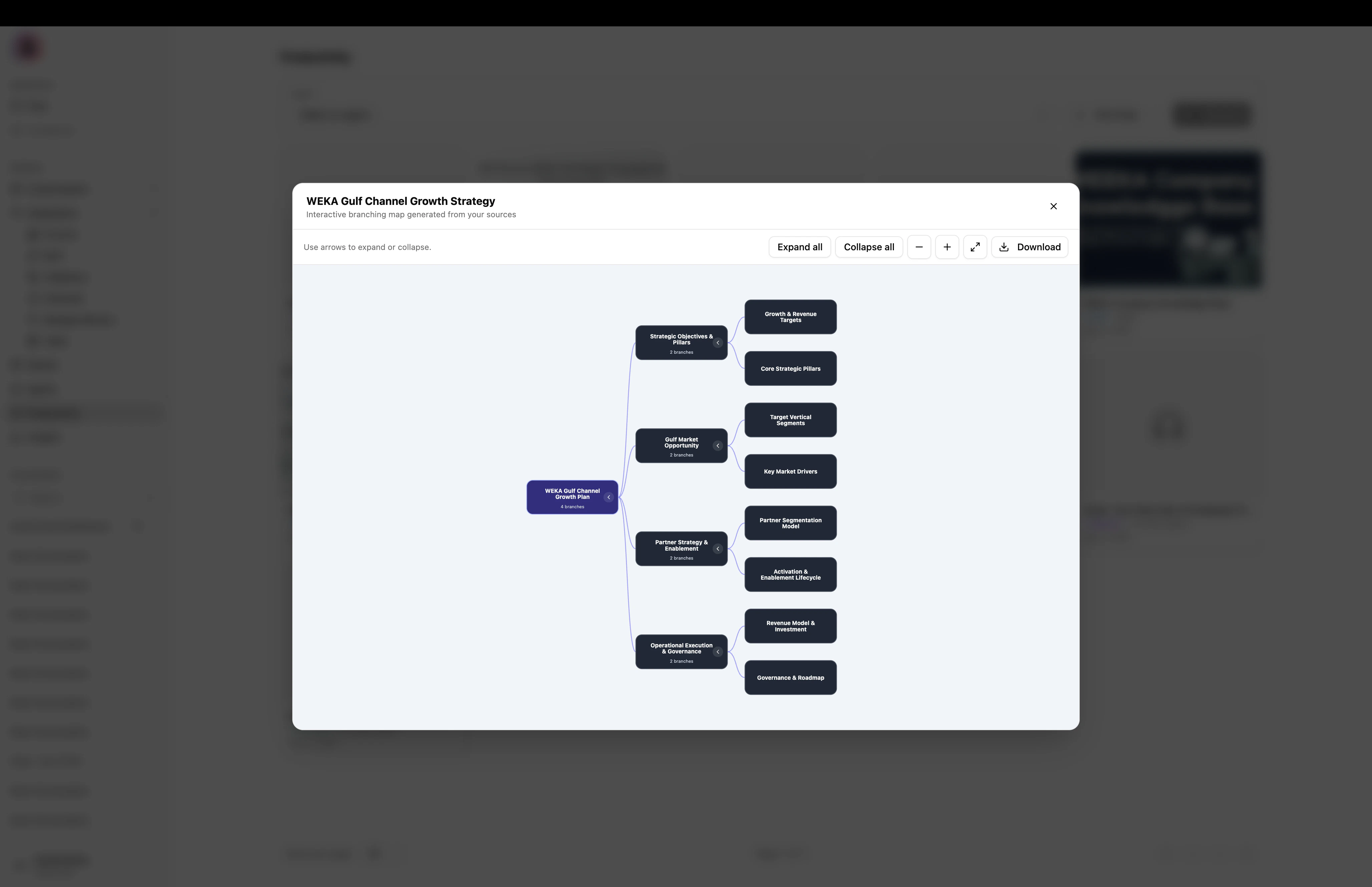
* Pan and zoom across the node graph
* Click any node to dive deeper into a topic
* Use **Expand all** / **Collapse all** to navigate large maps quickly
* **Download** the map for sharing
* Use the map as a "table of contents" while having a voice conversation with the avatar – the agent can answer follow-up questions about anything you click
## Workflow
Use the **Agent** selector in the toolbar. The agent must be in `completed` status to produce a clean map.
Click **Generate**. The **Document Creating Banner** appears in any active conversation for that agent while the map renders.
Mind maps are best explored from [Avatar chat](/interaction-hub/voice). Open the same agent there and click the **Mind map** icon in the floating toolbar – the interactive overlay appears on top of the avatar scene.
## What you can do in the map
* Pan and zoom across the node graph
* Click any node to dive deeper into a topic
* Use **Expand all** / **Collapse all** to navigate large maps quickly
* **Download** the map for sharing
* Use the map as a "table of contents" while having a voice conversation with the avatar – the agent can answer follow-up questions about anything you click
 ## When to use mind maps
* **Audit your knowledge base** – see at a glance how broad and balanced the agent's training material is.
* **Onboard new team members** – the map gives a fast visual tour of what the agent knows.
* **Plan a slide deck** – use the structure of the map to guide a Productivity **Slide deck** generation.
## Related guides
* [Productivity overview](/productivity/overview)
* [Slide decks](/productivity/slides)
* [Avatar chat in the Hub](/interaction-hub/voice)
## When to use mind maps
* **Audit your knowledge base** – see at a glance how broad and balanced the agent's training material is.
* **Onboard new team members** – the map gives a fast visual tour of what the agent knows.
* **Plan a slide deck** – use the structure of the map to guide a Productivity **Slide deck** generation.
## Related guides
* [Productivity overview](/productivity/overview)
* [Slide decks](/productivity/slides)
* [Avatar chat in the Hub](/interaction-hub/voice)