> ## Documentation Index
> Fetch the complete documentation index at: https://opinionai.mintlify.site/llms.txt
> Use this file to discover all available pages before exploring further.
# Subscriptions
> View your plan details, renewal date, and upgrade paths
# Subscriptions
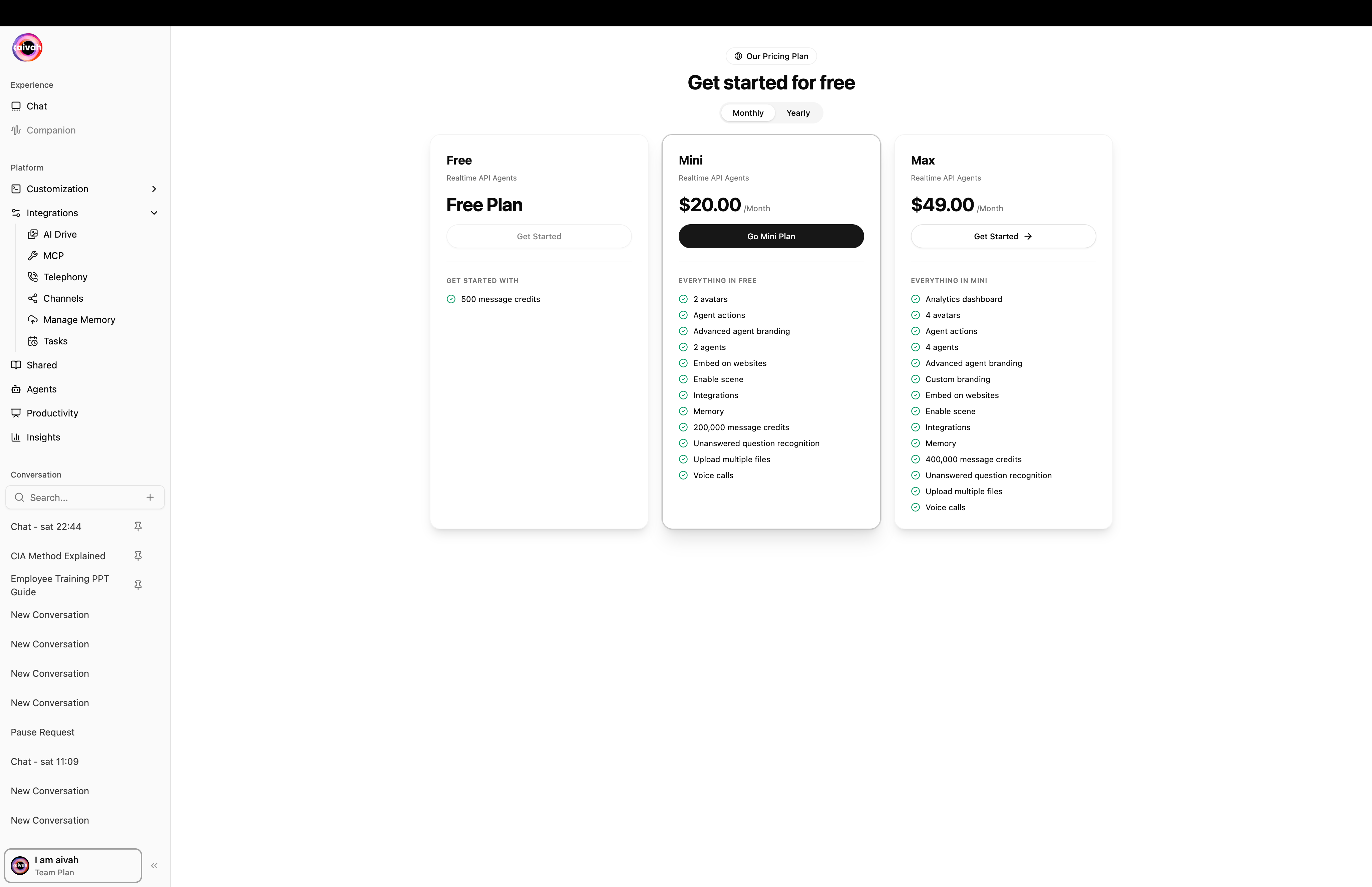
The **Subscription** page (`Side nav → User menu → Upgrade to Pro`, or `/subscription`) lists every available Aivah plan, summarizes your current plan, and provides quick access to upgrade or cancellation options.
 ## Page layout
* **Billing cycle toggle** sits at the top of the page – switch between **Monthly** and **Yearly** pricing.
* **Plan cards** list each plan's price for the active cycle along with the features it unlocks (`5,000 credits per month`, `3 active MCP tools`, etc.).
* **Action button** on each card opens Stripe checkout. After successful checkout your plan is updated automatically and the cards refresh.
## Key Information
* **Plan Name**: e.g. *Team*, *Enterprise*, *Starter*. Use this when communicating with support or finance.
* **Renewal / Expiry Date**: When your plan will renew or terminate. Add this date to your calendar to avoid surprise renewals.
* **Included Credits**: Each plan card shows the included monthly credit allowance – top up any time from [Credits](/platform-setup/credits) if you exceed it.
## Actions Available
Use the toggle at the top of the page to compare monthly vs yearly pricing. Yearly plans typically include a discount.
Click the action button on any higher-tier card to open Stripe checkout. Plan changes apply automatically when checkout completes.
Appears when your plan allows cancellation from the interface. Follow the prompts to finish the process or contact support if the option is hidden.
Open the [Billing dashboard](/platform-setup/billing) in a new tab to update cards, download invoices, and adjust contacts.
If you don't see the plan you expect, refresh the page or contact support—plan changes may take a minute to propagate.
## When to Use This Page
* **Budget Reviews**: Confirm renewal timing and costs before quarter-end.
* **Scaling Up**: Upgrade ahead of major launches or team expansions to prevent plan limits (such as MCP active tools or shared agents) from blocking work.
* **Pausing Service**: Initiate cancellations or downgrades well before renewal to avoid automatic charges.
## Payment status page
After Stripe checkout you're redirected to `/payment` with one of two states:
* **Success** – animated check mark and a *Return to subscription* CTA.
* **Cancel / Error** – animated X mark with a *Try again* CTA.
If you arrive without a Stripe session id the page simply offers links back to **Home** or **View plans**.
## Related Tasks
* Update payment methods in the [Billing dashboard](/platform-setup/billing) before upgrading.
* Top up [Credits](/platform-setup/credits) if a campaign or launch will exceed your plan's included allowance.
* Use the [Documentation tour](/platform-setup/documentation) to onboard new team members after plan changes.
Track this page regularly so your plan always matches current business needs.
## Page layout
* **Billing cycle toggle** sits at the top of the page – switch between **Monthly** and **Yearly** pricing.
* **Plan cards** list each plan's price for the active cycle along with the features it unlocks (`5,000 credits per month`, `3 active MCP tools`, etc.).
* **Action button** on each card opens Stripe checkout. After successful checkout your plan is updated automatically and the cards refresh.
## Key Information
* **Plan Name**: e.g. *Team*, *Enterprise*, *Starter*. Use this when communicating with support or finance.
* **Renewal / Expiry Date**: When your plan will renew or terminate. Add this date to your calendar to avoid surprise renewals.
* **Included Credits**: Each plan card shows the included monthly credit allowance – top up any time from [Credits](/platform-setup/credits) if you exceed it.
## Actions Available
Use the toggle at the top of the page to compare monthly vs yearly pricing. Yearly plans typically include a discount.
Click the action button on any higher-tier card to open Stripe checkout. Plan changes apply automatically when checkout completes.
Appears when your plan allows cancellation from the interface. Follow the prompts to finish the process or contact support if the option is hidden.
Open the [Billing dashboard](/platform-setup/billing) in a new tab to update cards, download invoices, and adjust contacts.
If you don't see the plan you expect, refresh the page or contact support—plan changes may take a minute to propagate.
## When to Use This Page
* **Budget Reviews**: Confirm renewal timing and costs before quarter-end.
* **Scaling Up**: Upgrade ahead of major launches or team expansions to prevent plan limits (such as MCP active tools or shared agents) from blocking work.
* **Pausing Service**: Initiate cancellations or downgrades well before renewal to avoid automatic charges.
## Payment status page
After Stripe checkout you're redirected to `/payment` with one of two states:
* **Success** – animated check mark and a *Return to subscription* CTA.
* **Cancel / Error** – animated X mark with a *Try again* CTA.
If you arrive without a Stripe session id the page simply offers links back to **Home** or **View plans**.
## Related Tasks
* Update payment methods in the [Billing dashboard](/platform-setup/billing) before upgrading.
* Top up [Credits](/platform-setup/credits) if a campaign or launch will exceed your plan's included allowance.
* Use the [Documentation tour](/platform-setup/documentation) to onboard new team members after plan changes.
Track this page regularly so your plan always matches current business needs.