> ## Documentation Index
> Fetch the complete documentation index at: https://opinionai.mintlify.site/llms.txt
> Use this file to discover all available pages before exploring further.
# Realtime Interactive Presenter Agent
> Create conversational presentations with a single uploaded document
## Creating and Using Realtime Interactive Presenter Agents
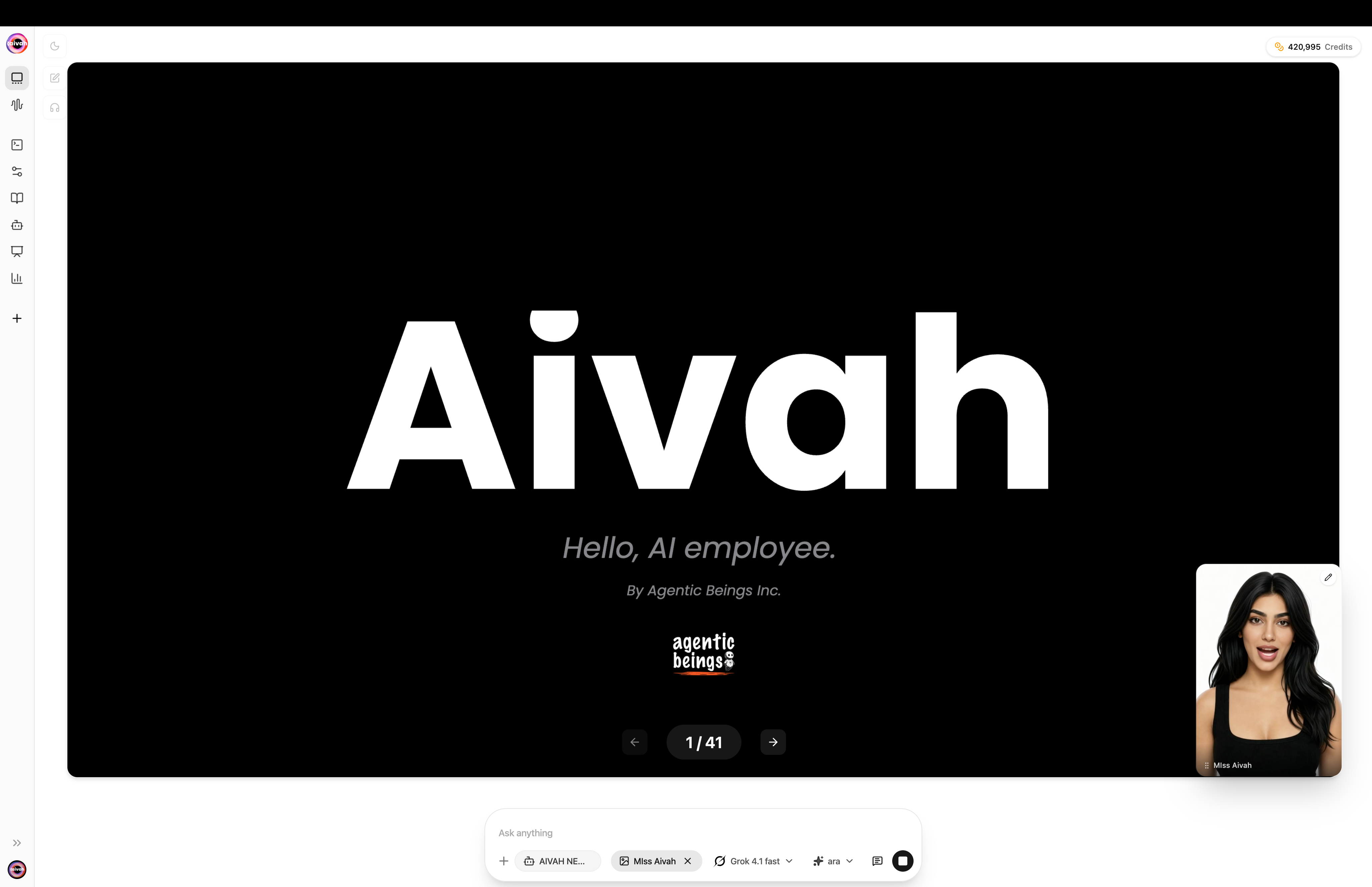
Realtime Interactive Presenter Agents transform a single PDF deck (or a single video) into an interactive experience. Instead of clicking through slides, audiences can ask questions, jump to chapters, take a built-in **Quiz**, and get tailored explanations in real time.
## What Makes a Presenter Agent Different?
* **Single document focus** – One uploaded PDF or video anchors the entire conversation.
* **Guided navigation** – Users can request summaries, ask for the next slide, or revisit earlier sections.
* **Context awareness** – The agent understands slide order and their relationships, keeping answers on-track.
* **Built-in Quiz** – Multiple-choice questions defined for the presenter agent are exposed as a floating Quiz overlay in [Avatar chat](/interaction-hub/voice).
* **Always on-brand** – Deliver consistent demos and trainings without relying on a live presenter.
Navigate decks through natural language instead of manual slide controls.
Generate quick summaries for any slide or section within the deck.
Field questions as they arise while staying grounded in the uploaded content.
Keep messaging uniform across every presentation and channel.
## When to Choose a Presenter Agent
* Product demos and discovery calls
* Proposal walkthroughs
* Event or campaign recaps
* Employee onboarding decks
* Compliance refreshers
* Certification prep
* Strategy briefings
* Board presentations
* Quarterly reports
## Create a Realtime Interactive Presenter Agent
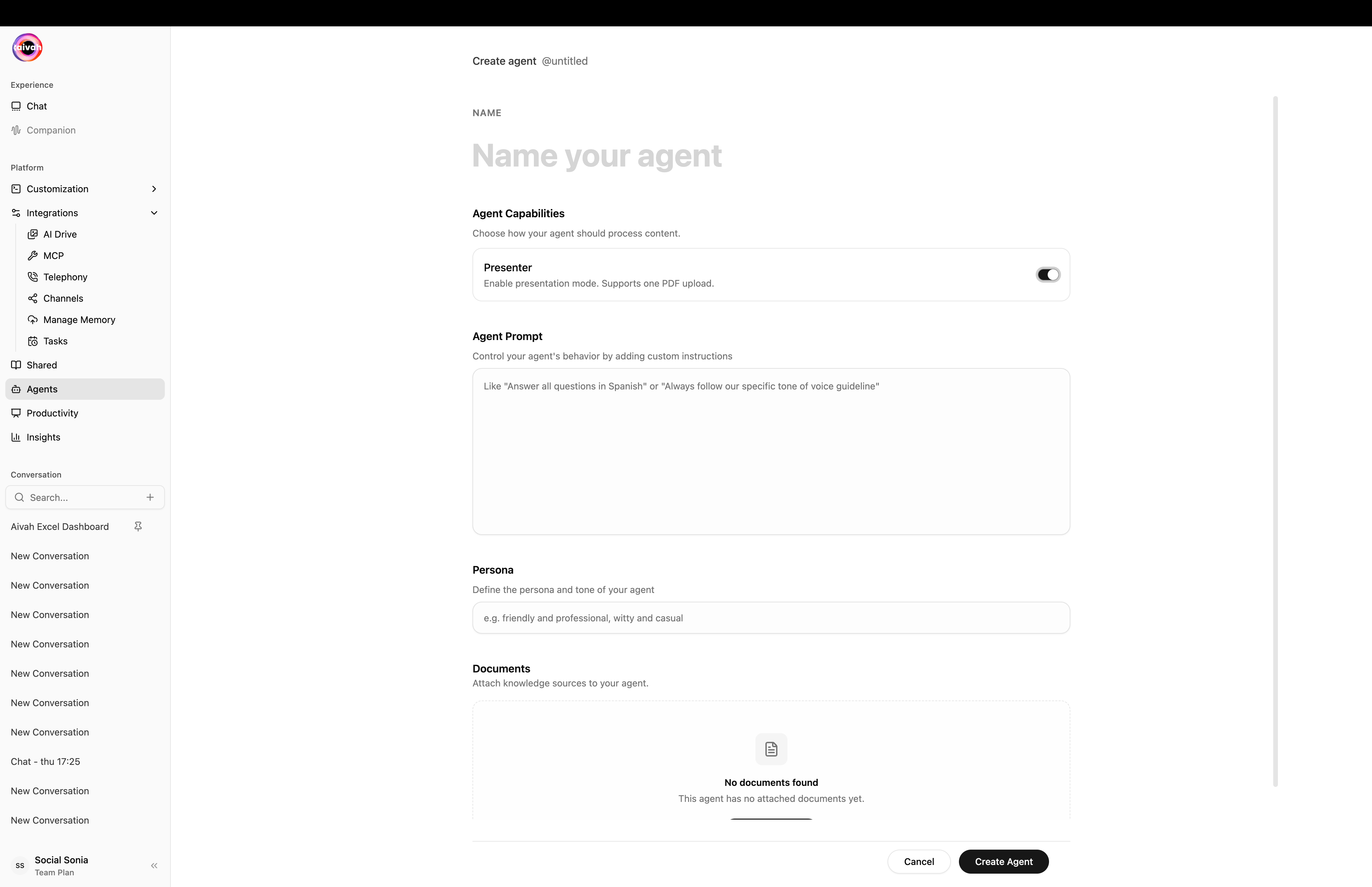
Navigate to **Agents** in the side navigation (`/agents`) and click the **Plus (+)** icon to open `/agents/create`.
1. Enter a descriptive name (e.g., "Product Demo Presenter", "Compliance Training Deck"). The name becomes the slug (`@product-demo-presenter`).
2. Turn the **Presenter** toggle on to switch from a knowledge-base agent to a presenter configuration.
3. Write an **Agent prompt** and a **Persona** to set tone and behaviour.
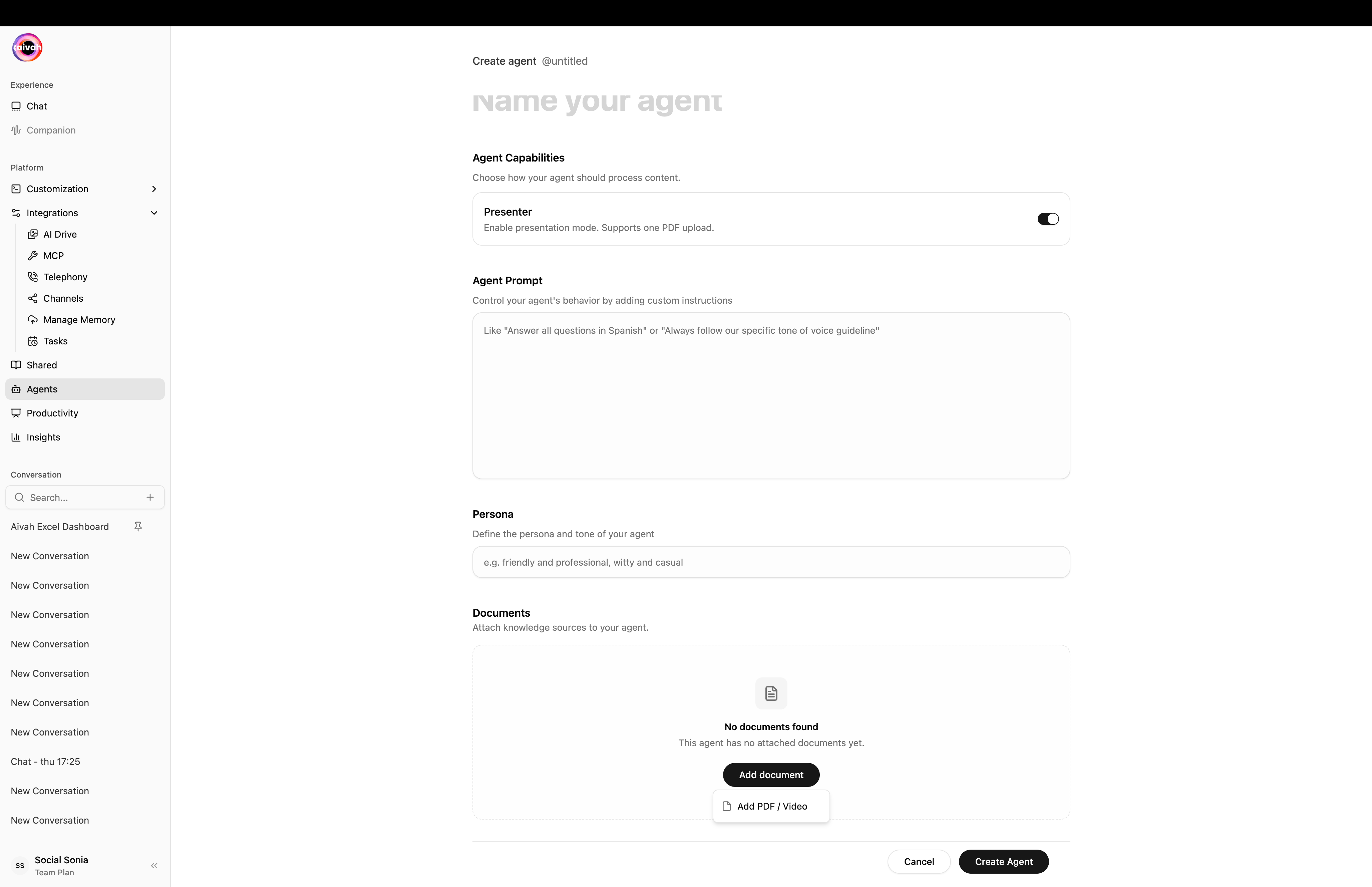
 1. Open the **Add document** dropdown. For presenter agents you only see the **Add PDF / Video** option.
2. Add your PDF (or a single video). Wait for the confirmation message: "Document uploaded successfully. Delete the existing document to upload a new one."
3. Click **Create agent** to publish.
1. Open the **Add document** dropdown. For presenter agents you only see the **Add PDF / Video** option.
2. Add your PDF (or a single video). Wait for the confirmation message: "Document uploaded successfully. Delete the existing document to upload a new one."
3. Click **Create agent** to publish.
 After creation, the document appears in **Agent Settings** with its processing status. Confirm a character count displays to ensure the deck is ready.
 Presenter Agents support only **one active document** – a single PDF or a single video. Delete the existing file before uploading an updated version.
## Optimize Your Presentation File
* Export to **PDF** with selectable text (avoid image-only slides).
* Use clear slide titles and headings.
* Keep slide numbers visible for easy references.
* Ensure charts and visuals include captions or supporting text.
* Group related slides together with consistent section titles.
* Add summary bullets to reinforce key takeaways.
* Include FAQs or objection-handling slides near the end.
* Provide links or appendices for deeper dives.
## Manage Presenter Content
Open the Agents workspace, select your presenter agent, and view the **Presentation** panel.
Delete the current file using the trash icon, then upload the new version.
Wait for the processing banner to finish and verify the character count updates.
Presenter Agents do not accept additional knowledge sources. For multi-document experiences, create a knowledge-base agent instead (toggle **Presenter** off when creating the agent).
## Using the Quiz Overlay
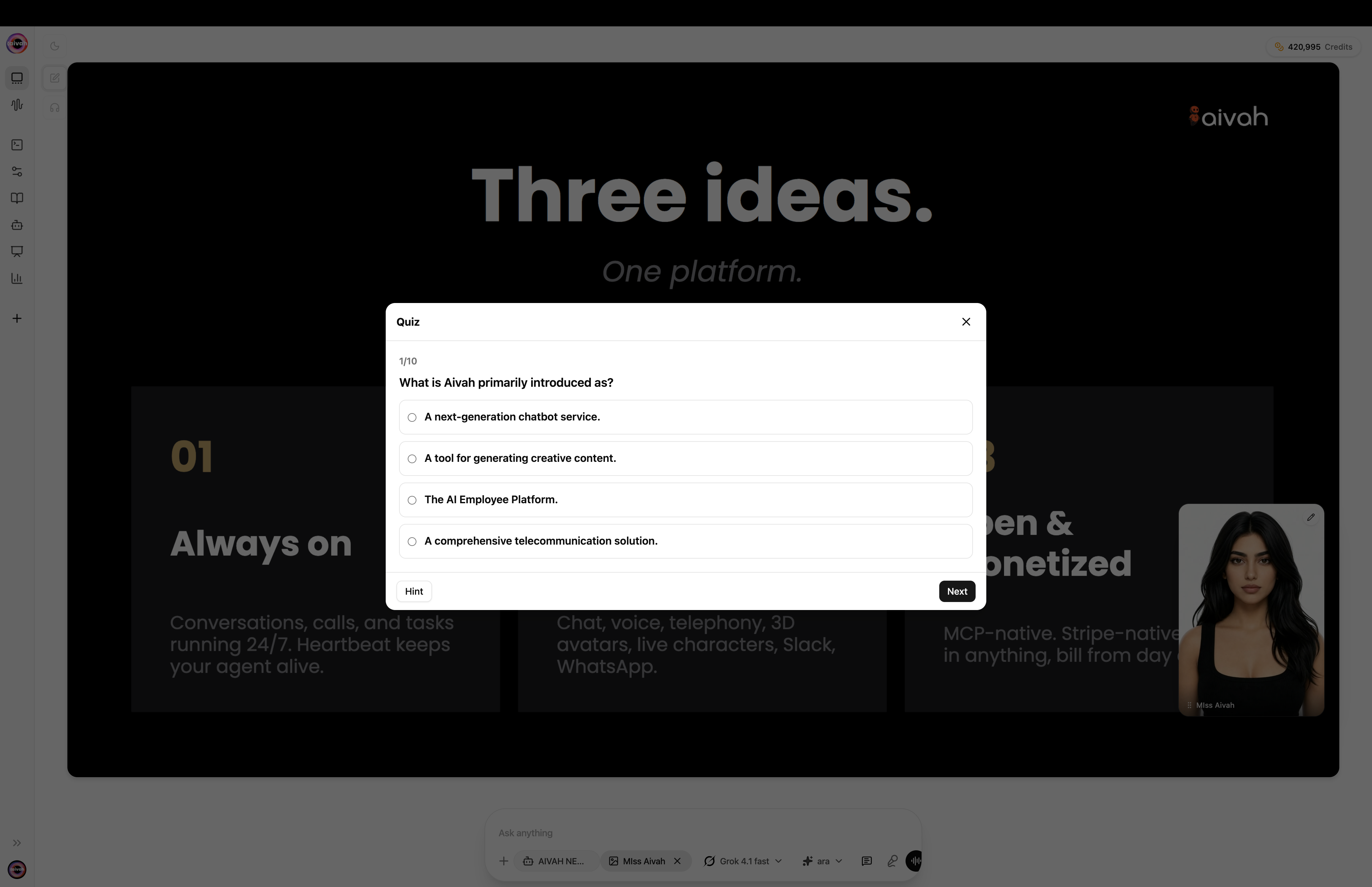
When you talk to a Presenter Agent in [Avatar chat](/interaction-hub/voice), a **Quiz** icon appears in the floating toolbar next to the chat composer. Click it to:
* Step through multiple-choice questions defined on the agent's content
* Check answers without leaving the conversation
* Use the **Hint** button when stuck, then **Next** to progress
* Re-open the overlay any time during the session
The Quiz icon also appears next to qualifying agents in the **Agents** list (`/agents`) so you can preview the quiz outside of a live chat.
Presenter Agents support only **one active document** – a single PDF or a single video. Delete the existing file before uploading an updated version.
## Optimize Your Presentation File
* Export to **PDF** with selectable text (avoid image-only slides).
* Use clear slide titles and headings.
* Keep slide numbers visible for easy references.
* Ensure charts and visuals include captions or supporting text.
* Group related slides together with consistent section titles.
* Add summary bullets to reinforce key takeaways.
* Include FAQs or objection-handling slides near the end.
* Provide links or appendices for deeper dives.
## Manage Presenter Content
Open the Agents workspace, select your presenter agent, and view the **Presentation** panel.
Delete the current file using the trash icon, then upload the new version.
Wait for the processing banner to finish and verify the character count updates.
Presenter Agents do not accept additional knowledge sources. For multi-document experiences, create a knowledge-base agent instead (toggle **Presenter** off when creating the agent).
## Using the Quiz Overlay
When you talk to a Presenter Agent in [Avatar chat](/interaction-hub/voice), a **Quiz** icon appears in the floating toolbar next to the chat composer. Click it to:
* Step through multiple-choice questions defined on the agent's content
* Check answers without leaving the conversation
* Use the **Hint** button when stuck, then **Next** to progress
* Re-open the overlay any time during the session
The Quiz icon also appears next to qualifying agents in the **Agents** list (`/agents`) so you can preview the quiz outside of a live chat.
 ## Delivering a Great Experience
* **Rehearse navigation prompts** so you know how the agent references each slide.
* **Prepare likely questions** and validate the responses stay aligned with your narrative.
* **Pair with knowledge-base agents** when you need deeper knowledge or integrations beyond the deck.
* **Monitor Insights** to see which slides and questions resonate most with audiences.
## Troubleshooting
Confirm the PDF is not password-protected, stays under size limits, and contains selectable text.
Add supporting context or summary bullets to the relevant slides before re-uploading. The agent relies on the information in the document.
Create a knowledge-base agent instead (toggle **Presenter** off when creating), or link multiple presenter agents together using share links.
Ready to go beyond a single deck? Explore [knowledge-base agents](/knowledge-agent/types-of-agents) to see how presenter experiences pair with full-featured assistants.
## Delivering a Great Experience
* **Rehearse navigation prompts** so you know how the agent references each slide.
* **Prepare likely questions** and validate the responses stay aligned with your narrative.
* **Pair with knowledge-base agents** when you need deeper knowledge or integrations beyond the deck.
* **Monitor Insights** to see which slides and questions resonate most with audiences.
## Troubleshooting
Confirm the PDF is not password-protected, stays under size limits, and contains selectable text.
Add supporting context or summary bullets to the relevant slides before re-uploading. The agent relies on the information in the document.
Create a knowledge-base agent instead (toggle **Presenter** off when creating), or link multiple presenter agents together using share links.
Ready to go beyond a single deck? Explore [knowledge-base agents](/knowledge-agent/types-of-agents) to see how presenter experiences pair with full-featured assistants.