> ## Documentation Index
> Fetch the complete documentation index at: https://opinionai.mintlify.site/llms.txt
> Use this file to discover all available pages before exploring further.
# Create Agent
> Create an agent (knowledge base or presenter)
## Creating Your First Agent
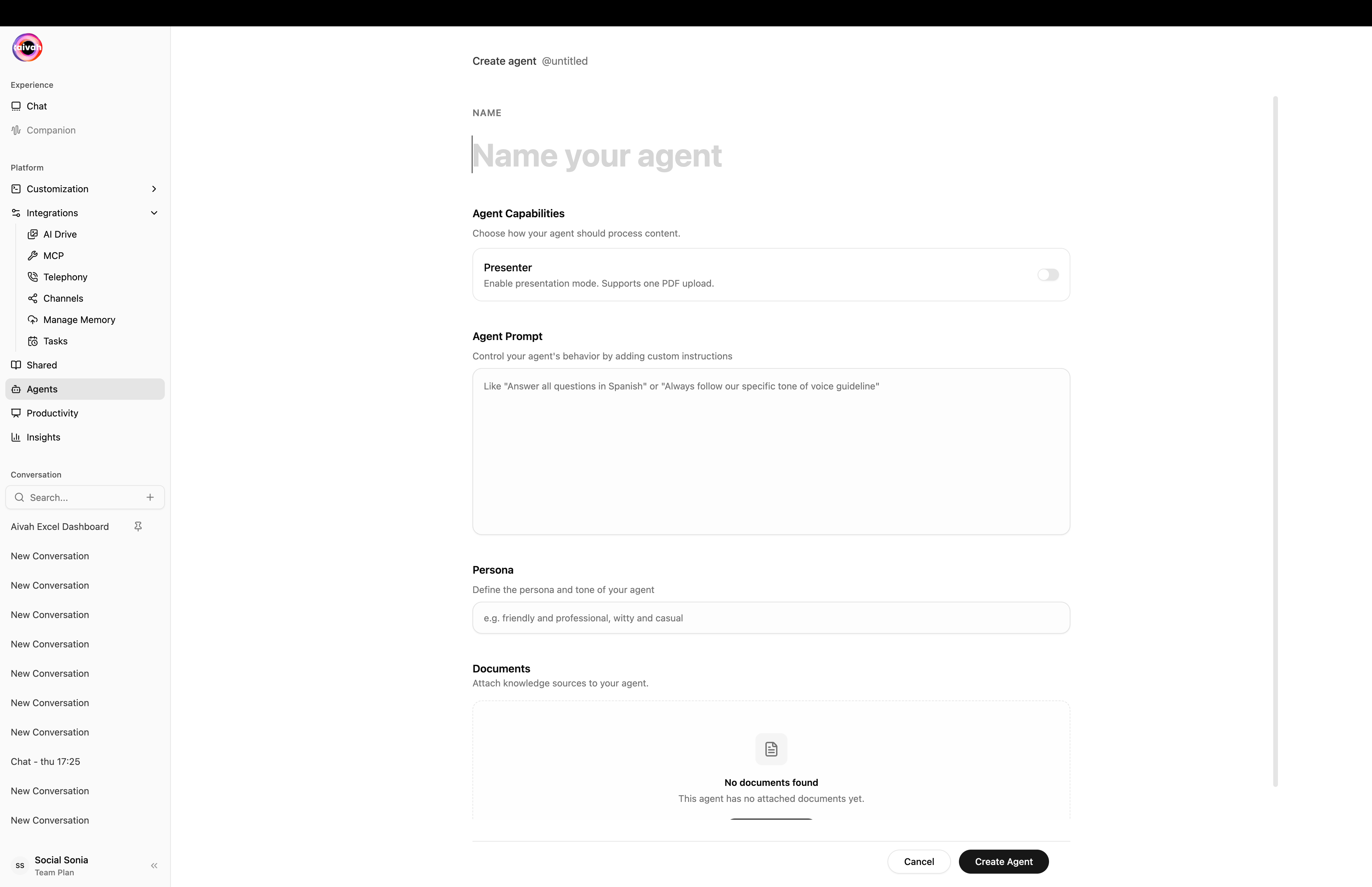
This guide walks you through the complete process of creating an agent in Aivah's **Agents** workspace (`/agents/create`). Once your agent is created, Aivah automatically trains it on your added content, making it ready for use immediately.
 ## Prerequisites
Before creating your agent, ensure you have:
* An active Aivah account with **Agents** workspace access
* Your content ready (documents, URLs, text, audio, or video)
* A clear understanding of your agent's purpose
## Step-by-Step Creation Process
### 1. Access the Agents Workspace
Sign in to your Aivah account and click **Agents** in the side navigation (`/agents`).
Click the **Plus (+)** icon in the agents list header to open `/agents/create`.
### 2. Configure Basic Settings
Enter a descriptive name in the **Name** field. The name becomes the slug shown next to the heading (for example `@customer-support`).
Under **Agent capabilities**, decide whether the agent is a **Knowledge base** or a **Presenter**:
* **Presenter toggle Off** *(default)*: a regular knowledge-base agent. Accepts URLs, documents, text, audio, video, and images.
* **Presenter toggle On**: a presentation agent. Accepts a single PDF or a single video, produces slide-aligned answers, and supports the in-chat **Quiz** overlay.
Use **Agent prompt** to give free-form instructions that shape behaviour (for example *"Always answer in Spanish"* or *"Use a friendly tone and short sentences"*).
In **Persona**, give a short label of your agent's tone, such as *witty and casual* or *formal and concise*.
Choose your agent name carefully – it becomes the slug and is visible to users.
### 3. Add Initial Knowledge
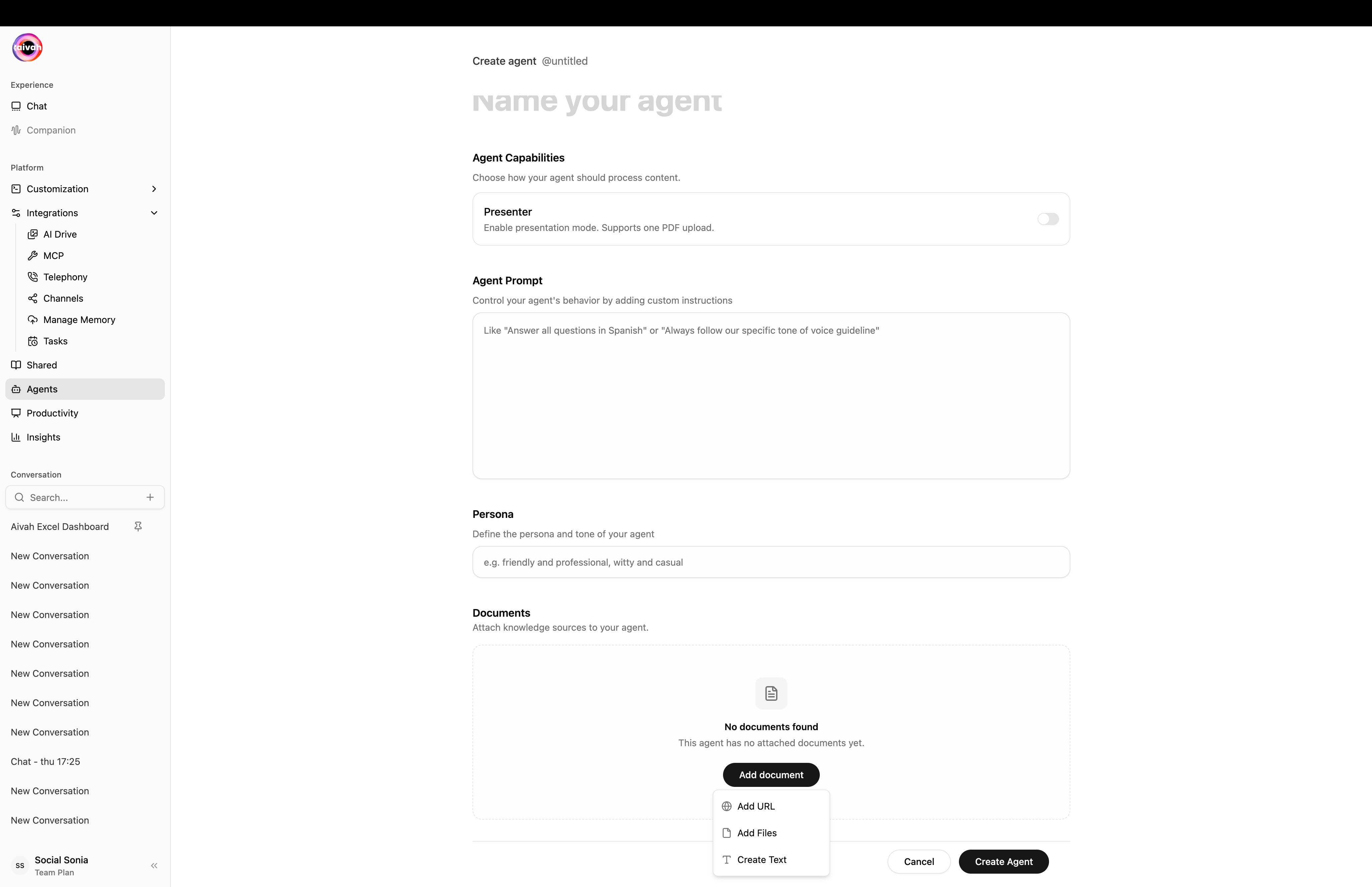
Open the **Add document** dropdown to attach knowledge sources. Knowledge-base agents accept any combination of the methods below; **Presenter** agents accept only a single PDF or video.
## Prerequisites
Before creating your agent, ensure you have:
* An active Aivah account with **Agents** workspace access
* Your content ready (documents, URLs, text, audio, or video)
* A clear understanding of your agent's purpose
## Step-by-Step Creation Process
### 1. Access the Agents Workspace
Sign in to your Aivah account and click **Agents** in the side navigation (`/agents`).
Click the **Plus (+)** icon in the agents list header to open `/agents/create`.
### 2. Configure Basic Settings
Enter a descriptive name in the **Name** field. The name becomes the slug shown next to the heading (for example `@customer-support`).
Under **Agent capabilities**, decide whether the agent is a **Knowledge base** or a **Presenter**:
* **Presenter toggle Off** *(default)*: a regular knowledge-base agent. Accepts URLs, documents, text, audio, video, and images.
* **Presenter toggle On**: a presentation agent. Accepts a single PDF or a single video, produces slide-aligned answers, and supports the in-chat **Quiz** overlay.
Use **Agent prompt** to give free-form instructions that shape behaviour (for example *"Always answer in Spanish"* or *"Use a friendly tone and short sentences"*).
In **Persona**, give a short label of your agent's tone, such as *witty and casual* or *formal and concise*.
Choose your agent name carefully – it becomes the slug and is visible to users.
### 3. Add Initial Knowledge
Open the **Add document** dropdown to attach knowledge sources. Knowledge-base agents accept any combination of the methods below; **Presenter** agents accept only a single PDF or video.
 **Web Content Integration**
1. Pick **Add URL** from the **Add document** dropdown.
2. Paste a publicly accessible link – website pages, blog posts, YouTube/Vimeo videos, and public documentation all work.
3. Aivah fetches and indexes the page automatically.
**Web Content Integration**
1. Pick **Add URL** from the **Add document** dropdown.
2. Paste a publicly accessible link – website pages, blog posts, YouTube/Vimeo videos, and public documentation all work.
3. Aivah fetches and indexes the page automatically.
 **Document Upload**
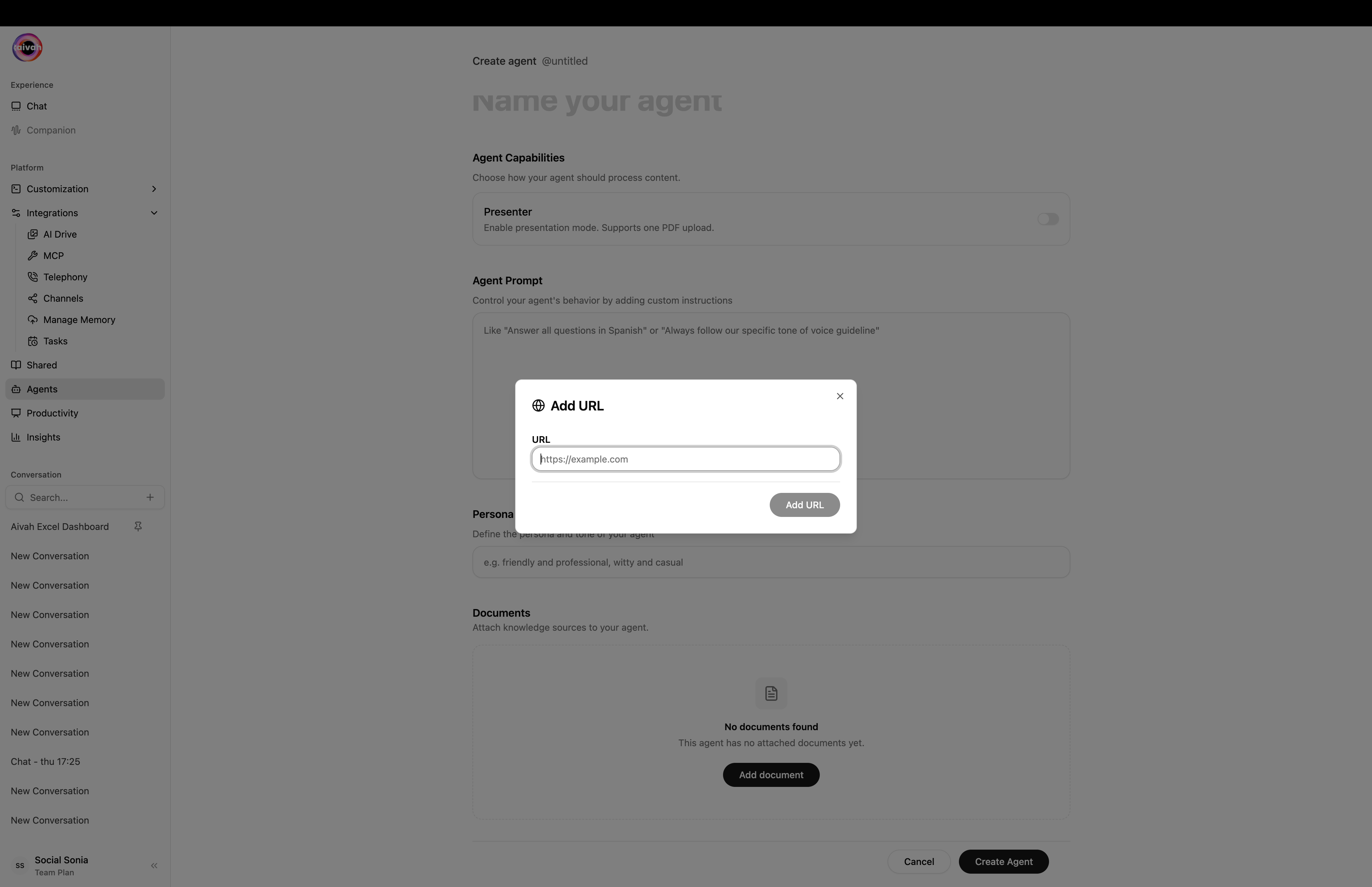
1. Pick **Add Files** from the dropdown – drag-and-drop or click to open the file picker.
2. Supported formats include:
* **Documents**: `.pdf`, `.docx`, `.txt`, `.csv`, `.xlsx`, `.html`, `.md`, `.epub`, `.json`, `.xml`
* **Media**: `.mp4`, `.mp3`, `.jpg`, `.png` and more
3. Each file can be up to **21 MB**.
**Document Upload**
1. Pick **Add Files** from the dropdown – drag-and-drop or click to open the file picker.
2. Supported formats include:
* **Documents**: `.pdf`, `.docx`, `.txt`, `.csv`, `.xlsx`, `.html`, `.md`, `.epub`, `.json`, `.xml`
* **Media**: `.mp4`, `.mp3`, `.jpg`, `.png` and more
3. Each file can be up to **21 MB**.
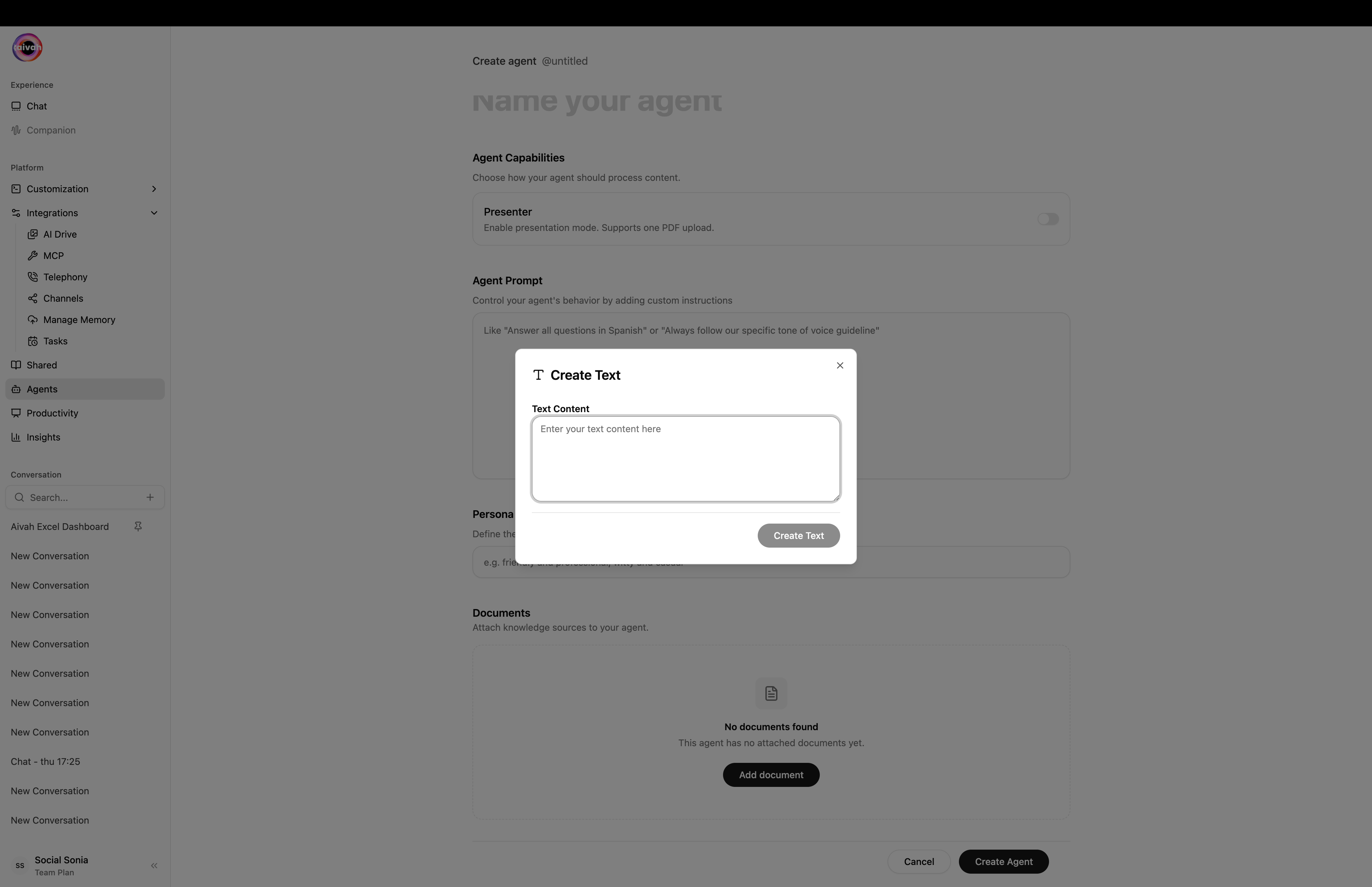
 **Direct Text Entry**
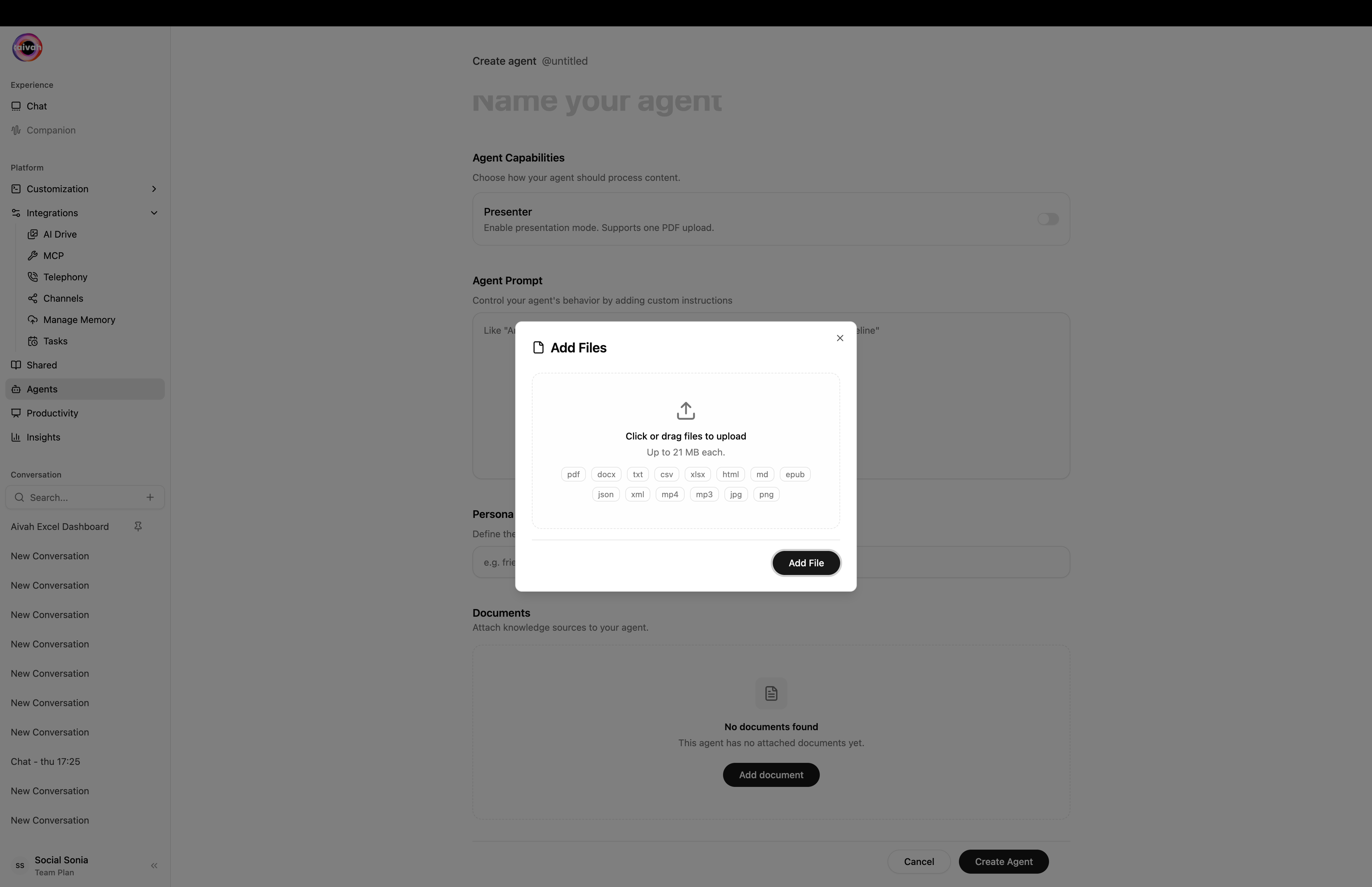
1. Pick **Create Text** from the dropdown.
2. Paste raw text content – ideal for FAQs, policies, or short informational snippets.
3. The text is immediately processed.
**Direct Text Entry**
1. Pick **Create Text** from the dropdown.
2. Paste raw text content – ideal for FAQs, policies, or short informational snippets.
3. The text is immediately processed.
 ### 4. Create and Verify
Press **Create agent**. The upload starts, the agent enters `processing`, and the page redirects back to the agents list.
The agents list polls every 10 seconds while any agent is in `pending` or `processing` and shows a **Refresh** icon automatically. The status flips to `completed` once training is done.
### 4. Create and Verify
Press **Create agent**. The upload starts, the agent enters `processing`, and the page redirects back to the agents list.
The agents list polls every 10 seconds while any agent is in `pending` or `processing` and shows a **Refresh** icon automatically. The status flips to `completed` once training is done.
 Click any row in the agents list to open `/agents/{id}`. From here you can:
* View every URL, file, or text snippet with its ingestion status (`uploaded`, `processing`, `completed`, `failed`).
* Retry a single failing source with the inline refresh icon (no need to retrain the whole agent).
* Open the **Edit** button (top right) to change name, prompt, persona, and add or remove documents.
Click any row in the agents list to open `/agents/{id}`. From here you can:
* View every URL, file, or text snippet with its ingestion status (`uploaded`, `processing`, `completed`, `failed`).
* Retry a single failing source with the inline refresh icon (no need to retrain the whole agent).
* Open the **Edit** button (top right) to change name, prompt, persona, and add or remove documents.
 ## Post-Creation Configuration
### Knowledge Management
Once created, you can manage your agent's knowledge:
* **Add Content**: Use the **Add content** button for additional sources
* **Edit Sources**: Click any source to modify or update it
* **Remove Content**: Use trash icons or **Delete All** for bulk removal
* **Monitor Processing**: Ensure all sources show character counts (indicates successful processing)
You can also switch to **Card View** to see a visual representation of your knowledge sources:
## Post-Creation Configuration
### Knowledge Management
Once created, you can manage your agent's knowledge:
* **Add Content**: Use the **Add content** button for additional sources
* **Edit Sources**: Click any source to modify or update it
* **Remove Content**: Use trash icons or **Delete All** for bulk removal
* **Monitor Processing**: Ensure all sources show character counts (indicates successful processing)
You can also switch to **Card View** to see a visual representation of your knowledge sources:
 ### Next Steps
After creating your agent:
1. **Test Interactions**: Verify the agent responds accurately to test questions
2. **Configure Behavior**: Set up response style and limitations in Share settings
3. **Deploy**: Generate sharing links or embeds for your users
4. **Monitor Performance**: Use Insights to track usage and effectiveness
## Best Practices
* Use clear, well-structured documents
* Ensure information is current and accurate
* Remove outdated or contradictory content
* Group related content together
* Use descriptive titles for uploaded documents
* Regularly review and update your knowledge base
* Test with common user questions
* Verify accuracy of responses
* Check for knowledge gaps and fill them
## Common Issues and Solutions
Large files and some websites require extended processing time. Keep your browser tab open until the upload banner shows completion.
Ensure the URL is:
* Publicly accessible (not behind login)
* Not geo-restricted
* Contains readable content (not just images)
* Review your source content for accuracy
* Remove conflicting information
* Add more specific examples or context
Ready to enhance your agent further? Learn about [adding more content](/knowledge-agent/add-content) or explore [agent types](/knowledge-agent/types-of-agents) for advanced configurations.
### Next Steps
After creating your agent:
1. **Test Interactions**: Verify the agent responds accurately to test questions
2. **Configure Behavior**: Set up response style and limitations in Share settings
3. **Deploy**: Generate sharing links or embeds for your users
4. **Monitor Performance**: Use Insights to track usage and effectiveness
## Best Practices
* Use clear, well-structured documents
* Ensure information is current and accurate
* Remove outdated or contradictory content
* Group related content together
* Use descriptive titles for uploaded documents
* Regularly review and update your knowledge base
* Test with common user questions
* Verify accuracy of responses
* Check for knowledge gaps and fill them
## Common Issues and Solutions
Large files and some websites require extended processing time. Keep your browser tab open until the upload banner shows completion.
Ensure the URL is:
* Publicly accessible (not behind login)
* Not geo-restricted
* Contains readable content (not just images)
* Review your source content for accuracy
* Remove conflicting information
* Add more specific examples or context
Ready to enhance your agent further? Learn about [adding more content](/knowledge-agent/add-content) or explore [agent types](/knowledge-agent/types-of-agents) for advanced configurations.