> ## Documentation Index
> Fetch the complete documentation index at: https://opinionai.mintlify.site/llms.txt
> Use this file to discover all available pages before exploring further.
# Hub Overview
> Main interaction space (Playground) for engaging with your AI agents
# Hub Overview
The Hub – also known as the **Playground** – is your primary interaction space where you talk to your AI agents. It ships in three related modes, all built on the same chat composer:
| Route | Mode | Use it for |
| ------------------------------- | --------------- | ---------------------------------------------------------------------------------------------- |
| `/new-playground/new-chat` | **New chat** | A fresh conversation – pick agent, model, voice, and avatar before sending your first message. |
| `/{conversationId}/chat` | **Text chat** | Continue an existing text conversation with file attach and image generation. |
| `/{conversationId}/avatar-chat` | **Avatar chat** | A live 3D avatar that listens, speaks, and reacts in real time. |
The home route (`/`) automatically loads your most recent conversation. If you don't have one yet, it redirects to **New chat**.
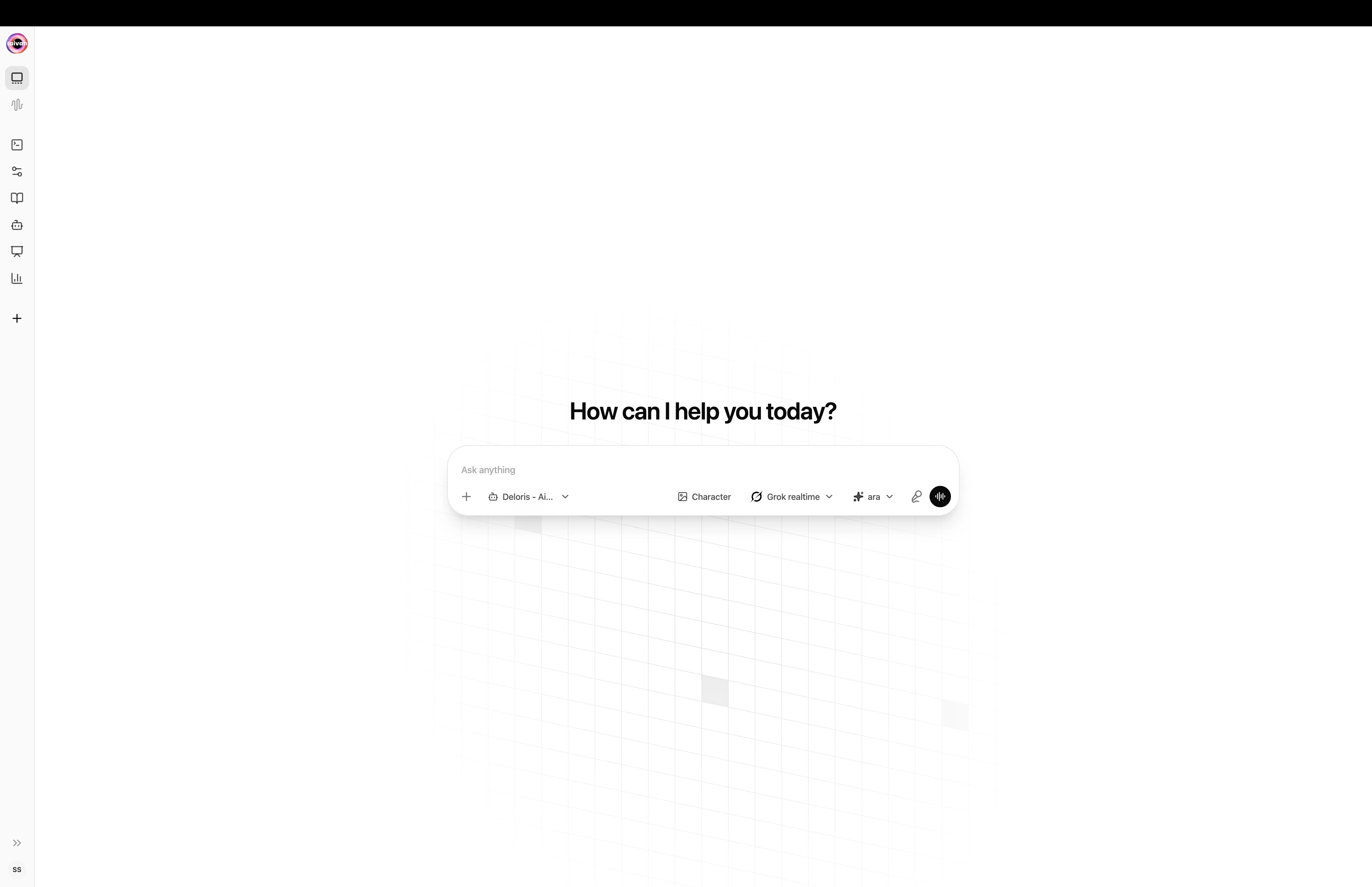 *New chat with the welcome line and the chat composer pills for agent, character, model, and voice.*
## Hub Components
### New chat composer
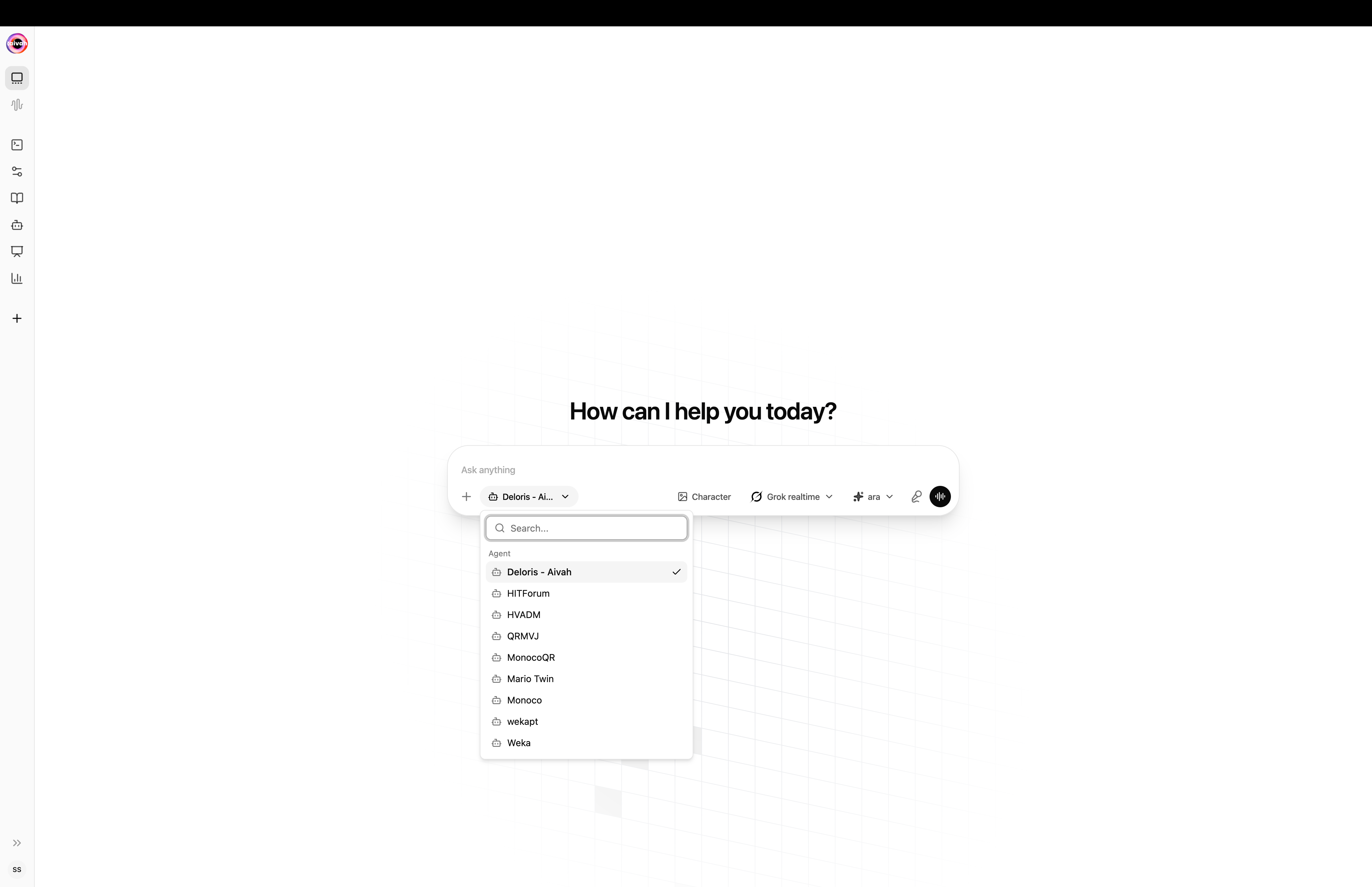
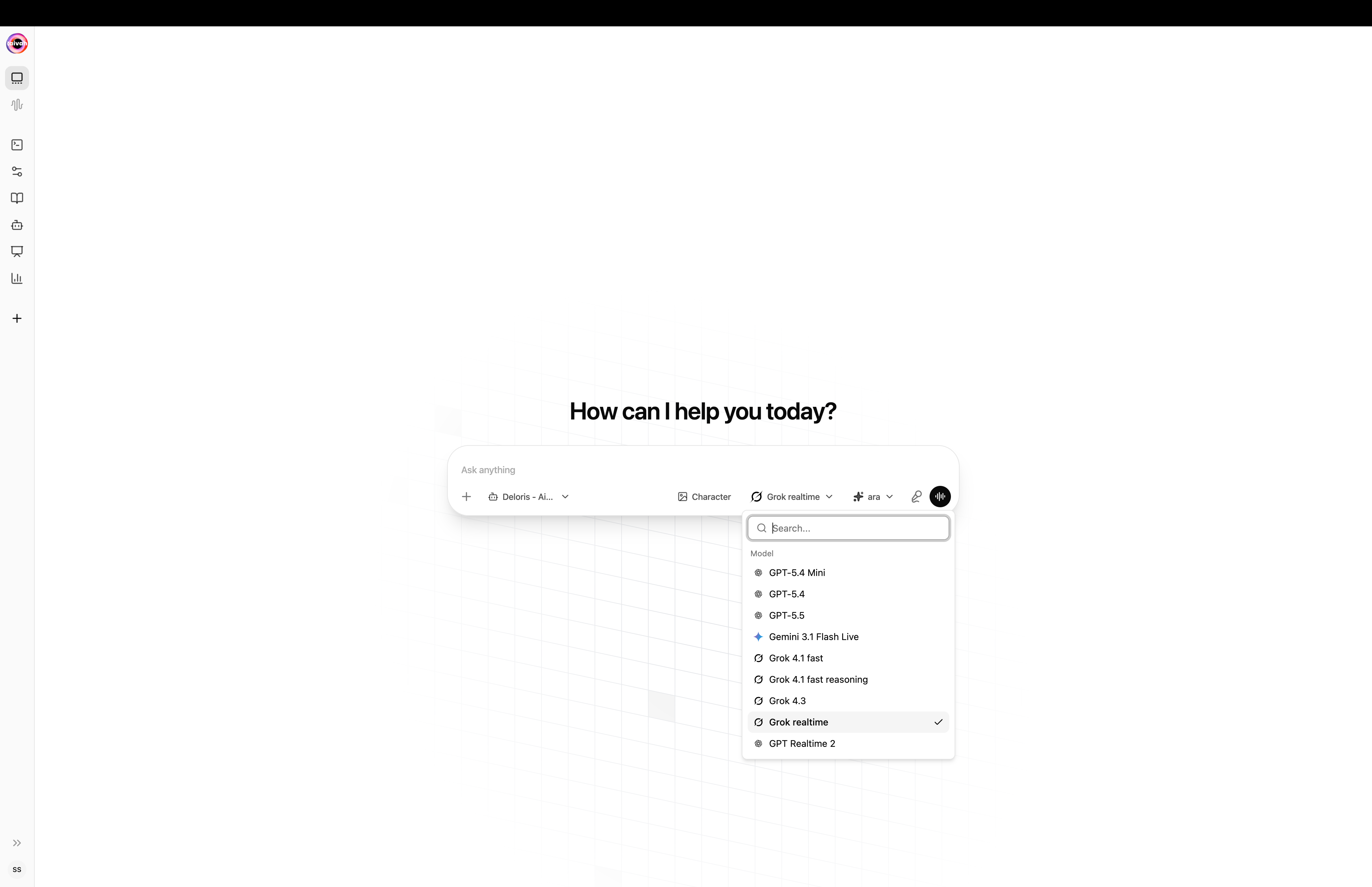
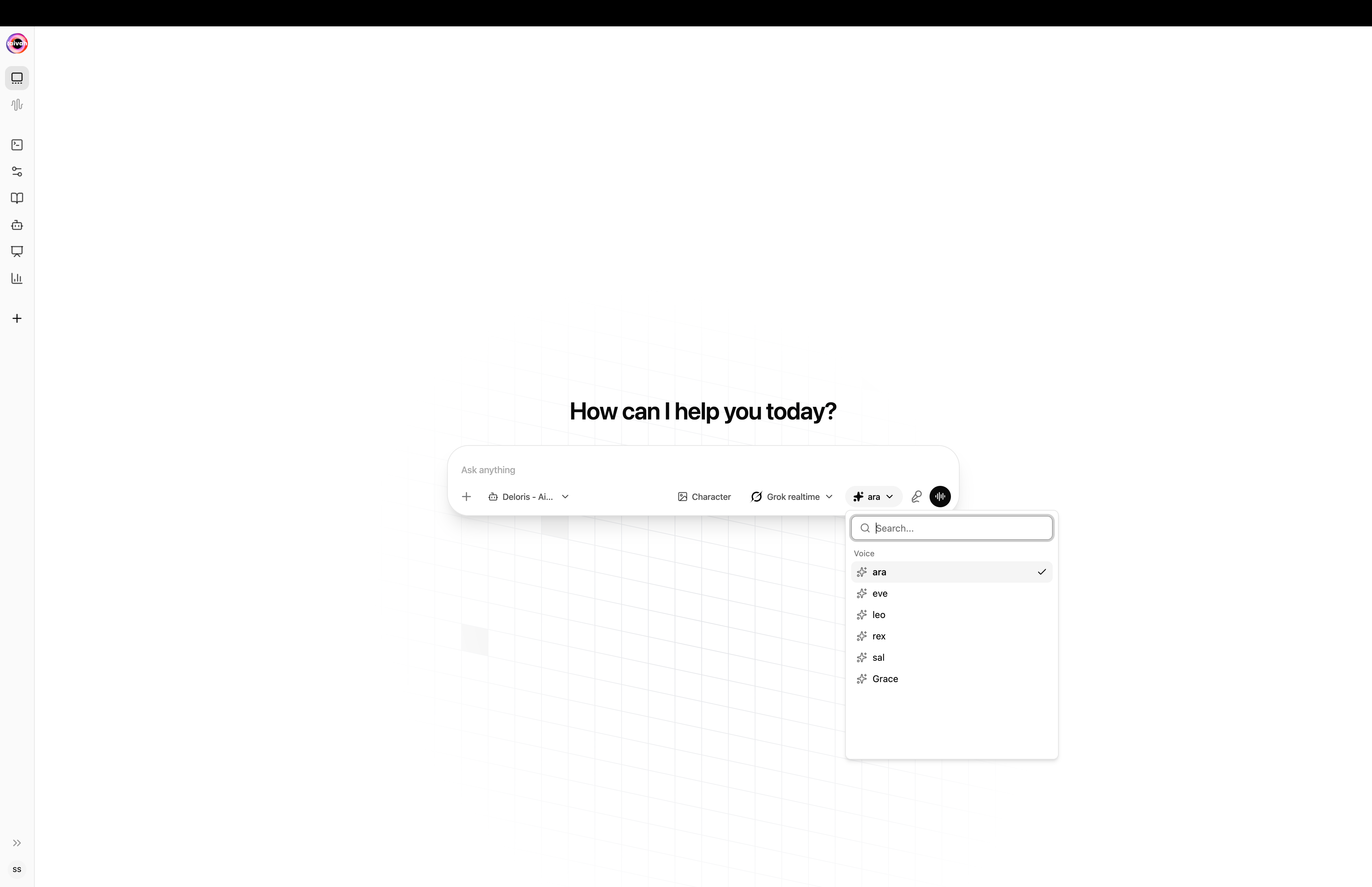
When you open **New chat** you see a welcome line and a single chat composer with configuration pills:
* **Knowledge base / Agent** – which agent answers you
* **LLM model** – which large language model to use
* **Voice** – which voice the avatar will speak with
* **Avatar / Character** – the 3D companion or 2D character that appears
Type your first message and press **Enter**. Aivah creates a new conversation, redirects to its chat URL, and delivers the message. If any default cannot be loaded automatically you'll see a toast – set defaults from **Preferences** (palette icon).
*New chat with the welcome line and the chat composer pills for agent, character, model, and voice.*
## Hub Components
### New chat composer
When you open **New chat** you see a welcome line and a single chat composer with configuration pills:
* **Knowledge base / Agent** – which agent answers you
* **LLM model** – which large language model to use
* **Voice** – which voice the avatar will speak with
* **Avatar / Character** – the 3D companion or 2D character that appears
Type your first message and press **Enter**. Aivah creates a new conversation, redirects to its chat URL, and delivers the message. If any default cannot be loaded automatically you'll see a toast – set defaults from **Preferences** (palette icon).
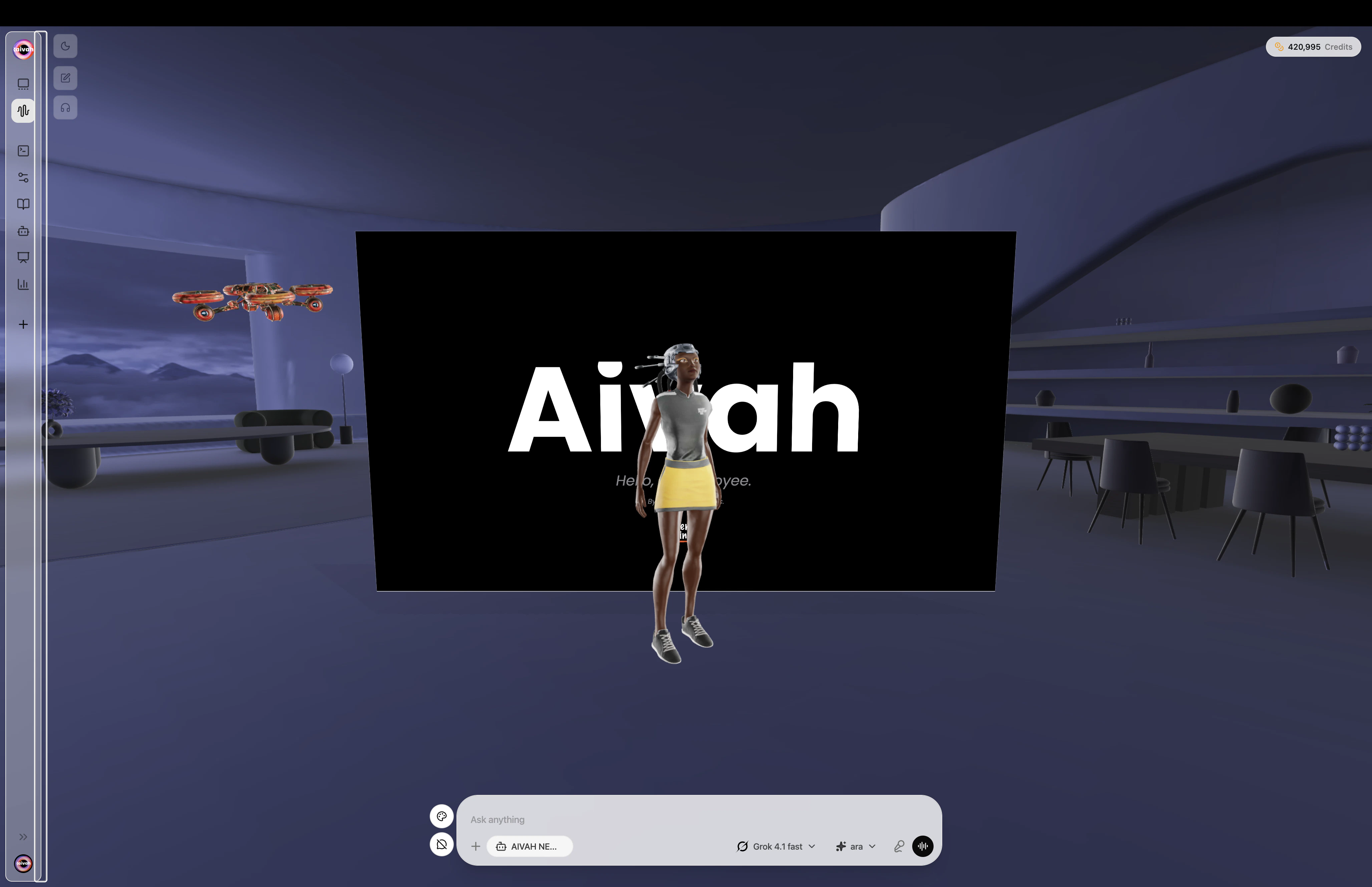
 ### Avatar / scene canvas (Avatar chat)
On `/{conversationId}/avatar-chat` the page splits in two:
* **Avatar / scene canvas** – a real-time 3D rendering with lip-sync that reacts to audio
* **Side panel** – chat transcript, composer, and inline voice controls
On smaller screens the layout switches to a vertical resizable split.
### Avatar / scene canvas (Avatar chat)
On `/{conversationId}/avatar-chat` the page splits in two:
* **Avatar / scene canvas** – a real-time 3D rendering with lip-sync that reacts to audio
* **Side panel** – chat transcript, composer, and inline voice controls
On smaller screens the layout switches to a vertical resizable split.
 ### Scene Selection
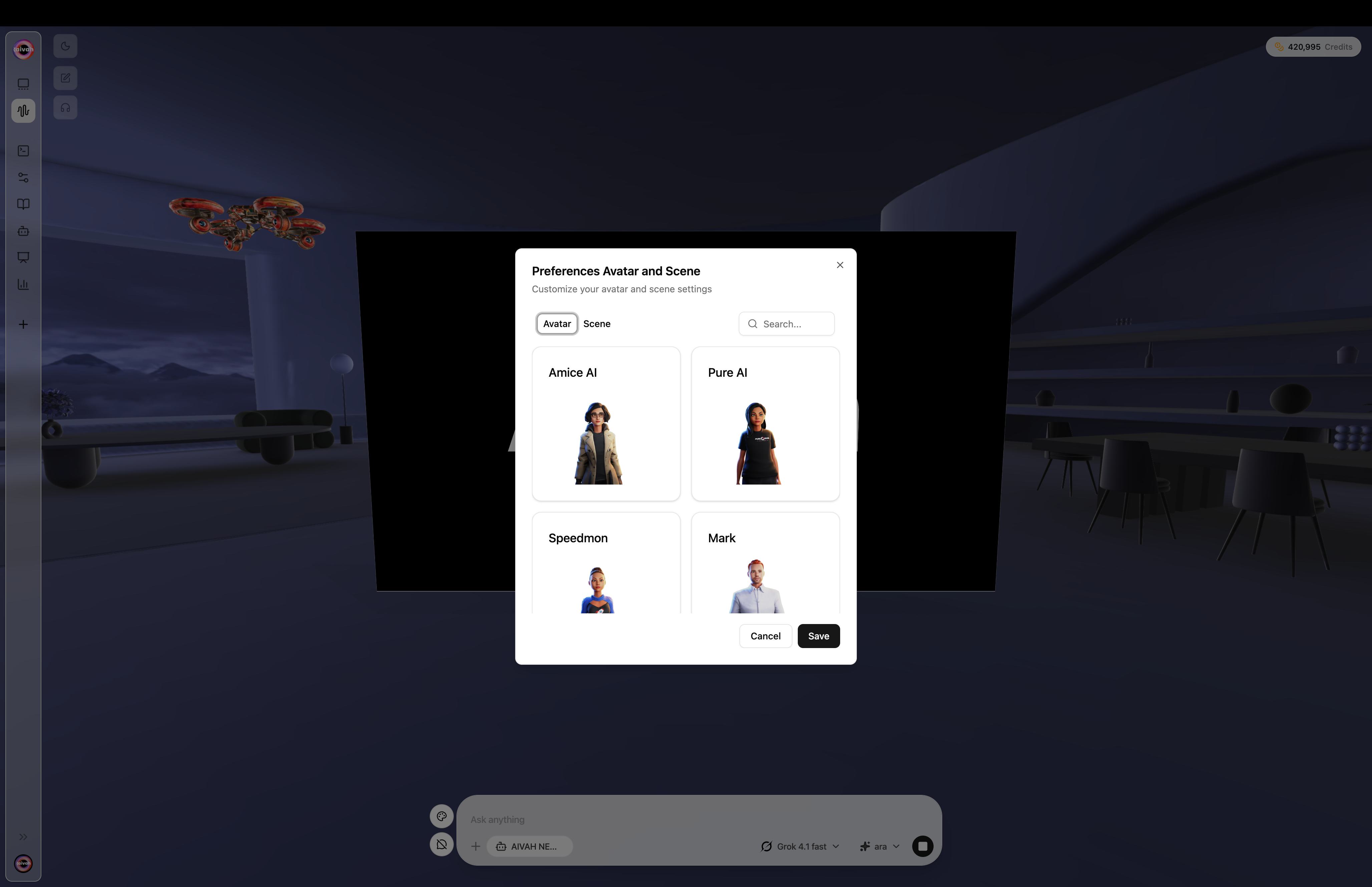
The **palette icon** next to the composer opens **Preferences**, where you choose your default avatar and scene. The first time you visit Avatar chat without an avatar selected, Preferences opens automatically.
### Scene Selection
The **palette icon** next to the composer opens **Preferences**, where you choose your default avatar and scene. The first time you visit Avatar chat without an avatar selected, Preferences opens automatically.
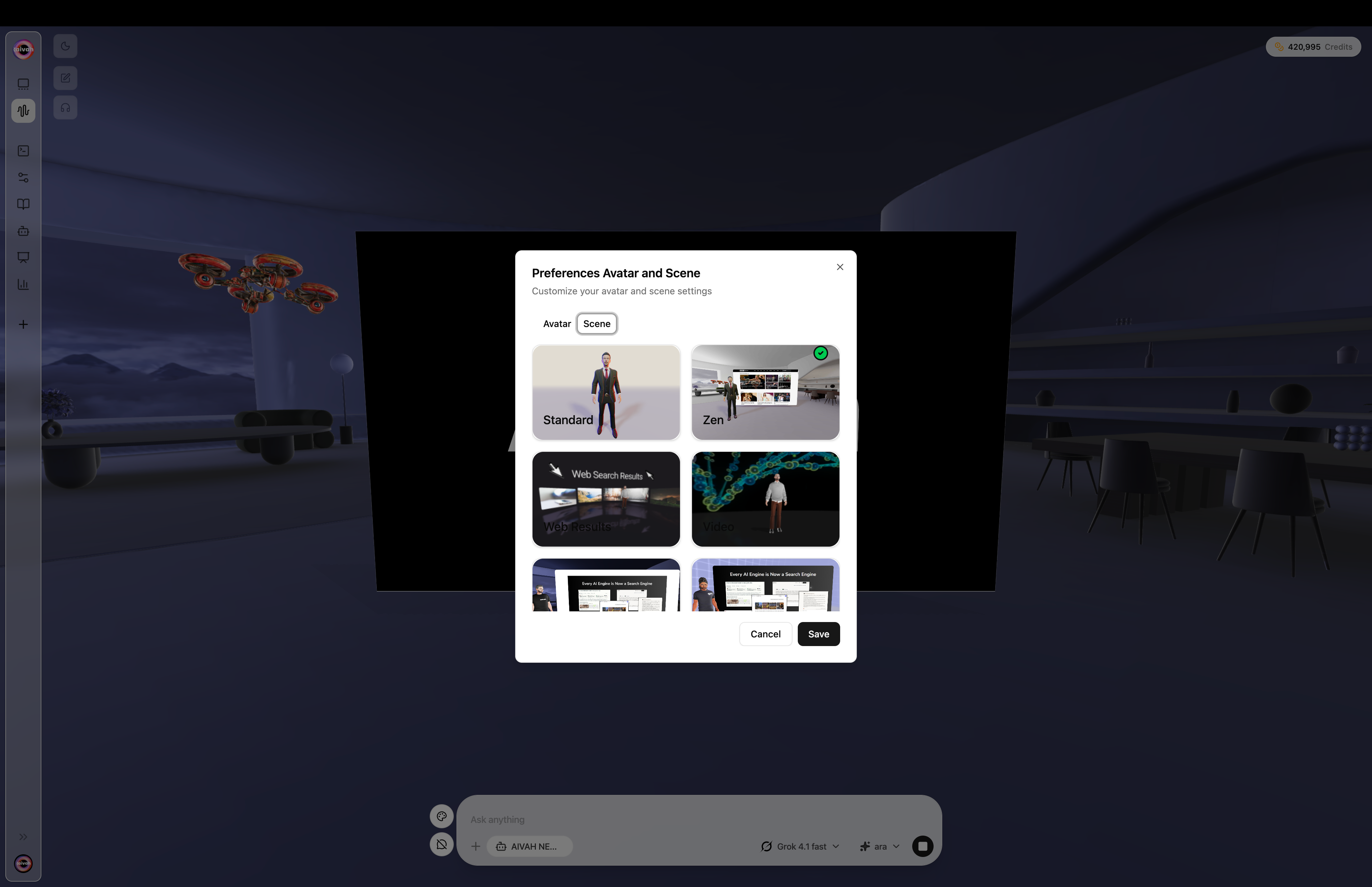 Available scenes:
| Scene | Purpose |
| --------------------- | ---------------------------------- |
| Standard | Empty studio. |
| Zen | Calm zen background. |
| Web Results | Embedded web pages while you talk. |
| Video | Video wall. |
| Present 1 / Present 2 | Slide presentation backdrops. |
### Floating productivity toolbar
When the active agent supports them, additional icons surface next to the chat composer:
* **Quiz overlay** – multiple-choice questions for presentation agents
* **Mind map** – an interactive mind map for the current content
* **Podcast player** – plays the latest generated podcast for this agent
* **Chat toggle (speech bubble)** – hide or show the transcript so the avatar has more room
### Credits badge
A small pill in the top-right of Avatar chat shows your live credit balance and updates whenever the agent consumes credits (chat tokens, voice generation, image generation, etc.).
## Core Functionality
### Avatar & Character Management
* **3D Avatars and 2D Characters**: Switch between fully animated companions and image-based personas
* **Seamless Switching**: Change avatars without losing conversation context
* **Real-Time Loading**: Avatars load instantly with visual feedback
* **Voice Consistency**: Each avatar can be paired with a built-in or cloned voice
### Scene Environments
Multiple immersive environments enhance different interaction types:
**Standard Scene**: Clean professional environment for general interactions
**Zen Scenes**: Interactive widgets displaying websites, videos, or presentations
**Web Search Scene**: Immersive search results with clickable source widgets
**Video Wall Scene**: Customizable video backgrounds with upload capability
**Presentation Scenes**: Interactive presentation delivery with slide control
### Communication Options
**Three Interaction Modes:**
* **New chat**: Pick agent, model, voice, and avatar before sending your first message
* **Text chat**: Classic message thread with file attach and image generation
* **Avatar chat**: Real-time 3D avatar with voice and lip-sync
* **Hybrid Support**: Switch between text and voice within the same conversation
### Chat composer features
The composer is shared by every mode:
* **Text input** – multi-line, supports keyboard send
* **File attach** – paper-clip icon attaches images, PDFs, Word docs, Excel sheets, PowerPoint
* **Image generation** – pick an image model from the trailing dropdown to ask the agent to create a picture
* **Voice** – tap the mic icon to dictate or switch to voice-first mode
* **Agent badge** – shows which agent is currently active
* **Inline selectors** – agent / model / voice pickers (visible on New chat)
While the agent is producing a long asset (slide deck, podcast, mind map) the **Document Creating Banner** appears so you know what's happening.
### Realtime Media Creation
* **Prompt-Based Images**: Generate high-quality visuals without leaving the Hub
* **Instant Video Transformations**: Convert fresh images into short clips in seconds
* **Powered Models**: Google Nano Banana, Veo 3.1, and Sora 2 handle rendering behind the scenes
* **AI Drive Sync**: Every asset drops automatically into the AI Drive integration for reuse
## Getting Started
### Initial Setup
1. **Mic/Audio Permissions**: Grant browser permissions for voice interaction
2. **Avatar Selection**: Choose your preferred avatar from the right carousel
3. **Scene Selection**: Pick appropriate scene for your intended interaction
4. **Connection Status**: Look for green dot indicating agent readiness
### First Interaction
1. **Click Chat or Talk**: Start your session with preferred communication mode
2. **Wait for Green Dot**: Amber dot means connecting, green means ready, red means disconnected
3. **Begin Conversation**: Ask questions or give instructions to your agent
4. **Explore Features**: Try different scenes and avatar combinations
### Session Management
* **Active Sessions**: Green dot shows active connection status
* **Idle Timeout**: Sessions expire after 20 minutes of inactivity
* **Reconnection**: Click chat or talk icons to restart, or refresh page
* **WebRTC Connection**: System uses WebRTC for optimal real-time performance
## Advanced Features
### Smart Memory Management
* **Context Retention**: Agents remember key information across conversations
* **Personal Data**: Names, preferences, tasks, and important details stored
* **Session History**: Previous conversations accessible through options menu
### Agentic Capabilities
* **RAG Integration**: Intelligent retrieval from your knowledge sources
* **Web Search**: Live web search with immersive result display
* **Tool Integration**: Composio MCP connectors for Gmail, Calendar, Notion, Linear, Slack, GitHub and more
* **Channel Integration**: Native Slack and WhatsApp bots that respond using the same agent
* **Phone Capabilities**: Bring-your-own Twilio number for inbound and outbound calls
* **Tasks**: Cron jobs and heartbeat monitors created on demand from chat
### Interactive Status Display
Real-time status indicators show agent activities:
* **Searching**: Agent finding information in knowledge base
* **Web Searching**: Performing live web searches
* **Tool Calling**: Using connected applications and workflows
* **Memory Updates**: Storing important conversation details
* **Message Processing**: Generating responses and taking actions
### Agent Tool Integration Example
Watch agents perform real-world tasks like sending emails through connected applications:
Available scenes:
| Scene | Purpose |
| --------------------- | ---------------------------------- |
| Standard | Empty studio. |
| Zen | Calm zen background. |
| Web Results | Embedded web pages while you talk. |
| Video | Video wall. |
| Present 1 / Present 2 | Slide presentation backdrops. |
### Floating productivity toolbar
When the active agent supports them, additional icons surface next to the chat composer:
* **Quiz overlay** – multiple-choice questions for presentation agents
* **Mind map** – an interactive mind map for the current content
* **Podcast player** – plays the latest generated podcast for this agent
* **Chat toggle (speech bubble)** – hide or show the transcript so the avatar has more room
### Credits badge
A small pill in the top-right of Avatar chat shows your live credit balance and updates whenever the agent consumes credits (chat tokens, voice generation, image generation, etc.).
## Core Functionality
### Avatar & Character Management
* **3D Avatars and 2D Characters**: Switch between fully animated companions and image-based personas
* **Seamless Switching**: Change avatars without losing conversation context
* **Real-Time Loading**: Avatars load instantly with visual feedback
* **Voice Consistency**: Each avatar can be paired with a built-in or cloned voice
### Scene Environments
Multiple immersive environments enhance different interaction types:
**Standard Scene**: Clean professional environment for general interactions
**Zen Scenes**: Interactive widgets displaying websites, videos, or presentations
**Web Search Scene**: Immersive search results with clickable source widgets
**Video Wall Scene**: Customizable video backgrounds with upload capability
**Presentation Scenes**: Interactive presentation delivery with slide control
### Communication Options
**Three Interaction Modes:**
* **New chat**: Pick agent, model, voice, and avatar before sending your first message
* **Text chat**: Classic message thread with file attach and image generation
* **Avatar chat**: Real-time 3D avatar with voice and lip-sync
* **Hybrid Support**: Switch between text and voice within the same conversation
### Chat composer features
The composer is shared by every mode:
* **Text input** – multi-line, supports keyboard send
* **File attach** – paper-clip icon attaches images, PDFs, Word docs, Excel sheets, PowerPoint
* **Image generation** – pick an image model from the trailing dropdown to ask the agent to create a picture
* **Voice** – tap the mic icon to dictate or switch to voice-first mode
* **Agent badge** – shows which agent is currently active
* **Inline selectors** – agent / model / voice pickers (visible on New chat)
While the agent is producing a long asset (slide deck, podcast, mind map) the **Document Creating Banner** appears so you know what's happening.
### Realtime Media Creation
* **Prompt-Based Images**: Generate high-quality visuals without leaving the Hub
* **Instant Video Transformations**: Convert fresh images into short clips in seconds
* **Powered Models**: Google Nano Banana, Veo 3.1, and Sora 2 handle rendering behind the scenes
* **AI Drive Sync**: Every asset drops automatically into the AI Drive integration for reuse
## Getting Started
### Initial Setup
1. **Mic/Audio Permissions**: Grant browser permissions for voice interaction
2. **Avatar Selection**: Choose your preferred avatar from the right carousel
3. **Scene Selection**: Pick appropriate scene for your intended interaction
4. **Connection Status**: Look for green dot indicating agent readiness
### First Interaction
1. **Click Chat or Talk**: Start your session with preferred communication mode
2. **Wait for Green Dot**: Amber dot means connecting, green means ready, red means disconnected
3. **Begin Conversation**: Ask questions or give instructions to your agent
4. **Explore Features**: Try different scenes and avatar combinations
### Session Management
* **Active Sessions**: Green dot shows active connection status
* **Idle Timeout**: Sessions expire after 20 minutes of inactivity
* **Reconnection**: Click chat or talk icons to restart, or refresh page
* **WebRTC Connection**: System uses WebRTC for optimal real-time performance
## Advanced Features
### Smart Memory Management
* **Context Retention**: Agents remember key information across conversations
* **Personal Data**: Names, preferences, tasks, and important details stored
* **Session History**: Previous conversations accessible through options menu
### Agentic Capabilities
* **RAG Integration**: Intelligent retrieval from your knowledge sources
* **Web Search**: Live web search with immersive result display
* **Tool Integration**: Composio MCP connectors for Gmail, Calendar, Notion, Linear, Slack, GitHub and more
* **Channel Integration**: Native Slack and WhatsApp bots that respond using the same agent
* **Phone Capabilities**: Bring-your-own Twilio number for inbound and outbound calls
* **Tasks**: Cron jobs and heartbeat monitors created on demand from chat
### Interactive Status Display
Real-time status indicators show agent activities:
* **Searching**: Agent finding information in knowledge base
* **Web Searching**: Performing live web searches
* **Tool Calling**: Using connected applications and workflows
* **Memory Updates**: Storing important conversation details
* **Message Processing**: Generating responses and taking actions
### Agent Tool Integration Example
Watch agents perform real-world tasks like sending emails through connected applications:
 *Agent successfully sending email through Gmail integration, showing tool calling capabilities and real-world task execution*
## Scene-Specific Features
### Presentation Mode
* **Interactive Slides**: Agent controls slide progression
* **Content-Aware Navigation**: Slides advance based on conversation context
* **Presentation Upload**: PDF presentations integrated with agent knowledge
### Video Wall Experience
* **Custom Videos**: Upload MP4 files under 50MB
* **Background Integration**: Videos play while maintaining agent interaction
* **Upload Controls**: Access upload button near talk/chat controls
### Web Search Visualization
* **Immersive Results**: Search results displayed as interactive 3D widgets
* **Source Access**: Click widgets to open cited sources in new tabs
* **Visual Context**: Search results spatially arranged around agent
### Interactive Widgets (Zen Scenes)
* **Website Display**: Show live websites from knowledge source URLs
* **YouTube Integration**: Play videos while maintaining agent interaction
* **Presentation Viewer**: Display uploaded presentations with agent commentary
## Best Practices
### Optimal Usage
* **Grant Permissions**: Always allow microphone and audio access
* **Stable Connection**: Ensure reliable internet for smooth WebRTC performance
* **Scene Selection**: Choose scenes that match your interaction goals
* **Session Awareness**: Monitor connection status indicators
### Troubleshooting
* **Connection Issues**: Look for red dots and refresh if needed
* **Audio Problems**: Check browser permissions and microphone settings
* **Avatar Loading**: Allow time for character switching and scene changes
* **Session Timeout**: Restart sessions after extended idle periods
## Integration with Platform
### Avatar Library Connection
* Directly connected to your [Available Avatars](/avatars/available-avatars) collection
* Changes to avatars and [Characters](/avatars/characters) reflect immediately in Hub
* System avatars like Orbe available alongside custom avatars
### Voices
* Choose from Aivah's built-in voice library or your own [voice clones](/avatars/voices)
* Switching the LLM provider may filter the available voice list
### Agent Integration
* Access all created agents through the composer pills or the side navigation
* Switch between different AI models and voice settings
* Conversation history maintained across agent switches
### Sharing Preparation
* Test avatars and agents thoroughly in Hub before sharing
* Validate voice, appearance, and knowledge accuracy
* Use Hub testing to refine agent responses and behaviors
Ready to start interacting? Choose an avatar, select a scene, and begin your conversation!
*Agent successfully sending email through Gmail integration, showing tool calling capabilities and real-world task execution*
## Scene-Specific Features
### Presentation Mode
* **Interactive Slides**: Agent controls slide progression
* **Content-Aware Navigation**: Slides advance based on conversation context
* **Presentation Upload**: PDF presentations integrated with agent knowledge
### Video Wall Experience
* **Custom Videos**: Upload MP4 files under 50MB
* **Background Integration**: Videos play while maintaining agent interaction
* **Upload Controls**: Access upload button near talk/chat controls
### Web Search Visualization
* **Immersive Results**: Search results displayed as interactive 3D widgets
* **Source Access**: Click widgets to open cited sources in new tabs
* **Visual Context**: Search results spatially arranged around agent
### Interactive Widgets (Zen Scenes)
* **Website Display**: Show live websites from knowledge source URLs
* **YouTube Integration**: Play videos while maintaining agent interaction
* **Presentation Viewer**: Display uploaded presentations with agent commentary
## Best Practices
### Optimal Usage
* **Grant Permissions**: Always allow microphone and audio access
* **Stable Connection**: Ensure reliable internet for smooth WebRTC performance
* **Scene Selection**: Choose scenes that match your interaction goals
* **Session Awareness**: Monitor connection status indicators
### Troubleshooting
* **Connection Issues**: Look for red dots and refresh if needed
* **Audio Problems**: Check browser permissions and microphone settings
* **Avatar Loading**: Allow time for character switching and scene changes
* **Session Timeout**: Restart sessions after extended idle periods
## Integration with Platform
### Avatar Library Connection
* Directly connected to your [Available Avatars](/avatars/available-avatars) collection
* Changes to avatars and [Characters](/avatars/characters) reflect immediately in Hub
* System avatars like Orbe available alongside custom avatars
### Voices
* Choose from Aivah's built-in voice library or your own [voice clones](/avatars/voices)
* Switching the LLM provider may filter the available voice list
### Agent Integration
* Access all created agents through the composer pills or the side navigation
* Switch between different AI models and voice settings
* Conversation history maintained across agent switches
### Sharing Preparation
* Test avatars and agents thoroughly in Hub before sharing
* Validate voice, appearance, and knowledge accuracy
* Use Hub testing to refine agent responses and behaviors
Ready to start interacting? Choose an avatar, select a scene, and begin your conversation!