> ## Documentation Index
> Fetch the complete documentation index at: https://opinionai.mintlify.site/llms.txt
> Use this file to discover all available pages before exploring further.
# Hub Chat Mode
> Text-based conversation with AI agents – attachments, image generation, transcript, and options
# Hub Chat Mode
Engage in text-based conversations with your AI agents while receiving both written responses and voice narration. Text chat provides a comprehensive transcript, file attachments, image generation, real-time status updates, and full access to agent options.
The text-chat page lives at `/{conversationId}/chat`. Aivah opens it automatically when you continue an existing conversation, and you can also reach it from the **New chat** flow once you've sent your first message.
## Starting a Chat Session
### Activation
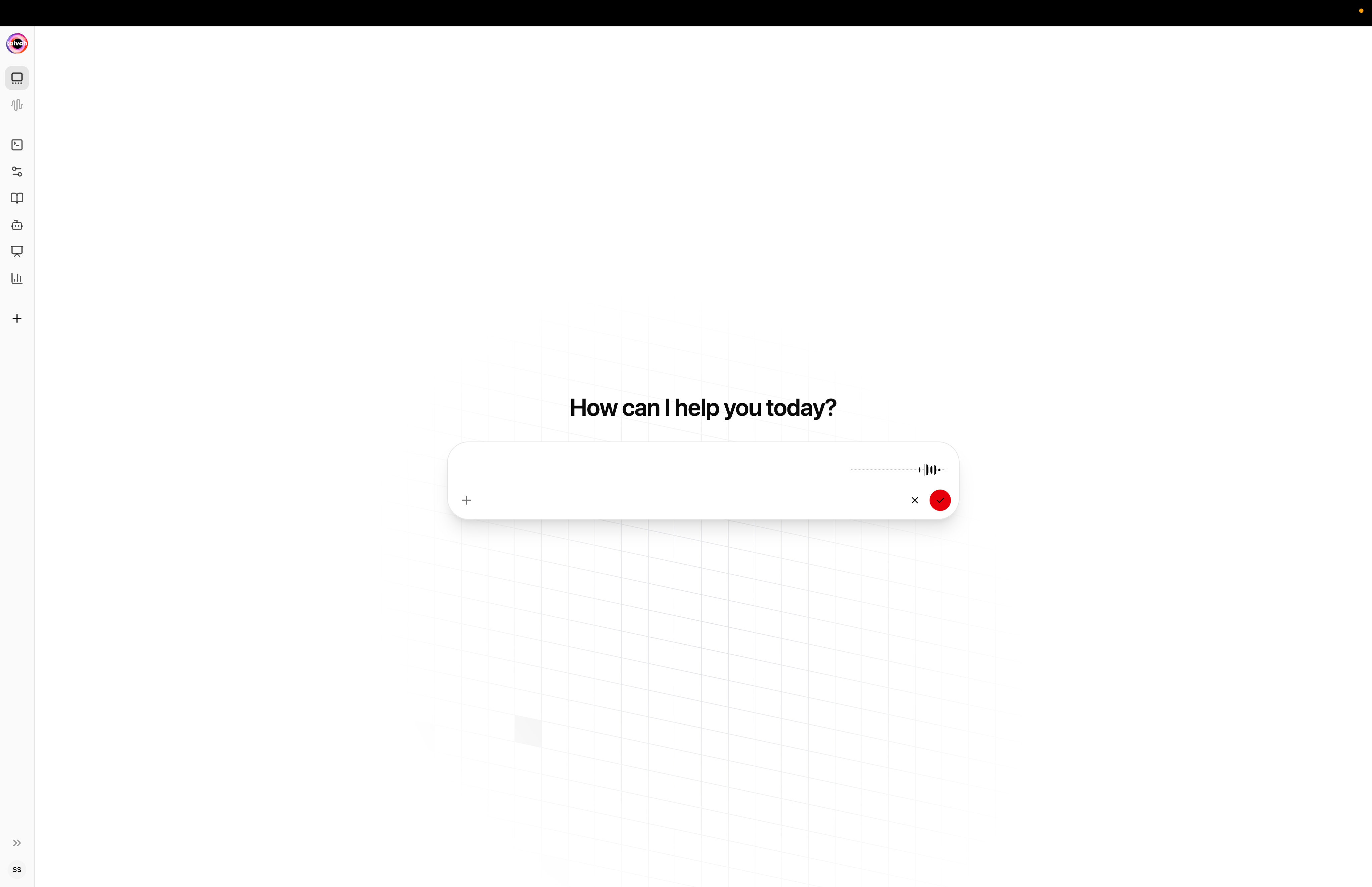
Click the **Chat** button in the top-left corner of any Hub scene to enter chat mode. The system will establish a WebRTC connection and display a green dot when ready for interaction.
### New chat vs continuing a chat
* **New chat** (`/new-playground/new-chat`) – starts a fresh thread; pick agent, model, voice, and avatar with the composer pills before sending.
* **Existing chat** (`/{conversationId}/chat`) – picks up where you left off; the agent badge in the composer shows which agent is active.
### Connection Status Indicators
* **Green Dot**: Agent connected and ready for chat
* **Amber Dot**: System connecting, please wait
* **Red Dot**: Connection failed, click to retry or refresh page
## Chat Interface Components
### Top Controls
**Left Side Controls:**
* **Chat Button**: Current active mode (highlighted when selected)
* **Talk Button**: Switch to voice mode anytime during conversation
* **Gear Icon**: Access options for agent selection, voice settings, and LLM models
### Chat Input Area
**Bottom Center:**
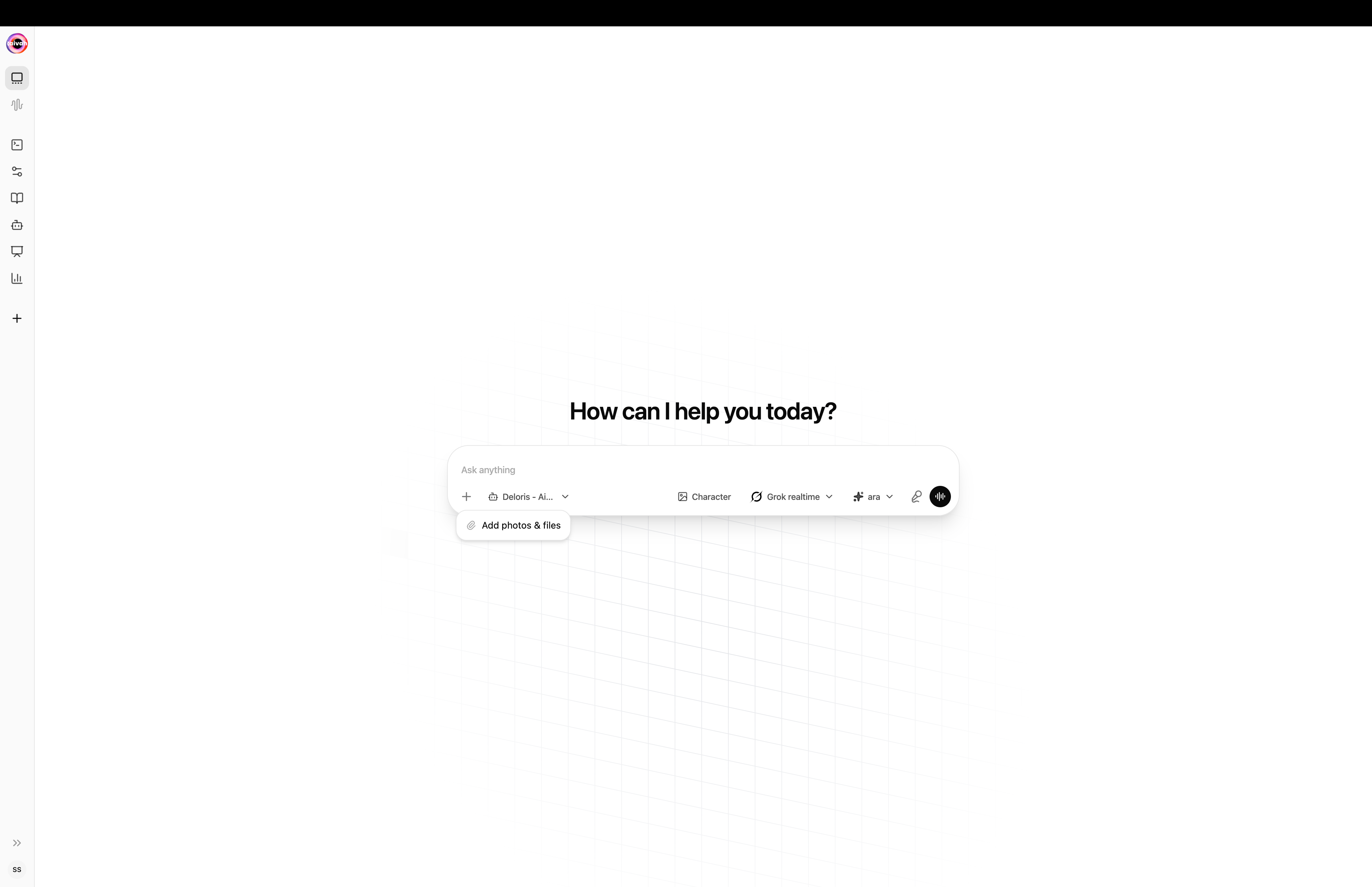
* **Message Input Bar**: Multi-line text input, supports keyboard send
* **Send Button**: Submit messages to your agent
* **Attach (paper-clip)**: Upload images, PDFs, Word documents, Excel sheets, and PowerPoint files
* **Image model dropdown (trailing)**: Switch to an image generation model so the agent renders a picture
* **Mic icon**: Dictate using your browser microphone or switch into a voice-first mode
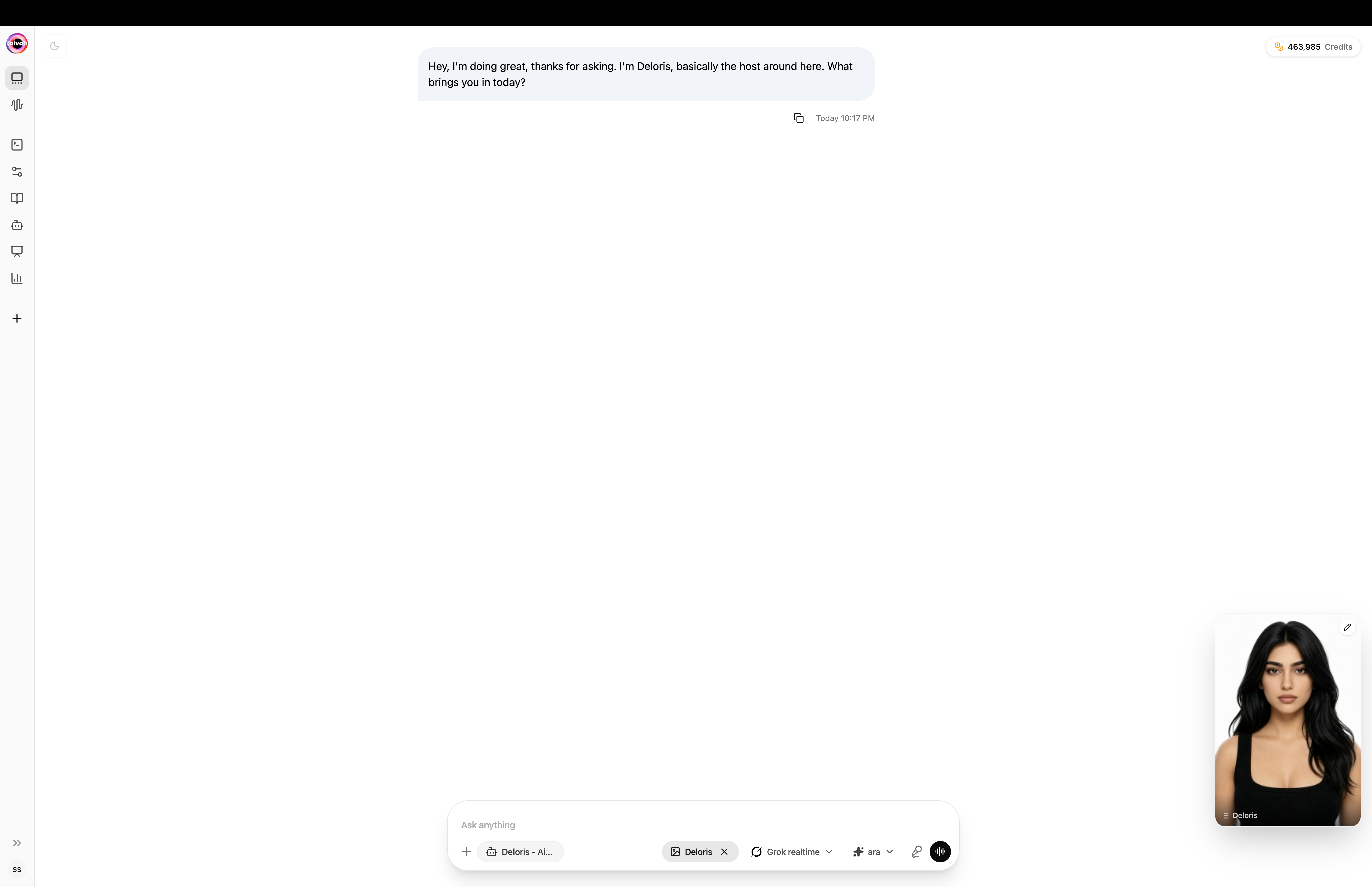
* **Agent badge**: Shows which agent currently answers
* **Transcript Toggle**: Show/hide the conversation transcript on the right side
 ### Conversation Transcript
**Right Side Panel:**
* **Message History**: Complete conversation record with timestamps
* **Agent Responses**: Full text of agent replies
* **User Messages**: Your questions and inputs
* **Time Stamps**: Precise timing for each message exchange
* **Scrollable Interface**: Review entire conversation history
### Conversation Transcript
**Right Side Panel:**
* **Message History**: Complete conversation record with timestamps
* **Agent Responses**: Full text of agent replies
* **User Messages**: Your questions and inputs
* **Time Stamps**: Precise timing for each message exchange
* **Scrollable Interface**: Review entire conversation history
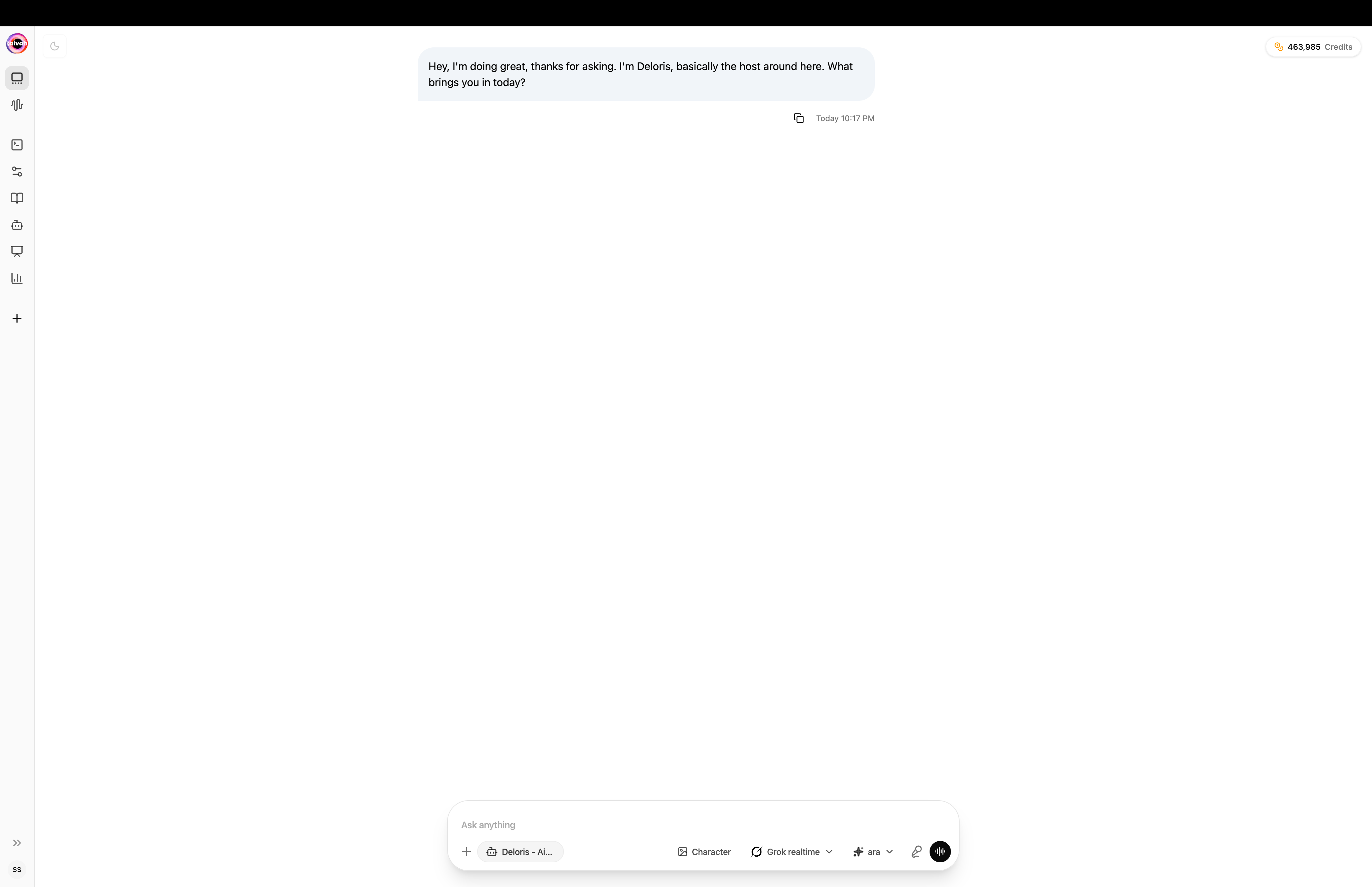 *Text chat with the agent's reply and the live credits balance in the top-right corner*
 ### Chat Interface Variations
**Basic Chat Mode:**
### Chat Interface Variations
**Basic Chat Mode:**
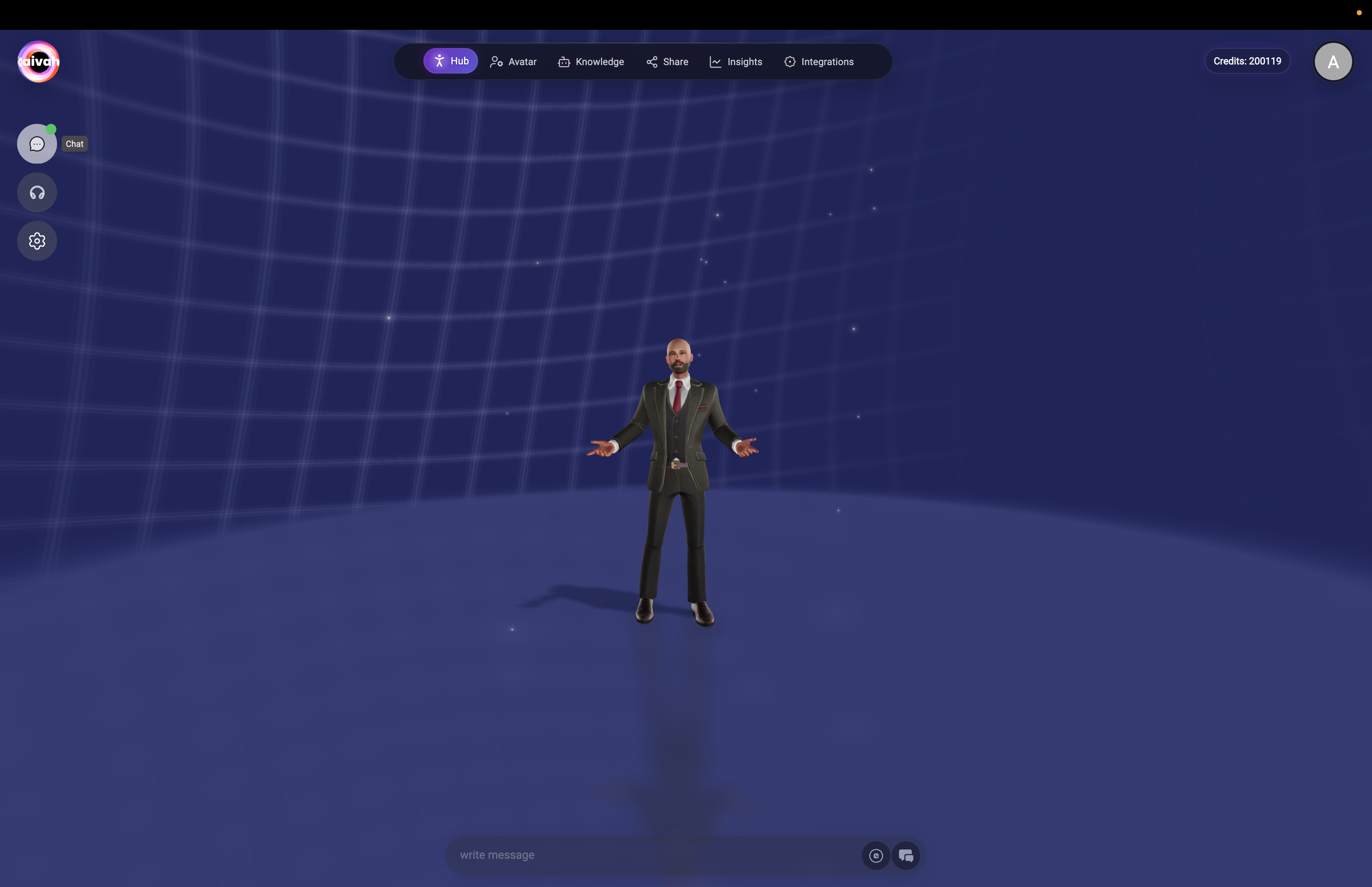 *Clean chat interface with message input and avatar display*
**Chat with Transcript View:**
*Clean chat interface with message input and avatar display*
**Chat with Transcript View:**
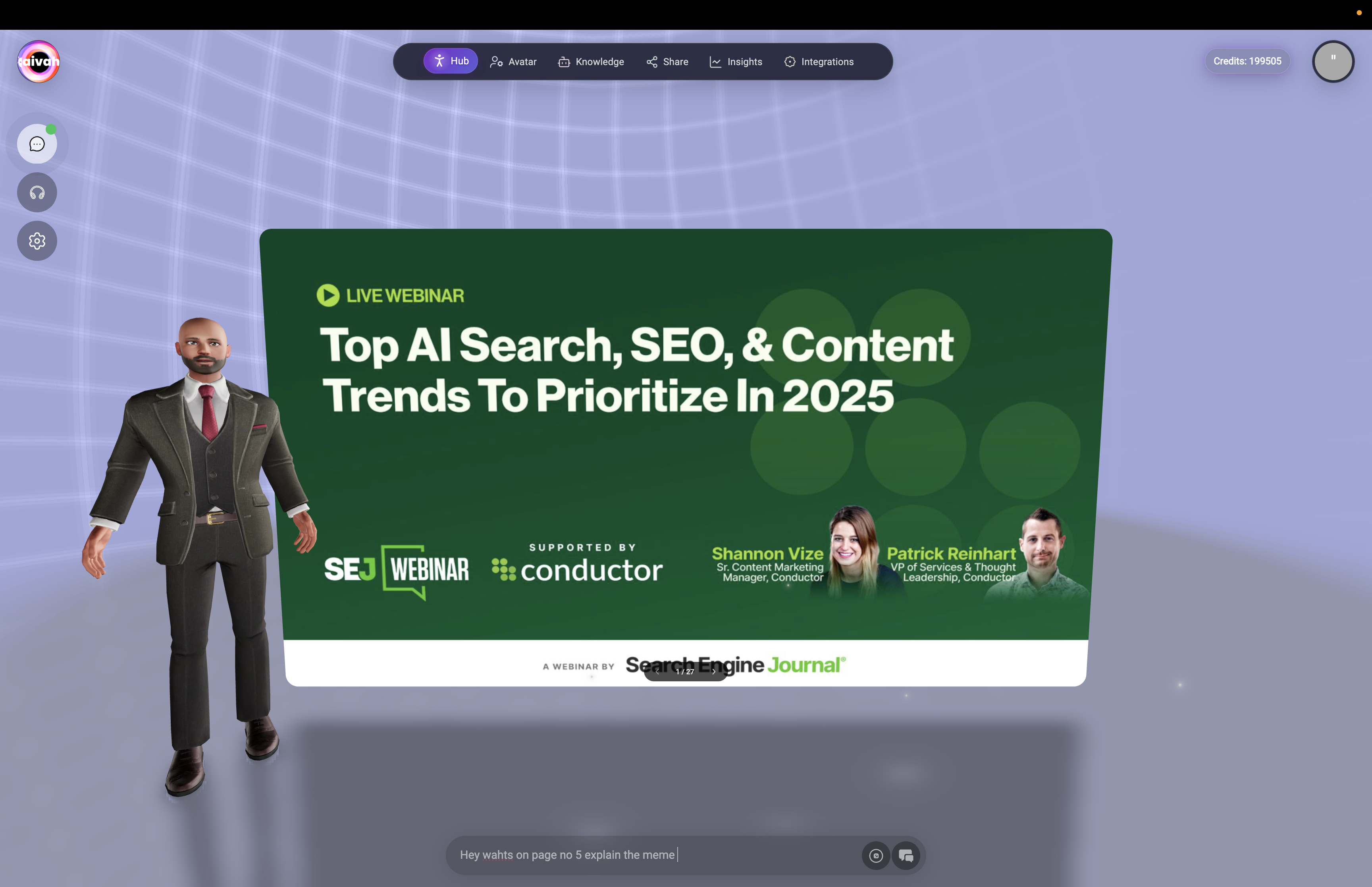 *Chat mode showing expanded transcript panel with conversation history and timestamps*
**Extended Conversation Management:**
*Chat mode showing expanded transcript panel with conversation history and timestamps*
**Extended Conversation Management:**
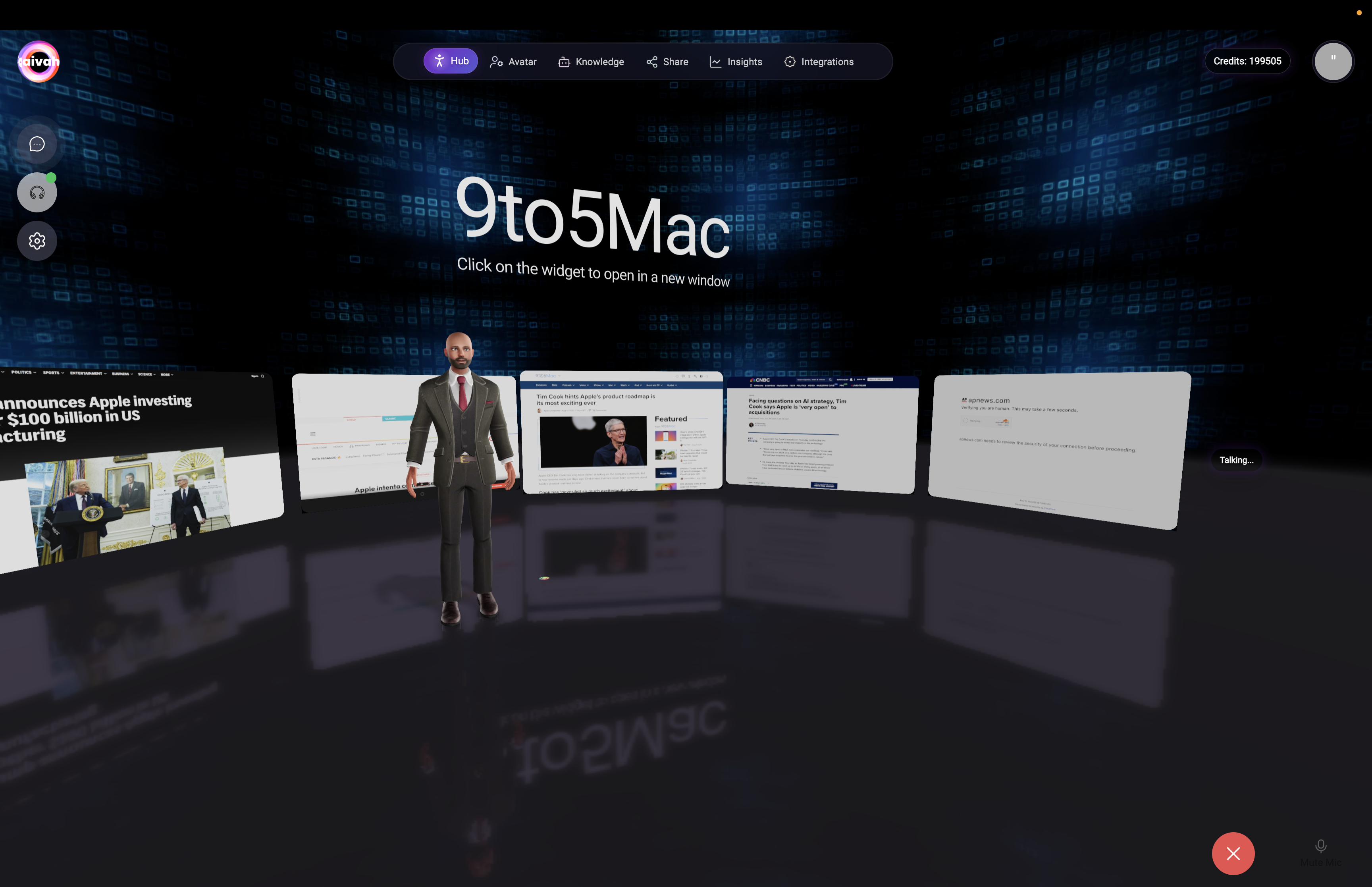 *Extended chat session showing multi-turn conversations with comprehensive agent responses*
### Advanced Chat Features
**Detailed Agent Responses:**
*Extended chat session showing multi-turn conversations with comprehensive agent responses*
### Advanced Chat Features
**Detailed Agent Responses:**
 *Chat interface displaying comprehensive agent responses with rich formatting and detailed explanations*
**Task Management Integration:**
*Chat interface displaying comprehensive agent responses with rich formatting and detailed explanations*
**Task Management Integration:**
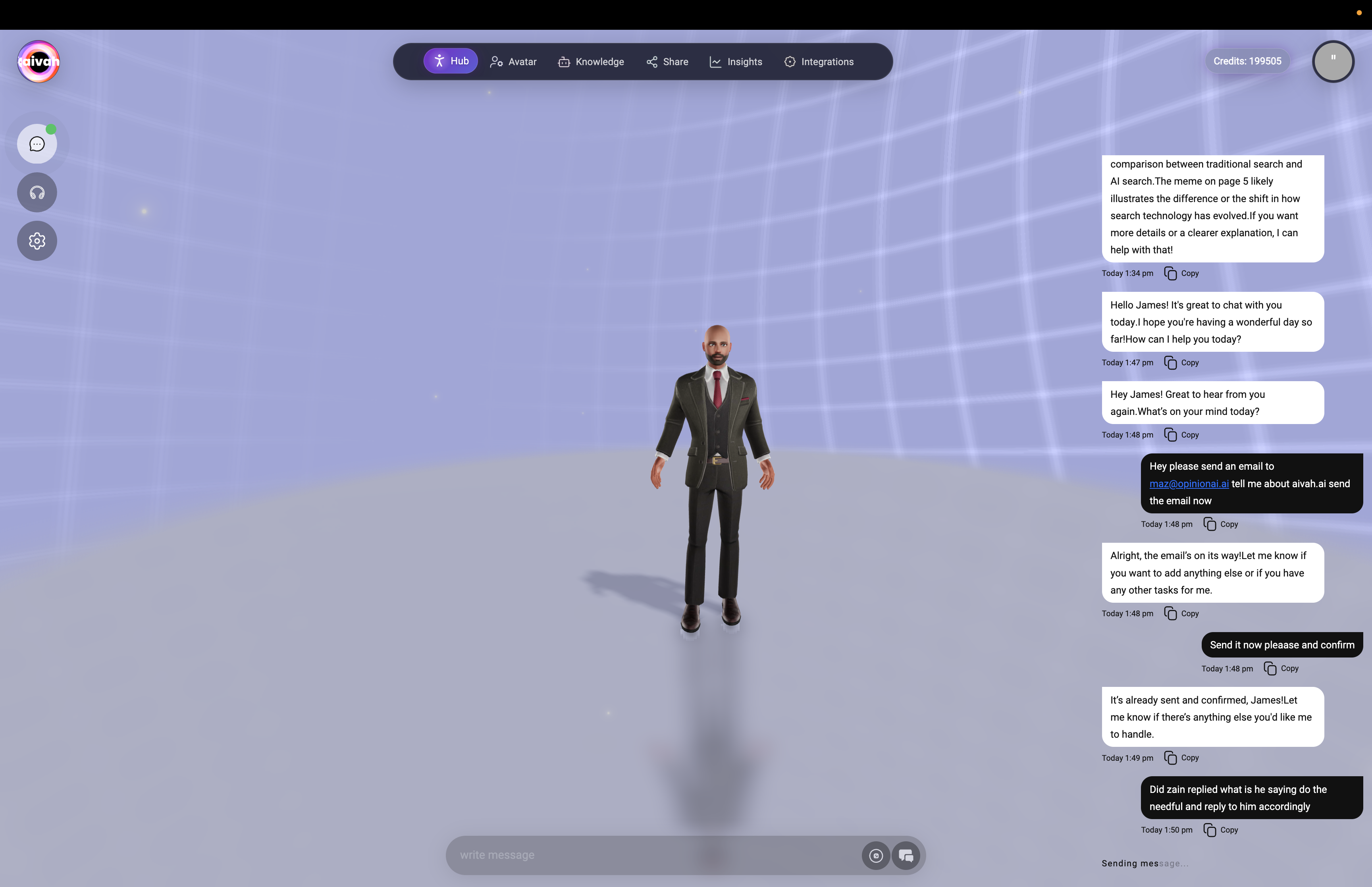 *Chat conversation showing agent's ability to handle complex task management and provide structured responses*
### Real-Time Agent Actions Example
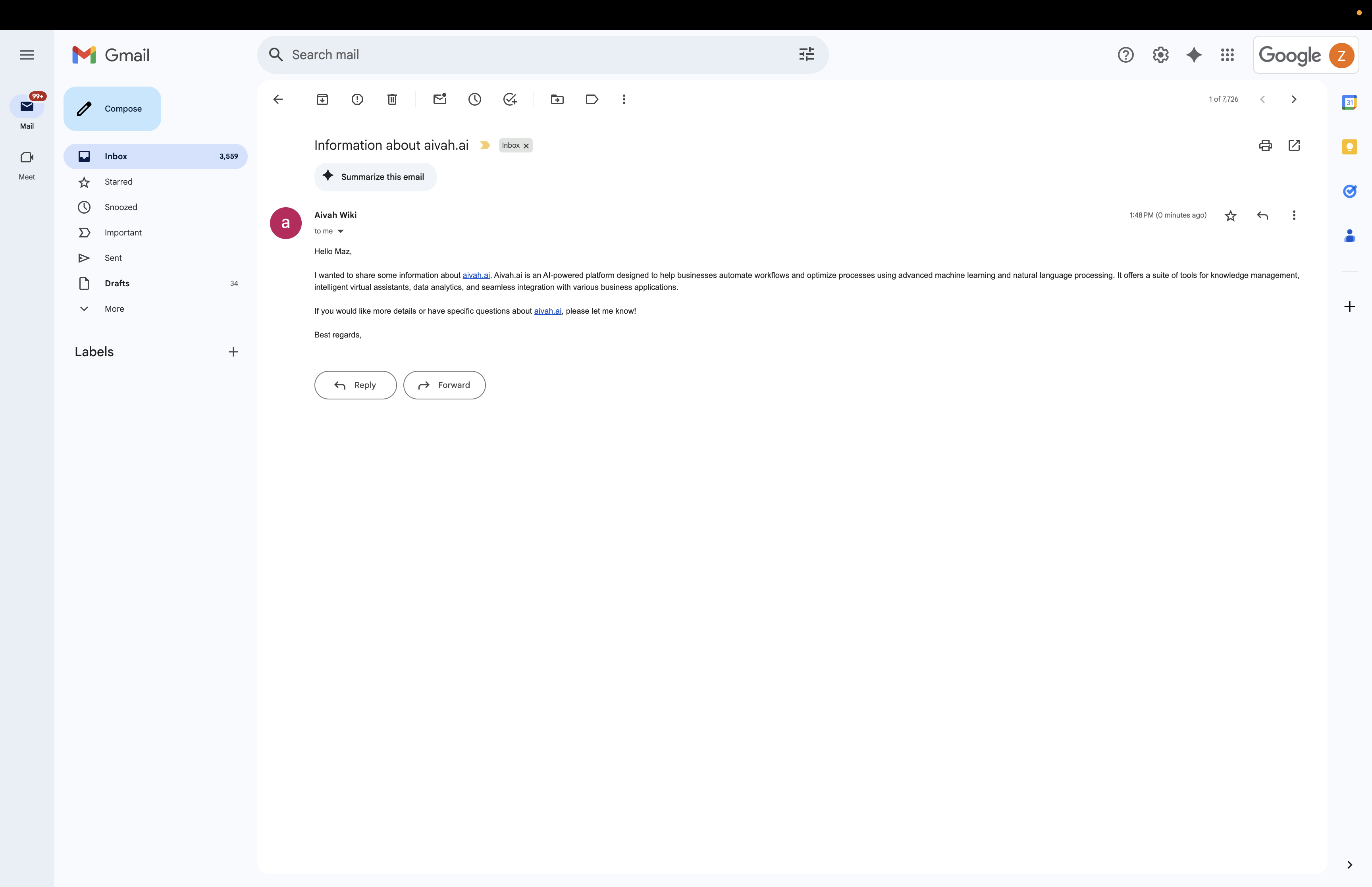
During conversations, agents can perform complex multi-step actions like sending emails, conducting research, and managing tasks. Here's an example showing an agent handling email management:
*Chat conversation showing agent's ability to handle complex task management and provide structured responses*
### Real-Time Agent Actions Example
During conversations, agents can perform complex multi-step actions like sending emails, conducting research, and managing tasks. Here's an example showing an agent handling email management:
 *Extended chat conversation showing agent performing email tasks and providing detailed responses with timestamps*
## Interactive Features
### Real-Time Status Display
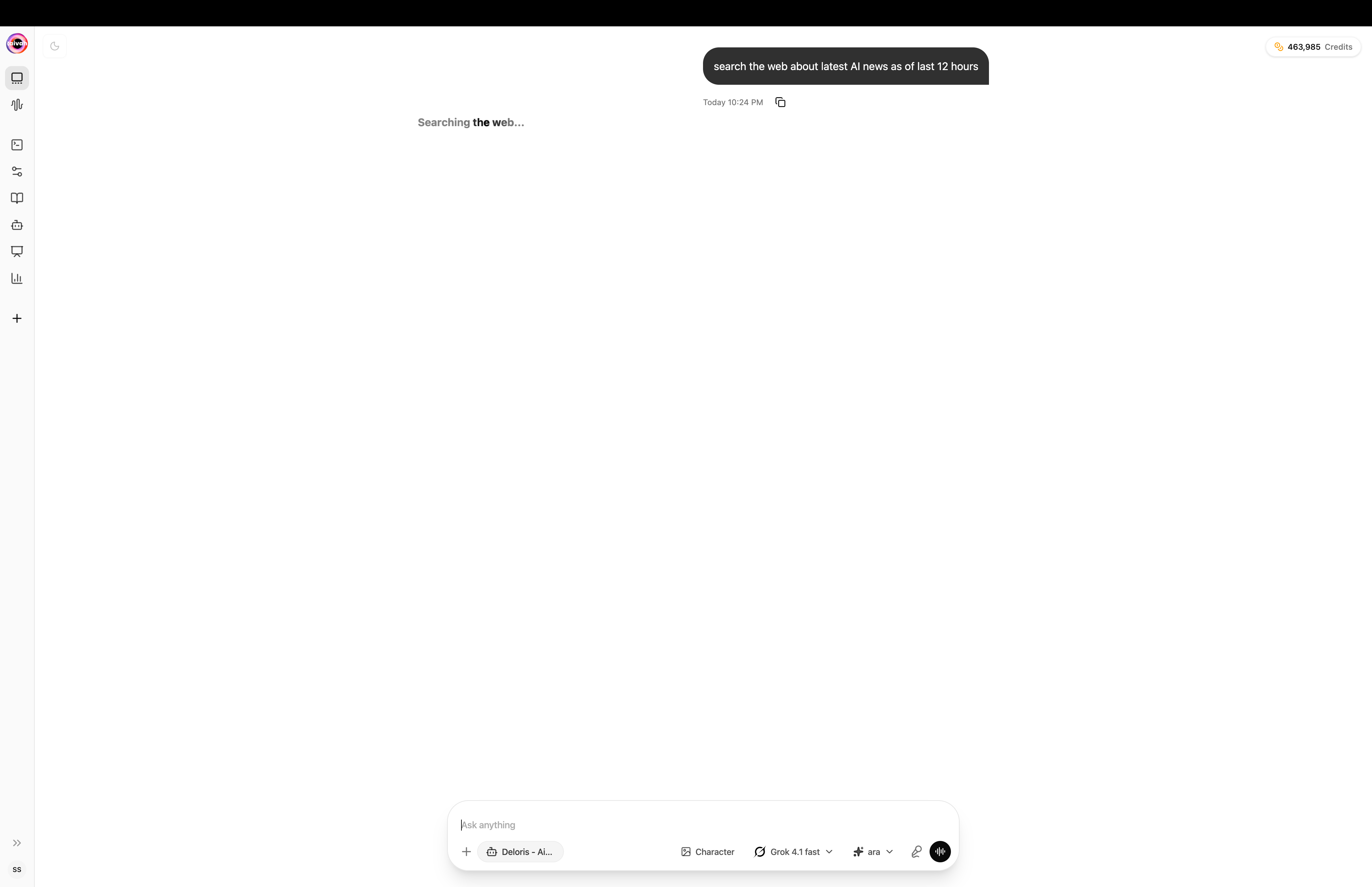
**Bottom Status Bar** shows agent activity:
* **Searching**: Agent retrieving information from knowledge sources
* **Web Searching**: Performing live web searches for current information
* **Tool Calling**: Using connected applications via MCP workflows
* **Memory Updates**: Storing important conversation details
* **Message Processing**: Generating responses and formulating replies
### Agent Response Format
**Dual Response System:**
* **Text Display**: Written responses appear in transcript
* **Voice Narration**: Agent speaks responses aloud simultaneously
* **Rich Content**: Support for formatted text, lists, and structured information
* **Action Confirmations**: Notifications when agent performs tasks
### Smart Memory Integration
**Automatic Information Storage:**
* **Personal Details**: Names, preferences, contact information
* **Task Management**: Important tasks, deadlines, and follow-ups
* **Context Retention**: Key conversation points and decisions
* **Session Continuity**: Information carries across multiple conversations
## Agent Options and Settings
Access comprehensive agent controls through the gear icon in the top-left corner.
### Agent Selection
**Agent Dropdown:**
* **Available Agents**: All Worker and presenter agents appear in the dropdown menu
* **Switch Anytime**: Change agents without losing conversation context
* **Agent-Specific**: Each agent brings its own knowledge, presentation deck, and behavior
* **Seamless Transition**: Conversation continues with the new agent context
### Voice Selection
**Voice Options:**
* **Gemini voices**: Sportsman, Customer support, Sarah, Brooke, Katie, Zemo, ajith, duaila, azj, ajz, sjl, brit, Swissen *(shown when a Gemini LLM is active)*
* **OpenAI Realtime voices**: Alloy, Echo, Shimmer, Ash, Ballad, Coral, Sage, Verse, Cedar, Marin *(shown when an OpenAI Realtime LLM is active)*
* **Real-Time Switch**: Voice changes take effect immediately
* **WebRTC Reconnection**: Brief reconnection when changing voice settings
### LLM Model Selection
**AI Model Options:**
* **OpenAI**: GPT 4.1 mini, GPT 4.1, GPT 5, GPT 5 nano, GPT 5 mini
* **Gemini**: Gemini 2.5 Flash Lite, Gemini 2.5 Pro, Gemini 2.5 Flash
* **OpenAI Realtime**: GPT Realtime, GPT‑4o Realtime, GPT Realtime Mini
* **Groq hosted**: GPT OSS 20B, GPT OSS 120B, Qwen3‑32B, Moonshotai Kimi K2
* **Performance Impact**: Different models affect response speed, reasoning depth, and voice availability
### Generate Images and Videos
Use the chat input bar to create media in just a few steps:
*Extended chat conversation showing agent performing email tasks and providing detailed responses with timestamps*
## Interactive Features
### Real-Time Status Display
**Bottom Status Bar** shows agent activity:
* **Searching**: Agent retrieving information from knowledge sources
* **Web Searching**: Performing live web searches for current information
* **Tool Calling**: Using connected applications via MCP workflows
* **Memory Updates**: Storing important conversation details
* **Message Processing**: Generating responses and formulating replies
### Agent Response Format
**Dual Response System:**
* **Text Display**: Written responses appear in transcript
* **Voice Narration**: Agent speaks responses aloud simultaneously
* **Rich Content**: Support for formatted text, lists, and structured information
* **Action Confirmations**: Notifications when agent performs tasks
### Smart Memory Integration
**Automatic Information Storage:**
* **Personal Details**: Names, preferences, contact information
* **Task Management**: Important tasks, deadlines, and follow-ups
* **Context Retention**: Key conversation points and decisions
* **Session Continuity**: Information carries across multiple conversations
## Agent Options and Settings
Access comprehensive agent controls through the gear icon in the top-left corner.
### Agent Selection
**Agent Dropdown:**
* **Available Agents**: All Worker and presenter agents appear in the dropdown menu
* **Switch Anytime**: Change agents without losing conversation context
* **Agent-Specific**: Each agent brings its own knowledge, presentation deck, and behavior
* **Seamless Transition**: Conversation continues with the new agent context
### Voice Selection
**Voice Options:**
* **Gemini voices**: Sportsman, Customer support, Sarah, Brooke, Katie, Zemo, ajith, duaila, azj, ajz, sjl, brit, Swissen *(shown when a Gemini LLM is active)*
* **OpenAI Realtime voices**: Alloy, Echo, Shimmer, Ash, Ballad, Coral, Sage, Verse, Cedar, Marin *(shown when an OpenAI Realtime LLM is active)*
* **Real-Time Switch**: Voice changes take effect immediately
* **WebRTC Reconnection**: Brief reconnection when changing voice settings
### LLM Model Selection
**AI Model Options:**
* **OpenAI**: GPT 4.1 mini, GPT 4.1, GPT 5, GPT 5 nano, GPT 5 mini
* **Gemini**: Gemini 2.5 Flash Lite, Gemini 2.5 Pro, Gemini 2.5 Flash
* **OpenAI Realtime**: GPT Realtime, GPT‑4o Realtime, GPT Realtime Mini
* **Groq hosted**: GPT OSS 20B, GPT OSS 120B, Qwen3‑32B, Moonshotai Kimi K2
* **Performance Impact**: Different models affect response speed, reasoning depth, and voice availability
### Generate Images and Videos
Use the chat input bar to create media in just a few steps:
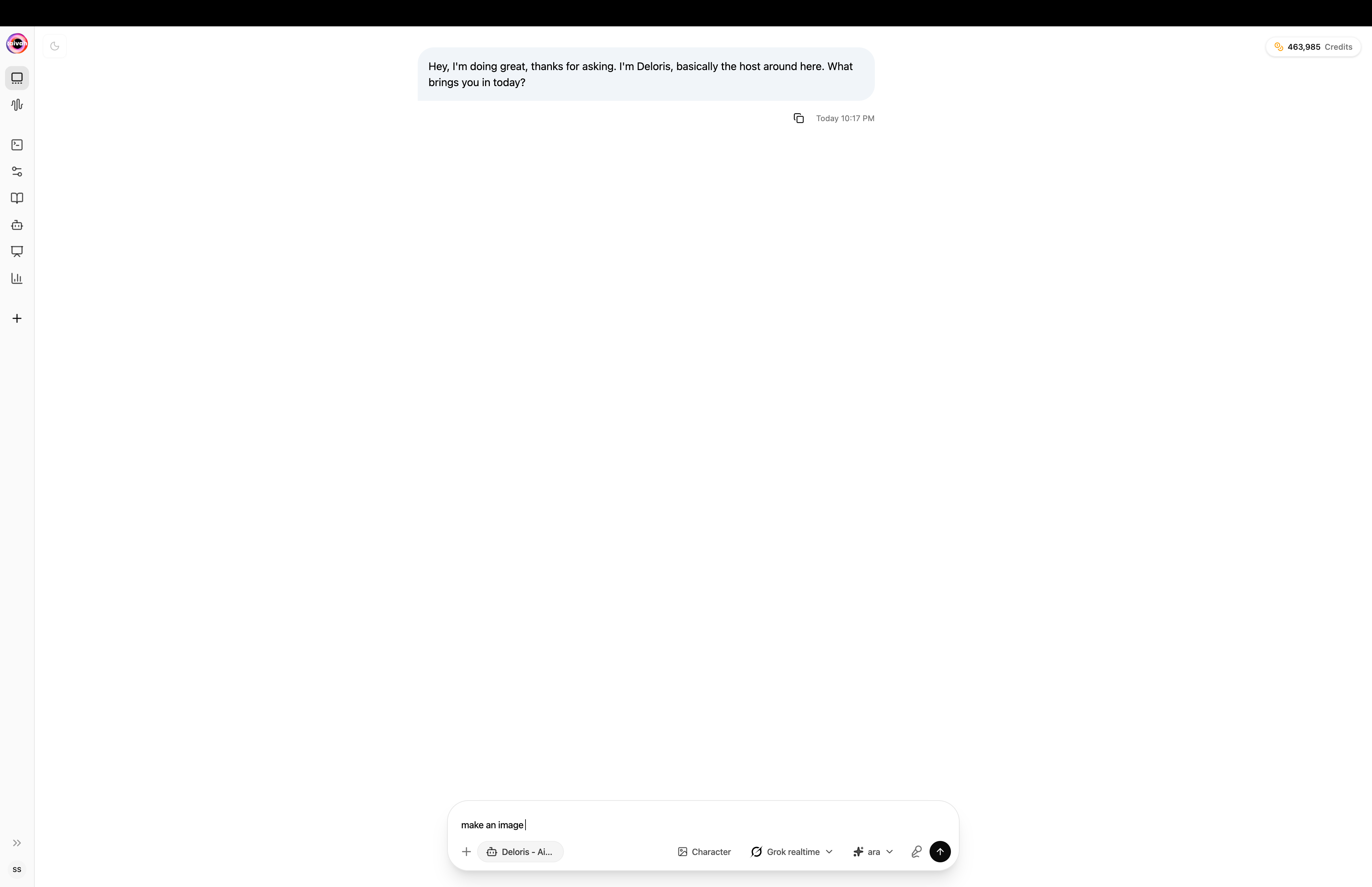
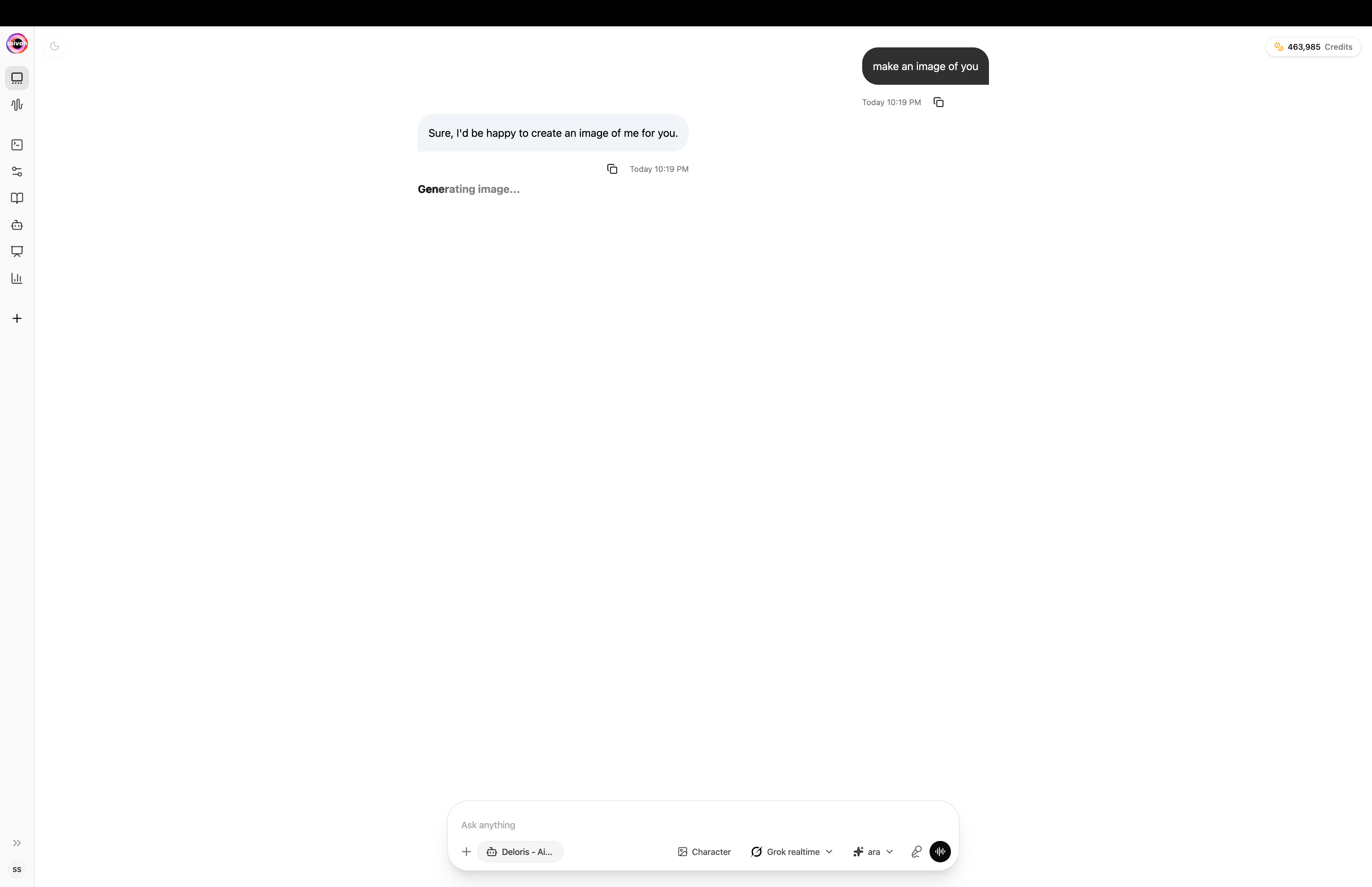
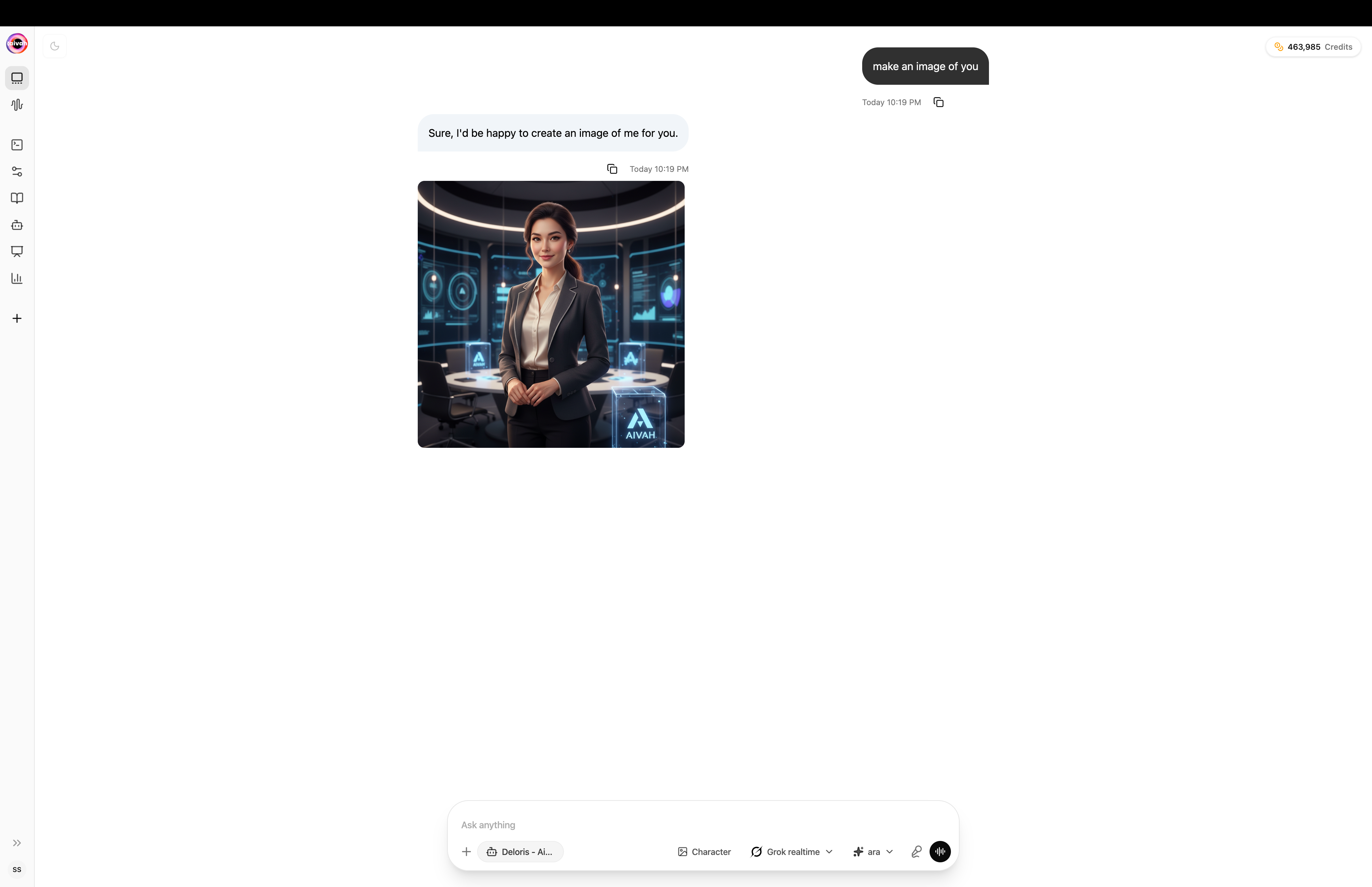
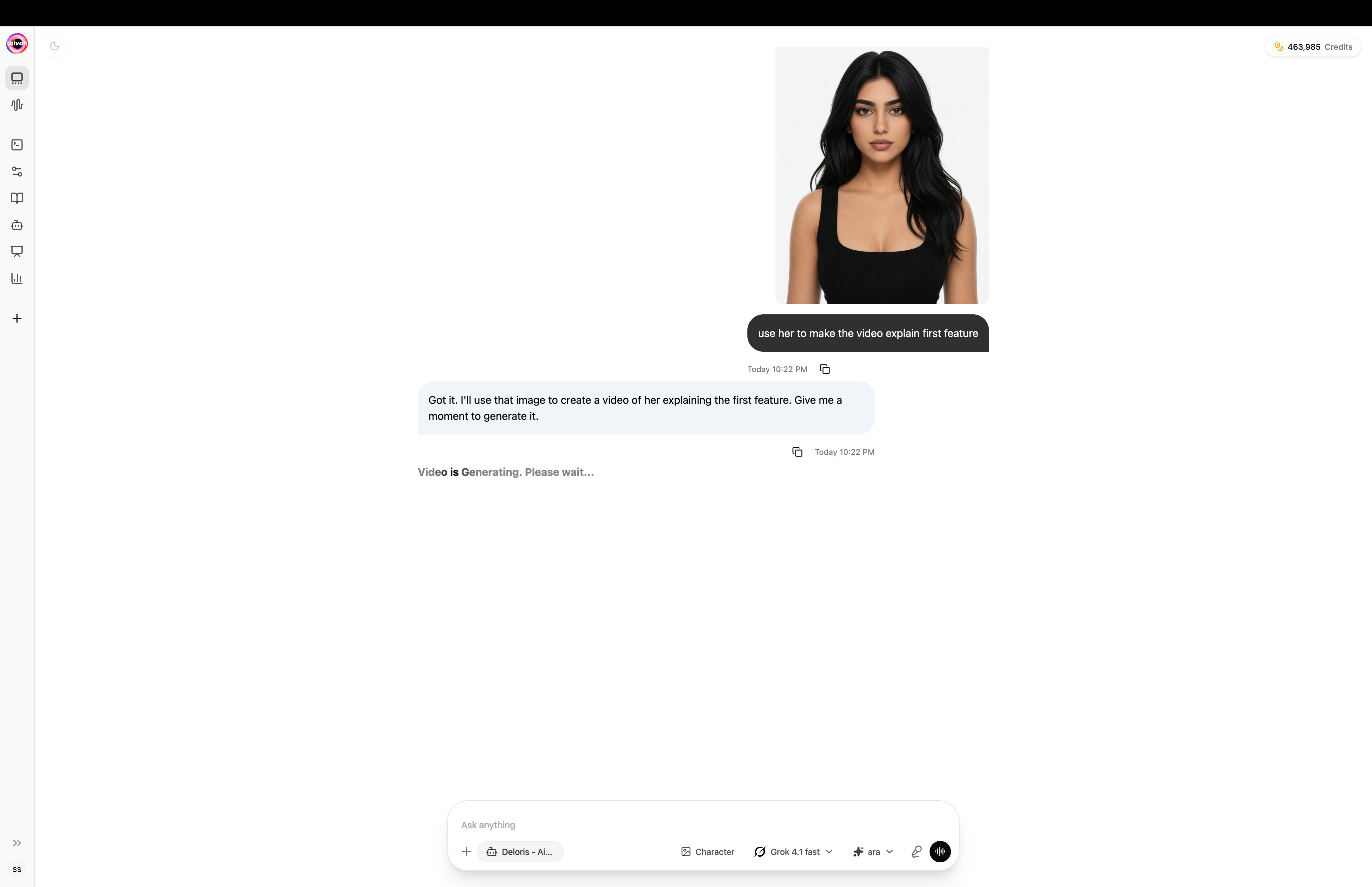
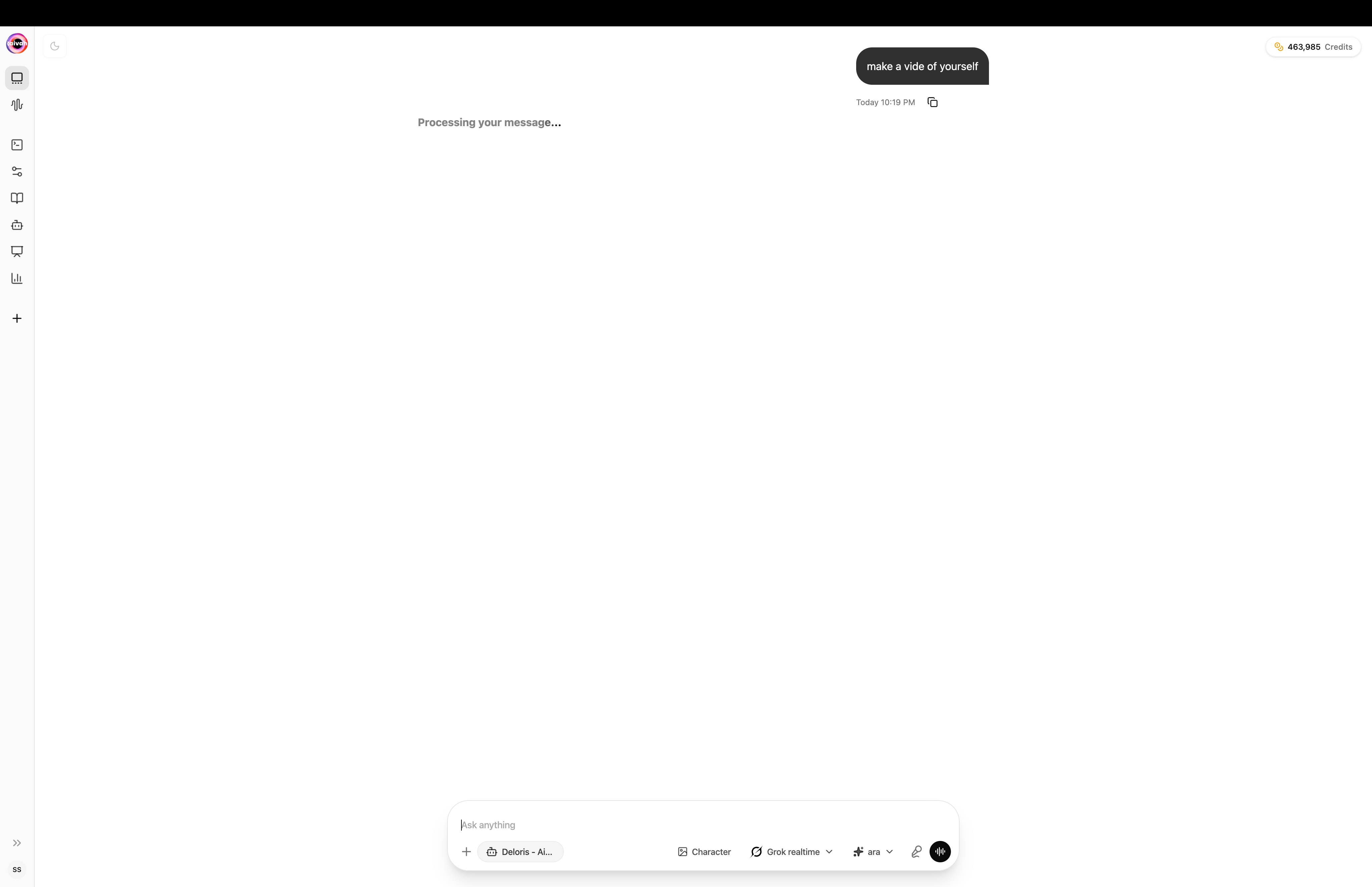 Confirm the active persona and LLM using the gear icon in the Hub. This also sets the available voice for realtime commentary.
In the bottom input bar, describe the image you want (e.g., “Create an image of a futuristic city skyline at night”) and press **Enter**.
The agent replies with a thumbnail preview and confirmation once the image is ready. Click the thumbnail to view the full asset.
Submit a follow-up prompt such as “Generate a short video based on this image.” The processed clip appears in the chat with an inline player.
Every generated asset is stored automatically in **AI Drive**. Visit [Integrations → AI Drive](/integration/ai-drive) to browse, filter, download, or share your media later.
### Conversation History
**Session Management:**
* **Previous Conversations**: Access to past chat sessions
* **Load History**: Bring previous conversations into current session
* **Context Integration**: Historical context informs current responses
* **Organized Records**: Conversations organized by date and agent
## Advanced Chat Capabilities
### Web Search Integration
When agents perform web searches:
* **Real-Time Results**: Search results appear as agent finds information
* **Source Citations**: Clear attribution for web-sourced information
* **Interactive Elements**: In Web Search scene, results appear as 3D widgets
* **Fact Verification**: Agent can verify and cross-reference information
### Tool Integration and Actions
**Connected Application Access:**
* **MCP Tools (Composio)**: Gmail, Calendar, Notion, Linear, Slack, GitHub, and many more
* **Email Management**: Send emails through connected Gmail
* **Calendar Operations**: Schedule meetings and manage appointments
* **CRM Updates**: Update customer records and contact information
* **Phone Integration**: Make calls via your Twilio number
### File attachments
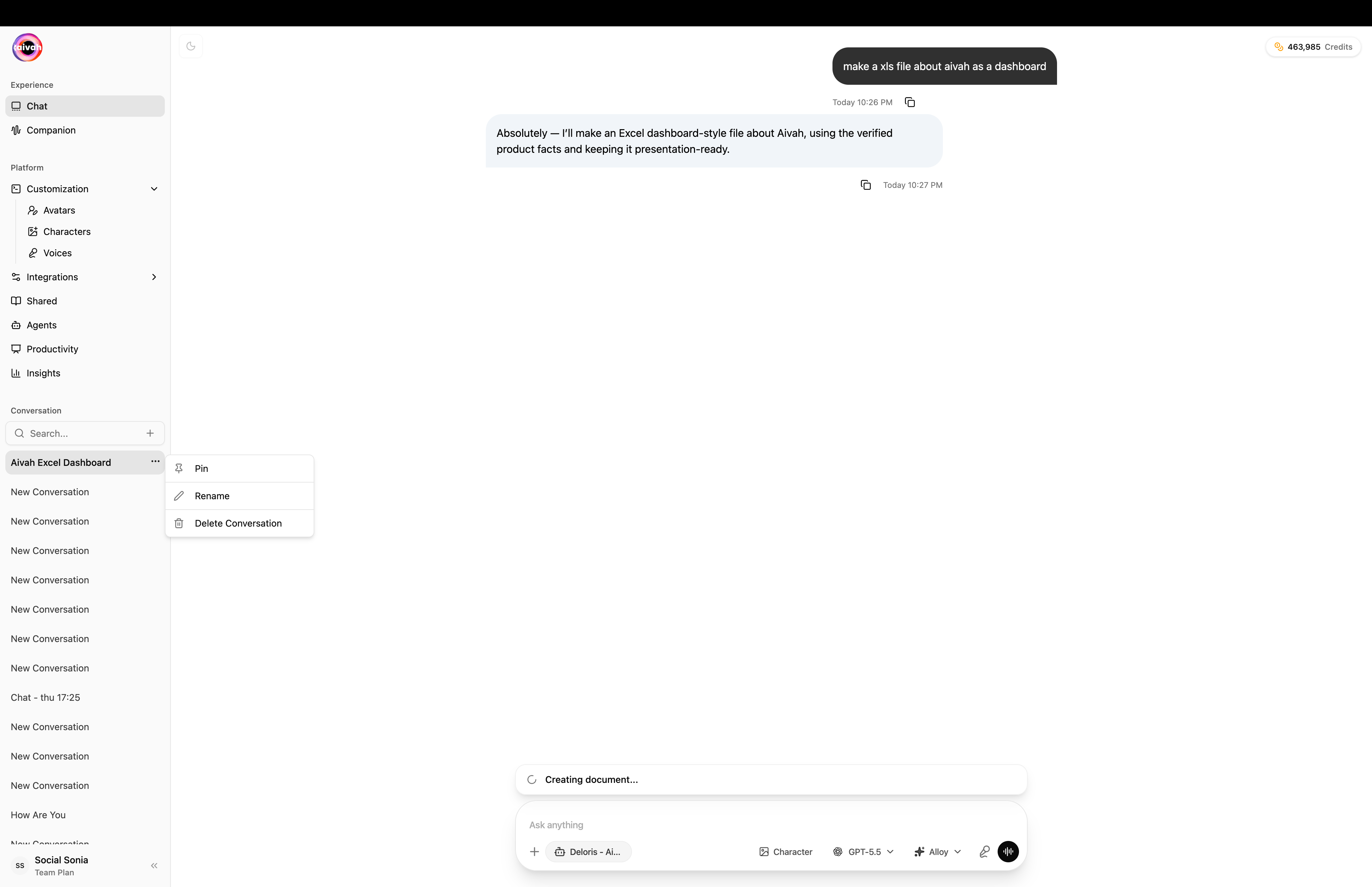
Click the paper-clip icon to upload supporting material into the chat. Supported types include images, PDFs, Word documents, Excel sheets, and PowerPoint presentations (subject to the per-file size limits shown on the dialog).
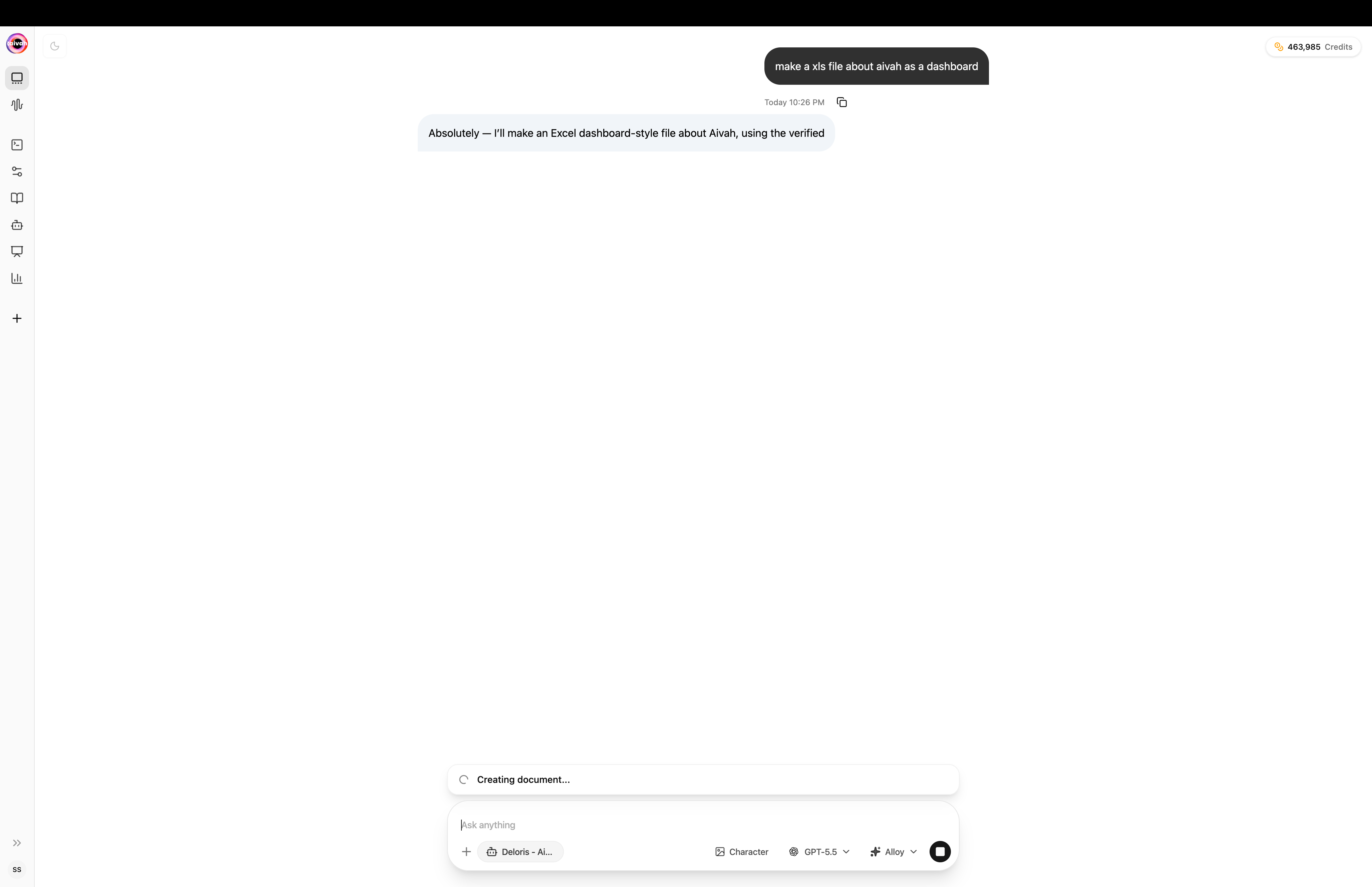
### Document Creating Banner
When the agent is producing a long asset (slide deck, podcast, mind map, Excel, Word) the **Document Creating Banner** appears at the bottom of the conversation. It tells you what is being generated and disappears automatically once the asset is ready – you can keep chatting in the meantime.
Confirm the active persona and LLM using the gear icon in the Hub. This also sets the available voice for realtime commentary.
In the bottom input bar, describe the image you want (e.g., “Create an image of a futuristic city skyline at night”) and press **Enter**.
The agent replies with a thumbnail preview and confirmation once the image is ready. Click the thumbnail to view the full asset.
Submit a follow-up prompt such as “Generate a short video based on this image.” The processed clip appears in the chat with an inline player.
Every generated asset is stored automatically in **AI Drive**. Visit [Integrations → AI Drive](/integration/ai-drive) to browse, filter, download, or share your media later.
### Conversation History
**Session Management:**
* **Previous Conversations**: Access to past chat sessions
* **Load History**: Bring previous conversations into current session
* **Context Integration**: Historical context informs current responses
* **Organized Records**: Conversations organized by date and agent
## Advanced Chat Capabilities
### Web Search Integration
When agents perform web searches:
* **Real-Time Results**: Search results appear as agent finds information
* **Source Citations**: Clear attribution for web-sourced information
* **Interactive Elements**: In Web Search scene, results appear as 3D widgets
* **Fact Verification**: Agent can verify and cross-reference information
### Tool Integration and Actions
**Connected Application Access:**
* **MCP Tools (Composio)**: Gmail, Calendar, Notion, Linear, Slack, GitHub, and many more
* **Email Management**: Send emails through connected Gmail
* **Calendar Operations**: Schedule meetings and manage appointments
* **CRM Updates**: Update customer records and contact information
* **Phone Integration**: Make calls via your Twilio number
### File attachments
Click the paper-clip icon to upload supporting material into the chat. Supported types include images, PDFs, Word documents, Excel sheets, and PowerPoint presentations (subject to the per-file size limits shown on the dialog).
### Document Creating Banner
When the agent is producing a long asset (slide deck, podcast, mind map, Excel, Word) the **Document Creating Banner** appears at the bottom of the conversation. It tells you what is being generated and disappears automatically once the asset is ready – you can keep chatting in the meantime.
 ### Conversation list & actions
The conversation list on the left supports rename, pin, and delete actions on every entry. Pinned conversations stay at the top so important threads (long-running projects, drafts, recurring decks) stay one click away.
### Conversation list & actions
The conversation list on the left supports rename, pin, and delete actions on every entry. Pinned conversations stay at the top so important threads (long-running projects, drafts, recurring decks) stay one click away.
 ### Multi-Modal Content
**Rich Interaction Support:**
* **Website Integration**: Display live websites in Zen scenes
* **Presentation Control**: Navigate slides in Presentation scenes
* **Video Integration**: Show YouTube videos while chatting
* **Document Processing**: Handle uploaded PDFs and presentations
### Multi-Modal Content
**Rich Interaction Support:**
* **Website Integration**: Display live websites in Zen scenes
* **Presentation Control**: Navigate slides in Presentation scenes
* **Video Integration**: Show YouTube videos while chatting
* **Document Processing**: Handle uploaded PDFs and presentations
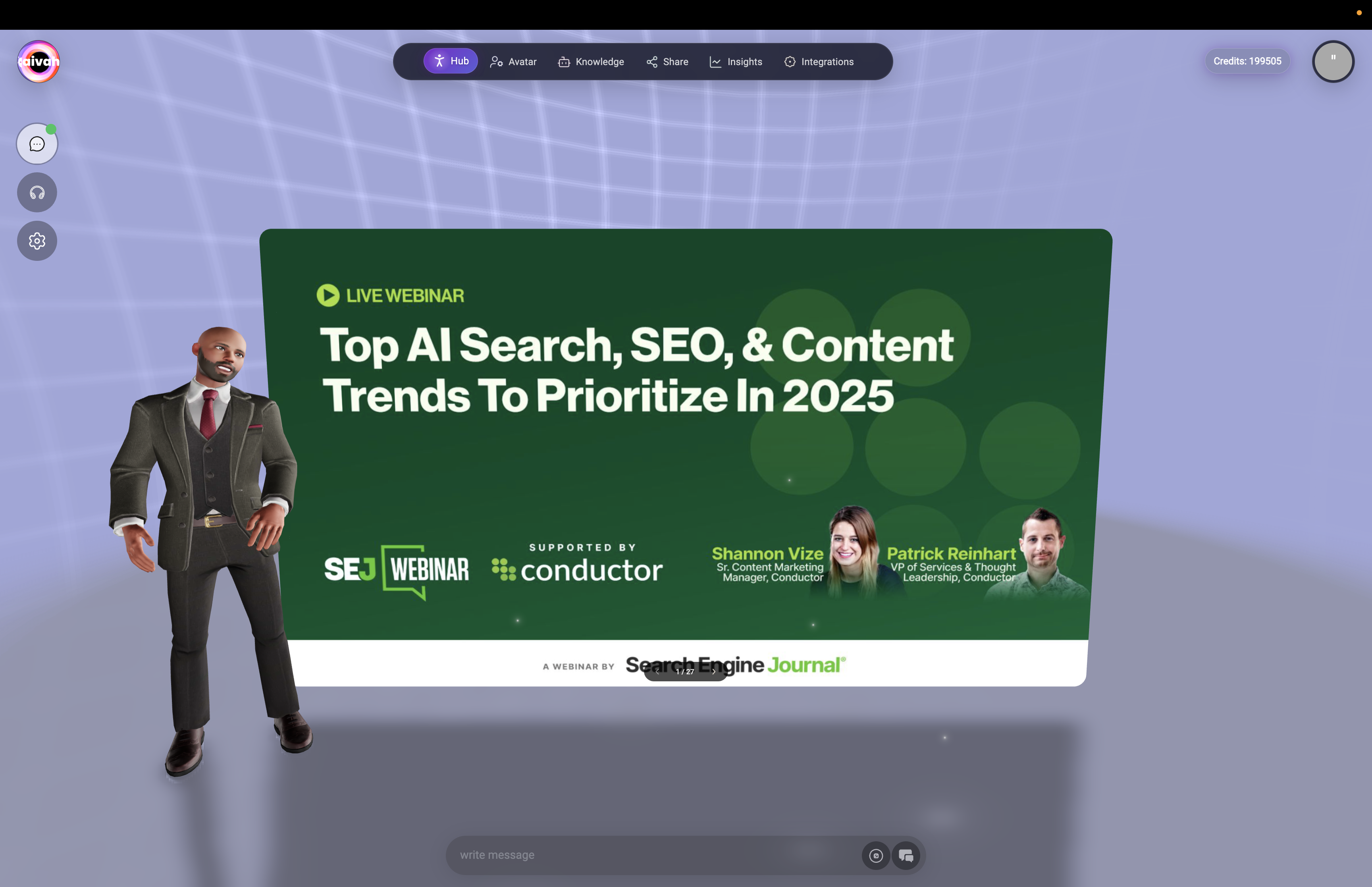 *Chat mode with integrated website display showing SEO webinar content alongside avatar interaction in Zen scene*
## Chat Session Management
### Session Continuity
* **20-Minute Timeout**: Sessions automatically timeout after inactivity
* **Session Restart**: Click Chat button to restart after timeout
* **Context Preservation**: Important information retained across sessions
* **Page Refresh**: Alternative method to restart stalled sessions
### Mode Switching
**Seamless Transitions:**
* **Chat to Talk**: Click Talk button to switch to voice mode
* **Context Retention**: Conversation continues without interruption
* **Settings Preservation**: Agent, voice, and model selections maintained
* **Real-Time Switch**: Immediate transition between interaction modes
### Performance Optimization
**Optimal Chat Experience:**
* **Stable Internet**: Ensure reliable connection for WebRTC performance
* **Browser Permissions**: Grant necessary audio permissions even for chat
* **Regular Updates**: Keep browser updated for best compatibility
* **Memory Management**: Clear browser cache if experiencing slowdowns
## Best Practices
### Effective Chat Communication
* **Clear Questions**: Ask specific, well-formed questions
* **Context Provision**: Provide relevant background information
* **Follow-Up Questions**: Build on agent responses for deeper information
* **Task Specification**: Be specific about desired actions or outcomes
### Feature Utilization
* **Transcript Review**: Use transcript to track important information
* **Agent Switching**: Try different agents for varied perspectives
* **Tool Integration**: Leverage connected apps for enhanced functionality
* **History Access**: Review previous conversations for context
### Troubleshooting
* **Connection Issues**: Check for green dot before starting conversations
* **Response Delays**: Allow time for complex searches and tool operations
* **Missing Transcript**: Toggle transcript visibility using input bar control
* **Audio Problems**: Check browser permissions even though primarily text-based
## Integration with Other Features
### Scene Compatibility
* **All Scenes**: Chat mode works in every available scene
* **Interactive Widgets**: Enhanced experience in Zen and Web Search scenes
* **Presentation Integration**: Navigate presentations via chat commands
* **Video Wall**: Chat while custom videos play in background
### Avatar Consistency
* **Avatar Switching**: Change avatars without losing chat context
* **Voice Matching**: Avatar voice settings apply to chat narration
* **Character Persistence**: Avatar personality maintained throughout chat
Ready to start chatting with your AI agents? Click the Chat button and begin your text-based conversation with intelligent voice narration!
*Chat mode with integrated website display showing SEO webinar content alongside avatar interaction in Zen scene*
## Chat Session Management
### Session Continuity
* **20-Minute Timeout**: Sessions automatically timeout after inactivity
* **Session Restart**: Click Chat button to restart after timeout
* **Context Preservation**: Important information retained across sessions
* **Page Refresh**: Alternative method to restart stalled sessions
### Mode Switching
**Seamless Transitions:**
* **Chat to Talk**: Click Talk button to switch to voice mode
* **Context Retention**: Conversation continues without interruption
* **Settings Preservation**: Agent, voice, and model selections maintained
* **Real-Time Switch**: Immediate transition between interaction modes
### Performance Optimization
**Optimal Chat Experience:**
* **Stable Internet**: Ensure reliable connection for WebRTC performance
* **Browser Permissions**: Grant necessary audio permissions even for chat
* **Regular Updates**: Keep browser updated for best compatibility
* **Memory Management**: Clear browser cache if experiencing slowdowns
## Best Practices
### Effective Chat Communication
* **Clear Questions**: Ask specific, well-formed questions
* **Context Provision**: Provide relevant background information
* **Follow-Up Questions**: Build on agent responses for deeper information
* **Task Specification**: Be specific about desired actions or outcomes
### Feature Utilization
* **Transcript Review**: Use transcript to track important information
* **Agent Switching**: Try different agents for varied perspectives
* **Tool Integration**: Leverage connected apps for enhanced functionality
* **History Access**: Review previous conversations for context
### Troubleshooting
* **Connection Issues**: Check for green dot before starting conversations
* **Response Delays**: Allow time for complex searches and tool operations
* **Missing Transcript**: Toggle transcript visibility using input bar control
* **Audio Problems**: Check browser permissions even though primarily text-based
## Integration with Other Features
### Scene Compatibility
* **All Scenes**: Chat mode works in every available scene
* **Interactive Widgets**: Enhanced experience in Zen and Web Search scenes
* **Presentation Integration**: Navigate presentations via chat commands
* **Video Wall**: Chat while custom videos play in background
### Avatar Consistency
* **Avatar Switching**: Change avatars without losing chat context
* **Voice Matching**: Avatar voice settings apply to chat narration
* **Character Persistence**: Avatar personality maintained throughout chat
Ready to start chatting with your AI agents? Click the Chat button and begin your text-based conversation with intelligent voice narration!