> ## Documentation Index
> Fetch the complete documentation index at: https://opinionai.mintlify.site/llms.txt
> Use this file to discover all available pages before exploring further.
# Channels (Slack & WhatsApp)
> Connect your agent to Slack and WhatsApp so it responds in your team's chat tools
# Channels
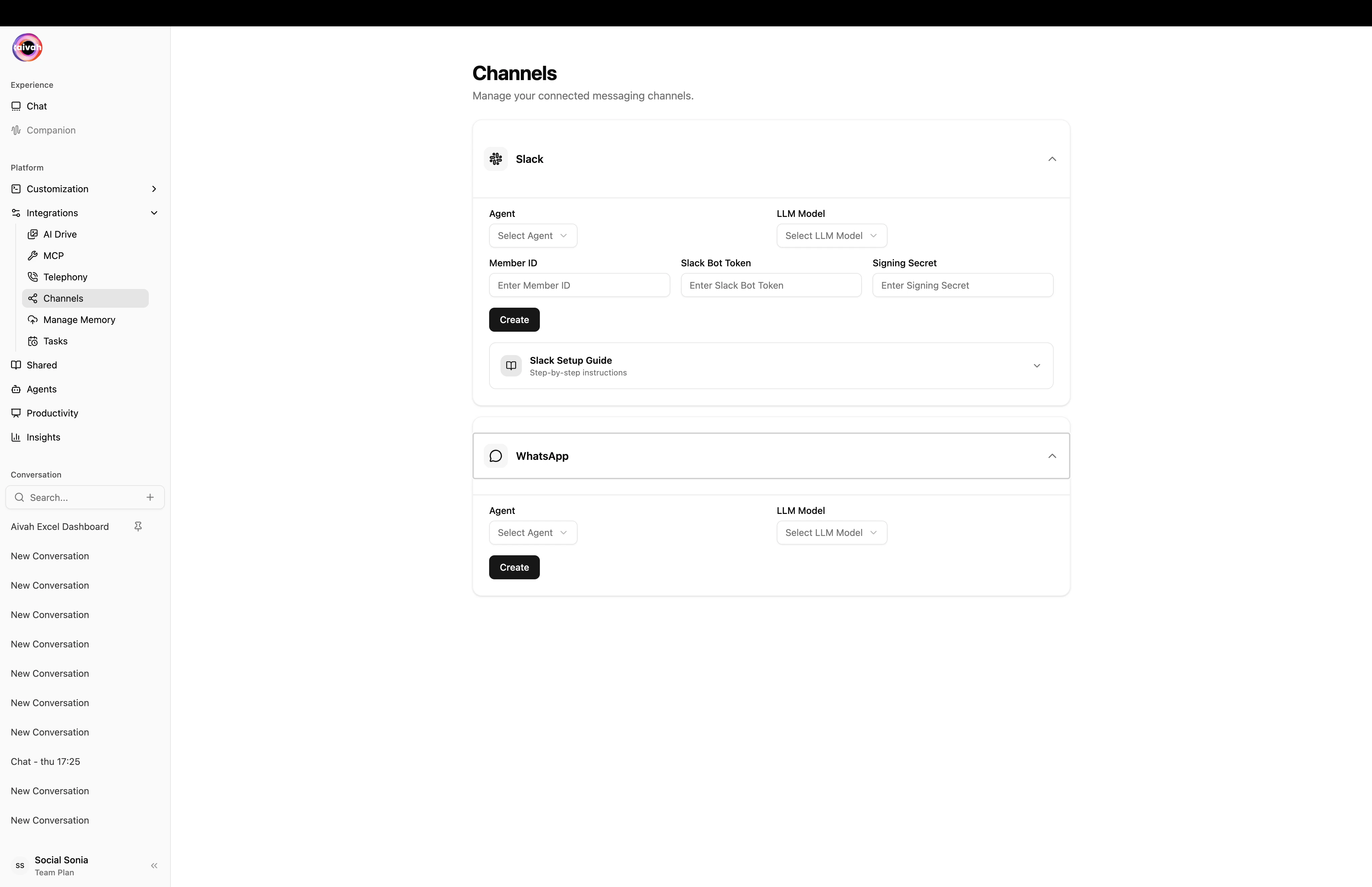
Aivah's **Channels** integration (`Side nav → Integrations → Channels`, or `/integrations/channels`) lets an agent respond directly inside the chat tools your audience already uses. Two channels are supported out of the box: **Slack** and **WhatsApp**.
Each channel appears as a collapsible card. Inside every card you select:
* **Agent** – which agent will respond on that channel
* **LLM model** – the model pinned to that channel for consistent behaviour
Toggle the **Active** switch to enable or disable a channel without losing its configuration.
 ## Slack
The Slack card includes a **Slack Setup Guide** that expands to step-by-step instructions. The configuration is a one-time exchange of three values between Slack and Aivah.
### What you'll need from Slack
| Value | Where to find it |
| ------------------ | --------------------------------------------------------------------------------------- |
| **Member ID** | Your Slack profile page (under the kebab menu → *Copy member ID*) |
| **Bot Token** | Slack app → *OAuth & Permissions* → *Install App* page, after installing to a workspace |
| **Signing Secret** | Slack app → *Basic Information* → *App Credentials* |
### Setup steps
Go to [https://api.slack.com/apps](https://api.slack.com/apps) and click **Create New App** → **From an app manifest**. Paste the **App Manifest** copied from the Slack card in Aivah.
The manifest pre-configures the bot scopes, the slash command `/aivah`, event subscriptions, and the request URL that points back to Aivah.
Inside the new Slack app, open **Install App** and authorize installation. Slack issues the **Bot Token** here.
Back in the Slack card on the Channels page, paste:
* **Member ID** – your Slack profile member id
* **Bot Token** – from Slack's *Install App* page
* **Signing Secret** – from Slack's *Basic Information → App Credentials*
Save the configuration.
In any Slack channel run `/invite @aivah-bot`. The bot only listens in channels it has been explicitly invited to.
Use `/aivah` followed by your question. The bot replies in-thread with the same intelligence as the agent in the Playground.
Flip the **Active** switch in the Slack card. The channel is now live.
### Troubleshooting Slack
* **Bot does not respond** – confirm the bot was invited (`/invite @aivah-bot`), the **Active** toggle is on in Aivah, and the *Bot Token* / *Signing Secret* you pasted match what Slack shows. Re-install the Slack app if you regenerated tokens.
* **Manifest changes** – if you edit the manifest after install, you'll be prompted to re-install. Repeat the steps above to refresh the tokens.
## WhatsApp
WhatsApp uses **QR pairing** – there are no tokens to copy. The Aivah card walks you through the handshake:
The panel switches to *Connecting…* and renders a **QR code**.
On your phone open **WhatsApp** → **Linked Devices** → **Link a device** → scan the QR.
The status flips to **Connected** and the card shows the linked phone number.
Two extra controls appear once paired:
* **Refresh** – fetches a new QR if the current one expires
* **Power** – disconnects the linked phone
Aivah polls WhatsApp pairing every 2 seconds during the connection flow, so the status updates almost in real time. If the QR expires before you scan it, just hit **Refresh** to mint a new one.
### Troubleshooting WhatsApp
* **QR expired** – click **Refresh** in the WhatsApp panel; a fresh QR is generated and the status returns to *qr\_ready*.
* **Phone shows "device removed"** – use **Power** to disconnect on the Aivah side, then re-run the **Connect** flow.
* **Messages stop arriving** – verify the linked phone is online and on a recent WhatsApp version. Pairings expire if the device stays offline for a long time.
## Per-channel agent & model
Both Slack and WhatsApp cards expose:
* **Agent** – select any agent in your workspace, including knowledge-base and presenter agents.
* **LLM model** – pin a model so the channel always speaks with the same brain.
You can run different agents on different channels (for example a sales agent on WhatsApp and an internal helper on Slack) without affecting the agents themselves.
## Related guides
* [Agents](/knowledge-agent/overview)
* [Twilio Phone Setup](/integration/twilio-phone-setup) for telephony
* [MCP Tools](/integration/mcp-tools) for extending the agent with external apps
## Slack
The Slack card includes a **Slack Setup Guide** that expands to step-by-step instructions. The configuration is a one-time exchange of three values between Slack and Aivah.
### What you'll need from Slack
| Value | Where to find it |
| ------------------ | --------------------------------------------------------------------------------------- |
| **Member ID** | Your Slack profile page (under the kebab menu → *Copy member ID*) |
| **Bot Token** | Slack app → *OAuth & Permissions* → *Install App* page, after installing to a workspace |
| **Signing Secret** | Slack app → *Basic Information* → *App Credentials* |
### Setup steps
Go to [https://api.slack.com/apps](https://api.slack.com/apps) and click **Create New App** → **From an app manifest**. Paste the **App Manifest** copied from the Slack card in Aivah.
The manifest pre-configures the bot scopes, the slash command `/aivah`, event subscriptions, and the request URL that points back to Aivah.
Inside the new Slack app, open **Install App** and authorize installation. Slack issues the **Bot Token** here.
Back in the Slack card on the Channels page, paste:
* **Member ID** – your Slack profile member id
* **Bot Token** – from Slack's *Install App* page
* **Signing Secret** – from Slack's *Basic Information → App Credentials*
Save the configuration.
In any Slack channel run `/invite @aivah-bot`. The bot only listens in channels it has been explicitly invited to.
Use `/aivah` followed by your question. The bot replies in-thread with the same intelligence as the agent in the Playground.
Flip the **Active** switch in the Slack card. The channel is now live.
### Troubleshooting Slack
* **Bot does not respond** – confirm the bot was invited (`/invite @aivah-bot`), the **Active** toggle is on in Aivah, and the *Bot Token* / *Signing Secret* you pasted match what Slack shows. Re-install the Slack app if you regenerated tokens.
* **Manifest changes** – if you edit the manifest after install, you'll be prompted to re-install. Repeat the steps above to refresh the tokens.
## WhatsApp
WhatsApp uses **QR pairing** – there are no tokens to copy. The Aivah card walks you through the handshake:
The panel switches to *Connecting…* and renders a **QR code**.
On your phone open **WhatsApp** → **Linked Devices** → **Link a device** → scan the QR.
The status flips to **Connected** and the card shows the linked phone number.
Two extra controls appear once paired:
* **Refresh** – fetches a new QR if the current one expires
* **Power** – disconnects the linked phone
Aivah polls WhatsApp pairing every 2 seconds during the connection flow, so the status updates almost in real time. If the QR expires before you scan it, just hit **Refresh** to mint a new one.
### Troubleshooting WhatsApp
* **QR expired** – click **Refresh** in the WhatsApp panel; a fresh QR is generated and the status returns to *qr\_ready*.
* **Phone shows "device removed"** – use **Power** to disconnect on the Aivah side, then re-run the **Connect** flow.
* **Messages stop arriving** – verify the linked phone is online and on a recent WhatsApp version. Pairings expire if the device stays offline for a long time.
## Per-channel agent & model
Both Slack and WhatsApp cards expose:
* **Agent** – select any agent in your workspace, including knowledge-base and presenter agents.
* **LLM model** – pin a model so the channel always speaks with the same brain.
You can run different agents on different channels (for example a sales agent on WhatsApp and an internal helper on Slack) without affecting the agents themselves.
## Related guides
* [Agents](/knowledge-agent/overview)
* [Twilio Phone Setup](/integration/twilio-phone-setup) for telephony
* [MCP Tools](/integration/mcp-tools) for extending the agent with external apps