> ## Documentation Index
> Fetch the complete documentation index at: https://opinionai.mintlify.site/llms.txt
> Use this file to discover all available pages before exploring further.
# Overview
> Monitor engagement, data access, and usage controls for every agent
# Insights Overview
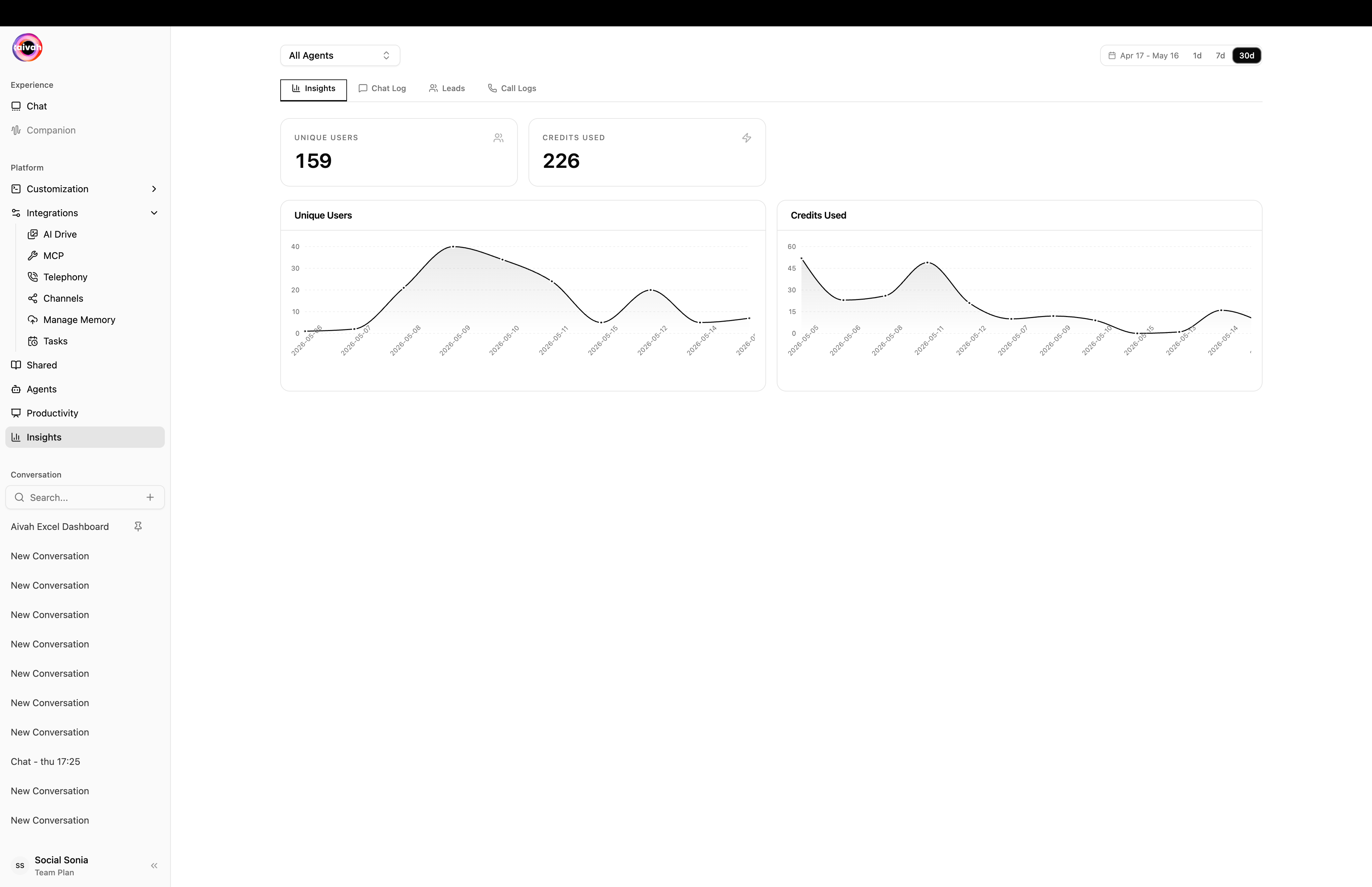
The Insights workspace (`Side nav → Insights`, or `/insights`) centralizes analytics and operational controls for every agent. A shared filter bar lives at the top of every tab:
* **Agent select** – choose *All Agents* or a specific agent.
* **Date filter** – pick *Today*, *Yesterday*, *Last 7 days*, *Last 30 days*, or *Custom* (with from/to date pickers). The active label appears next to the date dropdown so you always know which range you are viewing.
Tabs across the top – **Insights**, **Chat Log**, **Leads**, and **Call Logs** – respect those filters. Each tab focuses on a distinct area of performance or governance.
 ## Navigating the Module
1. Click **Insights** in the side navigation.
2. Choose an agent (or *All Agents*) and the date range you care about.
3. Switch tabs to see the matching summary, transcripts, lead submissions, or call records.
4. Browse each tab for the perspective you need:
* **Insights** → usage trends and user counts
* **Privacy** → public/private visibility
* **Setting** → agent status and credit budgets
* **Chat log** → transcript review and export
* **Leads** → captured contact information
* **Call Logs** → telephony session history
5. Use the export buttons where available to grab offline copies.
Below is a closer look at what each tab provides.
## Tab Reference
### 1. Insights (Default View)
* Shows a line graph of **Credits used** over time (hover for exact values).
* Summarizes **Unique users** for the selected range (displays “No data” if there were no interactions).
* Ideal for monitoring engagement trends and credit consumption.
* Related guide: [Agent Analytics](/insights/agent-analytics)
### 2. Privacy
* Toggle the agent between **Private** (internal-only access) and **Public** (shareable externally).
* Useful when publishing agents to the web or restricting experiments to internal testers.
* Related guide: [Privacy](/insights/privacy)
### 3. Setting
* Toggle the agent **On/Off** to pause or reactivate it.
* Set a **Maximum credits** limit and click **Update** to enforce usage budgets.
* Helps contain costs and prevent runaway spend during testing or high-traffic periods.
### 4. Chat log
* Lists conversation transcripts for the chosen date range.
* Export options:
* **Export Conversations** – download full transcripts.
* **Export Unattended** – isolate chats where the agent could not respond.
* Related guide: [Chat Log](/insights/chat-log)
* Displays “No data” if no chats occurred in the timeframe.
### 5. Leads
* Surfaces names, emails, and other lead data captured through agent forms or conversations.
* Use **Download all** to export the entire leads dataset.
* Shows “No data” if no leads were collected.
* Related guide: [Leads](/insights/leads)
### 6. Call Logs
* Records metadata for voice/video calls handled by the agent.
* Provides an **Export Call Logs** option to download call records.
* Displays “No data” when the agent has not handled calls.
* Related guide: [Call Logs](/insights/call-logs)
## Best Practices
* **Schedule Reviews**: Check Insights regularly to catch engagement spikes or drops.
* **Budget Wisely**: Set credit caps in **Setting** before campaigns or demos.
* **Archive Transcripts**: Download chat logs for audits or training improvements.
* **Track Lead Flow**: Sync the **Leads** export with your CRM to keep pipelines current.
* **Monitor Call Quality**: Audit call logs to evaluate telephony performance and escalation needs.
When you need more detail, jump into the dedicated guides for each tab:
* [Agent Analytics](/insights/agent-analytics)
* [Privacy](/insights/privacy)
* [Chat Log](/insights/chat-log)
* [Leads](/insights/leads)
* [Call Logs](/insights/call-logs)
Together, these tools ensure you understand how every agent is performing and give you the levers to adjust access, usage, and accountability on demand.
## Navigating the Module
1. Click **Insights** in the side navigation.
2. Choose an agent (or *All Agents*) and the date range you care about.
3. Switch tabs to see the matching summary, transcripts, lead submissions, or call records.
4. Browse each tab for the perspective you need:
* **Insights** → usage trends and user counts
* **Privacy** → public/private visibility
* **Setting** → agent status and credit budgets
* **Chat log** → transcript review and export
* **Leads** → captured contact information
* **Call Logs** → telephony session history
5. Use the export buttons where available to grab offline copies.
Below is a closer look at what each tab provides.
## Tab Reference
### 1. Insights (Default View)
* Shows a line graph of **Credits used** over time (hover for exact values).
* Summarizes **Unique users** for the selected range (displays “No data” if there were no interactions).
* Ideal for monitoring engagement trends and credit consumption.
* Related guide: [Agent Analytics](/insights/agent-analytics)
### 2. Privacy
* Toggle the agent between **Private** (internal-only access) and **Public** (shareable externally).
* Useful when publishing agents to the web or restricting experiments to internal testers.
* Related guide: [Privacy](/insights/privacy)
### 3. Setting
* Toggle the agent **On/Off** to pause or reactivate it.
* Set a **Maximum credits** limit and click **Update** to enforce usage budgets.
* Helps contain costs and prevent runaway spend during testing or high-traffic periods.
### 4. Chat log
* Lists conversation transcripts for the chosen date range.
* Export options:
* **Export Conversations** – download full transcripts.
* **Export Unattended** – isolate chats where the agent could not respond.
* Related guide: [Chat Log](/insights/chat-log)
* Displays “No data” if no chats occurred in the timeframe.
### 5. Leads
* Surfaces names, emails, and other lead data captured through agent forms or conversations.
* Use **Download all** to export the entire leads dataset.
* Shows “No data” if no leads were collected.
* Related guide: [Leads](/insights/leads)
### 6. Call Logs
* Records metadata for voice/video calls handled by the agent.
* Provides an **Export Call Logs** option to download call records.
* Displays “No data” when the agent has not handled calls.
* Related guide: [Call Logs](/insights/call-logs)
## Best Practices
* **Schedule Reviews**: Check Insights regularly to catch engagement spikes or drops.
* **Budget Wisely**: Set credit caps in **Setting** before campaigns or demos.
* **Archive Transcripts**: Download chat logs for audits or training improvements.
* **Track Lead Flow**: Sync the **Leads** export with your CRM to keep pipelines current.
* **Monitor Call Quality**: Audit call logs to evaluate telephony performance and escalation needs.
When you need more detail, jump into the dedicated guides for each tab:
* [Agent Analytics](/insights/agent-analytics)
* [Privacy](/insights/privacy)
* [Chat Log](/insights/chat-log)
* [Leads](/insights/leads)
* [Call Logs](/insights/call-logs)
Together, these tools ensure you understand how every agent is performing and give you the levers to adjust access, usage, and accountability on demand.