> ## Documentation Index
> Fetch the complete documentation index at: https://opinionai.mintlify.site/llms.txt
> Use this file to discover all available pages before exploring further.
# Chat Log
> Review, filter, and export conversation transcripts
# Chat Log
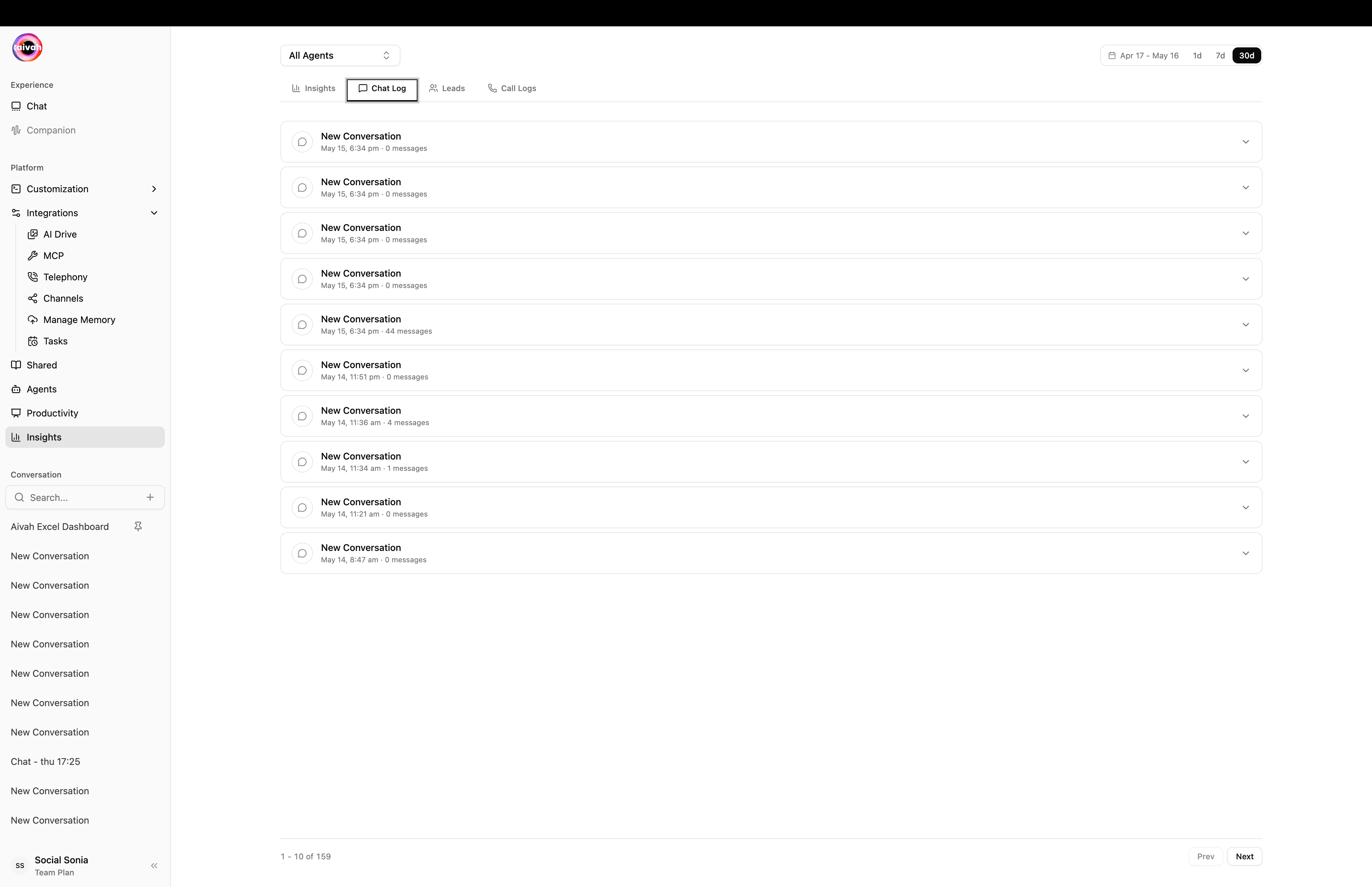
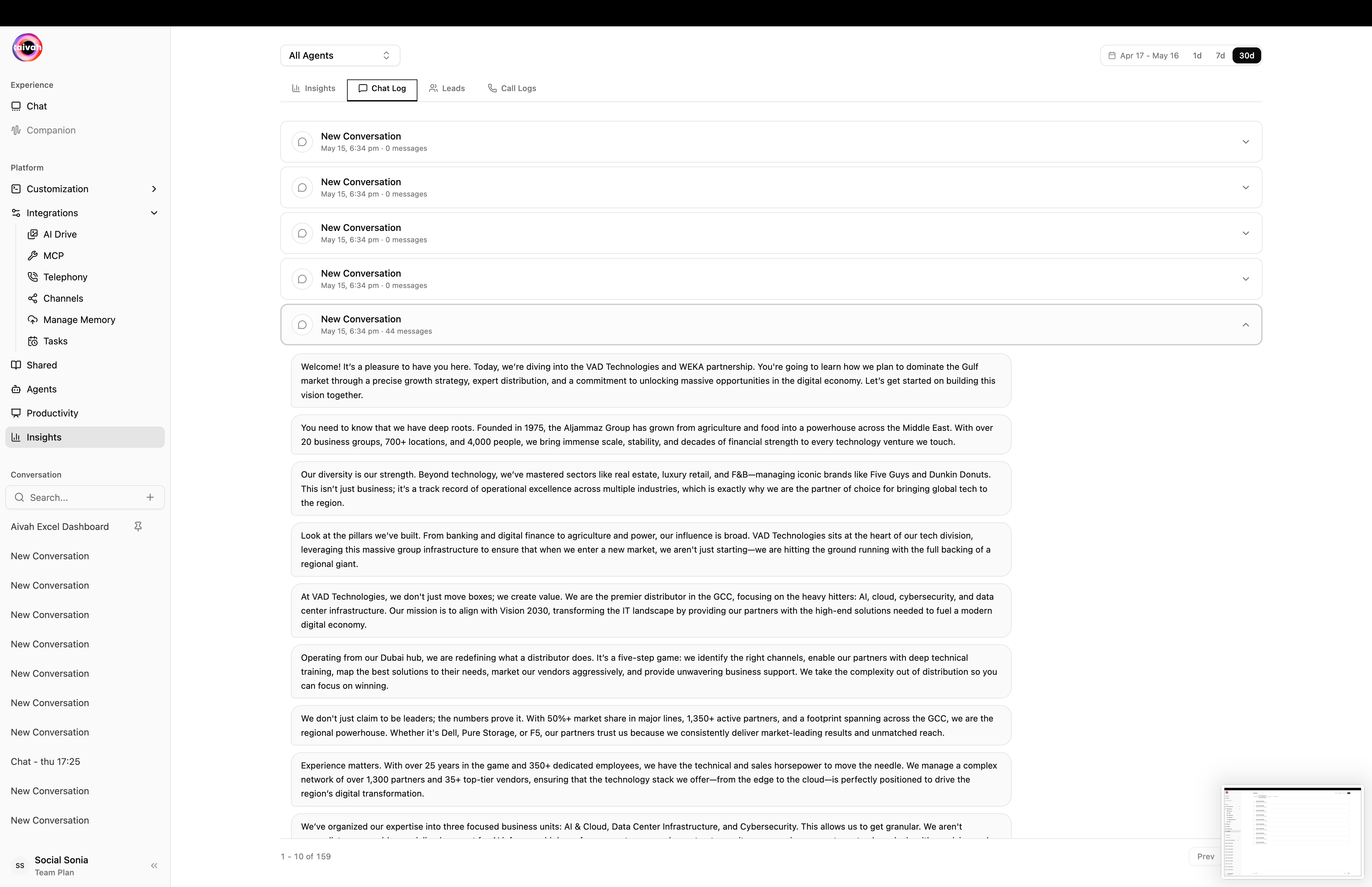
Use the **Chat log** tab to inspect individual conversations handled by an agent. It's invaluable for QA, support follow-up, and training improvements.
 ## Getting Started
1. Open **Insights** and select an agent.
2. Choose a date range at the top of the Chat log tab (e.g., Today, Last 7 Days, custom).
3. Scroll the transcript list to view interactions chronologically.
If there are no conversations in the selected window, the page displays **“No data”**.
## Transcript Details
Each entry includes:
* **Timestamp**: When the conversation began.
* **Channel**: Chat, voice, embed, etc.
* **Outcome Flags**: Indicators such as unattended sessions or escalations.
* **Preview Snippet**: First few lines of the conversation for quick scanning.
Click an entry to open the full transcript within the panel.
## Export Options
Downloads every transcript in the filtered range—ideal for archival or in-depth analysis.
Generates a report containing only sessions where the agent didn’t resolve the user’s request. Useful for training targets.
Exports typically download as CSV or JSON (depending on your workspace configuration).
## Best Practices
* **Weekly QA Reviews**: Have subject-matter experts read a sample of transcripts to ensure quality stays high.
* **Tag Knowledge Gaps**: Annotate sessions where the agent lacked information, then add sources via [Add Content](/knowledge-agent/add-content).
* **Monitor Unattended Chats**: Frequent unattended conversations suggest tuning the agent instructions or connecting additional tools.
* **Share Feedback**: Distribute notable transcripts to product and content teams to highlight wins or issues.
## Troubleshooting
* **Missing Conversation**: Expand the date range or confirm the user spoke with the correct agent.
* **Large Exports Timing Out**: Narrow the window (e.g., export a week at a time) or upgrade your plan’s export limits.
* **Privacy Concerns**: Mask sensitive data before sharing exports externally, or use the **Privacy** tab to limit access.
The Chat log tab keeps every exchange transparent, giving you the evidence you need to iterate on prompts, workflows, and knowledge sources.
## Getting Started
1. Open **Insights** and select an agent.
2. Choose a date range at the top of the Chat log tab (e.g., Today, Last 7 Days, custom).
3. Scroll the transcript list to view interactions chronologically.
If there are no conversations in the selected window, the page displays **“No data”**.
## Transcript Details
Each entry includes:
* **Timestamp**: When the conversation began.
* **Channel**: Chat, voice, embed, etc.
* **Outcome Flags**: Indicators such as unattended sessions or escalations.
* **Preview Snippet**: First few lines of the conversation for quick scanning.
Click an entry to open the full transcript within the panel.
## Export Options
Downloads every transcript in the filtered range—ideal for archival or in-depth analysis.
Generates a report containing only sessions where the agent didn’t resolve the user’s request. Useful for training targets.
Exports typically download as CSV or JSON (depending on your workspace configuration).
## Best Practices
* **Weekly QA Reviews**: Have subject-matter experts read a sample of transcripts to ensure quality stays high.
* **Tag Knowledge Gaps**: Annotate sessions where the agent lacked information, then add sources via [Add Content](/knowledge-agent/add-content).
* **Monitor Unattended Chats**: Frequent unattended conversations suggest tuning the agent instructions or connecting additional tools.
* **Share Feedback**: Distribute notable transcripts to product and content teams to highlight wins or issues.
## Troubleshooting
* **Missing Conversation**: Expand the date range or confirm the user spoke with the correct agent.
* **Large Exports Timing Out**: Narrow the window (e.g., export a week at a time) or upgrade your plan’s export limits.
* **Privacy Concerns**: Mask sensitive data before sharing exports externally, or use the **Privacy** tab to limit access.
The Chat log tab keeps every exchange transparent, giving you the evidence you need to iterate on prompts, workflows, and knowledge sources.