> ## Documentation Index
> Fetch the complete documentation index at: https://opinionai.mintlify.site/llms.txt
> Use this file to discover all available pages before exploring further.
# Voices
> Browse the Aivah voice library and clone your own voice
# Voices
The **Voices** page (`Side nav → Customization → Voices`, or `/avatars/voices`) lists every voice your account can use – both Aivah's built-in library and the private voice clones you upload.
Voices are the speech engine for:
* The chat composer (Playground)
* The avatar in [Avatar chat](/interaction-hub/voice)
* Telephony calls (see [Twilio Phone Setup](/integration/twilio-phone-setup))
* Channel responses where audio is supported
## What you see
* A grid of voice cards. Each card includes:
* Voice name
* Provider / model family (so you know which LLMs it pairs with)
* Playback controls to preview the voice
* A *Set as default* action
* A **Create** button (top-right) for adding a new voice clone.
* Search and pagination across the full library.
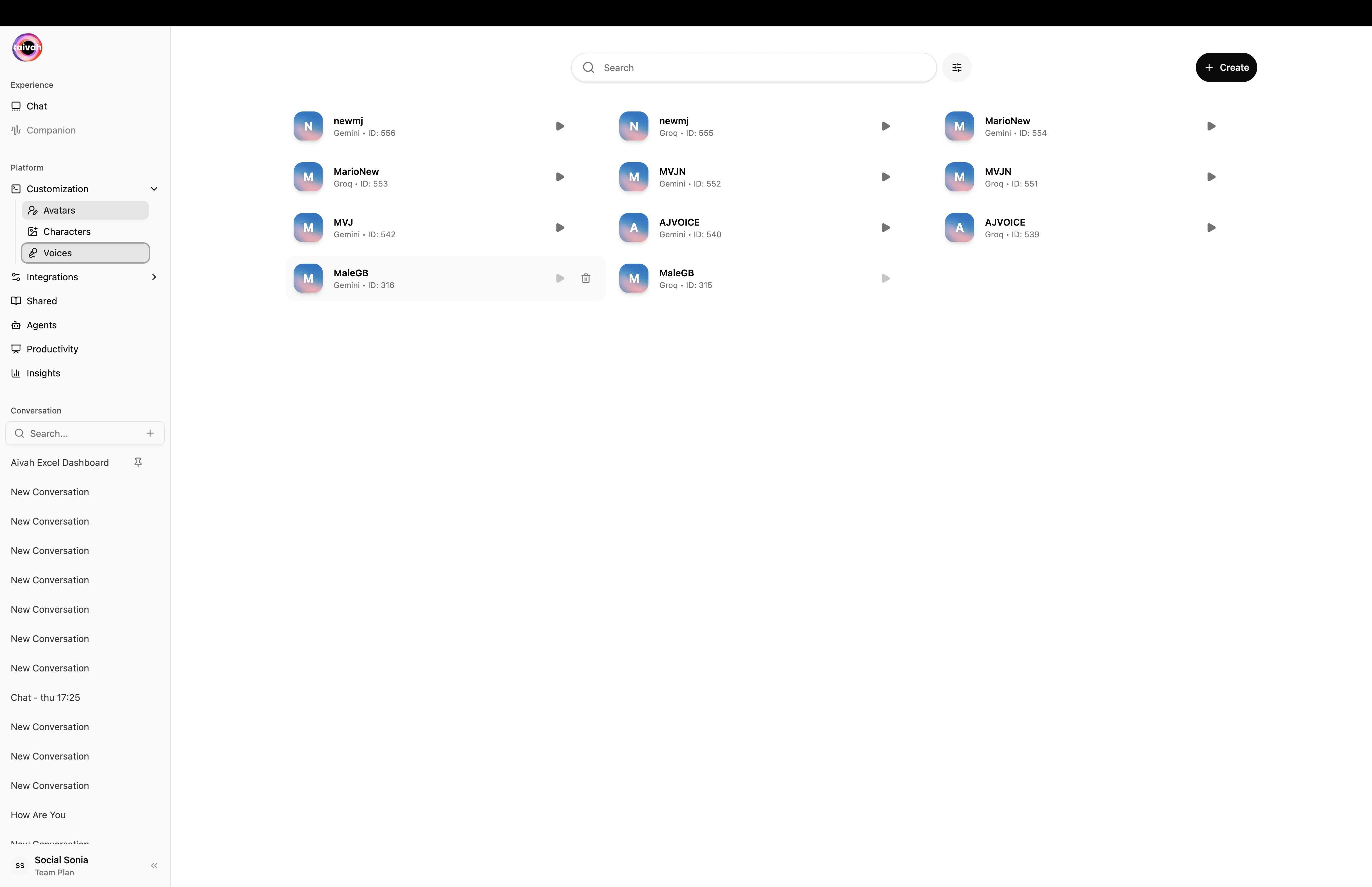 Switching the LLM provider in the chat composer may filter the available voice list. For example, Gemini voices appear when a Gemini model is active, and OpenAI Realtime voices appear when an OpenAI Realtime model is active.
## Clone a voice
Press **+ Create** in the header. The **Add voice** dialog opens.
Switching the LLM provider in the chat composer may filter the available voice list. For example, Gemini voices appear when a Gemini model is active, and OpenAI Realtime voices appear when an OpenAI Realtime model is active.
## Clone a voice
Press **+ Create** in the header. The **Add voice** dialog opens.
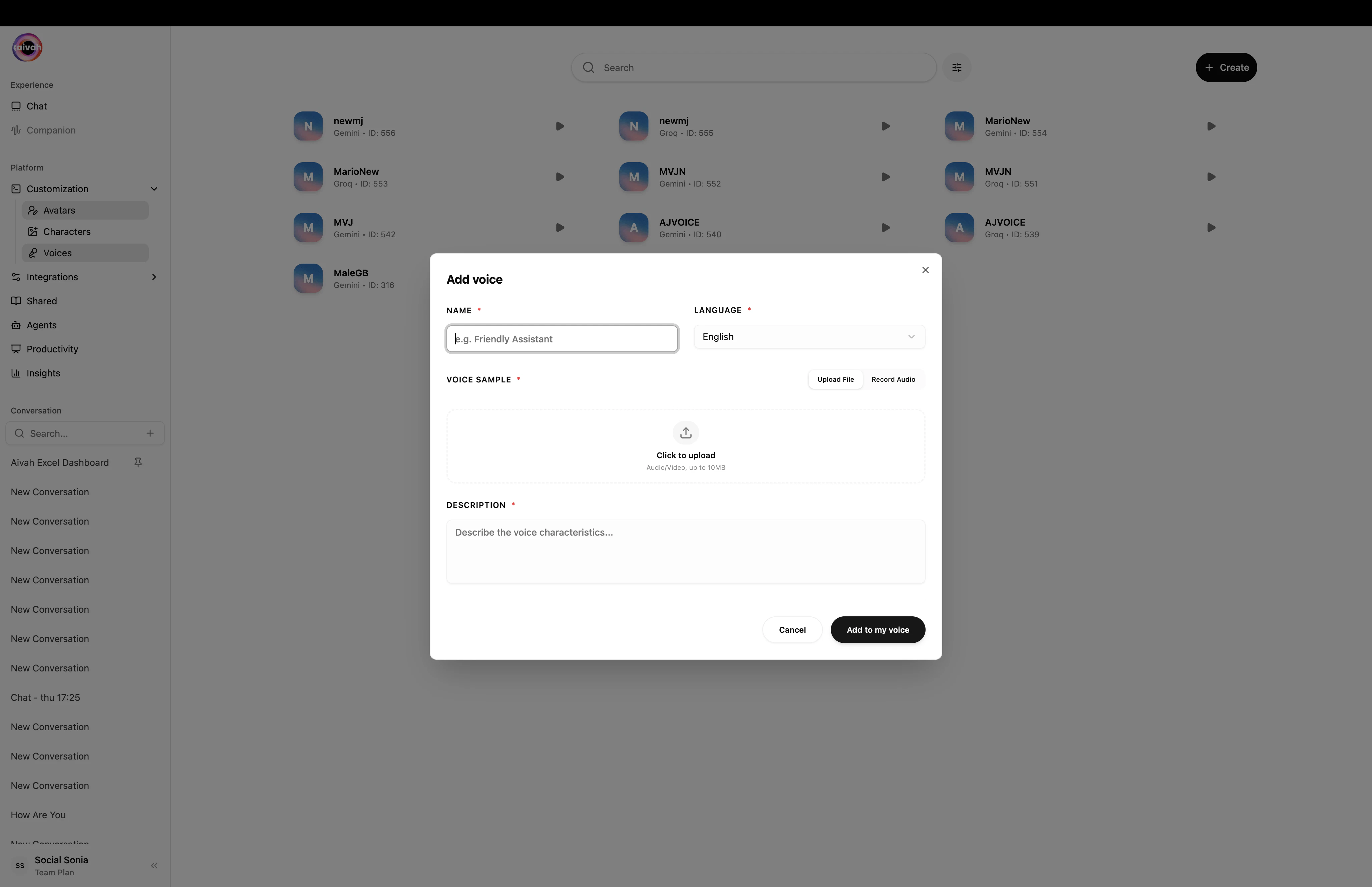 Select the language the voice will primarily speak (English, French, German, Spanish, Portuguese, etc.).
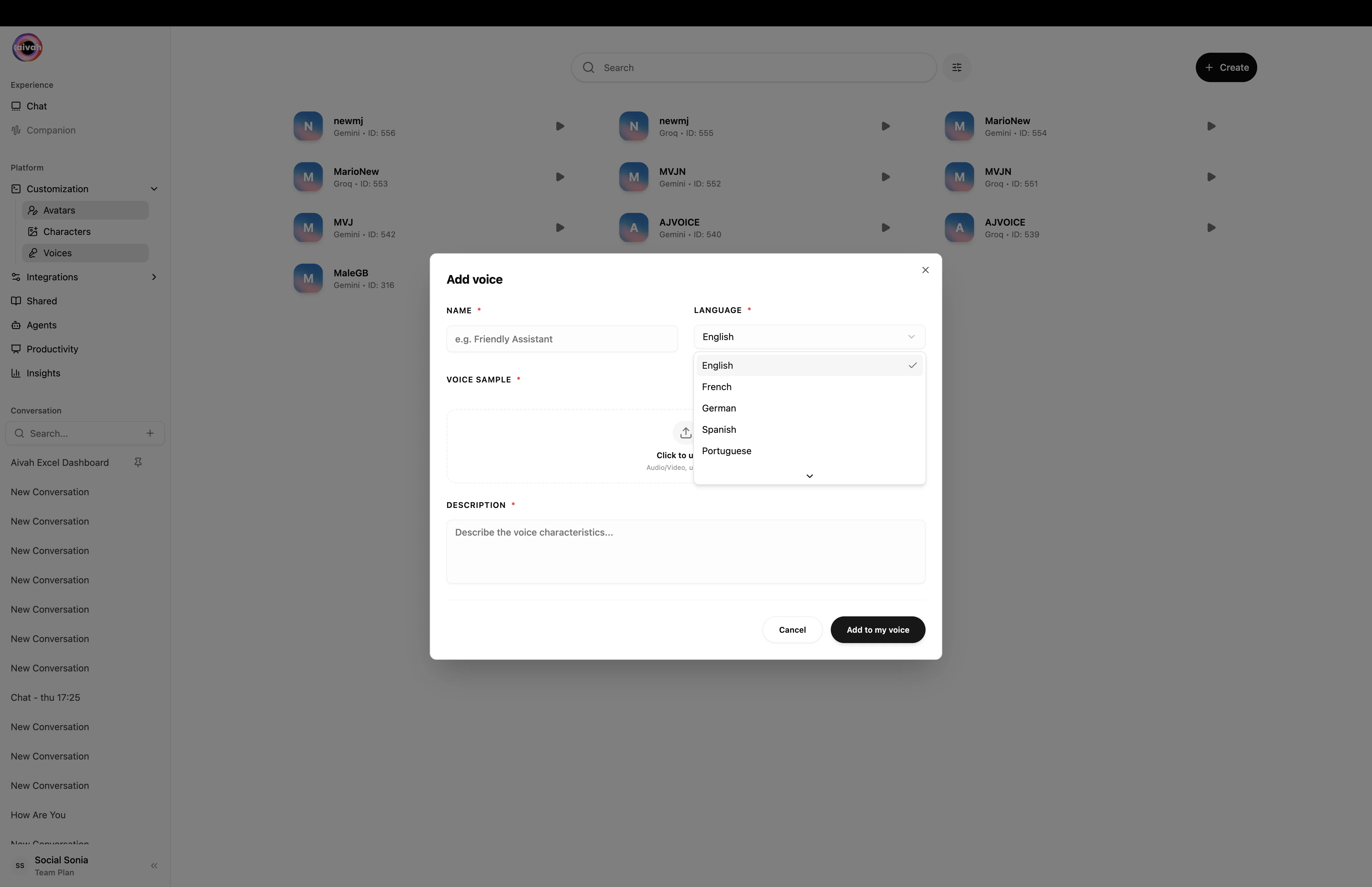 You can either **Upload File** (a short, mono audio file up to 10 MB) or **Record Audio** directly in the browser (up to 1 minute). For best results:
* Keep the recording free of background noise, music, or other voices
* Aim for natural pacing – read a short paragraph rather than a single sentence
* Use a quality microphone and the highest-fidelity export available
You can either **Upload File** (a short, mono audio file up to 10 MB) or **Record Audio** directly in the browser (up to 1 minute). For best results:
* Keep the recording free of background noise, music, or other voices
* Aim for natural pacing – read a short paragraph rather than a single sentence
* Use a quality microphone and the highest-fidelity export available
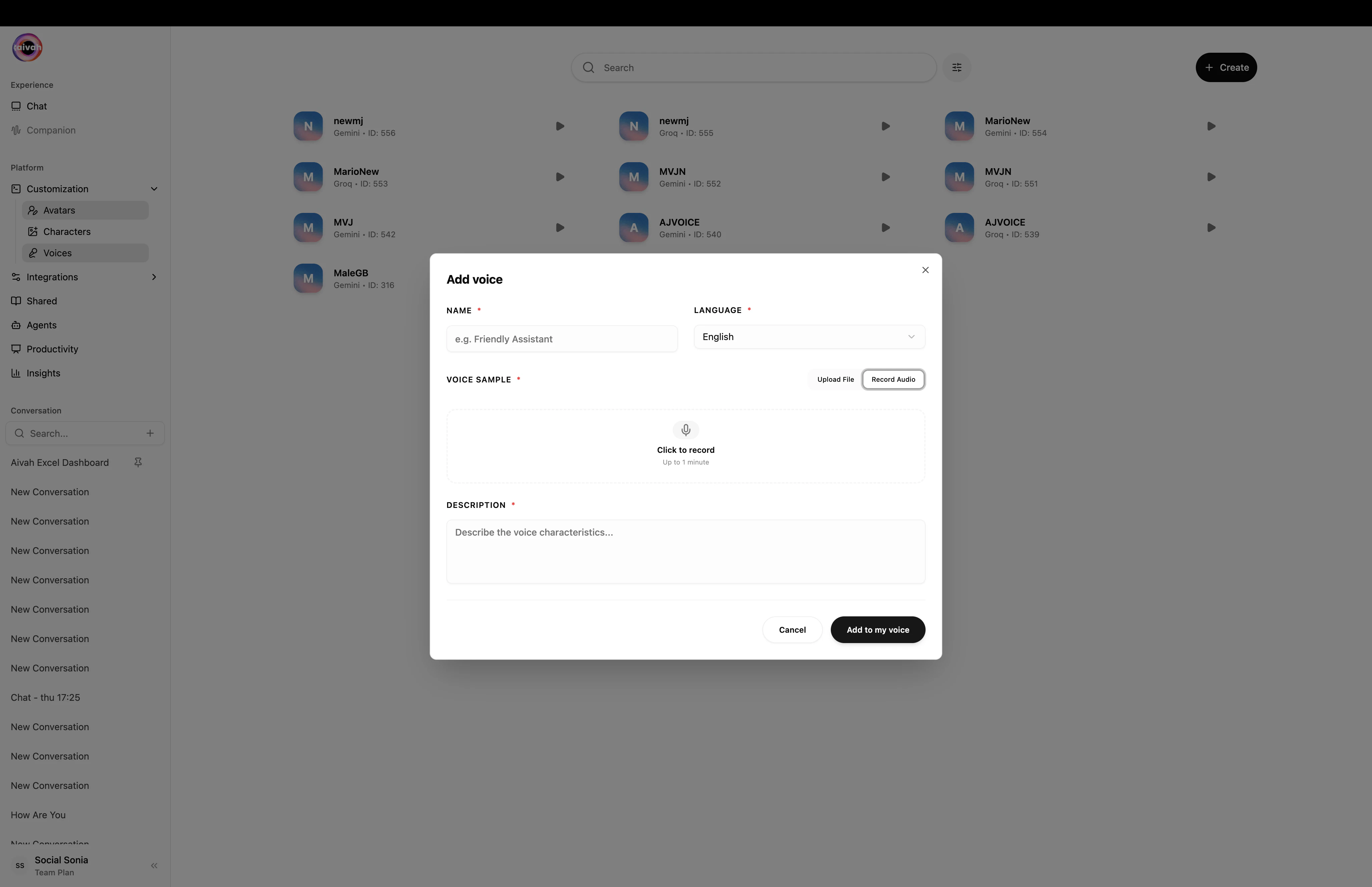 Give the voice a short, descriptive name (for example *Sarah – Casual*) and add a description of the voice characteristics. This is what appears in pickers throughout Aivah.
Click **Add to my voice**. The new voice enters processing. Once processed, it shows up in the list and can be selected wherever a voice can be picked.
## Use a voice
Voices can be selected in three places:
1. **Chat composer pills** – the voice pill in **New chat** or in the configuration pop-over for an existing conversation.
2. **Preferences modal** (palette icon in Avatar chat) – set the voice your avatar speaks with.
3. **Integration configuration** – Telephony and Channels both expose a voice picker so calls or channel messages use the right voice.
## Default voice
Mark a voice as your default to pre-fill the picker every time you start a new conversation. You can change the default at any time from the Voices page.
## Best practices
* **Cleanly trim recordings** – background noise during the training clip is reproduced in the clone.
* **Match accent and language** – clone voices reproduce the linguistic patterns of the source.
* **Test before publishing** – preview the clone in the Playground before assigning it to a shared agent or a phone number.
* **Pair voice and LLM** – some voice families are only available with specific LLM providers; if a voice disappears, switch the LLM back to the matching family.
## Related guides
* [Customization overview](/avatars/overview)
* [Hub Talk Mode and Avatar chat](/interaction-hub/voice)
* [Twilio Phone Setup](/integration/twilio-phone-setup)
* [Voice-Only Agents](/share/voice-only-agents)
Give the voice a short, descriptive name (for example *Sarah – Casual*) and add a description of the voice characteristics. This is what appears in pickers throughout Aivah.
Click **Add to my voice**. The new voice enters processing. Once processed, it shows up in the list and can be selected wherever a voice can be picked.
## Use a voice
Voices can be selected in three places:
1. **Chat composer pills** – the voice pill in **New chat** or in the configuration pop-over for an existing conversation.
2. **Preferences modal** (palette icon in Avatar chat) – set the voice your avatar speaks with.
3. **Integration configuration** – Telephony and Channels both expose a voice picker so calls or channel messages use the right voice.
## Default voice
Mark a voice as your default to pre-fill the picker every time you start a new conversation. You can change the default at any time from the Voices page.
## Best practices
* **Cleanly trim recordings** – background noise during the training clip is reproduced in the clone.
* **Match accent and language** – clone voices reproduce the linguistic patterns of the source.
* **Test before publishing** – preview the clone in the Playground before assigning it to a shared agent or a phone number.
* **Pair voice and LLM** – some voice families are only available with specific LLM providers; if a voice disappears, switch the LLM back to the matching family.
## Related guides
* [Customization overview](/avatars/overview)
* [Hub Talk Mode and Avatar chat](/interaction-hub/voice)
* [Twilio Phone Setup](/integration/twilio-phone-setup)
* [Voice-Only Agents](/share/voice-only-agents)