> ## Documentation Index
> Fetch the complete documentation index at: https://opinionai.mintlify.site/llms.txt
> Use this file to discover all available pages before exploring further.
# Characters
> Upload image-based AI personas (2D avatars) for your agents
# Characters
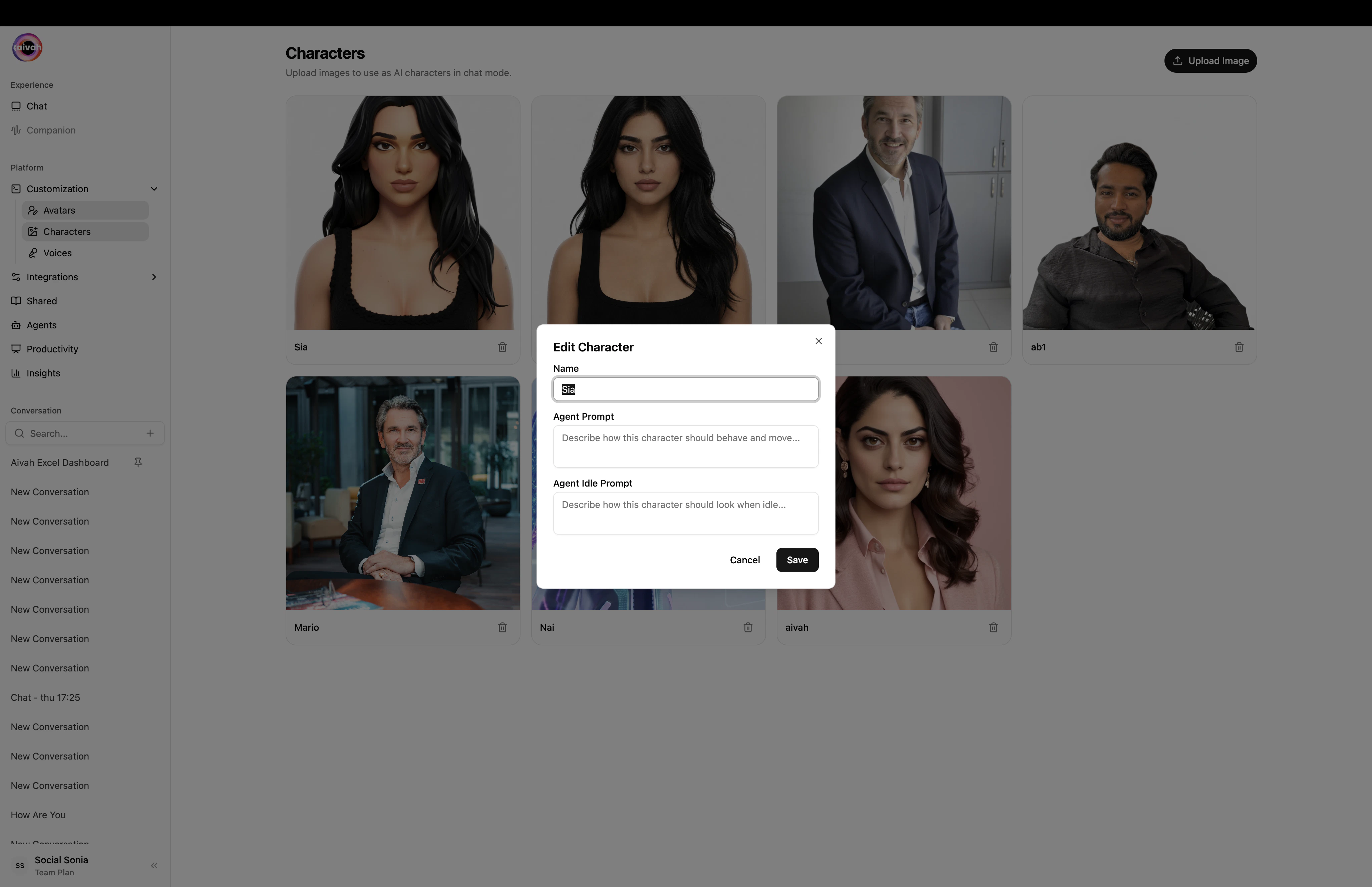
**Characters** are image-based AI personas – a single picture used as a 2D avatar in chat. They are the lightweight counterpart to the full 3D [Avatars](/avatars/available-avatars), perfect when you want a recognizable face without the rendering cost of a real-time 3D rig.
Open from `Side nav → Customization → Characters` (or `/avatars/characters`).
 ## What you see
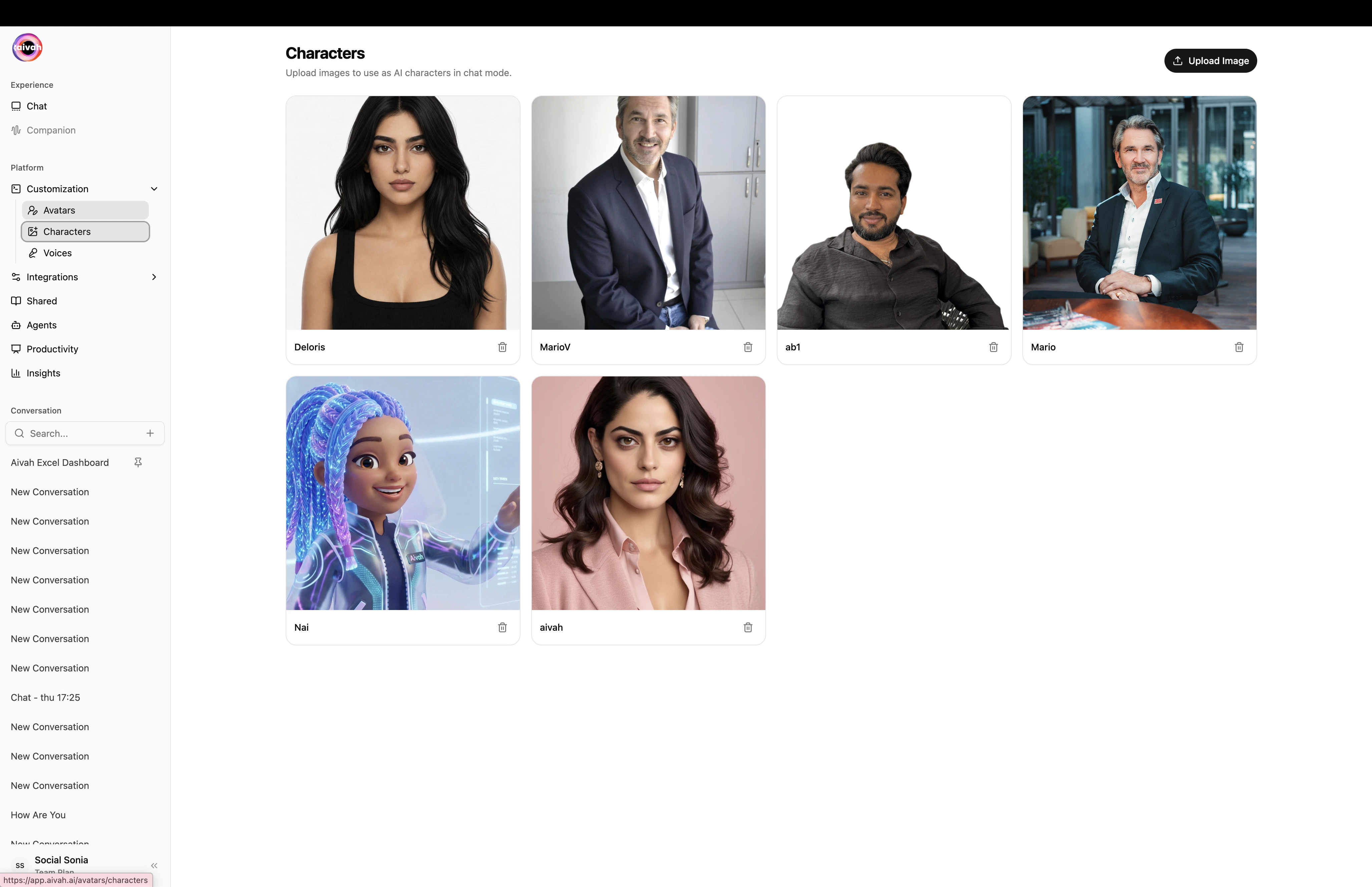
* A paginated grid of every character your account has access to.
* A **search** field to filter by character name.
* An **Upload Image** button (top right) that starts the create flow.
* Per-card actions: a pencil **Edit** icon and a trash **Delete** icon.
## Upload a new character
Press **Upload Image** in the top-right of the Characters page. A file picker opens.
Pick a clear, well-lit image. Any common format works (JPG, PNG, WebP). Headshots or shoulder-up portraits give the best result because the chat surface displays a near-square crop.
The **Crop** modal opens immediately after the upload. Pick an aspect ratio (1:1, 3:4, 4:5 or Custom), drag the handles to frame the head and face, then confirm.
## What you see
* A paginated grid of every character your account has access to.
* A **search** field to filter by character name.
* An **Upload Image** button (top right) that starts the create flow.
* Per-card actions: a pencil **Edit** icon and a trash **Delete** icon.
## Upload a new character
Press **Upload Image** in the top-right of the Characters page. A file picker opens.
Pick a clear, well-lit image. Any common format works (JPG, PNG, WebP). Headshots or shoulder-up portraits give the best result because the chat surface displays a near-square crop.
The **Crop** modal opens immediately after the upload. Pick an aspect ratio (1:1, 3:4, 4:5 or Custom), drag the handles to frame the head and face, then confirm.
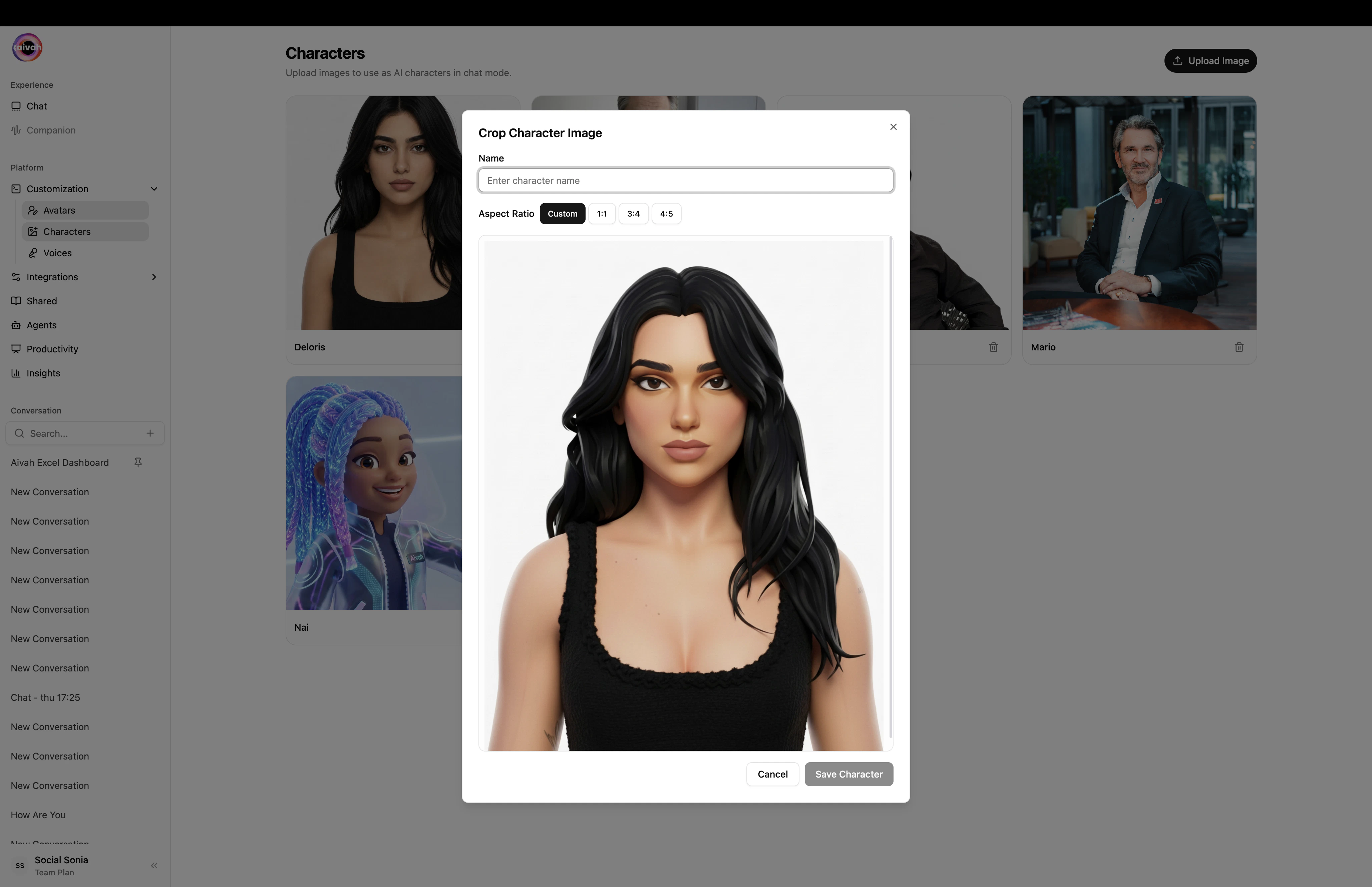 Give the character a short, recognizable name. This is what shows up in the agent / character picker inside the chat composer.
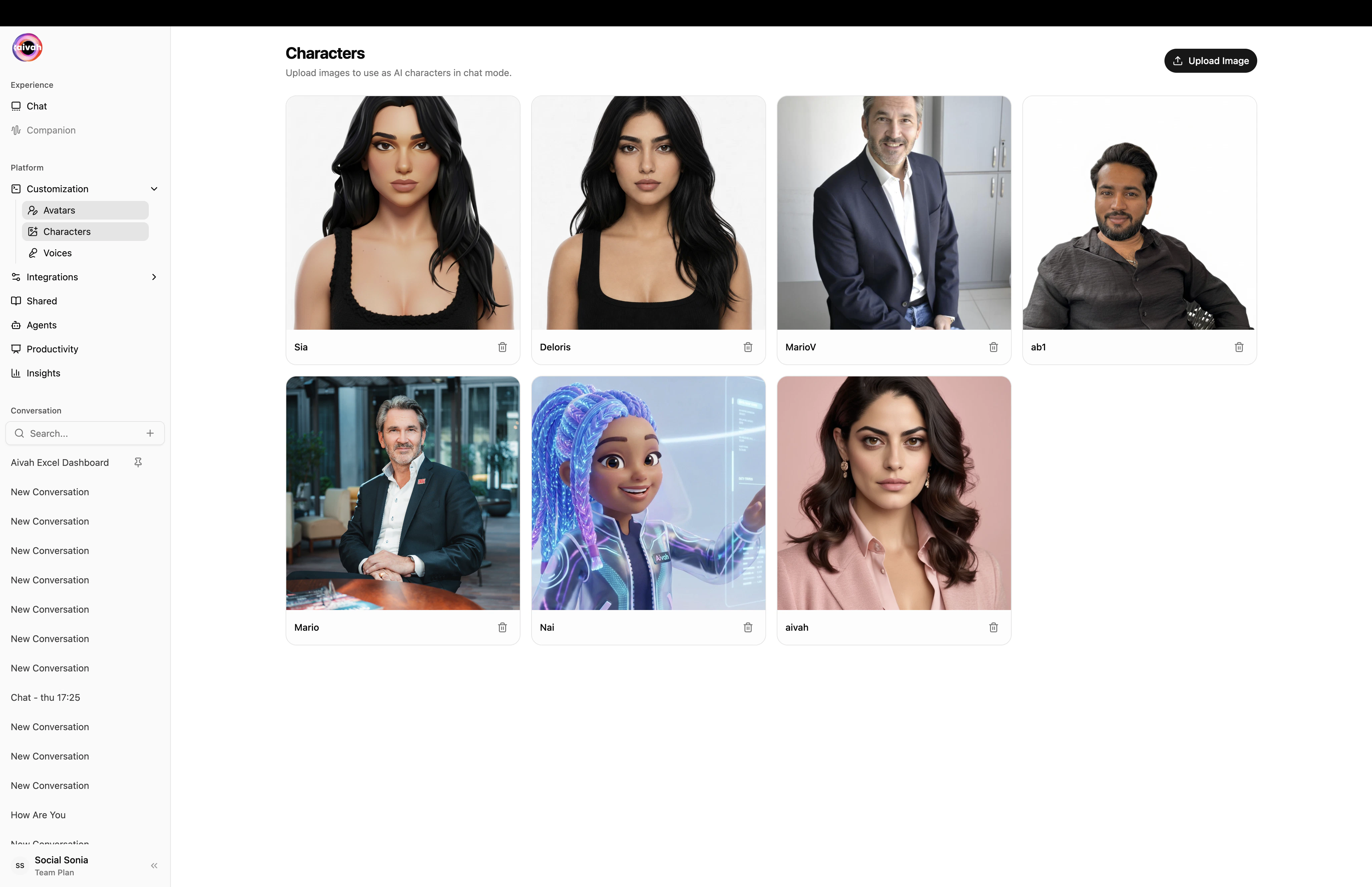
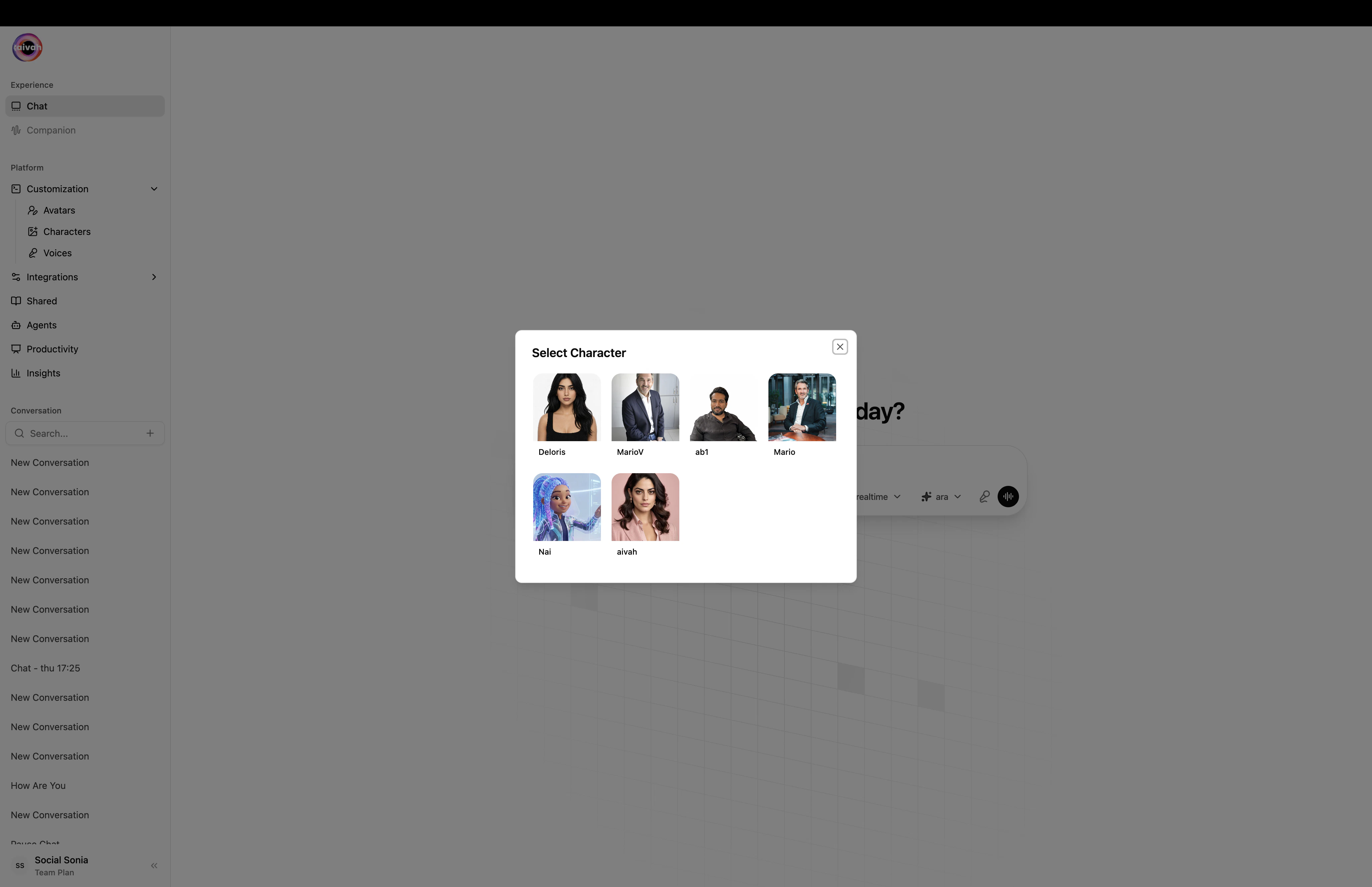
The new character appears in the grid and becomes selectable everywhere a character can be picked – including the **New chat** composer and the [Avatar chat](/interaction-hub/voice) Preferences modal.
Give the character a short, recognizable name. This is what shows up in the agent / character picker inside the chat composer.
The new character appears in the grid and becomes selectable everywhere a character can be picked – including the **New chat** composer and the [Avatar chat](/interaction-hub/voice) Preferences modal.
 ## Manage existing characters
Each card supports two actions:
* **Edit** (pencil icon) – rename the character, update the **Agent Prompt** (how the character should behave), update the **Agent Idle Prompt** (how the character should look when idle), or re-crop the original image.
* **Delete** (trash icon) – permanently removes the character.
## Manage existing characters
Each card supports two actions:
* **Edit** (pencil icon) – rename the character, update the **Agent Prompt** (how the character should behave), update the **Agent Idle Prompt** (how the character should look when idle), or re-crop the original image.
* **Delete** (trash icon) – permanently removes the character.
 Characters that are referenced by a published **Shared** agent cannot be deleted while the share is live. The API returns an explanation toast. Unpublish the shared agent first, then retry the delete.
## When to use a character vs a 3D avatar
| Use a Character when… | Use a 3D Avatar when… |
| ---------------------------------------------------------------------------- | --------------------------------------------------------------------------- |
| You want a brand-true headshot, illustrated mascot, or stylized portrait. | You want a fully animated companion that lip-syncs and reacts in real time. |
| You're embedding the agent in a small surface (chat bubble, sidebar widget). | You're delivering an immersive Avatar chat experience. |
| You need to launch in minutes without rigging or modeling. | You're presenting, hosting events, or want strong scene presence. |
You can switch the active persona at any time from the composer pills in the Playground – swapping a character or avatar does not interrupt the conversation.
## Related guides
* [Avatars overview](/avatars/overview)
* [Create a 3D avatar](/avatars/create-avatar)
* [Voices and voice cloning](/avatars/voices)
* [Avatar chat in the Hub](/interaction-hub/voice)
Characters that are referenced by a published **Shared** agent cannot be deleted while the share is live. The API returns an explanation toast. Unpublish the shared agent first, then retry the delete.
## When to use a character vs a 3D avatar
| Use a Character when… | Use a 3D Avatar when… |
| ---------------------------------------------------------------------------- | --------------------------------------------------------------------------- |
| You want a brand-true headshot, illustrated mascot, or stylized portrait. | You want a fully animated companion that lip-syncs and reacts in real time. |
| You're embedding the agent in a small surface (chat bubble, sidebar widget). | You're delivering an immersive Avatar chat experience. |
| You need to launch in minutes without rigging or modeling. | You're presenting, hosting events, or want strong scene presence. |
You can switch the active persona at any time from the composer pills in the Playground – swapping a character or avatar does not interrupt the conversation.
## Related guides
* [Avatars overview](/avatars/overview)
* [Create a 3D avatar](/avatars/create-avatar)
* [Voices and voice cloning](/avatars/voices)
* [Avatar chat in the Hub](/interaction-hub/voice)